---
title: "VOLT- Site Designer Blocks: Mega-Menu Header"
description: "VOLT- Site Designer Blocks: Mega-Menu Header"
---
[Skip to content](https://help.volusion.com/v2-volt/sitedesignerblocksmegamenuheader#main-content)
English
Show submenu for translations

Open main navigation
Close main navigation
- English
Show submenu for translations
- Contact us
Contact us
How can we help you?
- There are no suggestions because the search field is empty.
1. [Volusion Help Center - V2 / Volt](https://help.volusion.com/v2-volt?hsLang=en)
2. [V2](https://help.volusion.com/v2-volt/v2?hsLang=en)
# VOLT- Site Designer Blocks: Mega-Menu Header
When it comes to displaying information in your store's header, our Mega-Menu Header provides a lot of customization.
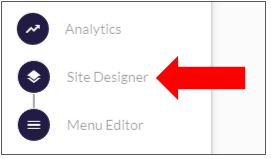
From your store's Dashboard click the Site Designer icon in the left Navigation Menu.
Your store offers a [default Header Block](https://help.volusion.com/en/articles/3135241-site-designer-blocks-header-block?hsLang=en) as well as several different header options. These optional Headers can be accessed by adding them to your store's Homepage. Make sure the dropdown menu at the top of the Site Designer page is set to **Page: Home**. This will ensure that your new header applies to all of the pages on your store.

On the Home Page, mouse over the page until you see the **Plus Sign** icon to add a new block. Click the **Plus Sign** icon and locate the Header section of the **Add A Block** menu. Open the section and choose Mega-Menu Header, using the **Add Block** button.
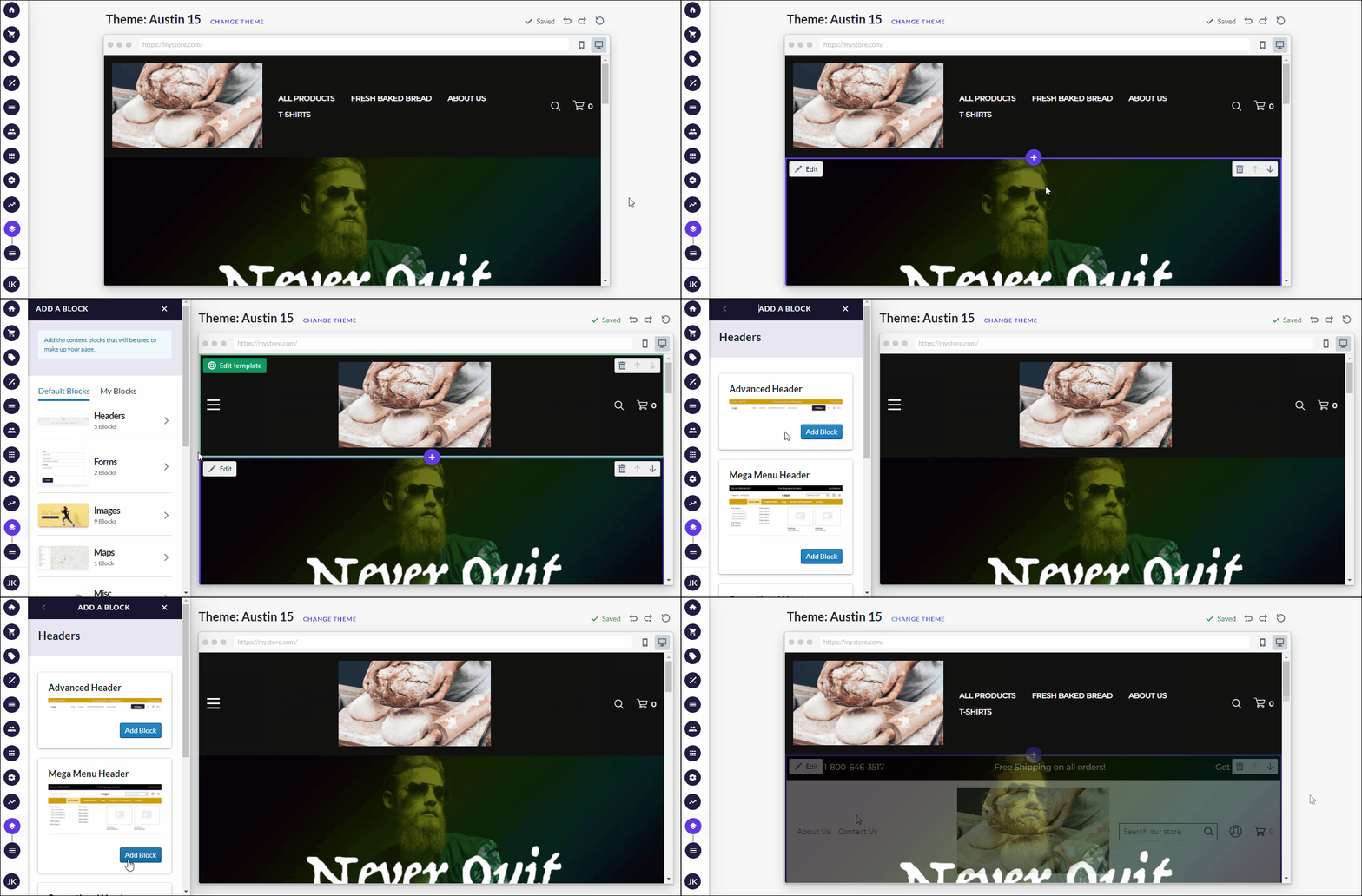
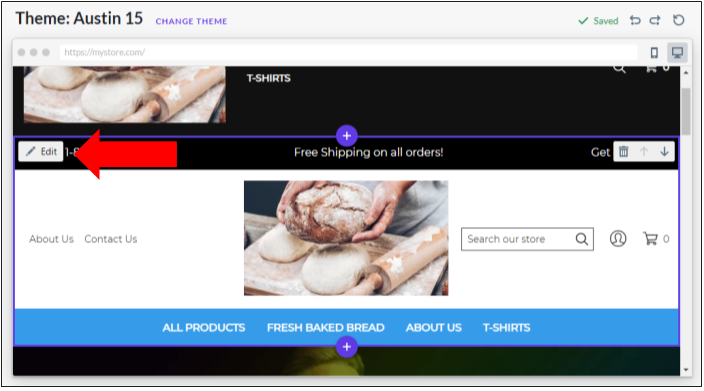
Once your block has been added, hover over the new header section and locate the gray **Edit** button. Use the **Edit** button to open the Edit Block menu and customize it.
The Edit Block menu for the Mega-Menu Header offers these options:
**Header Block Controls**
Trash Can Icon to Delete Block
Arrows to move block up or down the page
Make This Block Reusable Toggle
**Top bar:**
Enable Toggle
Left Text Edit Text Button
Center Text Edit Text Button
Right Text Edit Text Button
Background Color Chooser
Text Color Chooser
**Header Colors:**
Background Color Chooser
Text Color Chooser
Text Hover Color Chooser
**Utility Links:**
Utility Link Add Button
About us Utility Link (Default)
Contact Us Utility Link (Default)
Utility Links include Text Input Field and Link Input Field
**Search:**
Placeholder Text Input Field
**Nav Menu Border:**
Enable Top Border Toggle
Enable Bottom Border Toggle
Border Color Chooser
**Setup Mega Menu:**
Add Mega Menu Button
Item 1 Mega Menu (Default)
Includes Menu Item Name To Apply Mega Menu To Input Field
**Nav Menu: 1st Level:**
Make Uppercase Toggle
Bold Links Toggle
Font Size Slider
Vertical Padding Slider
Background Color Chooser
Text Color Chooser
Text Hover Color Chooser
**Nav Menu: Sub-Menus:**
Background Color Chooser
Text Color Chooser
Text Hover Color Chooser
**Mega Menu: 2nd Level:**
Bold Links Toggle
Font Size Slider
Vertical Padding Slider
**Mega Menu: 3rd level:**
Indent Links Toggle
Font Size Slider
Vertical Padding Slider
Text Color Chooser
Text Hover Color Chooser
Make sure to click the **Done** button at the bottom of the block edit section to save your changes.
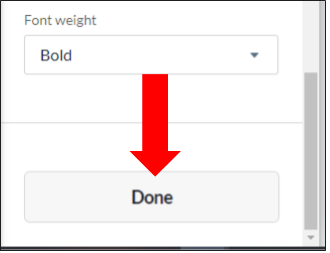
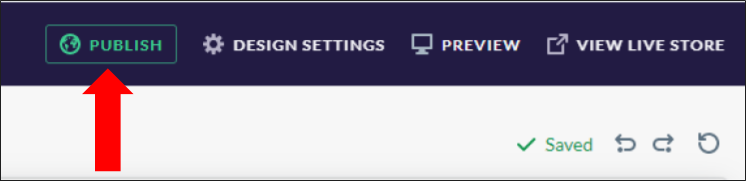
Additionally, you will need to click the green **Publish** button at the top of the page to make your changes live on your store.
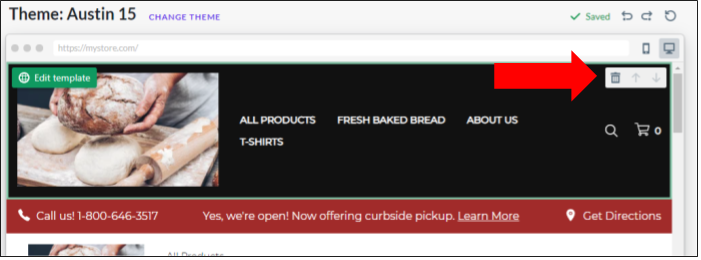
You will likely want to remove the default header at this point. To do so, locate the default header, easily distinguished by its green **Edit Template** button, visible when you mouse over it. On the right side of the default header, you can click the **Trash Can** icon to delete the default header.
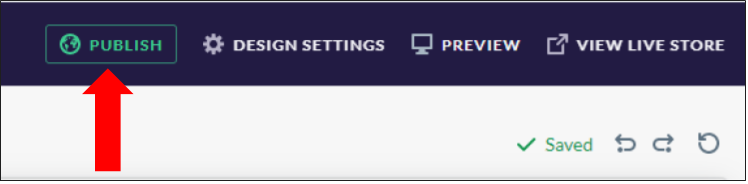
As a final step, make sure you click the green Publish button located at the top of the page to make your changes visible on your customer-facing site.
- [V2](https://help.volusion.com/v2-volt/v2?hsLang=en)
[](https://volusion.com/)
[mailto:email@email.com](mailto:email@email.com)
Copyright © 2026, Volusion