
This article covers two accounts you will maintain:
-
Your Admin Account. Use your Admin Account to manage your store, add products, process orders, and access your dashboard.
-
Your My.Volusion Account. Use your My.Volusion Account to pay your Volusion bill, see your unique Store ID, and change how you want Volusion to contact you.
What is an Admin Account?
Your Admin Account is the email and password combination used to access your Admin Area. Your Admin Area is where you build and maintain your store. You can access your Admin Area by adding /admin to the end of your domain name in your web browsers address bar.
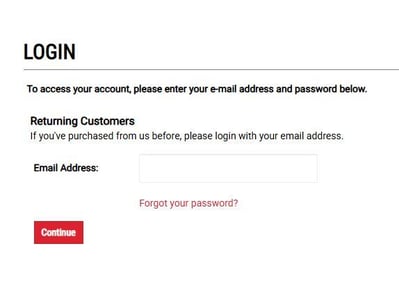
The Admin Account login page will first look like your store's customer login page. Enter your email address and password and click the continue button. The Auth0 system will then determine if you are an admin email or customer email and redirect you as such to the next screen.
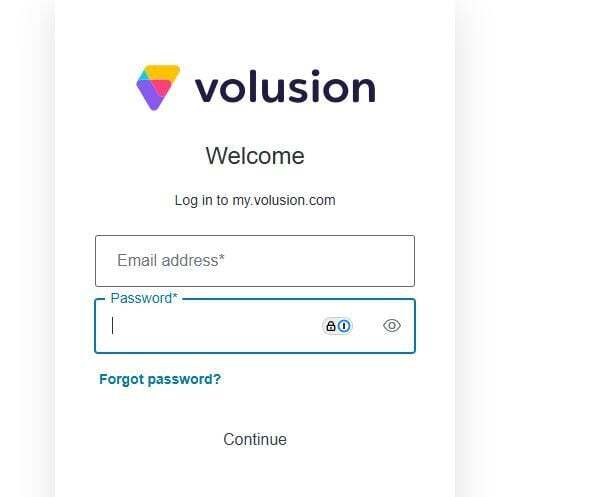
Here you will see what is called the Auth0 log in screen(which is specific to admin account log ins and my.volusion.com log in methods). Enter in your email address and password and then click continue.
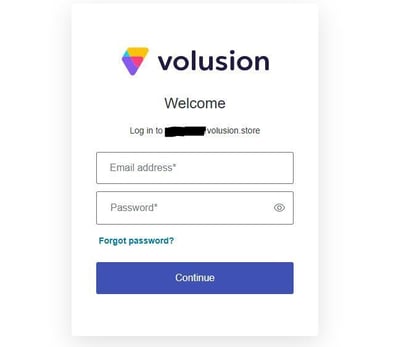
If your email and password are correct you will now be redirected to your admin dashboard. You know youre in the right place when you see a navigation menu across the top of the page.

How is an Admin login created?
Your Admin Account is created when you first purchase your store, using the email address and password you entered when signing up.
How can I change my Admin email and password?
To update your admin login email...
- Log in to your Admin Area and go to Customers > Administrators.
- Select the customer ID number associated with your Admin account.
- From the Customer Account page, change the Email Address as desired.
Click Save.
To update your admin login password...
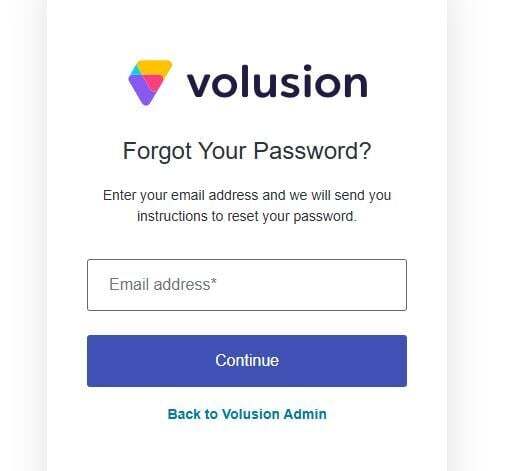
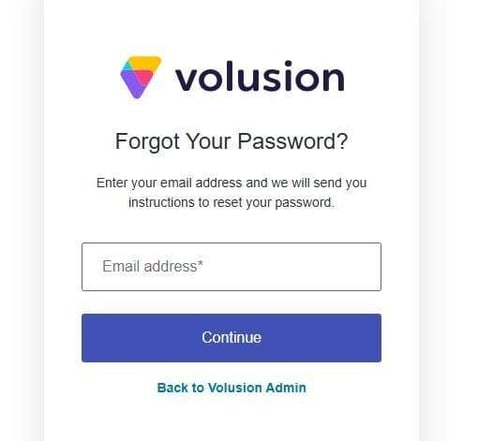
With the introduction to Auth0, users can no longer update the password within the admin dashboard. To now change those passwords you must use the forgot password process found on the Auth0 log in page which will pop up when you attempt to go to /admin of your site (if not logged in).
1.Head to www.domain.com/admin. (Make sure to change out "domain" with your stores domain name.)
2.Enter your email address within the email address field.
3.Click the continue button.
4.Click Forgot password.
5.Enter in your email address.
6.Click continue.
You should now be sent a password forgot link to the email address provided. Click the provided forgot password link to be taken to the page to set your new password.
?? Your password must meet the following criteria:
-
8 characters
-
a lowercase letter
-
an uppercase letter
-
a number
-
special character (!@#$%^&*) in the password
-
password limited to 20 characters
Can a store have multiple Admin accounts?
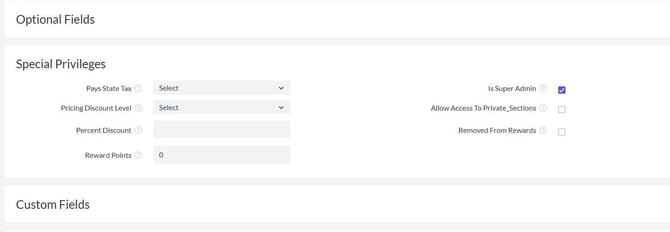
Yes. The store owner is known as the Super Admin. A Super Admin can establish additional Admin accounts. Super Admin accounts have the Is Super Admin box checked in the Special Privileges section of their account page.
See How to Add a New Administrator Account for instructions on adding multiple Admin accounts.
My Admin password expired and I cannot login to my Admin Area.
Your Admin password will need to be changed every 90 days or it will expire. If your password expires, reset it depending on your role in the store:
-
I am the store owner or Super Admin - Reach out to Volusion Support to reset your Admin password.
-
I am not the store owner or Super Admin - Contact the store owner to reset your Admin password. The store owner will need to follow the instructions in the previous section "How can I change my Admin email and password?" to reset your password.
My Admin password has not expired, but I cannot login.
Visit your Admin login page( /admin ) and click the "Forgot Your Password?" link. Follow the prompts to receive a password reset link.
My.Volusion Account
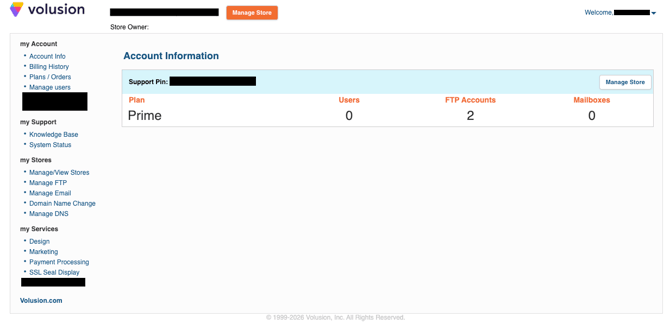
Besides your Admin Account, youll need to know how to access your My.Volusion Account. The My.Volusion Account enables you to order products and services from the Volusion website and also to access my.volusion.com.
How is a MyVolusion Account login created?
There are a few ways to establish a My.Volusion Account login (username and password):
-
Opening a free 14-day trial
-
Clicking Register on the MyVolusion login screen (my.volusion.com)
-
Completing the Registration fields when making a purchase on www.volusion.com.
When a My.Volusion Account login is created, it is assigned a unique database ID number. Although an accounts email address and password can be changed at any time, the ID number cannot be changed.
With the introduction to Auth0 all store owners(and any other admin who has my.volusion.com access) admin dashboard and my.volusion.com log in credentials will match both systems and share an email and password between the two.
How do I use my MyVolusion account to order a service from Volusion?
When you click Proceed to Checkout, youll be given the option to login to an existing account or to create one.
-
To checkout with an existing account: Click Log In next to "Already have an account or trial with us?"
-
To create a new account at checkout: Provide your billing address, payment info and an email address and password in the Registration fields that you want to use for your account.
Ive logged into my MyVolusion account. Now what can I do?
-
View your monthly account usage history
-
Upgrade your pricing plan level and/or pricing plan features
-
Create and manage email and FTP account logins
-
Retrieve customized reports on website traffic and data transfer statistics
-
Manage your DNS records
-
View your billing and order histories
-
Add/edit a payment method for monthly fees
-
Manage your contact information and MyVolusion area login details
-
Establish and edit your secret question/answer (used to verify your ID during calls and live chats with support team)
How can I change my MyVolusion Account email or password?
To update the email address on your my.volusion.com account you must contact Volusion support for assistance!
In order to update the password tied to your my.volusion.com account you must use the forgot password process on the auth0 login pop up page(see instructions below)
I forgot my MyVolusion account password and cannot login.
Click Forgot Password? on the login screen at my.volusion.com and follow the prompts to receive a password reset link.
Can a store have multiple MyVolusion Account logins?
Yes. The store owner's MyVolusion Account can create additional MyVolusion Accounts.
-
In your MyVolusion Account, click Manage Users in the left-hand menu.
-
Select the store from the Choose a Domain dropdown menu and click Add New User.
-
Fill out the name and email address fields.
-
Set the users viewing/editing privileges.
-
Click Save.
An email will be sent to the new user's email address containing a link to a MyVolusion registration form. To complete registration, the new user will choose a password and a secret question & answer.
?? Important Note: Only the store owner's MyVolusion Account has access to Volusion Support. Keep your password and secret question & answer safe at all times.
How do I know which is the primary MyVolusion Account?
All orders placed on our website are linked to a unique account ID number that is established when a MyVolusion Account login is created. When you log in to your MyVolusion account, your account ID number and name display in the top-right corner of the interface.
How do I delete an additional MyVolusion Account?
The store owner's MyVolusion Account can delete additional MyVolusion Accounts from the list of authorized users. An account deleted by the primary MyVolusion Account from the stores user list can still login, but will have no viewing/editing rights for that store.
To delete a MyVolusion Account from a stores list of authorized users:
-
Login to the store owner's MyVolusion Account.
-
Click Manage Users.
-
Select the store name from the Choose a Domain dropdown menu.
-
Select the account you wish to remove and click Delete.