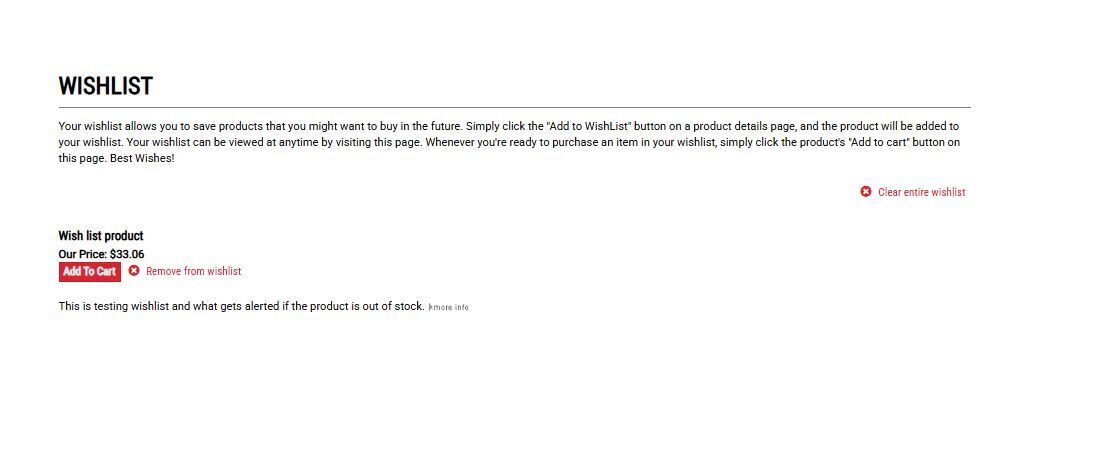
With the Wish List feature, your customers can add items to purchase at a later date. Here's how to get it activated:
Activating the Wish List Feature
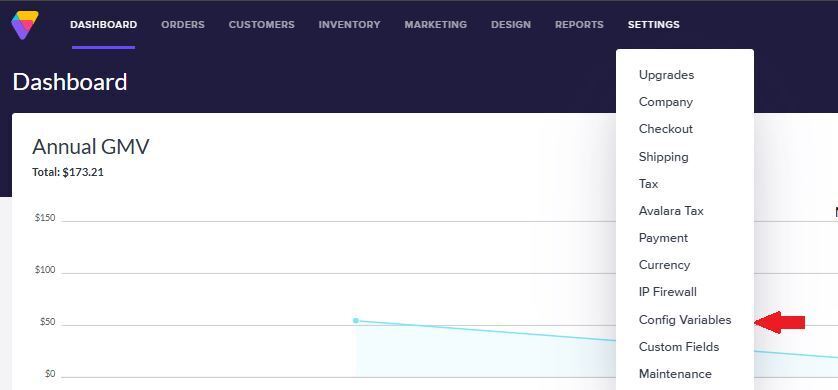
In your Admin Area, go to Settings > Config Variables.
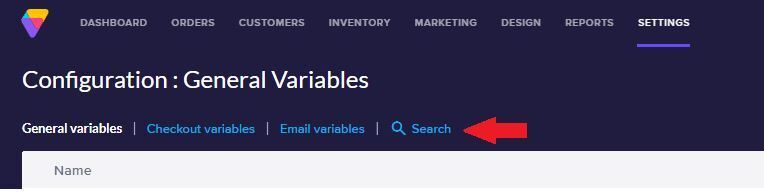
Click the Search button.
In the Name field type "Wish List" and click Search.

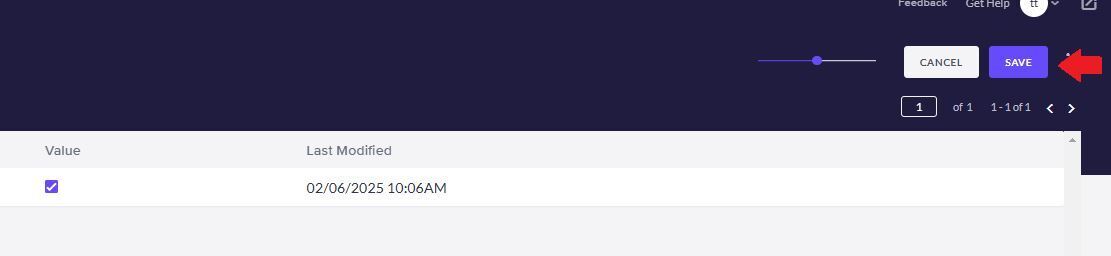
Select the Enable Wish List check box on the config variables results page.

Click theSave button at the top right side of the page.
This lets registered customers mark products for future purchase! They can check out their wish list at any time from their My Account page.
Adding Items to a Wish List
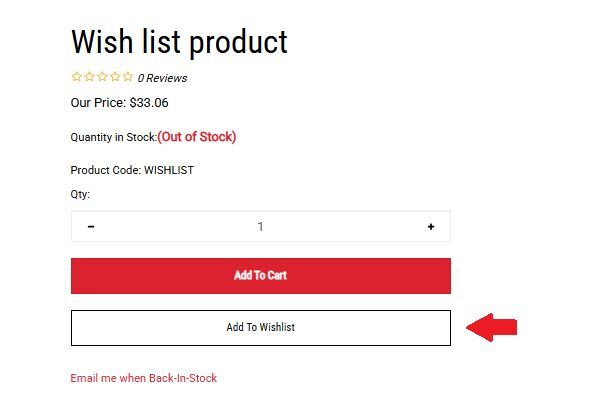
Once a customer logs in to their account on your storefront and browse to a product page, there will be a link for them to Add to Wish List next to the Add To Cart button. Once clicked, the customer is sent to their account's Wish List, which shows all the items they've added.
Viewing Items in a Wish List
Customer can view their wish list from their account any time. Under the Other Features section, there will be a link to View my Wish List which will take them to their Wish List page. From there, they can click either the Add to Cart or Remove from Wish List buttons, and proceed with checkout.