---
title: "Volusion Payments : Wallet Payments"
description: "Learn more about Volusion Payments : Wallet Payments in this guide."
---
[Skip to content](https://help.volusion.com/s/volusion-payments-wallet-payments#main-content)
English - United States
Show submenu for translations

Open main navigation
Close main navigation
- English - United States
Show submenu for translations
- [Contact Us](https://volusion.com/contact)
[Contact Us](https://volusion.com/contact)
Search the Help Center
- There are no suggestions because the search field is empty.
1. [Volusion Help Center](https://help.volusion.com/s?hsLang=en-us)
2. [V1](https://help.volusion.com/s/v1?hsLang=en-us)
# Volusion Payments : Wallet Payments
When it comes to Online shopping, convenience equals conversions.According to Stripe, enabling Wallet payments has raised conversions by an average of 7%. With Volusion Payments, you can now offer [Stripe Wallet](https://stripe.com/payments/link) to make your customer's checkout experience fast and convenient with Google Pay, Apple Pay, and Stripe Link.
For more information on Volusion Payments, please see our [Volusion Payments Powered by Stripe article.](https://helpcenter.volusion.com/s/article/Volusion-Payments-Powered-By-Stripe?hsLang=en-us)
**Please Note:** This Payment option is not currently available if your [Gateway Capture Settings](https://helpcenter.volusion.com/s/article/ManagingYourPaymentSettings?hsLang=en-us) are set too 'Manual Authorize and Capture'.
How to Enable Different Wallet Payment Methods within Stripe.
You are able to choose from a variety of payment methods you would like to offer your customers, by clicking a few buttons in your Stripe Dashboard.
\- Apple Pay
\- Google Pay
\- Stripe Link
\- Amazon Pay
\- Buy Now Pay Later Payment Methods like Klarna , Affirm, and Afterpay
**Please Note:** All of these options require **Premium Checkout**, which can be enabled in your admin Dashboard under Settings \> Checkout.
You can review more of Stripe's documentation here: [https://docs.stripe.com/payments/payment-methods](https://docs.stripe.com/payments/payment-methods)
1.Log into your [Stripe Dashboard](https://dashboard.stripe.com/)
2.Click the **Settings wheel** in the upper right Corner and click **'Settings'.**
.png?width=670&height=233&name=image%20(25).png)
3\. Click on **Payments** Link, and then click on the '**Payment Methods**' Tab
.png?width=670&height=436&name=image%20(26).png)
4\. Click the three-dot icon next to the payment method you want to enable and then click 'Enable'.
.png?width=670&height=327&name=image%20(27).png)
After enabling them, they will show a green 'Active' status.

How it Works:
Customers can setup convenient pay options like [Google Pay](https://stripe.com/docs/google-pay) or [Apple Pay](https://stripe.com/docs/apple-pay) in their browser or mobile device. They can also setup a payment option called '[Stripe Link](https://stripe.com/docs/payments/link) '.The system will detect if they have these options configured in their browser, and will display the appropriate payment option in the cart, shopping cart page and checkout pages. The customer can select they want to pay with these options, and when they get to the checkout page.
This allows customers to save their payment and address information for a quicker and easier checkout experience within these payment options.
The following example shows the Express Checkout section of our Premium Checkout feature. You can see this merchant has activated several payment options that speed up the checkout process:
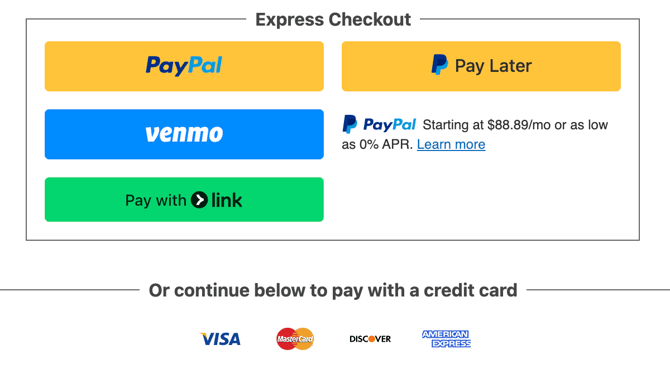
The same options will also appear in the payment section of the checkout process.
Order Processing:
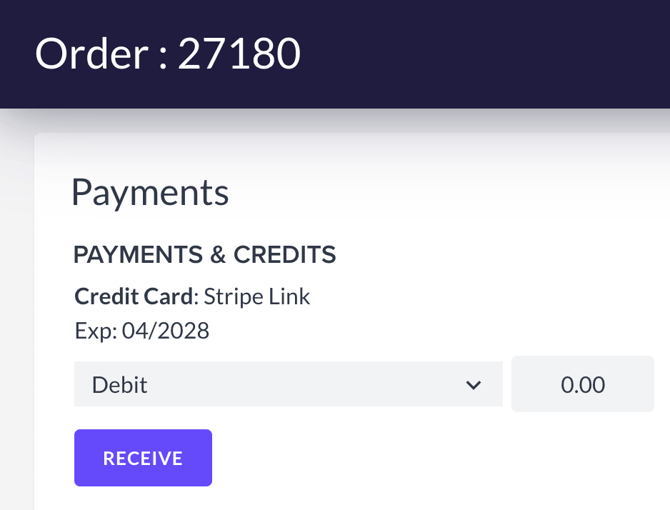
Processing Orders with these payment methods is the same process as processing regular credit card orders. The payment log will state what payment option the customer used in the Payment Log. In this example, the order was paid with Stripe Link›:
Disabling the Wallet Feature:
If you would prefer not to provide these options on your store, you can go to Settings \> Config Variables and disable the setting labeled 'Enable VPay Wallet Buttons'
Summary
If you are using Volusion Payments this option adds additional payment options that make it easier to get from 'add to cart' to place order. For more on Volusion Payments, here are some helpful links:
[Volusion Payments Powered by Stripe](https://help.volusion.com/s/volusion-payments-powered-by-stripe?hsLang=en-us)
[Volusion Payments: FAQ](https://help.volusion.com/s/volusion-payments-frequently-asked-questions?hsLang=en-us)
[Volusion Payments Buy Now Pay Later](https://help.volusion.com/s/volusion-payments-buy-now-pay-later?hsLang=en-us)
- [Getting started](https://help.volusion.com/s/getting-started?hsLang=en-us)
- [Manage Your Store](https://help.volusion.com/s/manage-your-store?hsLang=en-us)
- [Marketing for Success](https://help.volusion.com/s/marketing-for-success?hsLang=en-us)
- [Volusion Payment Powered by Stripe](https://help.volusion.com/s/volusion-payment-powered-by-stripe?hsLang=en-us)
- [Partner Marketplace](https://help.volusion.com/s/partner-marketplace?hsLang=en-us)
- [Support](https://help.volusion.com/s/support?hsLang=en-us)
- [V1](https://help.volusion.com/s/v1?hsLang=en-us)
- [Security](https://help.volusion.com/s/security?hsLang=en-us)
[](https://volusion.com/)
[mailto:email@email.com](mailto:email@email.com)
Copyright © 2026, Volusion