---
title: Using Your Volusion Email Account
description: Now that you've followed the directions to set up your email account, let's go over some commonly-used features in your Volusion Email.
---
[Skip to content](https://help.volusion.com/s/usingyourvolusionemailaccount#main-content)
English - United States
Show submenu for translations

Open main navigation
Close main navigation
- English - United States
Show submenu for translations
- [Contact Us](https://volusion.com/contact)
[Contact Us](https://volusion.com/contact)
Search the Help Center
- There are no suggestions because the search field is empty.
1. [Volusion Help Center](https://help.volusion.com/s?hsLang=en-us)
2. [V1](https://help.volusion.com/s/v1?hsLang=en-us)
# Using Your Volusion Email Account
Now that you've [followed the directions to set up your email account](https://help.volusion.com/s/settingupyourvolusionemail?hsLang=en-us), let's go over some commonly-used features in your Volusion Email.
**Create an Alias**
An alias presents a particular email address to customers with a different name. For example, if you wanted all help-related questions to wind up in the yourname@yourstore.com inbox, you could create a help@yourstore.com alias for that email. Here's how to get one set up:
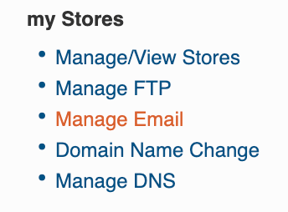
Access your Email settings in your My.Volusion account by clicking the **Manage Email** link under My Stores in the left hand navigation menu of your My Volusion page.
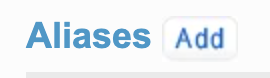
On the MyVolusion email account management page, click the **Add** button next to **Aliases**.
In the **Alias** field enter a unique name for the alias. This will be the email address for the alias.
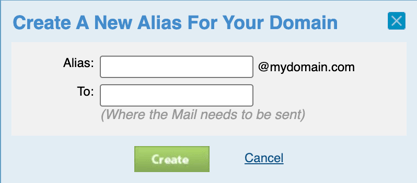
In the **To:** field enter the mailbox or mailboxes where you want emails sent to this alias to be forwarded.
You can also add email addresses that do not belong to this domain for example, **[store.owner@gmail.com](mailto:store.owner@gmail.com)**. To add multiple emails in the **To:** box, separate each email with a comma and no spaces. For Example:
store@yourdomain.com,StoreOwner@gmail.com
Click the **Create** button to finish creating your email alias.

Your new alias will be listed in the **Aliases** section of your email management page and any message sent to the alias will be accessible in the email inbox you specified in the To: field.

**Back-up your Email**
If you've got some extra important emails, follow these steps to save them to your computer:
Login to your email account at [https://mail.volusion.com](https://mail.volusion.com/).
Check the box next to each email you would like to save.
Select **More** from the toolbar, then select **Export to Zip**.
Emails will be saved together as a .zip file. The emails inside the .zip file will have the file-extension **.eml**. These files can be imported into other email programs, such as Office 365.
**Forwarding Email**
Having an email address with your domain name is a great business practice, but let's face it: having to manage your personal and business emails separately can be a real drag. Fortunately, there's an easy way to forward emails from your business address to another inbox.
Login to your email account at [https://mail.volusion.com](https://mail.volusion.com/).
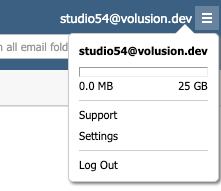
Click the menu icon at the top-right of the page, next to your email address, and select Settings.
In the pop-up menu that appears, choose **Incoming Email**, then open the **Forwarding** tab. Toggle the Status to **ON**:
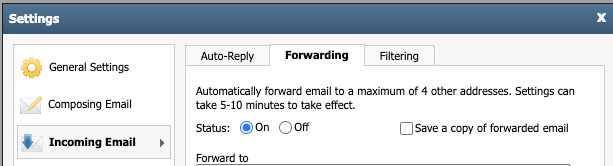
In the **Forward to** field, enter the address where you would like to have your email forwarded.

(Optional) Check the box **Enable only during the following time frame**, and select the time frame when you would like email to be forwarded to this address.
Click the **Save** button at the bottom right of the popup.
You can automatically forward email to a maximum of 15 other addresses (four of which can be outside of the domain, such as Gmail and Yahoo). Settings can take 5 - 10 minutes to take effect.
- [Getting started](https://help.volusion.com/s/getting-started?hsLang=en-us)
- [Manage Your Store](https://help.volusion.com/s/manage-your-store?hsLang=en-us)
- [Marketing for Success](https://help.volusion.com/s/marketing-for-success?hsLang=en-us)
- [Volusion Payment Powered by Stripe](https://help.volusion.com/s/volusion-payment-powered-by-stripe?hsLang=en-us)
- [Partner Marketplace](https://help.volusion.com/s/partner-marketplace?hsLang=en-us)
- [Support](https://help.volusion.com/s/support?hsLang=en-us)
- [V1](https://help.volusion.com/s/v1?hsLang=en-us)
- [Security](https://help.volusion.com/s/security?hsLang=en-us)
[](https://volusion.com/)
[mailto:email@email.com](mailto:email@email.com)
Copyright © 2026, Volusion