---
title: Using the Order Finished Note Field
description: To make things easier, we have created a video to walk you through the basics. Please take a few minutes to watch it. We will also outline the steps below.
---
[Skip to content](https://help.volusion.com/s/usingtheorderfinishednotefield#main-content)
English - United States
Show submenu for translations

Open main navigation
Close main navigation
- English - United States
Show submenu for translations
- [Contact Us](https://volusion.com/contact)
[Contact Us](https://volusion.com/contact)
Search the Help Center
- There are no suggestions because the search field is empty.
1. [Volusion Help Center](https://help.volusion.com/s?hsLang=en-us)
2. [V1](https://help.volusion.com/s/v1?hsLang=en-us)
# Using the Order Finished Note Field
To make things easier, we have created a video to walk you through the basics. Please take a few minutes to watch it. We will also outline the steps below.
The Order Finished Note field on each product is a very useful tool. Once populated, the field will appear on your store's Order Finished page only when the specific product it is attached to has been purchased. Additional shipping information, personalization directions or simple surveys can be added to this field to enhance your customer's experience.
### Adding the Order Finished Note
Prior to adding an Order Finished Note, you will want to go through the steps for [creating your product](https://help.volusion.com/s/products-basic-features?hsLang=en-us).
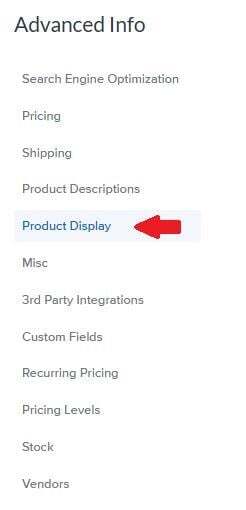
Once created, you can access the field by navigating to the **Advanced Info** section of your product and clicking the **Product Display** tab.
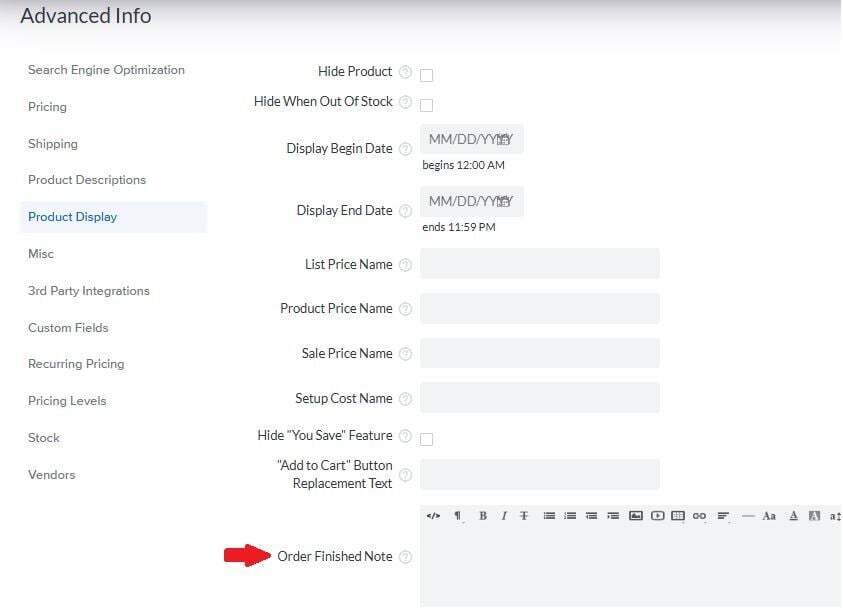
Scroll down and locate the **Order Finished Note** field.
You will now need to configure the contents of the field. [Jotform](https://www.jotform.com/) is an excellent choice, however you could have a custom form built for you by our [marketing and design experts](https://www.volusion.com/marketing360/)as well.
In the video example we used Jotform. If you choose to use it as well, you can locate the HTML code for your form on the Jotform Publish page, in the Embed section.
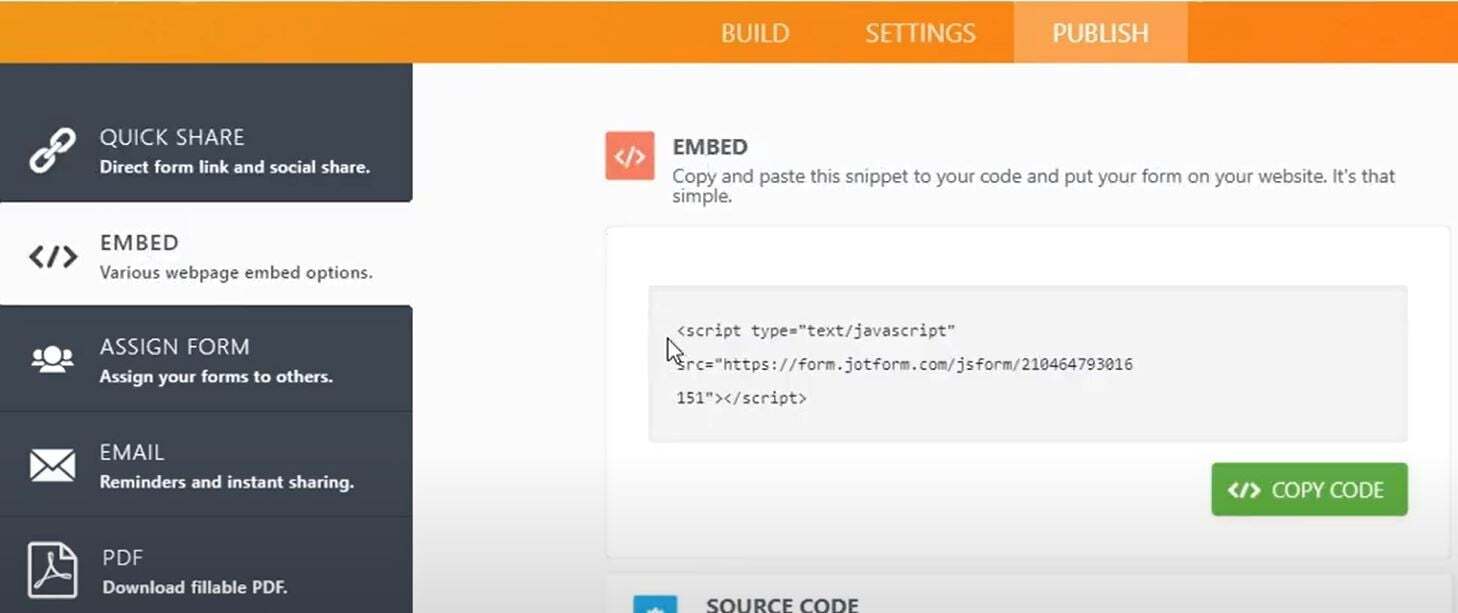
Regardless of the source of your form, if you are using HTML code, you will need to take an additional step before adding the code.
In the Order Finished Note field on your product, you will need to click the **HTML code** button. Do this prior to adding your code to make sure that your store recognizes this as code, and not text, and presents it correctly to your customer.
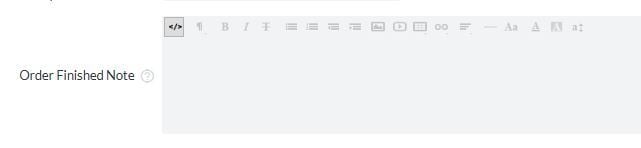
Once you have clicked this button, add your HTML code and click the blue **Save** button at the top right of the page.
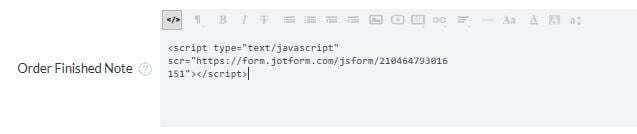
Your product setup is now complete. You may want to look at additional features such as [Fixed Shipping Cost](https://help.volusion.com/s/additionalshippingcapabilities?hsLang=en-us) or the [Ships By Itself](https://help.volusion.com/s/howtoconfigureaproducttoshipbyitself?hsLang=en-us) feature to finish up your product.
### Adding an Order Finished Note
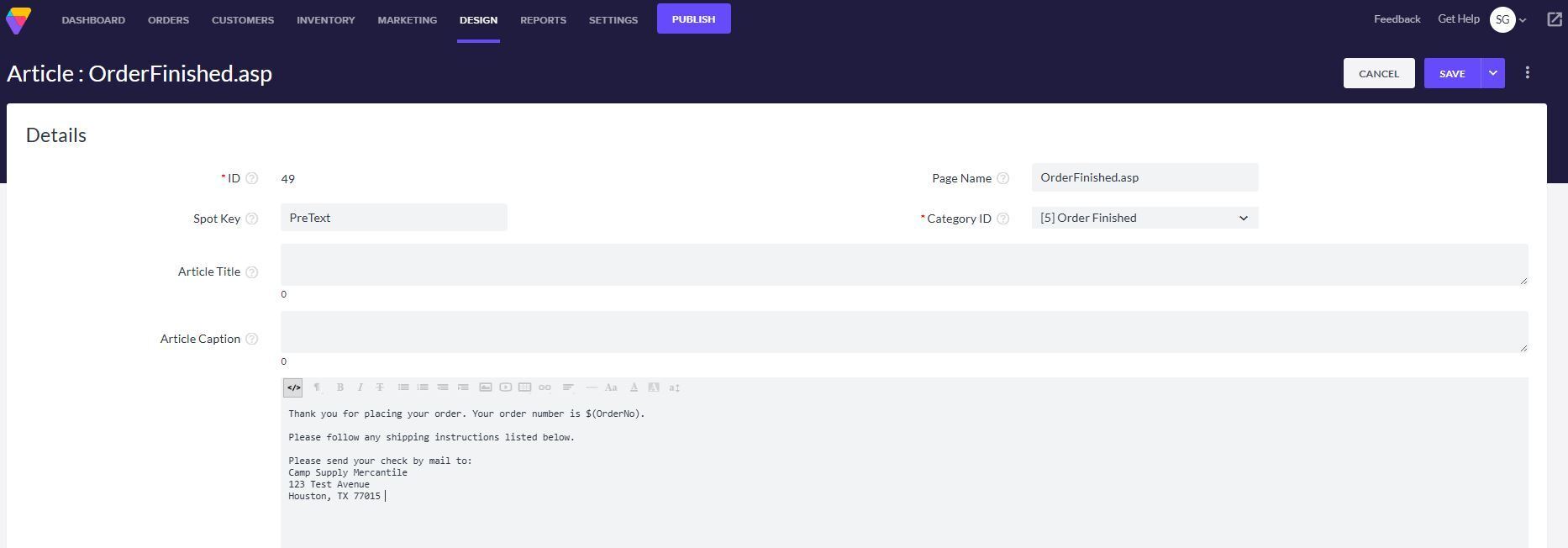
As a final step it is always a good idea to let your customer know what to expect. You can use the Order Finished Article to leave them some helpful directions. There are several Order Finished articles, however Article 49 appears every time a customer checks out, regardless of their payment method, so it is a good place to add the note. To access Article 49, please follow these steps:
From your store's Admin Dashboard, access Design \> Site Content from the main dropdown menu.
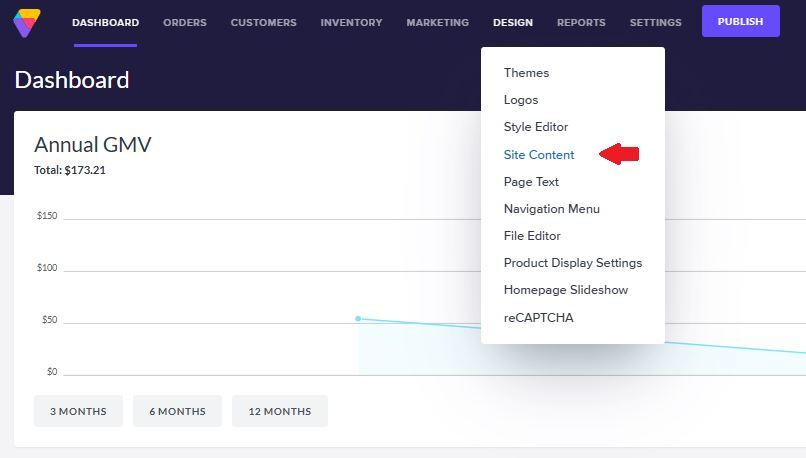
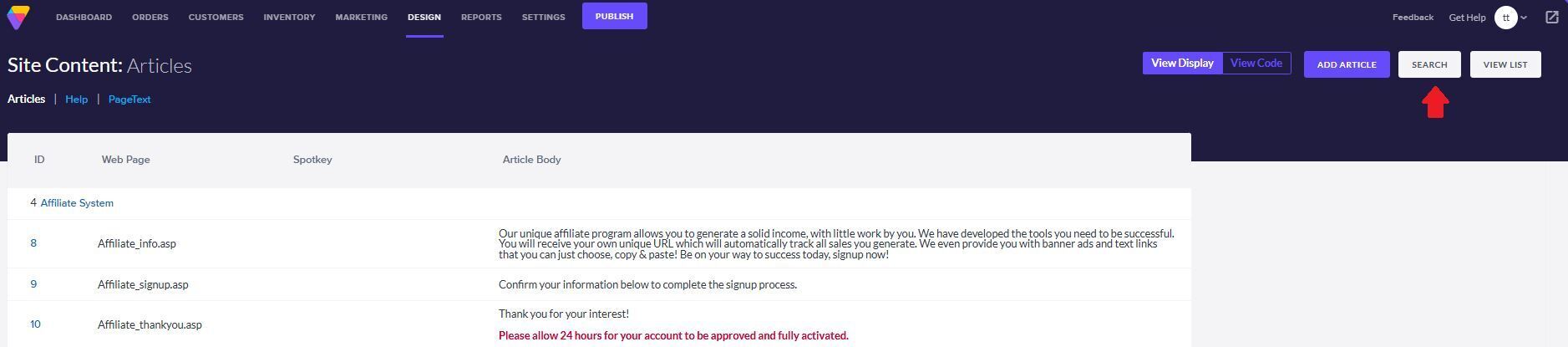
On the Site Content: Articles page, click the **Search** button at top right.
In the ID field, enter "49" and click the blue **Search** button at top left.
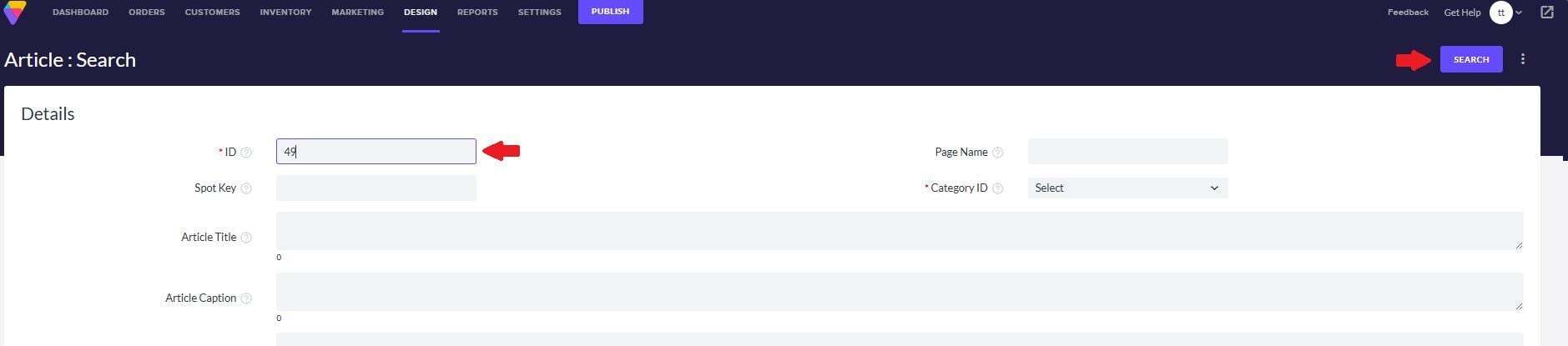
This will locate Article 49. Click the Article number to access the fields.

Add your note to the Article Body field. This field is set to take HTML code, so you may want to consult a site such as [W3 Schools](https://www.w3schools.com/html/html_basic.asp) to learn a few HTML basics. Add your code to the field and click the blue **Save** button at the top right.
Once the note is saved, you are ready to go.
### What Your Customer Sees
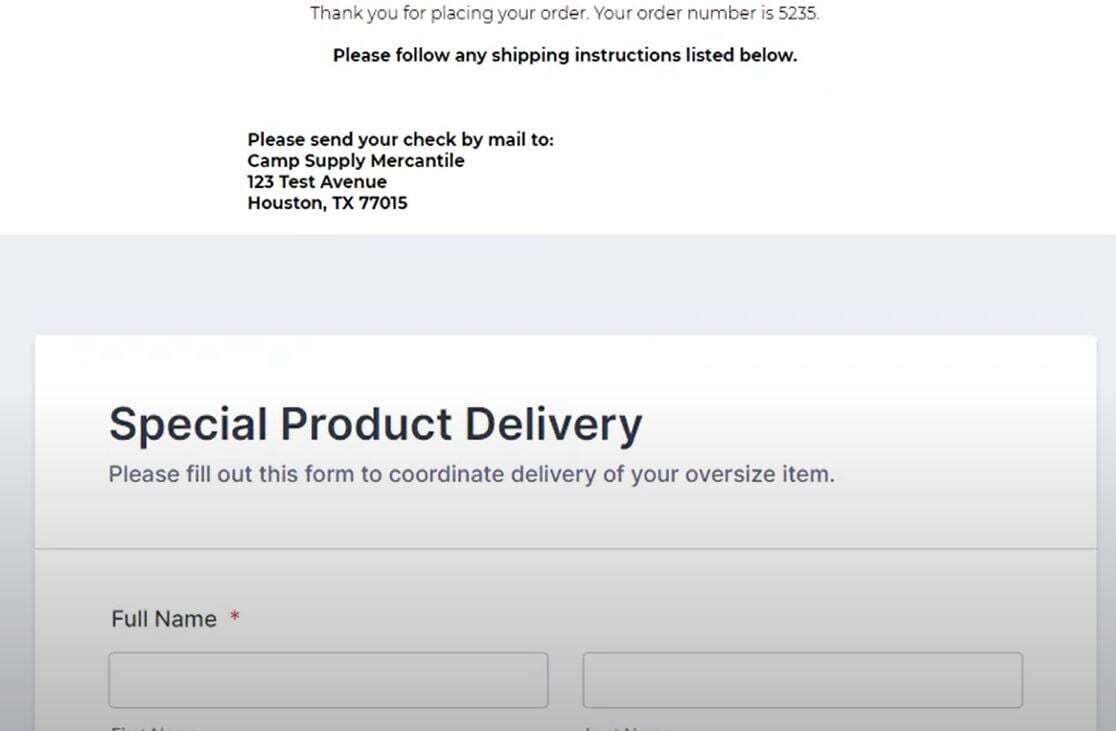
Upon checkout, your customer will be taken to the Order Finished page. They will see your additional directions as well as the form you uploaded to the product. Remember, this form will ONLY show if this product is added. Also keep in mind that if you have additional products with forms loaded in the Order Finished Note section and your customer purchases multiple products with notes added, they will see all the notes associated with the products they purchased. This can lead to confusion, so it might be a good idea to use the feature very strategically.
We hope this has been helpful and if you have additional questions, please reach out to [Volusion's Support Team](https://help.volusion.com/s/contactus?hsLang=en-us).
- [Getting started](https://help.volusion.com/s/getting-started?hsLang=en-us)
- [Manage Your Store](https://help.volusion.com/s/manage-your-store?hsLang=en-us)
- [Marketing for Success](https://help.volusion.com/s/marketing-for-success?hsLang=en-us)
- [Volusion Payment Powered by Stripe](https://help.volusion.com/s/volusion-payment-powered-by-stripe?hsLang=en-us)
- [Partner Marketplace](https://help.volusion.com/s/partner-marketplace?hsLang=en-us)
- [Support](https://help.volusion.com/s/support?hsLang=en-us)
- [V1](https://help.volusion.com/s/v1?hsLang=en-us)
- [Security](https://help.volusion.com/s/security?hsLang=en-us)
[](https://volusion.com/)
[mailto:email@email.com](mailto:email@email.com)
Copyright © 2026, Volusion