---
title: Using reCAPTCHA to Block SPAM on Submission Pages
description: Your store contains several pages that allow for customer input, usually in the form of text fields.
---
[Skip to content](https://help.volusion.com/s/usingrecaptchatoblockspamonsubmissionpages#main-content)
English - United States
Show submenu for translations

Open main navigation
Close main navigation
- English - United States
Show submenu for translations
- [Contact Us](https://volusion.com/contact)
[Contact Us](https://volusion.com/contact)
Search the Help Center
- There are no suggestions because the search field is empty.
1. [Volusion Help Center](https://help.volusion.com/s?hsLang=en-us)
2. [V1](https://help.volusion.com/s/v1?hsLang=en-us)
# Using reCAPTCHA to Block SPAM on Submission Pages
**Using reCAPTCHA to Block SPAM on Submission Pages**
Your store contains several pages that allow for customer input, usually in the form of text fields. While these input fields primarily collect submissions from genuine customers, they can also open your website to targeting by web "bots" -- tiny, unwanted spam applications that are built to perform repetitive automated tasks on a web page. Fortunately, CAPTCHA tests can help protect your site from spam while still allowing real customer submissions to go through.
The classic CAPTCHA format involves a randomly-generated sequence of distorted numbers and letters. A user must type the exact characters shown in order to be considered "human"; otherwise, the website won't accept the form submission. As spam bots have grown more sophisticated over the years, however, these CAPTCHA tests have become unnecessarily difficult to decipher -- even for humans!
Enter **[Google reCAPTCHA](https://developers.google.com/recaptcha/docs/versions)**: a modern, simplified CAPTCHA test that's easy for real users, yet provides an even higher degree of security against SPAM bots. Instead of struggling to identify squiggles as characters, a customer can answer a simple question and check a box that proclaims, "I'm not a robot." Volusion websites are currently **ONLY** compatible with Google reCAPTCHA Version 2.
**Enabling reCAPTCHA**
It's free to use reCAPTCHA, but you'll need a Google account to set it up. If you don't already have a Google account, take a moment to create one, then visit Google's **[reCAPTCHA API Registration page](https://www.google.com/recaptcha/admin/create)**. Once there, follow the steps below:
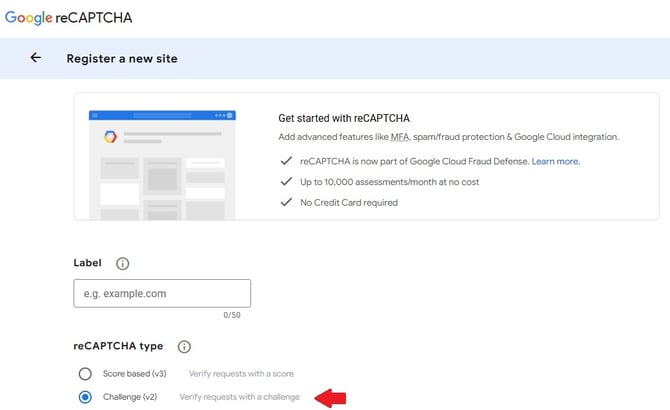
1. Select Challenge (v2) and then either Invisible reCAPTCHA or "I'm not a robot" Checkbox. Then, enter the domain names (or subdomain names) of the websites for which you'll be using reCAPTCHA. You can use the same credentials for multiple sites, including subdomains (e.g. shop.volusionstore.com), but they must be separated by a comma.
2. Select the checkbox to "Accept the reCAPTCHA Terms of Service", then click **Register**.
3. Locate the API Key Pair, which consists of the **Site Key** and the **Secret Key**. Copy and paste these values for future use, as you'll need them to integrate reCAPTCHA with your Volusion store. Note that these key pairs are domain-specific, so if you entered more than one domain name in step 1, you'll see more than one pair.
4. Visit **Design \> reCAPTCHA** in your Volusion store's Admin Area and select **Enable** near the top of the page.
5. Under **Configuration**, paste the **Site Key** and **Secret Key** values you copied earlier into the corresponding admin fields.
6. Under **Use reCAPTCHA On These Pages**, select which built-in submission pages you'd like to enable reCAPTCHA for. By default, all available pages are selected.
7. Click **Save**.
Each page you selected will now require customers to complete a reCAPTCHA test before accepting submissions. Per Google, note that it may take up to 30 minutes for a domain's API Key Pair to function.
If you ever need to disable, re-enable, or update settings for your reCAPTCHA integration, you can do so at any time by returning to the **Design \> reCAPTCHA** page in your Admin Area.
### **To note:**
If you cannot find v2 reCAPTCHA on Google's site follow these steps:
1\.[https://www.google.com/recaptcha/about/](https://www.google.com/recaptcha/about/)
2\. Click Learn more
3\. Click Get Started
4\. This appears:
**Pages that Support reCAPTCHA**
The reCAPTCHA form can be enabled for the following hard-coded pages, each of which requires some type of input from the end user:
- Login.asp
- Login\_Sendpass.asp
- Register.asp
- One-Page-Checkout.asp
- MailingList\_Subscribe.asp **\***
- Help\_EmailBetterPrice.asp
- Catalog\_Subscribe.asp
- Email\_Me\_When\_Back\_In\_Stock.asp
- ReviewNew.asp
- ShoppingCart.asp
- EmailaFriend.asp
- Ticket\_New.asp
\*In order to comply with CAN-SPAM laws, the *MailingList\_Subscribe.asp* page is required to contain some form of CAPTCHA functionality. If you don't enable the simplified reCAPTCHA functionality, you'll still see an older version of a CAPTCHA test on that page.
If your website's theme includes a **[newsletter signup form in the footer](https://help.volusion.com/s/NewsletterSignupwithGooglereCAPTCHA?hsLang=en-us)**, it's particularly important to consider enabling reCAPTCHA for the Newsletter Signup page. This reduces frustration customers may experience when having to reenter information or complete an additional CAPTCHA test to sign up.
### Custom Pages
You can also enable reCAPTCHA for any custom form page (such as Article 83, the "Contact Us" page) by **replacing** the first line of code in the Article Body ( \