---
title: The Publish Button
description: Make changes to your store and show'em off to visitors on your terms and timeline.
---
[Skip to content](https://help.volusion.com/s/thepublishbutton#main-content)
English - United States
Show submenu for translations

Open main navigation
Close main navigation
- English - United States
Show submenu for translations
- [Contact Us](https://volusion.com/contact)
[Contact Us](https://volusion.com/contact)
Search the Help Center
- There are no suggestions because the search field is empty.
1. [Volusion Help Center](https://help.volusion.com/s?hsLang=en-us)
2. [V1](https://help.volusion.com/s/v1?hsLang=en-us)
# The Publish Button
# The Publish Button
Make changes to your store and show'em off to visitors on your terms and timeline.
Written by Jared K
One of the beauties of having your own store is you can set it up and change it around however and whenever you like.
By default, all stores are set to immediately publish changes automatically. However, you'll see a Publish button in your Admin Area navigation bar (to the right of the Settings menu), if you've turned off immediate publishing:
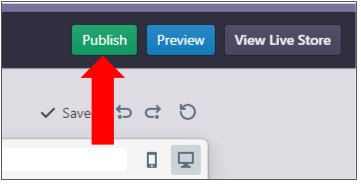
This usually means you've made changes under the Design menu that are not yet displayed on your storefront.
## Why Disable Immediate Publishing?
Turning off the automatic Immediate Publish feature gives you time to double check your changes to make sure they are correct or approve an administrator's work before it goes public.
If you would like to turn off automatic Immediate Publish feature, clear the checkbox and save. You can then choose when to make changes live by pressing the Publish button at your convenience.
If the Publish button displays and the Enable Immediate Publish checkbox is selected, you can safely ignore the Publish button; your changes will publish automatically.
## Changed Your Mind? No Problem!
If you want to turn immediate publishing back on:
1. Go to **Settings** \> **Config Variables**.
2. Select the **Enable Immediate Publish** checkbox.
3. Click **Save**.
And voila! Your latest work will be on display to your visitors right away.
## Summary
Making changes to your store is easy with Volusion. What's more is you have complete control of when your changes go into effect by enabling or disabling the Immediate Publish feature.
- [Getting started](https://help.volusion.com/s/getting-started?hsLang=en-us)
- [Manage Your Store](https://help.volusion.com/s/manage-your-store?hsLang=en-us)
- [Marketing for Success](https://help.volusion.com/s/marketing-for-success?hsLang=en-us)
- [Volusion Payment Powered by Stripe](https://help.volusion.com/s/volusion-payment-powered-by-stripe?hsLang=en-us)
- [Partner Marketplace](https://help.volusion.com/s/partner-marketplace?hsLang=en-us)
- [Support](https://help.volusion.com/s/support?hsLang=en-us)
- [V1](https://help.volusion.com/s/v1?hsLang=en-us)
- [Security](https://help.volusion.com/s/security?hsLang=en-us)
[](https://volusion.com/)
[mailto:email@email.com](mailto:email@email.com)
Copyright © 2026, Volusion