---
title: Subcategories
description: You want to get the product the customer wants in front of them as fast as possible.
---
[Skip to content](https://help.volusion.com/s/subcategories#main-content)
English - United States
Show submenu for translations

Open main navigation
Close main navigation
- English - United States
Show submenu for translations
- [Contact Us](https://volusion.com/contact)
[Contact Us](https://volusion.com/contact)
Search the Help Center
- There are no suggestions because the search field is empty.
1. [Volusion Help Center](https://help.volusion.com/s?hsLang=en-us)
2. [V1](https://help.volusion.com/s/v1?hsLang=en-us)
# Subcategories
# Subcategories
Written by Jared K
One key to eCommerce success is speed. You want to get the product the customer wants in front of them as fast as possible. For that reason, youll want to divide up the categories of your product into more descriptive and specific subcategories.
So instead of having, say, 600 products listed as shoes, you could have 12 subcategories (Heels, Boots, Flats, Sneakers, Oxfords, etc.), containing a more navigable quantity.
You can even have sub-subcategories if you like, such as grouping a particular style by color, model, or size.
## Adding a Subcategory to a Category
To create a subcategory, you'll first need to create Categories. Once your categories are ready:
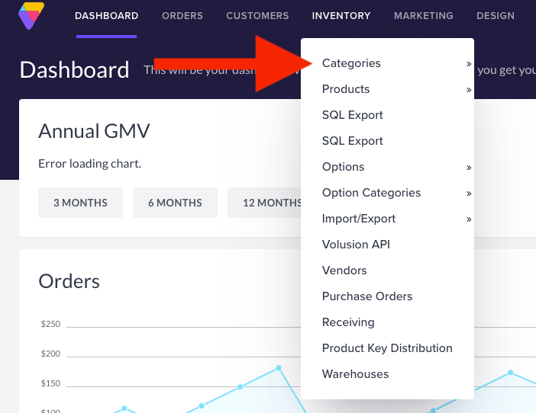
From your site's Dashboard page choose Inventory \> Categories.
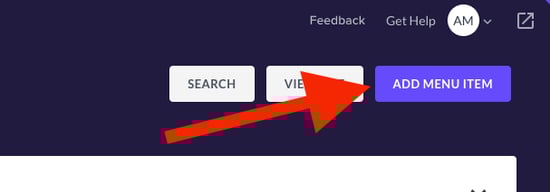
Click the **Add Menu Item** button in the top right of the Category Page.
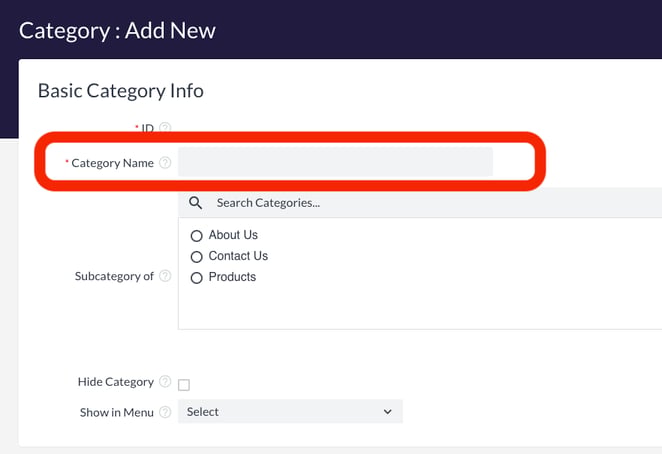
Enter the subcategory name in the **Category Name** field
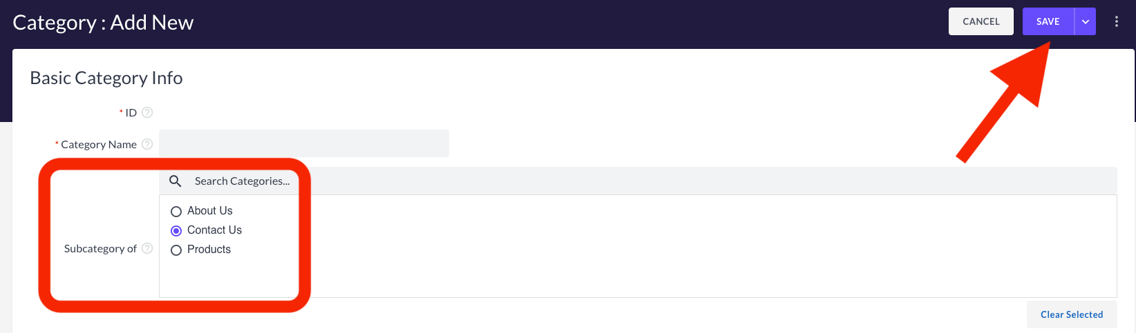
In the **Subcategory of** section use a radio button to choose the Parent Category for your new Subcategory. Click the **Save** button at the top right when complete.
You can now expand your categories on the category edit page to see their subcategories.
## How to Display Subcategories
The way you display subcategories on the storefront category details page is up to you! You can display the category graphic or the category name, and you can display these at the top or side of the page. See our [Categories](https://help.volusion.com/s/Categories?hsLang=en-us) article for directions on setting your display characteristics.
- [Getting started](https://help.volusion.com/s/getting-started?hsLang=en-us)
- [Manage Your Store](https://help.volusion.com/s/manage-your-store?hsLang=en-us)
- [Marketing for Success](https://help.volusion.com/s/marketing-for-success?hsLang=en-us)
- [Volusion Payment Powered by Stripe](https://help.volusion.com/s/volusion-payment-powered-by-stripe?hsLang=en-us)
- [Partner Marketplace](https://help.volusion.com/s/partner-marketplace?hsLang=en-us)
- [Support](https://help.volusion.com/s/support?hsLang=en-us)
- [V1](https://help.volusion.com/s/v1?hsLang=en-us)
- [Security](https://help.volusion.com/s/security?hsLang=en-us)
[](https://volusion.com/)
[mailto:email@email.com](mailto:email@email.com)
Copyright © 2026, Volusion