---
title: SPF, DKIM and DMARC Records
description: Learn more about SPF, DKIM and DMARC Records in this guide.
---
[Skip to content](https://help.volusion.com/s/spfdkimanddmarcrecords#main-content)
English - United States
Show submenu for translations

Open main navigation
Close main navigation
- English - United States
Show submenu for translations
- [Contact Us](https://volusion.com/contact)
[Contact Us](https://volusion.com/contact)
Search the Help Center
- There are no suggestions because the search field is empty.
1. [Volusion Help Center](https://help.volusion.com/s?hsLang=en-us)
2. [V1](https://help.volusion.com/s/v1?hsLang=en-us)
# SPF, DKIM and DMARC Records
**\*Important Notice**
Many third party email hosts, as of 01/01/2024 are beginning to require that your domain have a DMARC record in order to authenticate your domain. Your emails can inadvertently be marked as spam without this required authentication.
If you host your email with a third party, you will want to ensure you have followed the steps below to setup a DMARC record.
If you host your DNS with Volusion, a generic DMARC record has automatically been added that will cover your domain. But if you would like to customize this record, there are **[specific instructions further down the guide.](https://help.volusion.com/s/spfdkimanddmarcrecords#volusiondmarc)**
**Email Record Definitions**
- What is an **SPF** record? SPF (Sender Policy Framework) records are optional records used to verify sender IP addresses and protect it from sending out spam. By adding an SPF record, you can specify which hosts are allowed to send mail from your domain email addresses (for example, [youremail@yourvolusionstore.com](mailto:youremail@yourvolusionstore.com)).
- What is **DKIM** record? DomainKeys Identified Mail (DKIM) is a protocol that allows an organization to take responsibility for transmitting a message in a way that can be verified by mailbox providers. This verification is made possible through cryptographic authentication.
- DKIM records take what is set forth in the SPF record a step further by adding a matched key set between your domain and the service sending the email message.
- What is **DMARC** record? DMARC, which stands for Domain-based Message Authentication, Reporting & Conformance, is an email authentication, policy, and reporting protocol.
- A DMARC record requires an SPF and DKIM records to be in place, and builds on their protocols by adding a linkage to the author domain name (the From address). It uses published policies for recipient handling of authentication failures, and reporting from receivers to senders to improve protection of the domain from fraudulent email.
- DMARC enforces existing SPF and DKIM records and adds a ruleset for the handling of rejected messages, keeping them quarantined from the main mailbox. These quarantined messages can then be forwarded to a destination for future vetting and use.
**Interested in adding an SPF record? We have an article for that already! Located** [**HERE**](https://help.volusion.com/s/combatspamwithvolusionspfrecords?hsLang=en-us)**.**
Want to further bolster your email security? **Read on!**
**Adding a DKIM to your Volusion Hosted Email**
Are you ready to add a DKIM record to your Volusion hosted email account?
**1.** Login to your MyVolusion account.
**2**. Click on 'Manage Email'
**3**. Under the Mailboxes click on 'Advanced Setting'
**4.** Under Domains click on 'Sender Authentication (DKIM)
**5.** Under 'Domains' click the users domain name
**6.** Click 'enable DKIM for yourdomain.com'
**7.** Copy the record data presented.

**Inputting DKIM record on Volusion hosted DNS**
**1.** Navigate to and login to your [my.volusion.com](http://my.volusion.com/) account.
**2.** Select Manage DNS from the left hand menu
**3**. Click 'Add New Record'
**4**. Put in the Record name in the record name field (Usually numbers and letters, followed by \_domainkey.yourdomain.com)
(**To note:** copy to clipboard function may not copy the entire value make sure your domain name is at the end of this value.)
**5**. Select TXT for the record type
**6**. Input your record data into the Hostname field or right most input field (usually v=DKIM1 followed by a bunch of numbers and letters.)
**7.** Save
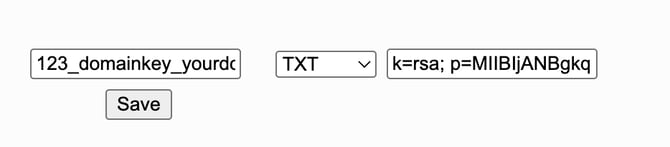
**8.** After installation and allowing for some propagation time (24-48 hours), the record installation can be verified by navigating to My Volusion \> Manage Email \> Advanced Setting \> Sender Authentication (DKIM) \> Verify TXT.
**Inputting DKIM record for Email Templates**
For Non-Volusion hosted domains, please add these additional DKIM records **[per this help guide under "Spam Prevention Records"](https://help.volusion.com/s/editing-email-templates?hsLang=en-us)** to ensure your records are up to date.
For Volusion hosted domains, these additional DKIM records will be automatically added to your DNS records.
**Add a DMARC record to your third-party domain**
Some email providers, such as Gmail and Yahoo, require you to add aDMARC recordto your domain so that you can send emails from your branded email address.
Review the following third-party resources to learn how to check for and add a DMARC record to your domain:
- **[*DMARC Record Checker*](https://dmarcian.com/dmarc-inspector/)**
- ***[Add your DMARC record](https://support.google.com/a/answer/2466563?hl=en)***
#### **Caution**
The DMARC record provided in the following steps is just a basic example.
#### **Steps**
1. Log in to the management console of your domain host.
2. Locate the page where you update DNS records.
3. Add a TXT record for DMARC.
1. In the **Record name/DNS host name field**, add`_dmarc`. Some domain hosts automatically add the domain portion, such as`_dmarc.example.com`. After you add the TXT record, verify that it's formatted correctly.
2. In the **Text Record Value field**, add`v=DMARC1; p=none;`
**Adding a DMARC to your Volusion hosted email**
Adding a DMARC record is recommended if you have added a DKIM record. This will allow better enforcement of your policies and allow you to specify quotas and even an email for the rejected messages to be forwarded to so that you can look behind the curtains and see the magic that is happening for yourself.
DMARC records follow a very uniform style and are one of the easiest records to add to your DNS. Adding a DMARC requires that you have an SPF and DKIM in place prior to continuing. Once you have the required record types setup, adding a basic DMARC is as simple as following this formula:
**Record Name (Replace domain inside of {} with your domain name and extension):**\_dmarc.{yourdomain.com}.
**Record Type:**TXT
**Hostname:**v=DMARC1; p=quarantine; rua=mailto:[adminemail@yourdomain.com](mailto:adminemail@yourdomain.com)
For the record name, we are specifying that this is a DMARC record (v=DMARC1). We are telling the system that if a message does not pass the requirements, then this message is to be quarantined (p=quarantine). If you DO NOT wish for the messages to be quarantined, set the value to be (p=none). We are also specifying an email address to forward the quarantined messages to (rua=mailto:[adminemail@yourdomain.com](mailto:adminemail@yourdomain.com)).
Once you have compiled your DMARC record, all we need to do is add it to your DNS.
### **If Volusion hosts your DNS the following is how you get that done!**
**1.** Navigate to and login to your [my.volusion.com](http://my.volusion.com/) account.
**2.** Select Manage DNS from the left panel
**3.** Click 'Add New Record'
**4.** Fill in the Record Name field \_dmarc.{yourdomain.com}
**5.** Select TXT for the record type
**6.** Input the Hostname field (v=DMARC1; p=quarantine; rua=[adminemail@yourdomain.com](mailto:adminemail@yourdomain.com))
**7**. Save
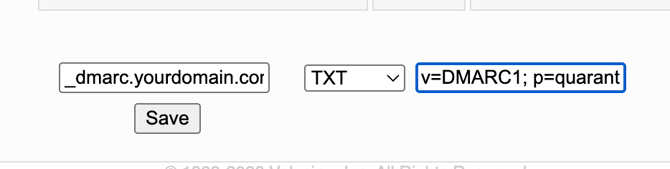
Waiting for the records to update usually takes less than 30 minutes. Sometimes full propagation can take up to 24 hours, though. You can research your propagation status at [https://www.whatsmydns.net](https://www.whatsmydns.net/) by inputting your domain and selecting your desired record type.
**Additional Resources:**
More information on adding records for your Volusion hosted DNS can be found **[HERE.](https://help.volusion.com/s/domainnamesystemrecordtypes?hsLang=en-us)**
- [Getting started](https://help.volusion.com/s/getting-started?hsLang=en-us)
- [Manage Your Store](https://help.volusion.com/s/manage-your-store?hsLang=en-us)
- [Marketing for Success](https://help.volusion.com/s/marketing-for-success?hsLang=en-us)
- [Volusion Payment Powered by Stripe](https://help.volusion.com/s/volusion-payment-powered-by-stripe?hsLang=en-us)
- [Partner Marketplace](https://help.volusion.com/s/partner-marketplace?hsLang=en-us)
- [Support](https://help.volusion.com/s/support?hsLang=en-us)
- [V1](https://help.volusion.com/s/v1?hsLang=en-us)
- [Security](https://help.volusion.com/s/security?hsLang=en-us)
[](https://volusion.com/)
[mailto:email@email.com](mailto:email@email.com)
Copyright © 2026, Volusion