
For wholesale or loyal customers with a login, you can offer special pricing (lower than the general public).
Setting Up Discounted Prices For Products
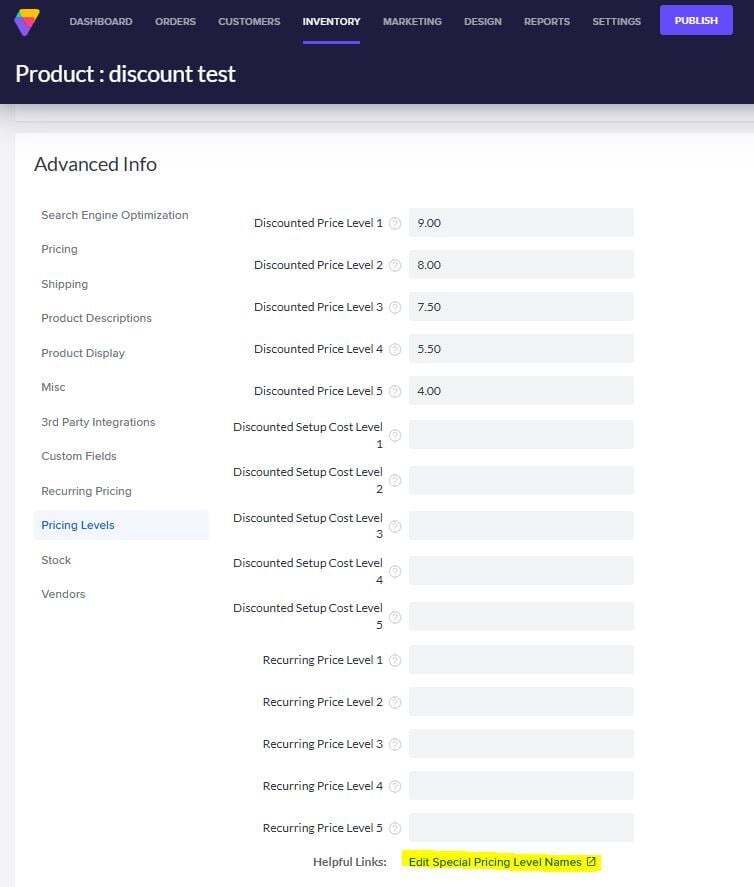
All products have a special Pricing Levels section. Here, you enter a price for the one or more levels of discounted prices offered for a particular product.
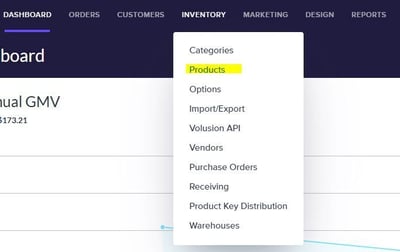
From your store's Admin Dashboard page go to Inventory > Products.
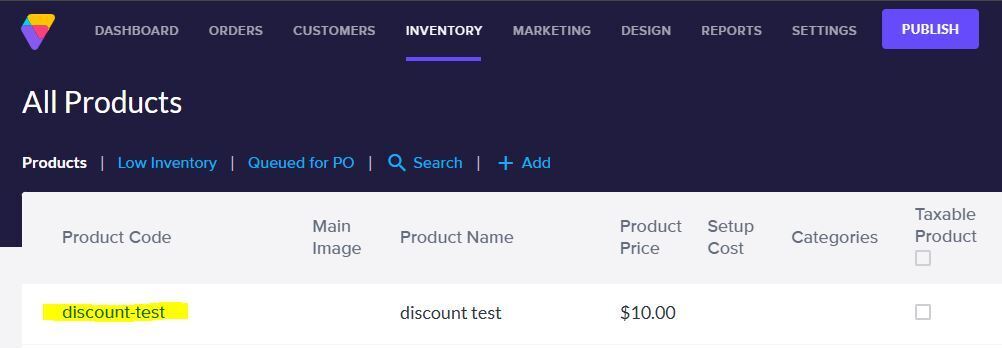
On the All Product page click the code of the product for which you want to offer a discount.
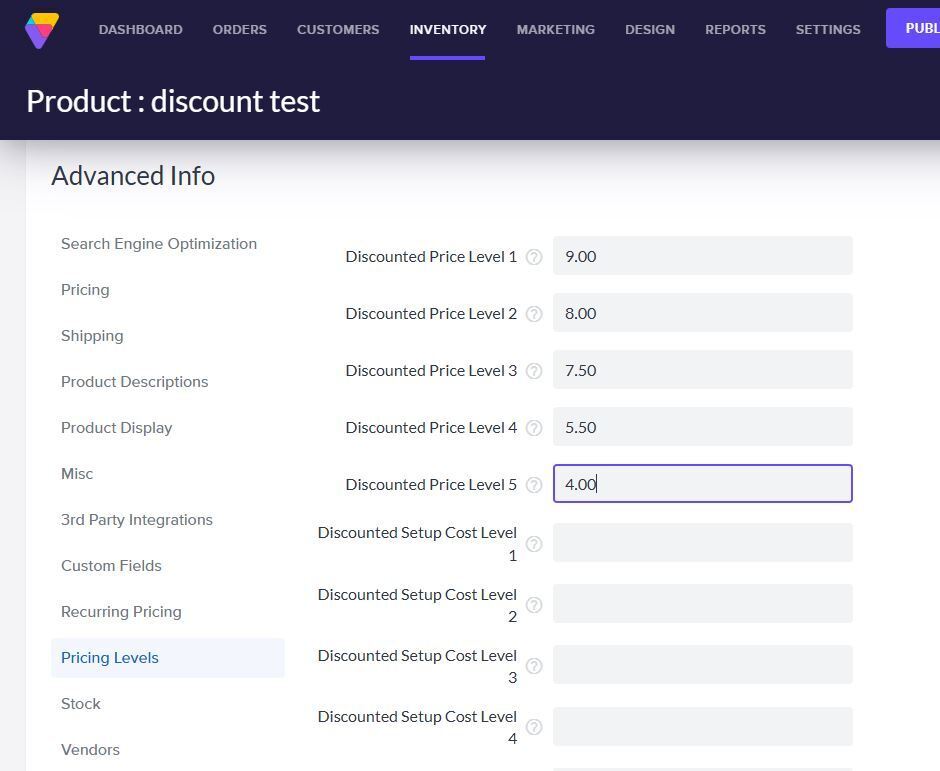
Under Advanced Info > Pricing Levels, enter the special price(s) for the appropriate discount price level(s). You can set multiple discount levels, but each higher level should lower the price.
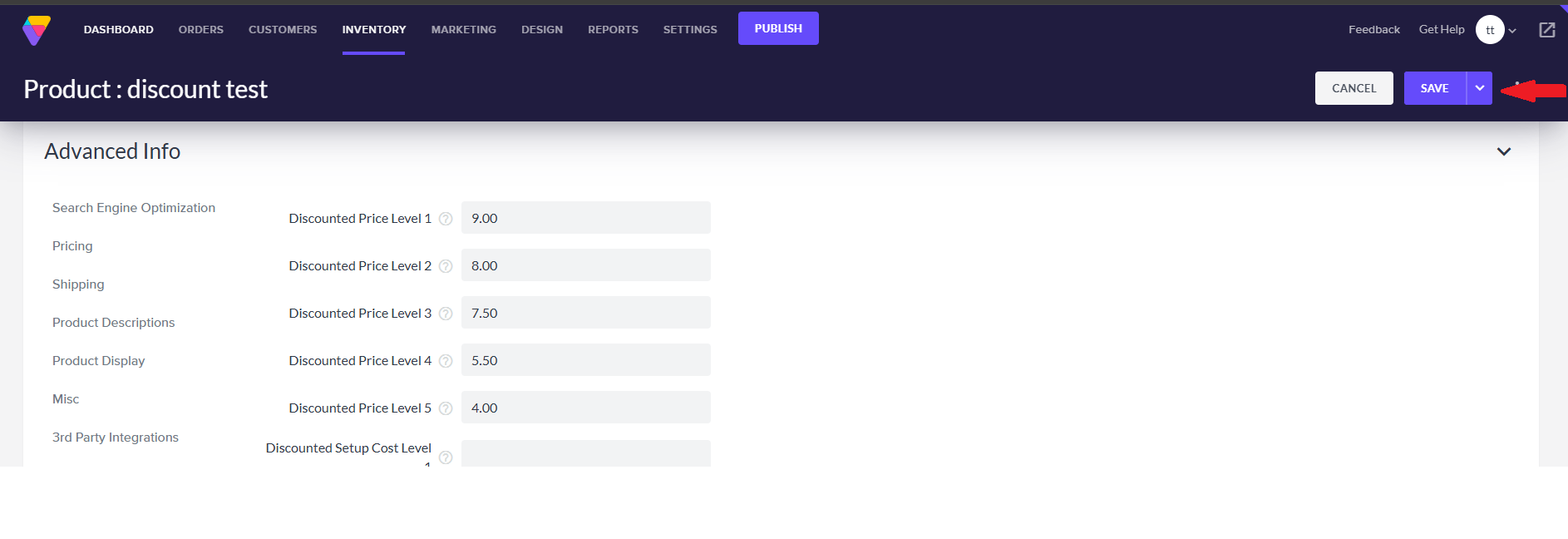
Click the Save button at the top left of the Product page.
Choosing Customers To Receive Discount Pricing Levels
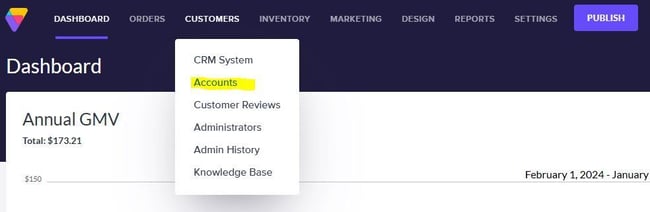
From your store's Admin Dashboard page go to Customers > Accounts.
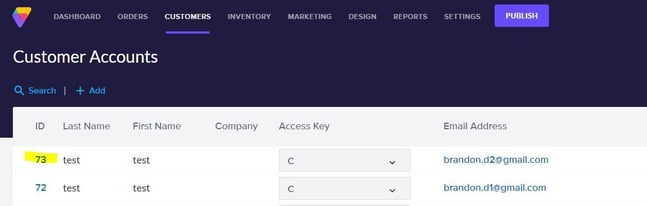
Click the ID of the customer for whom you want to apply your Discounted Price Level.
Under Special Privileges, select the Pricing Discount Level for this customer.
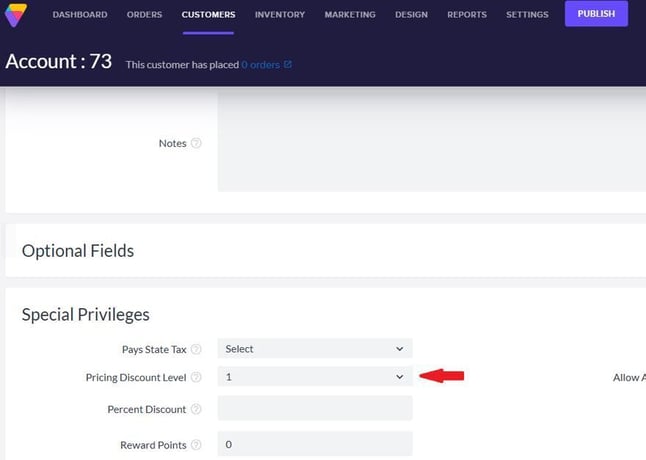
The Pricing Discount level will correspond to the Discounted Price Level you previously set in the product. For instance, a customer with Pricing Discount Level 1 set will see the price you added for Discounted Price Level 1.
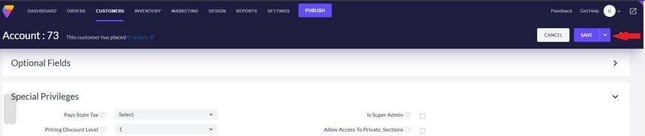
Click the Save button at the top right of the Customer page.
Hiding Discount Price Levels
By default, any discount prices you set up will display on your storefront. To hide the different price levels so they aren't visible to your general population of shoppers, follow these steps:
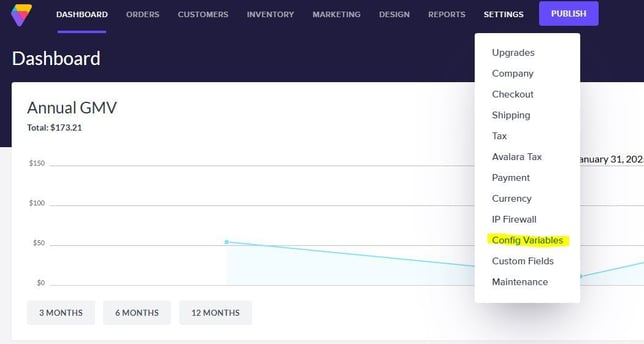
From your store's Admin Dashboard page go to Settings > Config Variables.
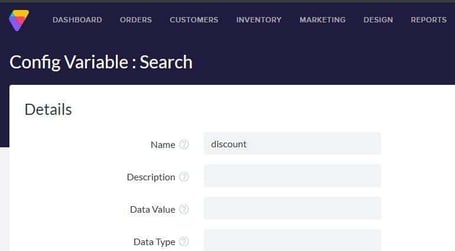
Click Search and enter "Discount Price" in the Name field. Click Search again (You should see one result: the Display Discount Price Levels config variable).
Clear the check box in the Value column.
Click the Save button at the top right of the page.
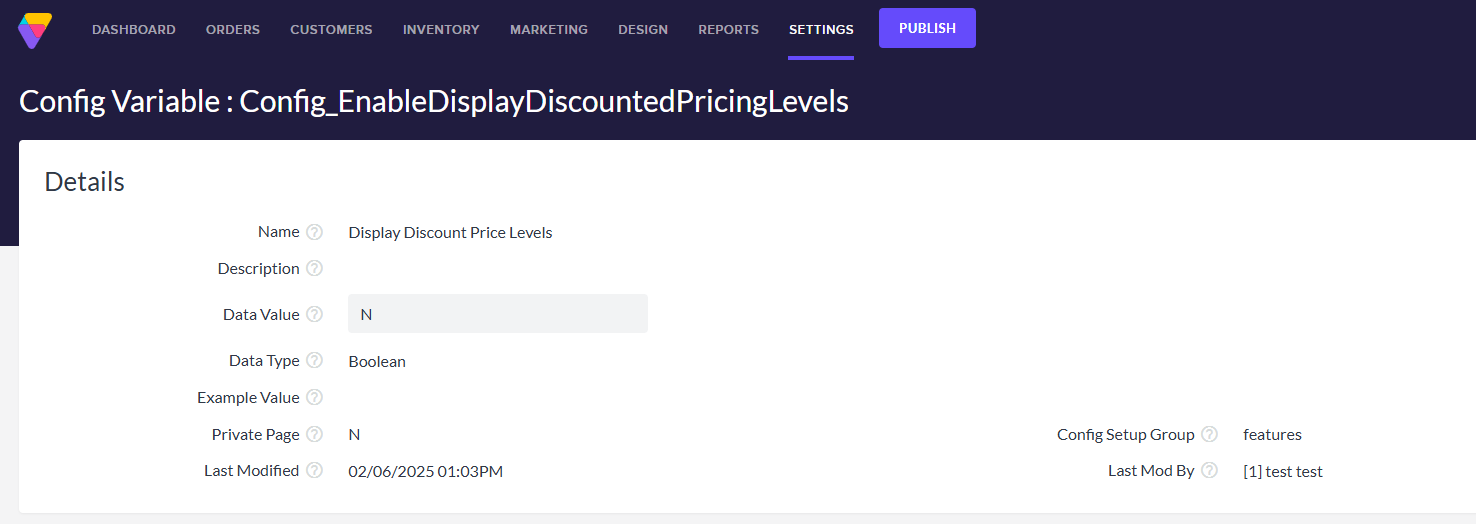
(Currently the above config variable is hidden from the search tool, if you run into issues locating the variable please amend this url extension to your stores domain to load it directly /admin/AdminDetails_Generic.asp?table=ConfigSetup&Page=1&ID=Config_EnableDisplayDiscountedPricingLevels Then change that value from Y to N.)
Editing The Pricing Level Heading
There are default discount pricing labels set up, but you might want to personalize these. Here's how:
In the Pricing Levels section of the product, click Edit Special Pricing Level Names at the bottom of the list.
On the Configuration: Discounted Pricing Level Names page, enter or edit the text in the text box(es) corresponding to the discount level(s) you set above and click the Save button at the top right of the page.
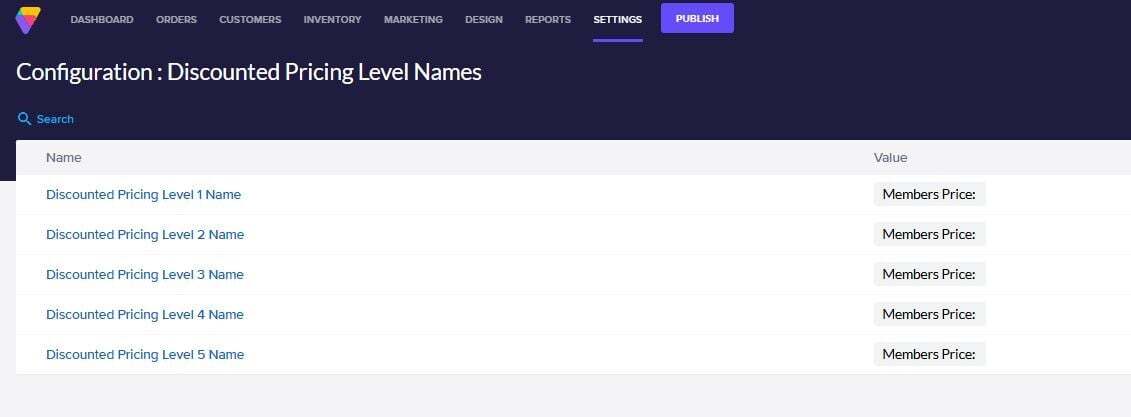
Now when a customer with a discount level views a product for which that level has a special price, they will see the special price, as well as the normal price. The special price will be used when the product is added to their cart.
Setting Discount Percentages For Customers
You can also set up percentage discounts that apply across all products for specific customers.
Go to Customers > Accounts and click the ID number of the account you want to edit.
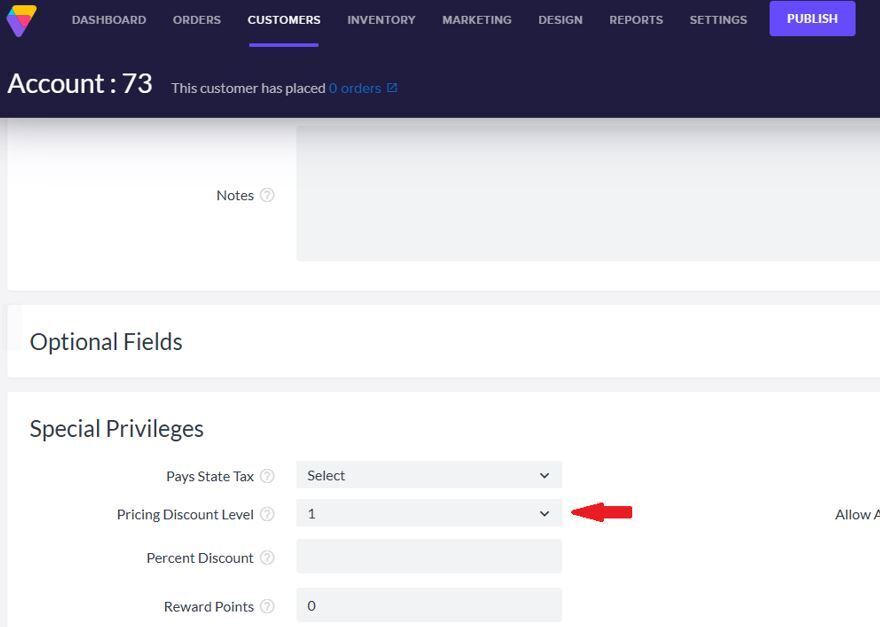
Under Special Privileges, enter the discount for this customer in the Percent Discount field. This discount covers ALL products in your store. Click the Save button at the top right of the page.
Now when this customer views products they will all show a Sale Price, which reflects the percentage discount.
Note that if a product already has a Sale Price, the customer will not get an additional percent discount on the item. The sale price overrides special pricing.