---
title: "Site Designer: Upgrading to Site Designer and Picking your Theme"
description: Site Designer is the future of ecommerce website building and editing at Volusion.
---
[Skip to content](https://help.volusion.com/s/site-designer-themes#main-content)
English - United States
Show submenu for translations

Open main navigation
Close main navigation
- English - United States
Show submenu for translations
- [Contact Us](https://volusion.com/contact)
[Contact Us](https://volusion.com/contact)
Search the Help Center
- There are no suggestions because the search field is empty.
1. [Volusion Help Center](https://help.volusion.com/s?hsLang=en-us)
2. [V1](https://help.volusion.com/s/v1?hsLang=en-us)
# Site Designer: Upgrading to Site Designer and Picking your Theme
Site Designer is the future of ecommerce website building and editing at Volusion. This feature is intended to make the site creation and update process simple and seamless.
**Don't See Site Designer in your Admin?**
If you do not see Site Designer currently showing in your admin under the Design \> Menu, you simply need to [contact our Support team](https://help.volusion.com/s/contactus?hsLang=en-us) and we can get your store setup for Element. Before you decide to change over, you will want to keep in mind of some key features that are not currently supported for Sites using Site Designer:
**\*If your store currently uses these settings, please note that they are not currently available on Site Designer:**
\-Display Estimated Shipping Costs
You must enable Premium Checkout in order to use Site Designer. For more information on Premium Checkout versus our Legacy Checkout page, please see this article for more information: [Premium Checkout](https://helpcenter.volusion.com/s/article/PremiumCheckout?hsLang=en-us)
**Upgrading To Site Designer**
1\. To begin the upgrade process, you will need to update your Volusion password. This is necessary because Site Designer is authenticated by AUTH0, which has more strict password requirements. New password requirements will be:
- 8 characters
- a lowercase letter
- an uppercase letter
- a number
- special character (!@#$%^&\*) in the password
- maximum 20 characters
2\. If you haven't already, enable Premium Checkout with these [steps](https://help.volusion.com/s/premium-checkout?hsLang=en-us).
3\. From your store's Admin Dashboard, choose Settings \> Upgrades from the drop-down menu.
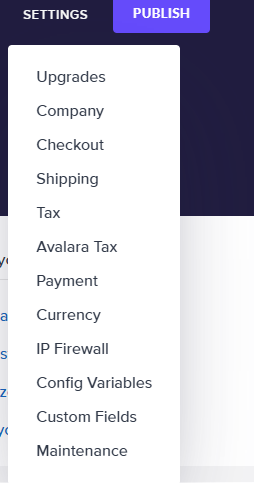
4\. This will open the Upgrades page. Click the Enable button for Element.
5\. Once successfully upgraded to Element, you will have to access your admin at www.yourstore.com/admin.
Designing a custom original Theme, or changing the Theme on your store is made quick and easy when using Site Designer's Themes function.
Take a look at our video and follow the steps below to take advantage of Site Designer's features.
To access Themes from Site Designer, first access Site Designer from from your store's Admin Dashboard. Choose **Design \> Site Designer** from the main drop-down menu.

If you are not currently using Site Designer, or do not have access from your menu, please [contact us](https://help.volusion.com/s/ContactUs?hsLang=en-us) for assistance.
If you are prompted to log in again, use the same email and password that you used to log into your Admin account.
From your store's Site Designer page, locate the **Change Theme** link next to your Theme name and click it.

This will access your My Themes page. To view the Themes that are available to you, click the **Theme Gallery** link at the top right of the page.

The Theme Gallery shows all current available Themes. To see what your site will look like with a particular Theme you can click the **Preview** button on a Theme. This will display the Theme using the Categories and Products from your store allowing you to see exactly what the Theme will look like for you.

If you like the Theme, you can choose it for your store by clicking the **Get Theme** button. If not, keep looking! Volusion offers a variety and Themes, and with Site Designer, they are all customizable.
Choosing a Theme will open that Theme in your Site Designer page and you can begin customizing.
Keep in mind, this Theme is not active on your store until you click the **Publish** button at the top-right of the page.

In the event that you decide that you didn't actually want to Publish your site changes, you can return to the previous version of your Theme by clicking the **Roll Back** button.

If you have more that one Theme saved on your site you can access them by clicking the **Change Theme** button to view your My Theme page. Your current active Theme as well as any inactive Themes will be shown. To edit an Inactive Theme, simply click the Theme's name on the Inactive Theme list.

Keep in mind, a Theme is not live on your store until you click the **Publish** button. So, editing an inactive Theme is like having a Sandbox store in which you can make and review changes without having to edit your current, active store.
Additionally, you can choose to Edit, Rename, Duplicate or Delete by clicking the **3 Dot Action Button** to the right of the Theme name.

Themes allow you to try different, completely customizable options for your store until you find the perfect fit. Volusion's Site Designer makes this quick and easy. If you are not currently using Site Designer and want more information, please [contact us](https://help.volusion.com/s/ContactUs?hsLang=en-us) .
- [Getting started](https://help.volusion.com/s/getting-started?hsLang=en-us)
- [Manage Your Store](https://help.volusion.com/s/manage-your-store?hsLang=en-us)
- [Marketing for Success](https://help.volusion.com/s/marketing-for-success?hsLang=en-us)
- [Volusion Payment Powered by Stripe](https://help.volusion.com/s/volusion-payment-powered-by-stripe?hsLang=en-us)
- [Partner Marketplace](https://help.volusion.com/s/partner-marketplace?hsLang=en-us)
- [Support](https://help.volusion.com/s/support?hsLang=en-us)
- [V1](https://help.volusion.com/s/v1?hsLang=en-us)
- [Security](https://help.volusion.com/s/security?hsLang=en-us)
[](https://volusion.com/)
[mailto:email@email.com](mailto:email@email.com)
Copyright © 2026, Volusion