---
title: "Site Designer : Studio Mega Menu Header Block"
description: Learn more about Studio Mega Menu Header Block in this guide.
---
[Skip to content](https://help.volusion.com/s/site-designer-studio-mega-menu-header-block#main-content)
English - United States
Show submenu for translations

Open main navigation
Close main navigation
- English - United States
Show submenu for translations
- [Contact Us](https://volusion.com/contact)
[Contact Us](https://volusion.com/contact)
Search the Help Center
- There are no suggestions because the search field is empty.
1. [Volusion Help Center](https://help.volusion.com/s?hsLang=en-us)
2. [V1](https://help.volusion.com/s/v1?hsLang=en-us)
# Site Designer : Studio Mega Menu Header Block
The Mega Menu Header Block provides additional customization options that allow you to display images rather then just text for the sub-categories that appear underneath your main navigation menu categories within your storefront's navigation menu.
**\*This feature only works when there is 2 levels to the drop down menu. The display will not be correct if there are 3 levels of sub-categories.**
Example:
**Supported**
Parent Category \> Sub Category
**Not Supported:**
Parent Category \> Sub Category \> Sub Category
### Adding the Mega Menu Header Block Within Site Designer:
1\. Log into your Admin Dashboard and go to Design \> Site Designer.
2\. In the upper left Click the 'Site Pages' drop down button.
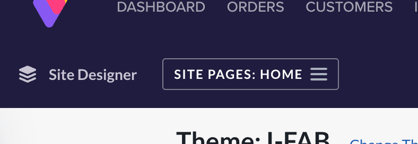
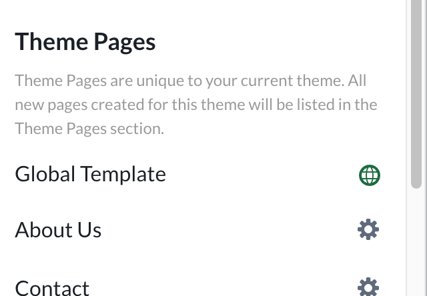
3\. On the left side menu click on 'Global Template'.
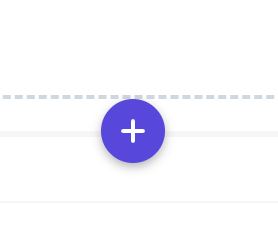
4\. Hover your mouse over the navigation menu and click the 'purple' plus button to add a block.
5\. On the Left Side go to the 'Headers' section and select the 'Studio Mega Menu Header Block'.
### Configure your block Settings:
1\. Click on the block that was just added , and on the Left side in the menu list, you will see a section labeled 'Nav Menu'. Click this section.
2\. In the drop down menu , select the navigation menu you want to use. You can verify which navigation menus you are using by going to Inventory \> Categories. Each navigation menu will have it's own list of categories/sub-categories.
### Configuring Your Sub-Category Images:
1\. Go to Inventory \> Categories.
2\. Look for the Navigation menu you are using in the Studio Mega Menu Block, and click the arrow that appears to the right of each category to expand it. This will display the categories assigned to that Nav Menu
3\. Click the arrow that appears to the right of each individual cateogry to display it's sub-categories. Hover over one of them and click the 'pencil' icon that will appear off to the right of the category name.
4\. On the Sub-Categories setting screen, scroll down to 'Image Management' .
5\. Add a Sub-Category Image.
**\*Ensure all the thumbnail images you upload are the same dimensions for the best aesthetic look.**
Once you have configured all the Sub-categories to have their sub-category images, you may return to Design \> Site Designer and click the 'green publish' button to see the changes live on your storefront!
- [Getting started](https://help.volusion.com/s/getting-started?hsLang=en-us)
- [Manage Your Store](https://help.volusion.com/s/manage-your-store?hsLang=en-us)
- [Marketing for Success](https://help.volusion.com/s/marketing-for-success?hsLang=en-us)
- [Volusion Payment Powered by Stripe](https://help.volusion.com/s/volusion-payment-powered-by-stripe?hsLang=en-us)
- [Partner Marketplace](https://help.volusion.com/s/partner-marketplace?hsLang=en-us)
- [Support](https://help.volusion.com/s/support?hsLang=en-us)
- [V1](https://help.volusion.com/s/v1?hsLang=en-us)
- [Security](https://help.volusion.com/s/security?hsLang=en-us)
[](https://volusion.com/)
[mailto:email@email.com](mailto:email@email.com)
Copyright © 2026, Volusion