---
title: Setting Up Your Volusion Email
description: With Volusion, you have the option to add email accounts and storage to your monthly hosting plan.
---
[Skip to content](https://help.volusion.com/s/settingupyourvolusionemail#main-content)
English - United States
Show submenu for translations

Open main navigation
Close main navigation
- English - United States
Show submenu for translations
- [Contact Us](https://volusion.com/contact)
[Contact Us](https://volusion.com/contact)
Search the Help Center
- There are no suggestions because the search field is empty.
1. [Volusion Help Center](https://help.volusion.com/s?hsLang=en-us)
2. [V1](https://help.volusion.com/s/v1?hsLang=en-us)
# Setting Up Your Volusion Email
With Volusion, you have the option to add email accounts and storage to your monthly hosting plan. This allows you to create a set of consistently-named email addresses for your Volusion store using the format [mailboxname@domainname.com](mailto:mailboxname@domainname.com).
***Note: Volusion must be your DNS and/or email host before you proceed!***
## **Creating an Email Address**
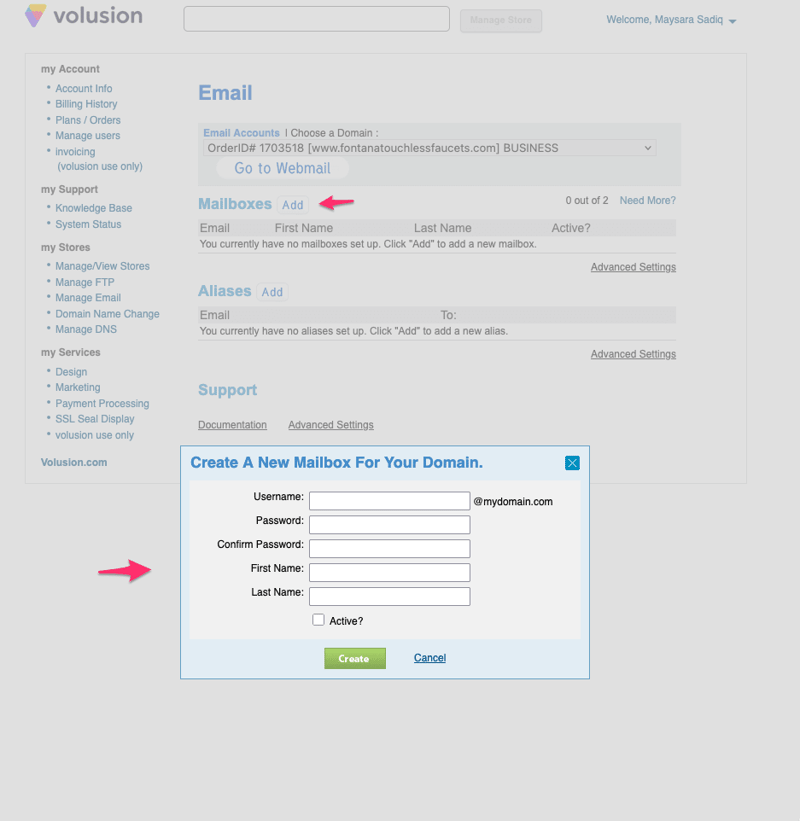
1. Log in to [my.volusion.com](https://helpcenter.volusion.com//my.volusion.com?hsLang=en-us).
2. Click **Manage Email** below the **my Stores** heading in the left navigation menu.
3. If you have more than one domain, make the appropriate selection from the **Email Accounts** drop-down menu.
4. Click **Add** to create a new email address. A dialog box will open.
5. Complete all fields and select the **Active** check box and click **Create**.
## **Create an Alias**
An alias presents a particular email address to customers with a different name. For example, if you wanted all help-related questions to wind up in the **[yourname@yourstore.com](mailto:yourname@yourstore.com)** inbox, you could create a **[help@yourstore.com](mailto:help@yourstore.com)** alias for that email. Here's how to get one set up:
1. On the My.Volusion email account management page, click the **Add** button above **Aliases**.
2. Enter a unique name for the alias.
3. Enter the mailbox or mailboxes where you want emails sent to this alias to be forwarded. You can also add email addresses that do not belong to this domain for example, **[store.owner@gmail.com](mailto:store.owner@gmail.com)**. To add multiple emails in the **To:** box, separate each email with a comma and no spaces.
4. Click **Create**.
## **Summary**
Once you've set up your mailboxes, you're ready to connect to your Volusion email account. Now you can contact customers with a unique address straight from your store.
If you want to manage your email through a specific third-party client like Gmail, you can find the relevant mail server settings[**here**](https://helpcenter.volusion.com/s/article/HowtoConnecttoYourVolusionEmailAccount?hsLang=en-us). You can also **[configure Volusion email for your mobile device](https://helpcenter.volusion.com/s/article/HowtoSetUpEmailonMobileDevices?hsLang=en-us)**.
- [Getting started](https://help.volusion.com/s/getting-started?hsLang=en-us)
- [Manage Your Store](https://help.volusion.com/s/manage-your-store?hsLang=en-us)
- [Marketing for Success](https://help.volusion.com/s/marketing-for-success?hsLang=en-us)
- [Volusion Payment Powered by Stripe](https://help.volusion.com/s/volusion-payment-powered-by-stripe?hsLang=en-us)
- [Partner Marketplace](https://help.volusion.com/s/partner-marketplace?hsLang=en-us)
- [Support](https://help.volusion.com/s/support?hsLang=en-us)
- [V1](https://help.volusion.com/s/v1?hsLang=en-us)
- [Security](https://help.volusion.com/s/security?hsLang=en-us)
[](https://volusion.com/)
[mailto:email@email.com](mailto:email@email.com)
Copyright © 2026, Volusion