---
title: Setting Up Google Analytics (GA4) in Site Designer
description: Learn more about Setting Up Google Analytics (GA4) in Site Designer in this guide.
---
[Skip to content](https://help.volusion.com/s/setting-up-google-analytics-in-site-designer#main-content)
English - United States
Show submenu for translations

Open main navigation
Close main navigation
- English - United States
Show submenu for translations
- [Contact Us](https://volusion.com/contact)
[Contact Us](https://volusion.com/contact)
Search the Help Center
- There are no suggestions because the search field is empty.
1. [Volusion Help Center](https://help.volusion.com/s?hsLang=en-us)
2. [V1](https://help.volusion.com/s/v1?hsLang=en-us)
# Setting Up Google Analytics (GA4) in Site Designer
How to Set Up Google Analytics Using Site Designer
If you want to setup Google Analytics when your site is using Site Designer, this article will walk you through the process of adding Google Analytics for your store. Need assistance? Our marketing and design experts from [Marketing 360](https://www.volusion.com/marketing360/)are here to help with services that include Google Analytics setup.
Adding the Google Analytics Tracking block.
\***Update Blocks:** This integration utilizes multiple blocks, so you will want to ensure that the following blocks have the most recent version. When a block has a new version available, you can click the option to update to the new version. This will ensure all the events are captured and properly tracked after setting up your Google Analytics integration in Site Designer.
You will want to ensure the following blocks are on the most recent version available:
- Tags and Services
- Enhanced Ecommerce
- Products
- Product Accessories
- Related Products
- Reviews.
- Category Page (theme page) blocks
- Push Cart
The Setup
1\. Ensure you have gotten your Google Analytics Measurement Id from your [Google Analytics account.](https://analytics.google.com/analytics/web/)
2\. Log into your Volusion admin dashboard and navigate to Design \> Site Designer.
3\. Log into Site Designer.
4\. The first block that should appear in your theme is labeled 'the block loads your external CSS and Script files'. Click on this block.

5\. After clicking on the block, the left side menu will appear. You will notice an option for 'google analytics'. Click this option in the left side menu.
6\. Input your google analytics Measurement Id in this field and select the 'enable' toggle to be on. The google tracking Id will have this format G-XXXXXXXXXX
***If you see a message saying there is a new version available, that means you will want to upgrade the block before proceeding.***
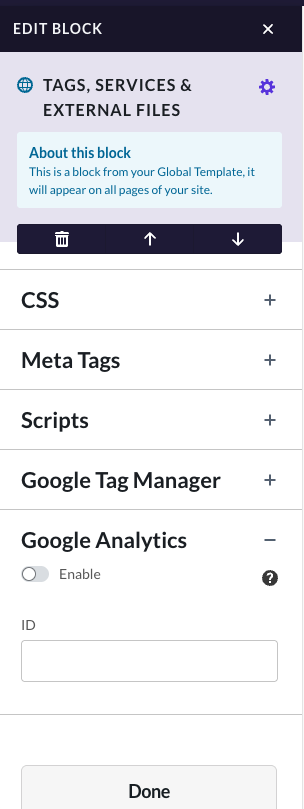
7\. Click 'done'.
8\. Click the Green Publish button in the upper right.
Enhanced Ecommerce Tracking:
We also recommend utilizing the Enhanced Ecommerce Tracking available through Google Analytics.
1\. On the Site designer page, hover over the top part of the theme and add a block by clicking the 'plus' button that will appear when you hover your mouse just below the navigation menu on your site within Site Designer.
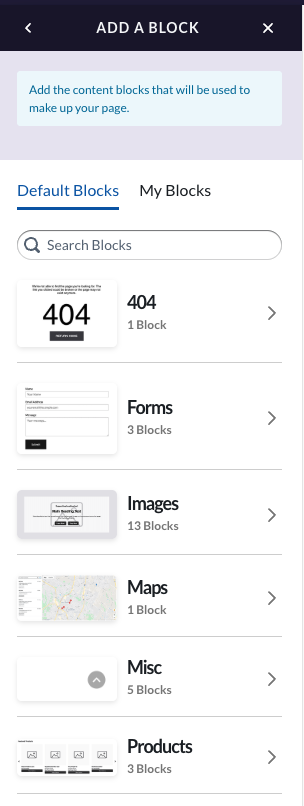
2\. Click the option on the left labeled 'Misc'.
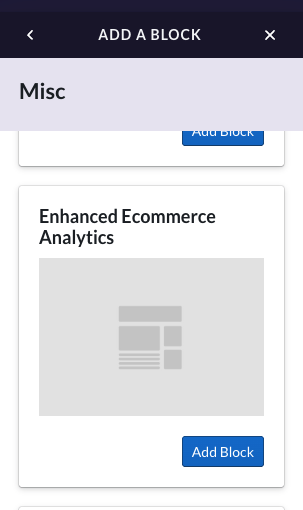
3.Select the block labeled 'Enhanced Ecommerce Analytics'.
4\. Input your Google Tracking ID in the tracking Id field and click 'done'.
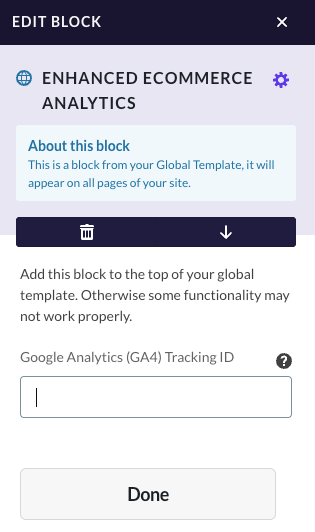
5\. Finally, click publish.
After about 24-48 hours you should be able to view the data and statistics for your site within your Google Analytics account.
Additional Information:
It can take roughly 24 hours before Google Analytics will show data for your store. If more then 24-48 hours passes and no information is showing, there may be something missing in the setup. Verify the measurement ID is correct, and your Google Analytics account is fully setup.
- [Getting started](https://help.volusion.com/s/getting-started?hsLang=en-us)
- [Manage Your Store](https://help.volusion.com/s/manage-your-store?hsLang=en-us)
- [Marketing for Success](https://help.volusion.com/s/marketing-for-success?hsLang=en-us)
- [Volusion Payment Powered by Stripe](https://help.volusion.com/s/volusion-payment-powered-by-stripe?hsLang=en-us)
- [Partner Marketplace](https://help.volusion.com/s/partner-marketplace?hsLang=en-us)
- [Support](https://help.volusion.com/s/support?hsLang=en-us)
- [V1](https://help.volusion.com/s/v1?hsLang=en-us)
- [Security](https://help.volusion.com/s/security?hsLang=en-us)
[](https://volusion.com/)
[mailto:email@email.com](mailto:email@email.com)
Copyright © 2026, Volusion