
Introduction
Multi-Factor Authentication (MFA) adds an extra layer of security to your Volusion account. When logging in, you will be asked to provide a unique code generated by a device you own (like your smartphone) in addition to your login and password. This helps prevent bad actors from accessing your account and your customers' data.
Enabling MFA for Your Account
Your personal MFA settings apply to every Volusion store you administer.
- Log in to your Volusion admin dashboard.
- Navigate to Settings > Multi-Factor (/admin/SecuritySettings.php).
- Under the How do I set up MFA? section, check the box labeled Enable multi-factor authentication for my account, on every store I administer.
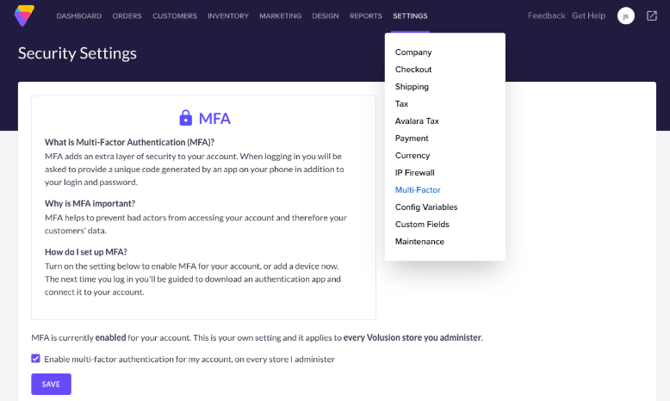
- The next time you log in, you will be directed to a secure Auth0 page to download an authentication app and connect it to your account.
Managing Your MFA DevicesYou can add or manage multiple authentication methods to ensure you always have access to your account.
- Navigate to the Security Settings page.
- Scroll down to the Your MFA devices section.
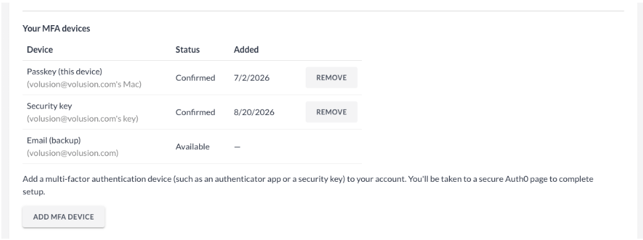
- Click Add a multi-factor authentication device.
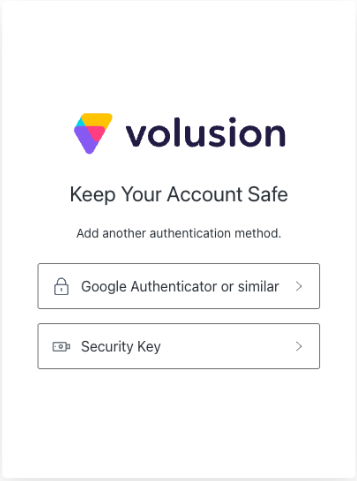
- You will be taken to a secure setup page where you can choose to add an Authenticator App, a Passkey (such as Mac TouchID), or a Backup Email. Follow the on-screen prompts to confirm the new device.
Enforcing MFA for All Administrators (Super Admins Only)If you are a Super Admin, you can mandate that all staff members use MFA to access the store backend. Note: This setting applies to the whole store, but each individual administrator will set up their own device the next time they log in.
- Navigate to the Security Settings page.
- Scroll down to the Store policy section.
- Check the box labeled Require multi-factor authentication for all administrators of this store.
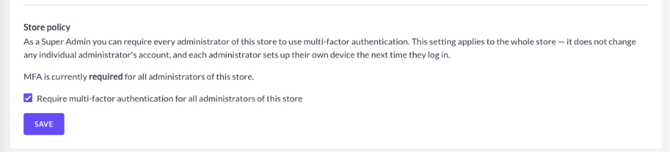
- Changes are saved automatically. The next time your administrators log in, they will be prompted to configure their personal MFA device.