---
title: Restricted Shipping Methods
description: By default, all shipping methods you set up are available to all customers of your store.
---
[Skip to content](https://help.volusion.com/s/restrictedshippingmethods#main-content)
English - United States
Show submenu for translations

Open main navigation
Close main navigation
- English - United States
Show submenu for translations
- [Contact Us](https://volusion.com/contact)
[Contact Us](https://volusion.com/contact)
Search the Help Center
- There are no suggestions because the search field is empty.
1. [Volusion Help Center](https://help.volusion.com/s?hsLang=en-us)
2. [V1](https://help.volusion.com/s/v1?hsLang=en-us)
# Restricted Shipping Methods
By default, all **[shipping methods](https://help.volusion.com/s/shipping?hsLang=en-us)** you set up are available to all customers of your store. Read on to learn how to restrict shipping methods to a specific customer or group.
**How to Use Restricted Shipping**
### **Enable Restricted Shipping**
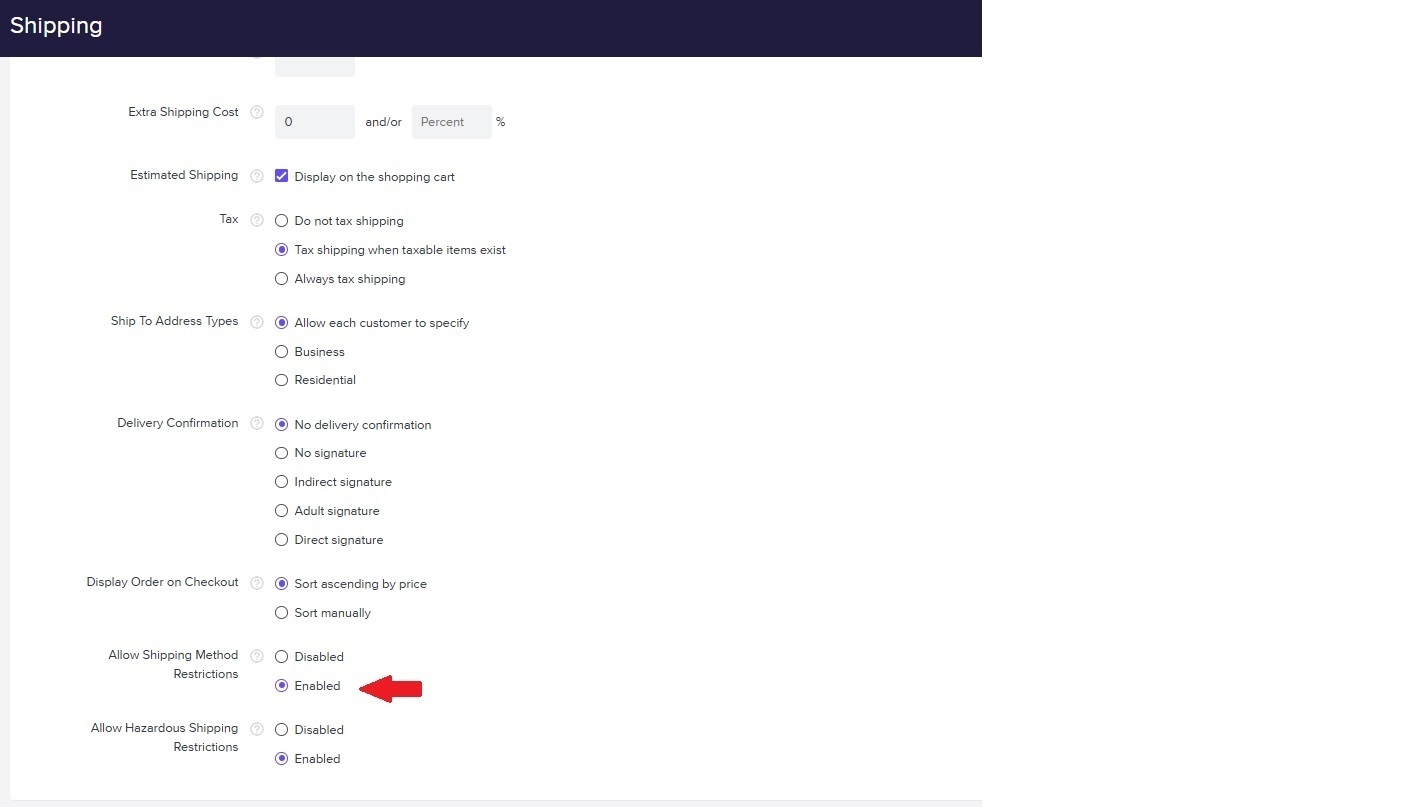
1. Go to **Settings** \> **Shipping**.
2. In the Advanced Settingssection, toggle the Allow Shipping Method Restrictionsoption to **Enabled**.
3. Press **Save**.
**How to Restrict a Shipping Method**
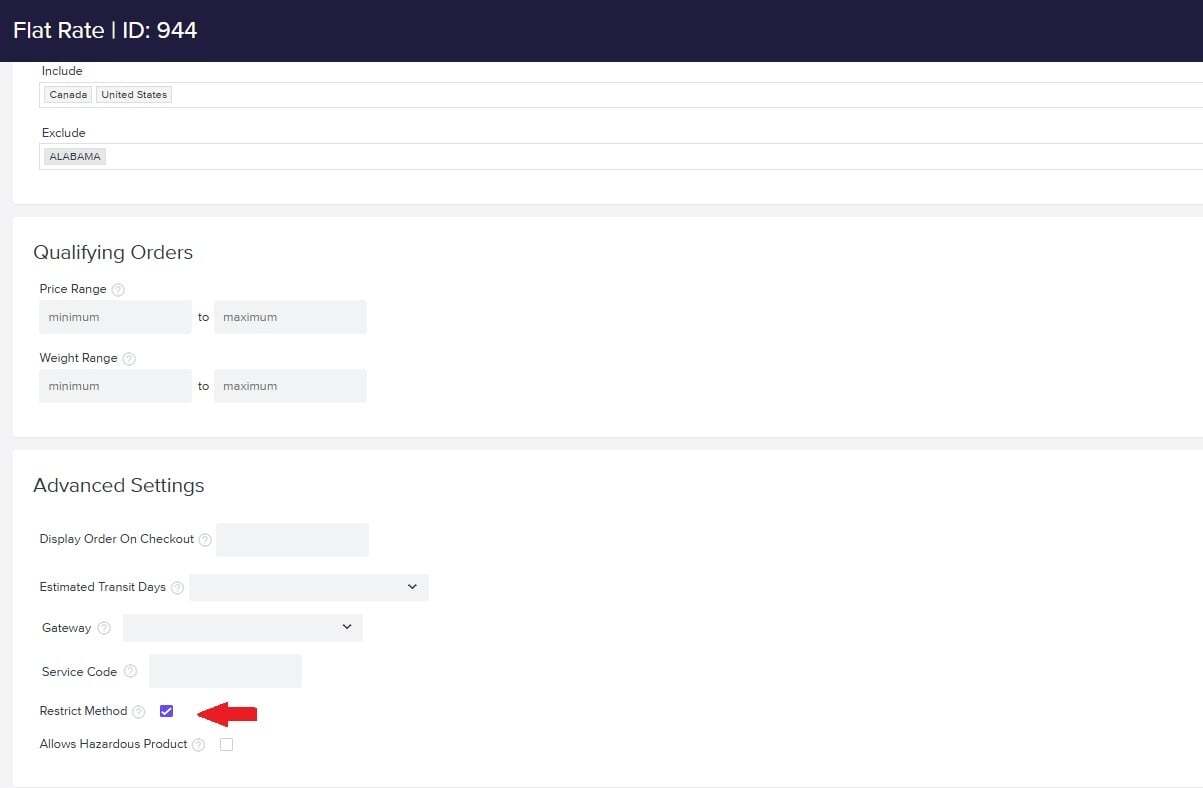
1. Go to **Settings** \> **Shipping**.
2. Select the shipping method you want to restrict.
3. In the Advanced Settingssection, select **Restrict Method**.
4. Press **Save**.
A restricted shipping method will be unavailable to customers until you give their account access to it.
### **Allow Customer Access to Restricted Shipping Methods**
To give a customer access to a restricted shipping method:
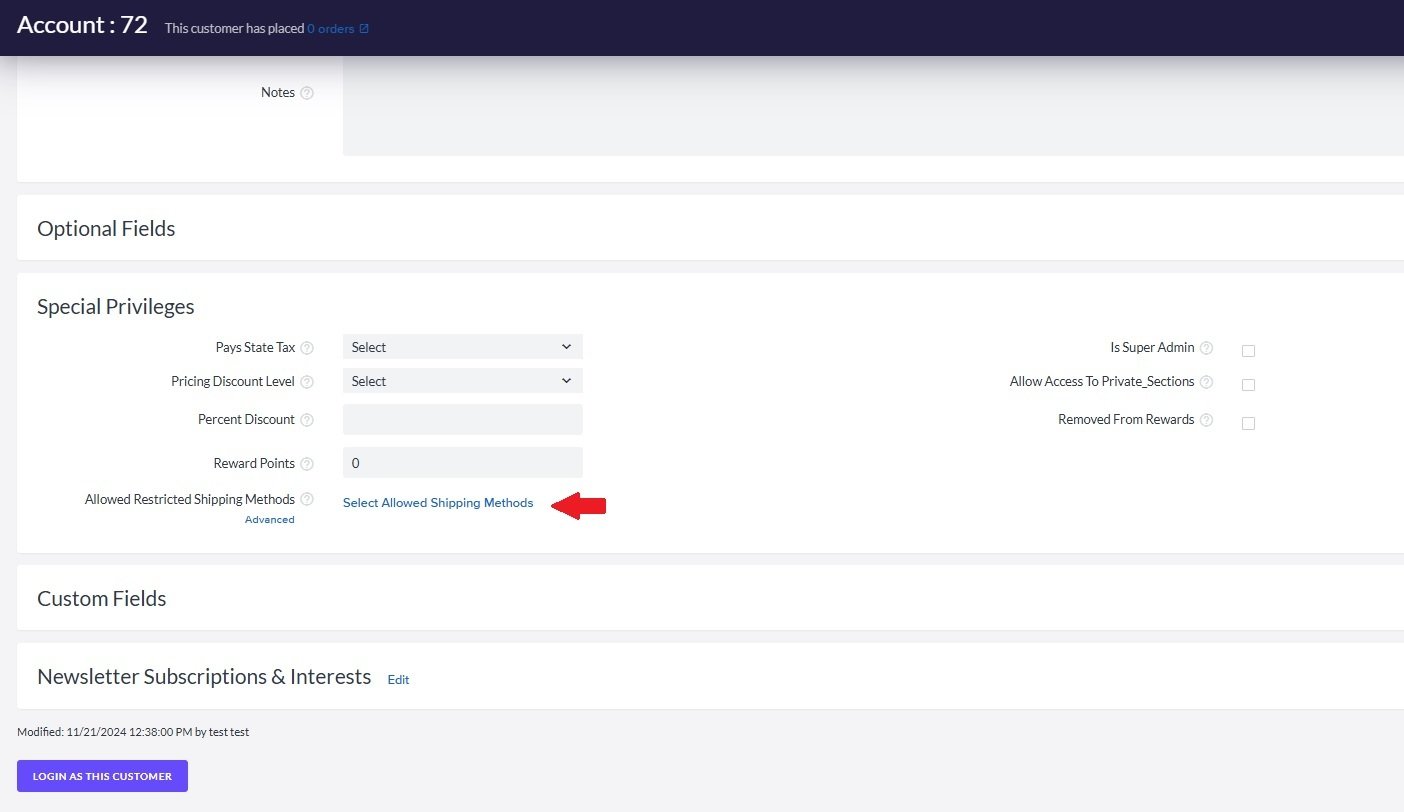
1. Go to **Customers** \> **Accounts**.
2. Select the customer account you want to provide restricted shipping method access to.
3. In the Special Privilegessection, next to Allowed Restricted Shipping Methods, press **Select Allowed Shipping Methods**.
4. In the dialog box, open the **Restricted Shipping Methods** section.
5. Select the restricted method(s) you want the customer to have access to.
6. Press **Apply**.
7. Press **Save** on the customer record.
**Restrict Free Shipping**
If you offer a **[free shipping option](https://help.volusion.com/s/shipping?hsLang=en-us)** and you don't want specific customers to have access to it, follow these steps:
1. Go to **Settings** \> **Config Variables**.
2. Click **Search**.
3. In the Name field, type **free shipping** and press enter.
4. On the results page, enable **Allow Free Shipping Restriction**.
5. Click **Save**.
6. Go to **Customers** \> **Accounts**.
7. Select the customer account.
8. In the Special Privilegessection, select the **Disable Free Shipping Access** option.
9. Click **Save**.
This customer account will no longer be able to select Free Shipping at checkout.
- [Getting started](https://help.volusion.com/s/getting-started?hsLang=en-us)
- [Manage Your Store](https://help.volusion.com/s/manage-your-store?hsLang=en-us)
- [Marketing for Success](https://help.volusion.com/s/marketing-for-success?hsLang=en-us)
- [Volusion Payment Powered by Stripe](https://help.volusion.com/s/volusion-payment-powered-by-stripe?hsLang=en-us)
- [Partner Marketplace](https://help.volusion.com/s/partner-marketplace?hsLang=en-us)
- [Support](https://help.volusion.com/s/support?hsLang=en-us)
- [V1](https://help.volusion.com/s/v1?hsLang=en-us)
- [Security](https://help.volusion.com/s/security?hsLang=en-us)
[](https://volusion.com/)
[mailto:email@email.com](mailto:email@email.com)
Copyright © 2026, Volusion