---
title: Related Products
description: Learn more about Related Products in this guide.
---
[Skip to content](https://help.volusion.com/s/relatedproducts#main-content)
English - United States
Show submenu for translations

Open main navigation
Close main navigation
- English - United States
Show submenu for translations
- [Contact Us](https://volusion.com/contact)
[Contact Us](https://volusion.com/contact)
Search the Help Center
- There are no suggestions because the search field is empty.
1. [Volusion Help Center](https://help.volusion.com/s?hsLang=en-us)
2. [V1](https://help.volusion.com/s/v1?hsLang=en-us)
# Related Products
As a customer browses your online store, they dont have the benefit of a sales associate directing them to products they might like, the way they would in brick and mortar stores. You can perform the same task virtually by displaying products that are related to (meaning, in the same category as) the ones they are looking at.
For example, if a customer is shopping for pots and pans, related products might be kitchen utensils or appliances. This is a great way to upsell the products in your inventory and deliver a full-service, one-stop-shopping experience to your customers.
To turn on Related Products functionality in your Volusion store:
From your store's Admin Dashboard, go to **Inventory** \> **Products.**
Click the **3 Dot Action button** at the top right of the page, and select **All Products Settings**.
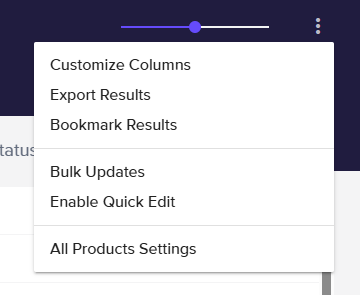
Select the **Show Related Products** check box and click the **Save** button.
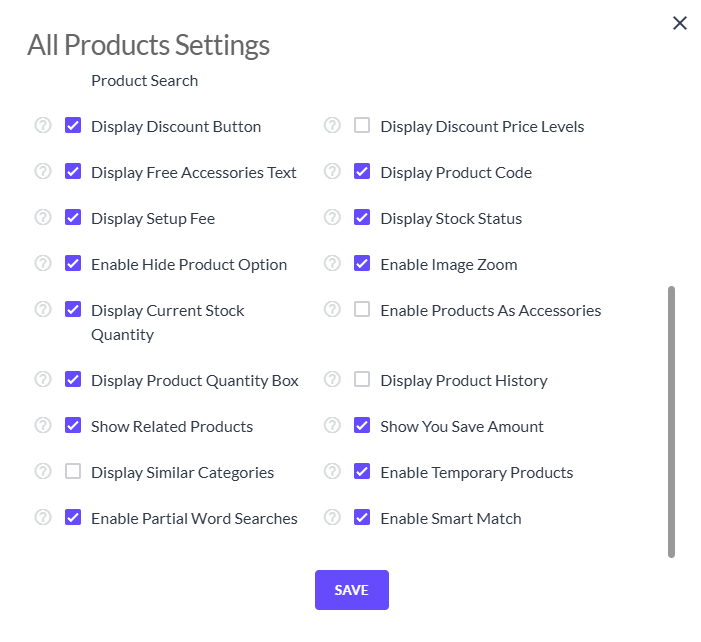Now, four or eight randomly selected products in the same category will display in the Related Items section of the product page.
Defining Related Products
There are so few good surprises in life anymore. Thankfully, the related products that will display in your store is one of them. However, you can control which products display by using the Product Accessories feature. Heres how:
From your store's Admin Dashboard, go to **Inventory** \> **Products.**
Click the **3 Dot Action button** at the top right of the page, and select **All Products Settings**.

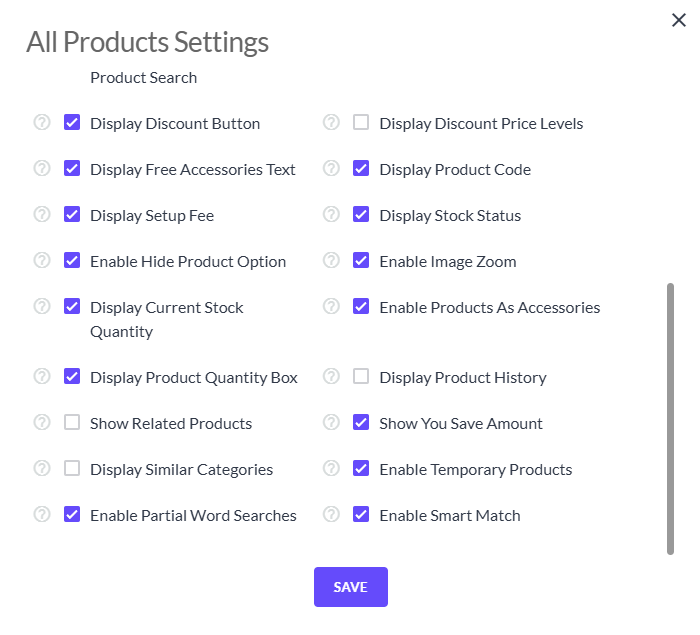
Make sure **Show Related Product** is NOT selected. Select **Enable Products As Accessories** by clicking its checkbox and click the **Save** button**.**
Go to the product for which you want to specify related products and enter the product code or codes (separated by commas) in the **Accessories** field on the **Misc** tab of the **Advanced Info** section.
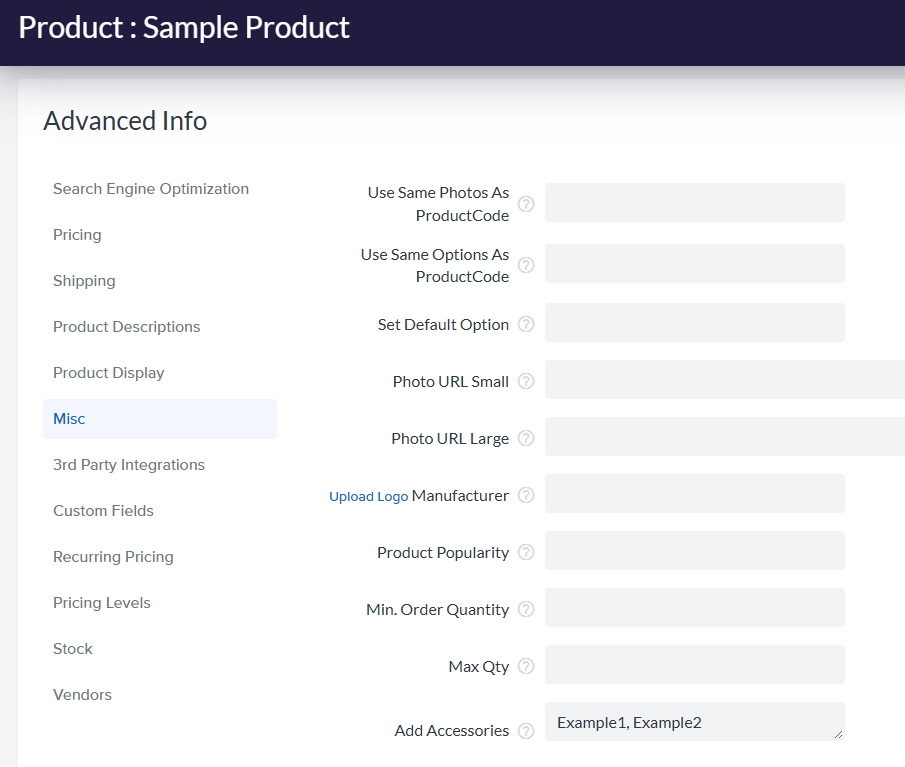
Save and repeat for all products you want to display.
Youll also want to change the title of the Accessories section to Related Products (or something similar). To do this:
From your site's Admin Dashboard, go to **Design** \> **Site Content.**
Select **Page Text** from the **Article Group** menu.
Select **Product Details** from the **Category** menu.
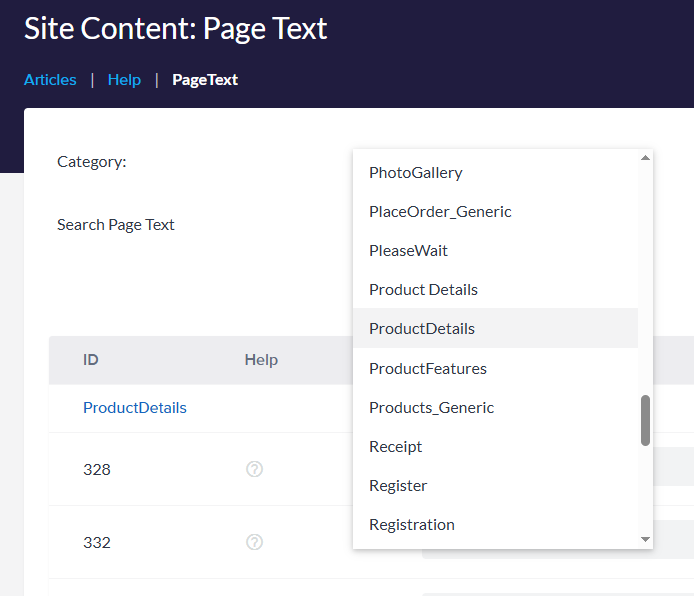
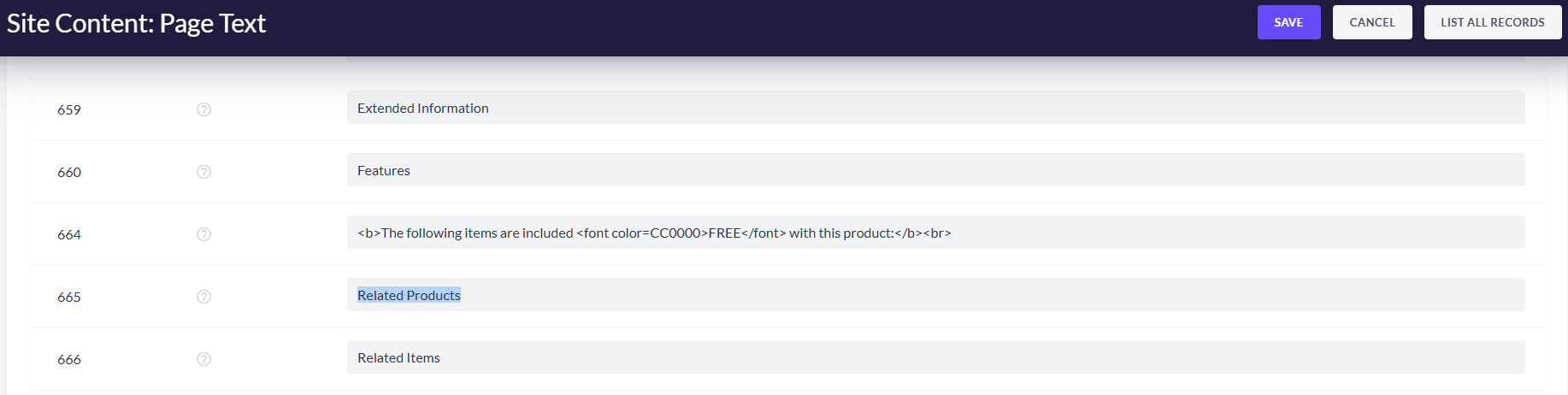
Scroll down to ID # 665 and edit the text in the **Page Text** field to *Related Products* and click the **Save** button.
Related Products appear in random order on your customer-facing Product Page, not in the order they are entered on the product.
Summary
Turning on Related Products functionality gives you an opportunity to show the large variety you have in your inventory and gives customers more purchasing options, without having to search your site.
- [Getting started](https://help.volusion.com/s/getting-started?hsLang=en-us)
- [Manage Your Store](https://help.volusion.com/s/manage-your-store?hsLang=en-us)
- [Marketing for Success](https://help.volusion.com/s/marketing-for-success?hsLang=en-us)
- [Volusion Payment Powered by Stripe](https://help.volusion.com/s/volusion-payment-powered-by-stripe?hsLang=en-us)
- [Partner Marketplace](https://help.volusion.com/s/partner-marketplace?hsLang=en-us)
- [Support](https://help.volusion.com/s/support?hsLang=en-us)
- [V1](https://help.volusion.com/s/v1?hsLang=en-us)
- [Security](https://help.volusion.com/s/security?hsLang=en-us)
[](https://volusion.com/)
[mailto:email@email.com](mailto:email@email.com)
Copyright © 2026, Volusion