
When you load products into your inventory and create an Inventory Control Grid, by default, options will appear in alphabetical order in the drop-down on the product detail page. This works well for options like color, but for size options, you probably don't want small to appear after medium.
Well show you how to make a few individual adjustments to your Inventory Control Grid so that it works best for you.
Using Arrange Options By
You can create individual options and set an order by filling in the Arrange Options By field for each option. When you enter a numerical value into the Arrange Options By field, the product options will be displayed in the option category drop-down on the product detail page in ascending order, based on the value entered.
Dont sweat it if you didnt configure the Arrange Options By for each option before applying the options to products and creating your Inventory Control Grids. You can easily update this field and alter the display of your storefront product details page like so:
From your store's Admin Dashboard, go to Inventory > Options.
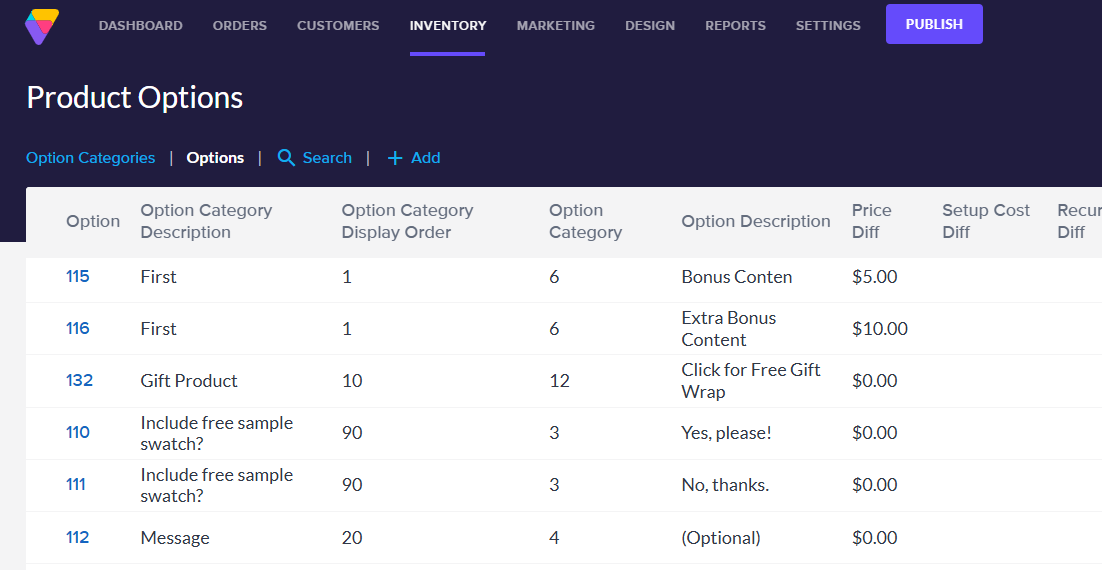
Locate and click the Option Id Number first option for which you want to change the order.
Under Advanced Info, fill in the order number in the Display Order field.
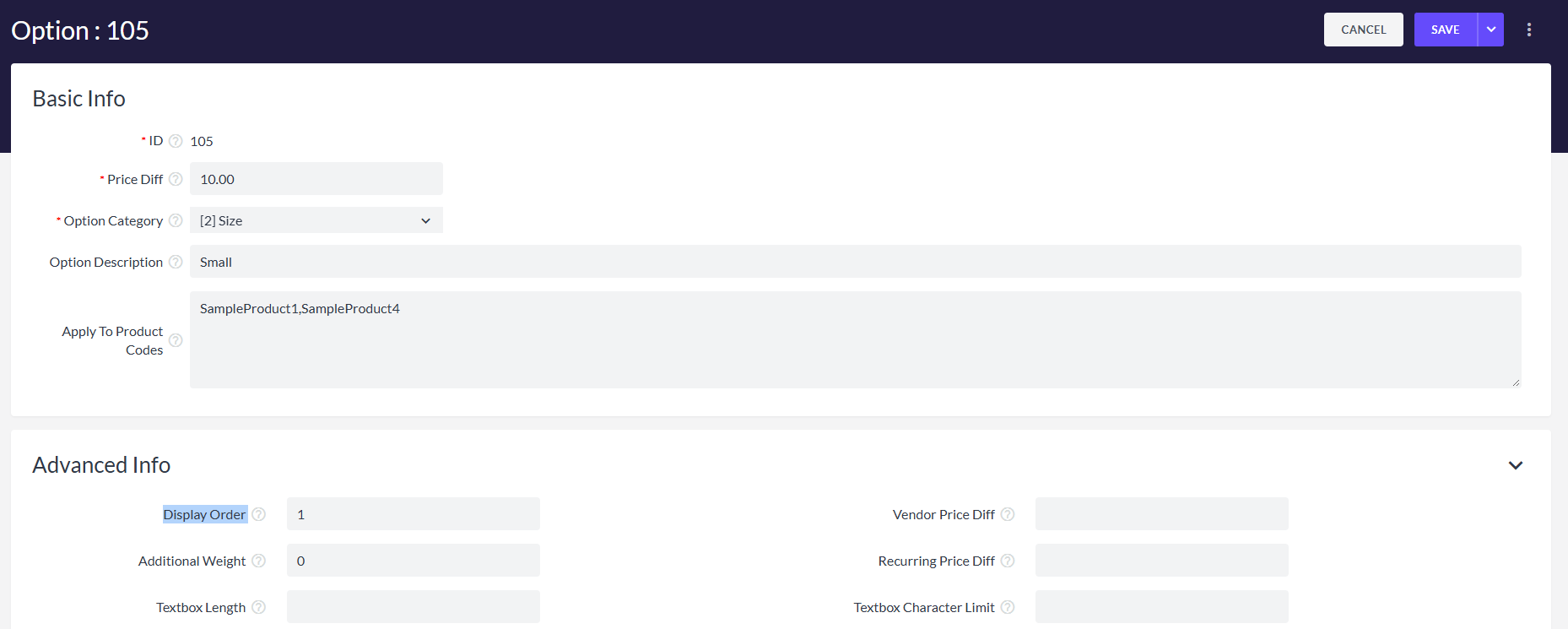
Click the Save button at the top right of the page.
Repeat these steps for each option until you have specified the full sequential order for the options.
Reassign Control Grid
After you've made the changes, from your store's Admin Dashboard go to Settings > Maintenance.
Please Note: Stores using Site Designer will appear differently, you will not see the option to close your store for maintenance.
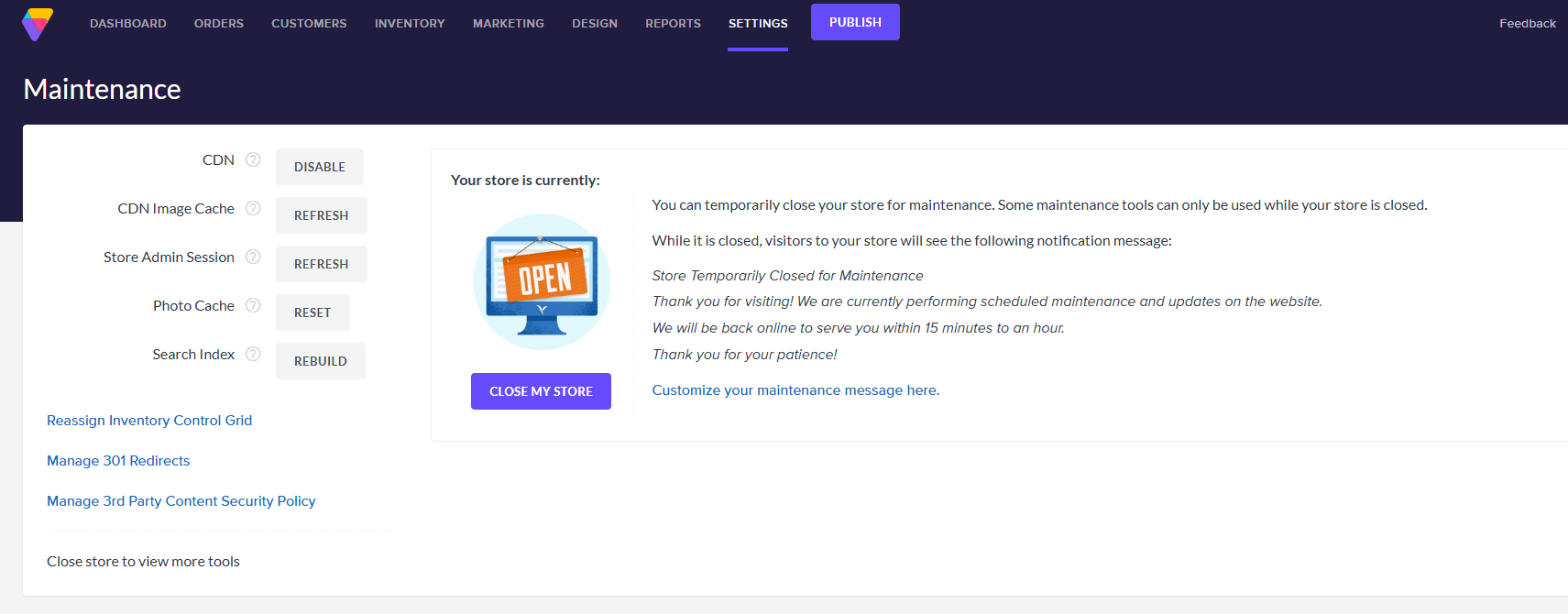
Click Reassign Inventory Control Grid.
Click the Reassign Display Order for all Inventory Control Grids checkbox.
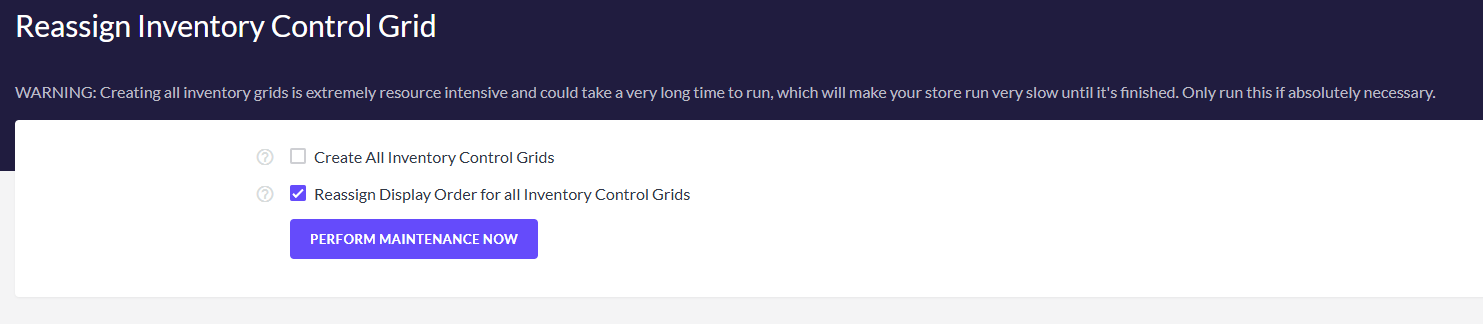
Click the Perform Maintenance Now button. This will reassign the order for all products with Display Order updates.
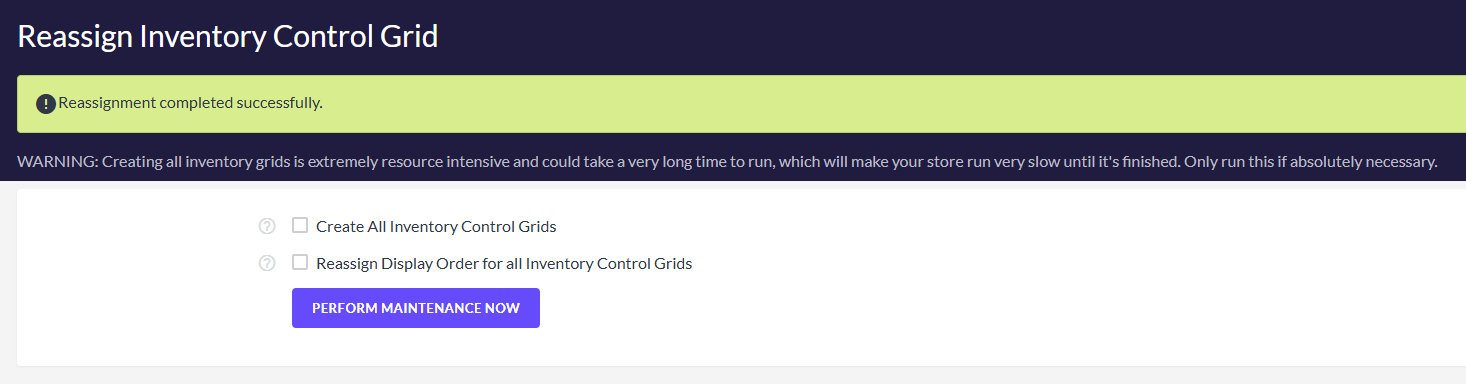
You can also use this tool to update the order of option categories on a product detail page (for products with more than one option category.)
To update the order of the Inventory Control Grid for a single product, go to the product's Inventory Control Grid section of the product page and click Save Changes.