---
title: PayPal Pay Later Messaging On Products for V1
description: PayPal Pay Later Messaging Adding PayPal Pay Later Messaging to your Volusion store lets your customers know all their payment options.
---
[Skip to content](https://help.volusion.com/s/paypal-pay-later-messaging-for-v1#main-content)
English - United States
Show submenu for translations

Open main navigation
Close main navigation
- English - United States
Show submenu for translations
- [Contact Us](https://volusion.com/contact)
[Contact Us](https://volusion.com/contact)
Search the Help Center
- There are no suggestions because the search field is empty.
1. [Volusion Help Center](https://help.volusion.com/s?hsLang=en-us)
2. [V1](https://help.volusion.com/s/v1?hsLang=en-us)
# PayPal Pay Later Messaging On Products for V1
**PayPal Pay Later Messaging**
Adding PayPal Pay Later Messaging to your Volusion store lets your customers know all their payment options.
PayPal Pay Later messaging is added to your store via a script that is loaded to your site's template file. To add the script, follow these steps:
**Adding the PayPal Messaging Script**
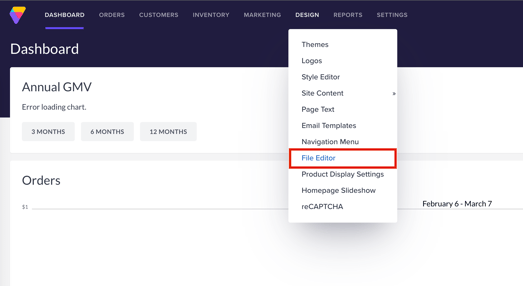
From your store's Admin Dashboard, choose **Design \> File Editor** from the drop-down menu.
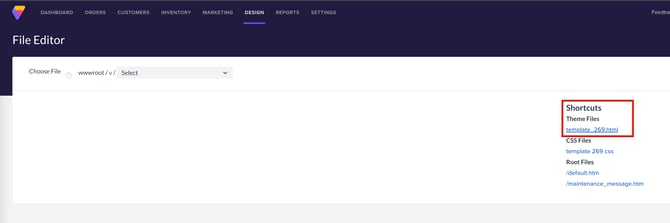
On the File Editor page, choose the Theme File by clicking its **link** in the Shortcuts Menu. Your template number will vary, depending on the theme you are using for your store.
In the template file, scroll down to the bottom of the code and locate the Body Closing Tag. The Body Closing Tag is located at the very bottom of the HTML code.
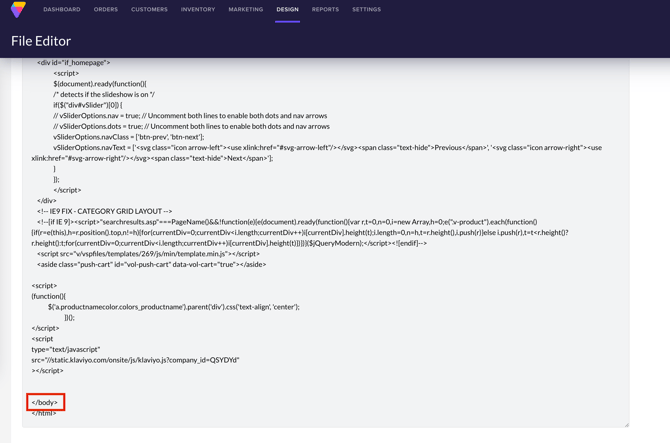
Copy and Paste the following script directly Below the Body Closing Tag.
```
```
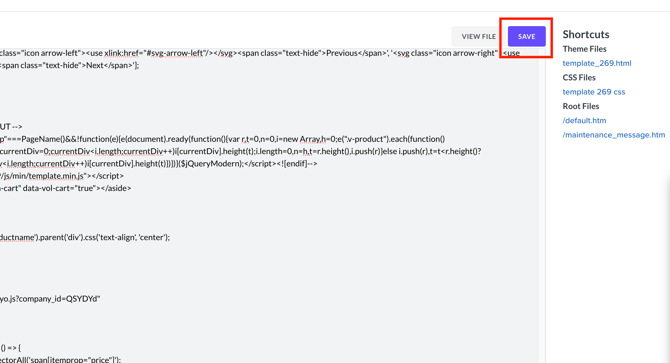
Once you have added the script, click the **Save** button to save your changes.
If you have not turned on **Enable Immediate Publish** variable in **Settings \> Config Variables**, you will need to Publish your changes. To publish you changes, click the blue **Publish** button located on the right side of the Admin Dashboard drop-down menu.
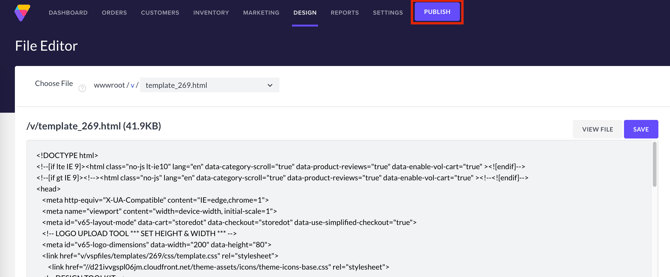
If you do not see the **Publish** button after saving your script, then your likely have the **Enable Immediate Publish** variable checked. No further action is needed.
**Testing the PayPal Messaging Script**
To test the script and make sure that it is showing the correct messaging, once you have added and saved it, navigate to a product with a price that qualifies for the PayPal Pay Later program. This threshold is set by PayPal, but should be for items over $40.00.
The product should show the correct PayPal messaging.
If the price breakdown is not accurate (price/4) or the position is not optimal, please [contact us](https://help.volusion.com/s/ContactUs?hsLang=en-us).
- [Getting started](https://help.volusion.com/s/getting-started?hsLang=en-us)
- [Manage Your Store](https://help.volusion.com/s/manage-your-store?hsLang=en-us)
- [Marketing for Success](https://help.volusion.com/s/marketing-for-success?hsLang=en-us)
- [Volusion Payment Powered by Stripe](https://help.volusion.com/s/volusion-payment-powered-by-stripe?hsLang=en-us)
- [Partner Marketplace](https://help.volusion.com/s/partner-marketplace?hsLang=en-us)
- [Support](https://help.volusion.com/s/support?hsLang=en-us)
- [V1](https://help.volusion.com/s/v1?hsLang=en-us)
- [Security](https://help.volusion.com/s/security?hsLang=en-us)
[](https://volusion.com/)
[mailto:email@email.com](mailto:email@email.com)
Copyright © 2026, Volusion