---
title: Order Status Guide
description: Learn more about Order Status Guide in this guide.
---
[Skip to content](https://help.volusion.com/s/orderstatusguide#main-content)
English - United States
Show submenu for translations

Open main navigation
Close main navigation
- English - United States
Show submenu for translations
- [Contact Us](https://volusion.com/contact)
[Contact Us](https://volusion.com/contact)
Search the Help Center
- There are no suggestions because the search field is empty.
1. [Volusion Help Center](https://help.volusion.com/s?hsLang=en-us)
2. [V1](https://help.volusion.com/s/v1?hsLang=en-us)
# Order Status Guide
Volusion offers a number of default statuses you can select for your orders:
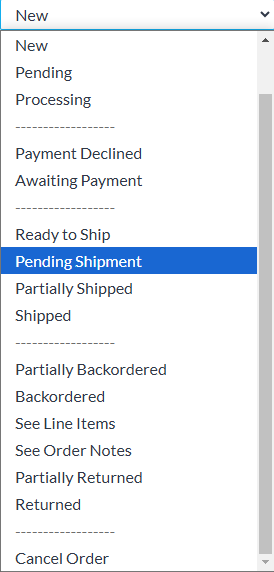
You can view your orders by logging in to your Admin Area and going to **Orders** \> **Process Orders**. Open orders display by default (if you have only one open order, you will bypass the table view and arrive at its details page automatically). This designation includes all statuses shown above except the following:
- Shipped
- Returned
- Partially Returned
- Cancelled
You can use the **Filter** menu to change the display:

**Pending Shipment** and **Shipped** correspond only to orders of those specific statuses. **All Orders** includes orders of all statuses. It's the only selection that shows returned, partially returned, and cancelled orders. **Uncaptured Payments** displays orders with a **Payment Received** value of 0 and a **Payment Amount** greater than 0. **Partial Payments** displays orders with a **Payment Received** value greater than 0 but less than the **Payment Amount** value.
To view orders of any other specific status, click **Search** above the table, type the status of your choice in the **Order Status** field, and click the blue **Search** button.
You can change order statuses directly from the table view**\*** by pointing to the **Order Status** heading and clicking the **Edit** option (if you don't see the **Order Status** column, you can expose it by clicking the three-dot actions menu icon, selecting **Customize Columns**, selecting the **Order Status** check box, and saving). The column then displays a drop-down menu in each row that you can edit freely. You can change an order status from this location or from the order details page (by clicking its ID number from the table view) as many times as you like, unless you cancel the order. To edit the status of a cancelled order, you must first change the status from the table view.
**\***Note that if you've configured your store to receive [eBay orders](https://help.volusion.com/s/SellingoneBayWithVolusion?hsLang=en-us) , each eBay order's status must be set to **Shipped** within the order details page. Do not use the Orders table view to set an eBay order's status to **Shipped**, or an error will occur.
Certain system actions result in automatic changes in order status:
- New orders without an automatic payment component default to a status of **New**.
- When new orders include customer comments, they show as **New See Order Notes**.
- Some specialized payment methods, such as PayPal Standard, list new orders automatically as **Awaiting Payment** or **Awaiting Payment See Order Notes**.
- Once you receive payment on a new order, the status changes to **Processing**.
- For new orders placed with a credit card, the default status varies depending on your gateway setting. If you use a setting with automatic payment functionality (**Authorize and Capture at Sale** or **Authorize at Sale, Capture at Shipping**), declined transactions result in orders with a **Cancelled** status, whereas successful transactions result in a status of **Processing**.
- For all three gateway settings, successful attempts to manually authorize, capture, debit, void, and credit automatically set the status to **Processing**, and all failed attempts set it to **Payment Declined**.
- Clicking the **Complete Order** button from the details page always changes the status to **Shipped**.
Your customers can also view order status indicators in their account pages (at http:// /myaccount.asp \> **Review orders / track packages**):
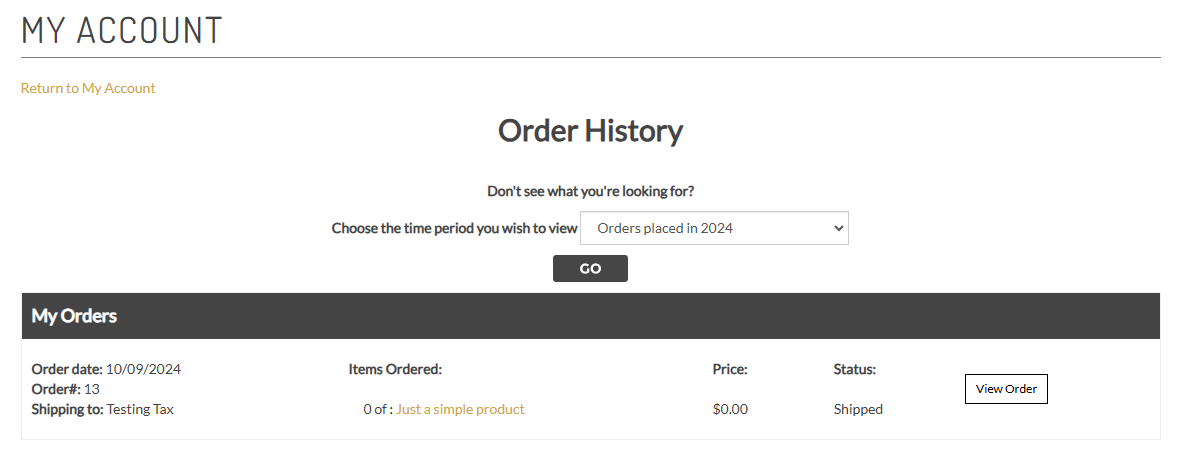
No matter which status setting you choose internally, your customers' account pages always show either **Processing** or **Shipped. Processing** corresponds to all statuses except the following:
- Shipped
- Returned
- Partially Returned
- Cancelled
**Shipped** corresponds to the first three statuses in the list above. Orders with a **Cancelled** status do not appear in the customer's order history.
Once you assign an order a status that corresponds to **Shipped**, the status will not change in the customer's account even if you change it internally to a status that would normally correspond to **Processing** externally.
Keep in mind that certain manual changes to an order will cause its Order Status to change. For instance, clicking the **Receive** button in the Payments section after clicking the **Complete Order** button will revert the order's status from Shipped back to Processing.
Note that you cannot add custom order statuses, edit the default selections, or change the way the system automatically switches statuses for certain events, and you cannot change the way statuses display to customers in their account order histories.
- [Getting started](https://help.volusion.com/s/getting-started?hsLang=en-us)
- [Manage Your Store](https://help.volusion.com/s/manage-your-store?hsLang=en-us)
- [Marketing for Success](https://help.volusion.com/s/marketing-for-success?hsLang=en-us)
- [Volusion Payment Powered by Stripe](https://help.volusion.com/s/volusion-payment-powered-by-stripe?hsLang=en-us)
- [Partner Marketplace](https://help.volusion.com/s/partner-marketplace?hsLang=en-us)
- [Support](https://help.volusion.com/s/support?hsLang=en-us)
- [V1](https://help.volusion.com/s/v1?hsLang=en-us)
- [Security](https://help.volusion.com/s/security?hsLang=en-us)
[](https://volusion.com/)
[mailto:email@email.com](mailto:email@email.com)
Copyright © 2026, Volusion