---
title: Non-Shippable Products
description: "Selling products that require pickup? Mark them \"non-shippable\" to help your customers out!"
---
[Skip to content](https://help.volusion.com/s/non-shippableproducts#main-content)
English - United States
Show submenu for translations

Open main navigation
Close main navigation
- English - United States
Show submenu for translations
- [Contact Us](https://volusion.com/contact)
[Contact Us](https://volusion.com/contact)
Search the Help Center
- There are no suggestions because the search field is empty.
1. [Volusion Help Center](https://help.volusion.com/s?hsLang=en-us)
2. [V1](https://help.volusion.com/s/v1?hsLang=en-us)
# Non-Shippable Products
Non-Shippable Products
Selling products that require pickup? Mark them "non-shippable" to help your customers out!
If your store sells products that are too large or heavy to ship, your customers may need to pick them up from your store or another physical location. Designating those items as non-shippable ensures that no shipping fees will be charged for those items, while also informing your customers about any special shipping circumstances.
Enabling Non-Shippable Products
Before you can assign the non-shippable status to individual products, you will need to enable the feature in your Admin Area:
1. Visit **Settings** \> **Config Variables** and click **Search**.
2. Type the word "Unshippable" in the **Name** field and click **Search** once more.
3. Select the checkbox for the **Allow products to be marked as non-shippable** config variable.
4. Click **Save**.
Your store now supports non-shippable products.
Managing Non-Shippable Products
You can mark a specific product as non-shippable from that product's editing page:
1. From the **Inventory** \> **Products** list, select a product record to edit it.
2. Under the **Advanced Info** heading, locate the **Shipping** section and scroll to the bottom.
3. Select the **NonShippable** checkbox.
4. Click **Save**.
Below the NonShippable checkbox, you will also see an **Edit Nonshippable Item Help Article**link. Clicking this link will take you to a page where you can customize the customer-facing message that describes how non-shippable products work. For more information, see "Non-Shippable Message on the Product Page"below.
What Your Customers See
The purpose of the non-shippable product feature is to make customers aware of the shipping limitations for certain items, while still allowing them to be purchased. For that reason, it is important to provide plenty of indication when an item cannot be shipped. Read below for details on letting your customers know about these shipping exceptions.
### Non-Shippable Message on the Product Page
When an item is non-shippable, customers see a "This item cannot be shipped" message below pricing information. Any free shipping messaging will be hidden, as the non-shippable status overrides that setting.
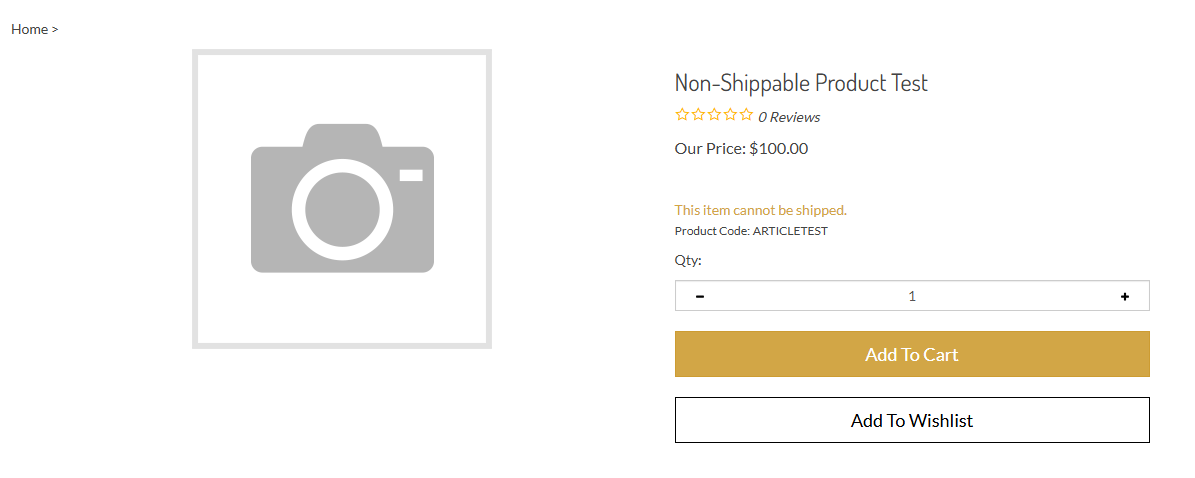
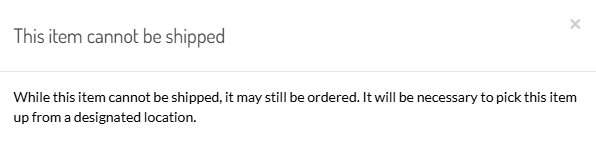
Customers can click the "This item cannot be shipped" message to expose additional information in a pop-up window. By default, that message includes the following text:
**Editing the Non-Shippable Link and Message**
If you want to change the wording of the hyperlinked page text (This item cannot be shipped) or the explanatory text that appears in the pop-up modal, you can edit those pieces from your Admin Area.
Below the NonShippable checkbox on any product editing page, click "Edit Nonshippable Item Help Article".
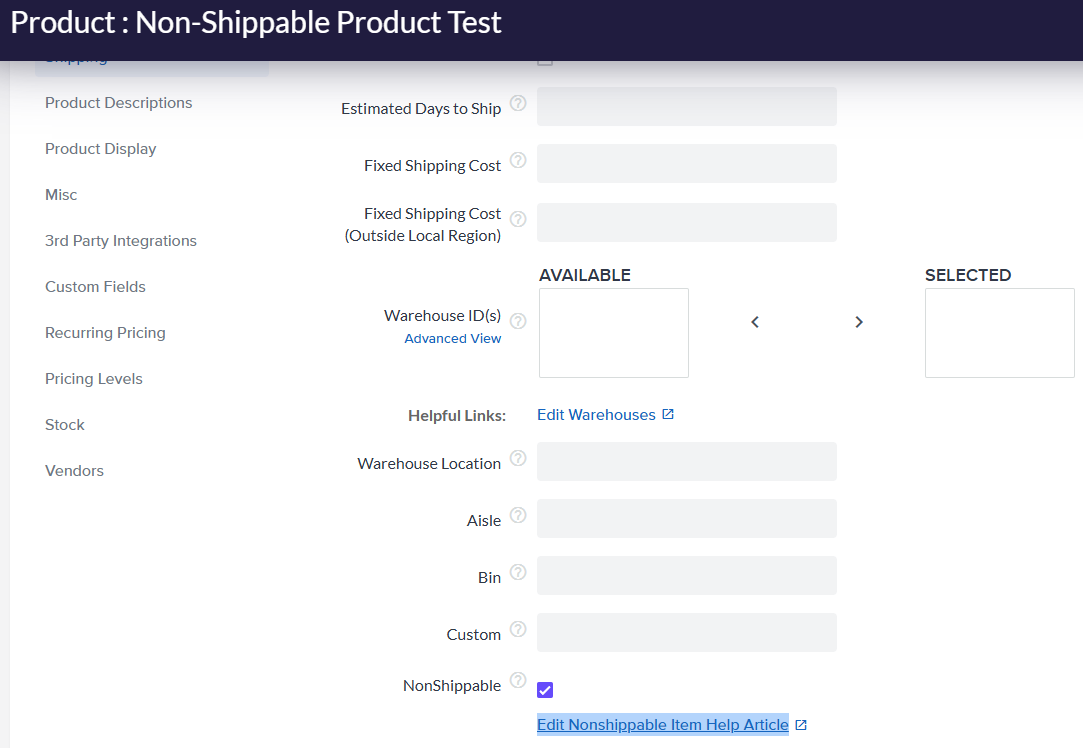
You'll be taken to a search results page for article ID 257, which corresponds to the non-shippable item messaging:

Click on the article ID number to edit the **Title** (hyperlinked text on product page) and **Body** (pop-up message).
You can also get to this page by visiting **Design** \> **Site Content** and performing a searchfor "shipped" in the **Article Title** field.
### On the Shopping Cart Page
When the cart contains a non-shippable item, customers will see additional messaging at the top of the shopping cart page:
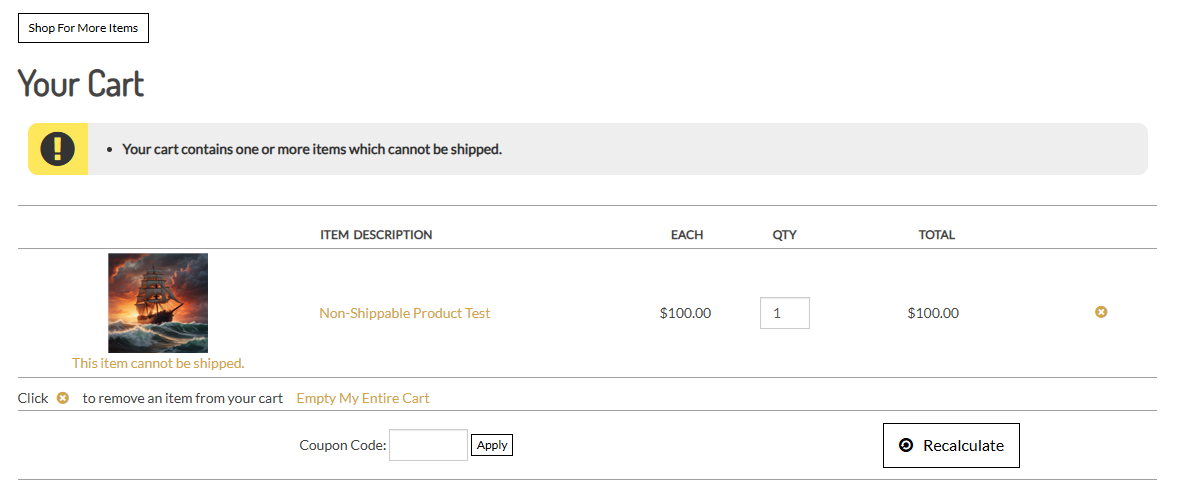
The cart details list displays the same hyperlinked text and pop-up modal from the product details page, right below the non-shippable product's thumbnail image.
**Live Rate Calculation**
When a product is flagged as non-shippable, the product's weight will be omitted from live rate shipping calculations. Applicable sales tax will still be calculated for the product, as normal. For more information on how non-shippable products function in the cart, see the [Notes and Tips](https://helpcenter.volusion.com/en/articles/1569072-non-shippable-products?hsLang=en-us) section below.
Processing Non-Shippable Product Orders
In general, processing orders with non-shippable items is much the same as processing standard orders. Marking an order as "Complete" will cause a non-shippable product to be marked as "Shipped".
In the **Details** section of the Order Details page, you'll see a new **Nonshippable** column. Non-shippable items are marked with a "Y".
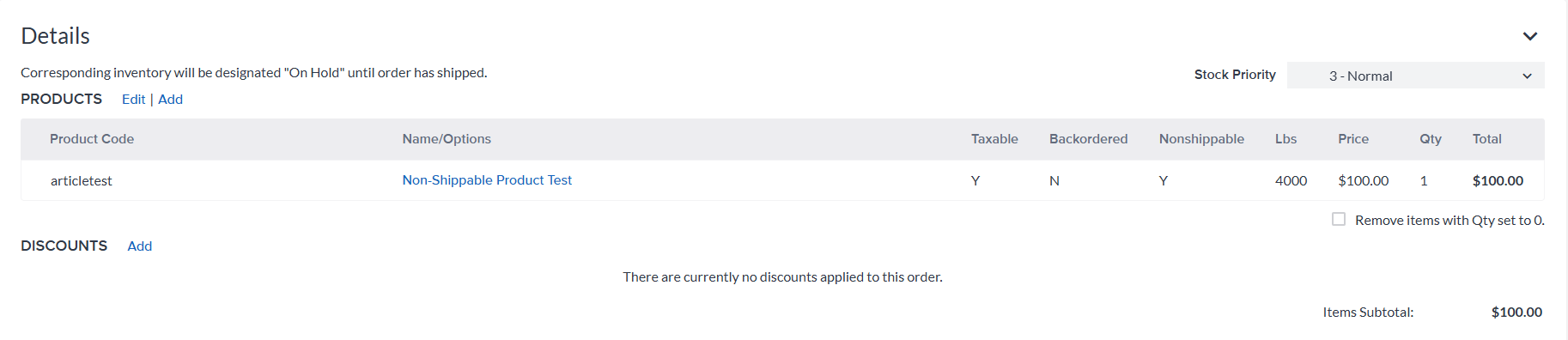
Additionally, when modifying the order details in **Edit** mode, the **Drop Ship** column will be blank (no checkbox will appear) for any non-shippable items.
**Find Orders with Non-Shippable Items**
To locate all orders that contain non-shippable products, go to **Orders** \> **Process Orders** and click **Quick Search**. Select the **Nonshippable** checkbox, then click **Search** again. You'll see a list of search results that includes all applicable orders.
### Order Confirmation Emails
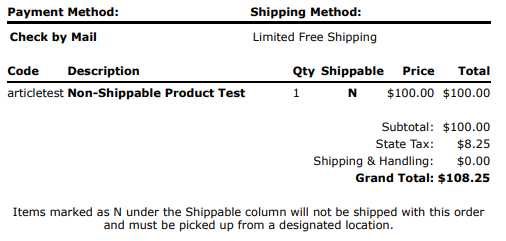
Order Confirmation emails include a **Shippable** column in the Order Details section. Each non-shippable item is indicated by the "N" value in the that column.
Below the Order Details section, an additional note about non-shippable items displays:
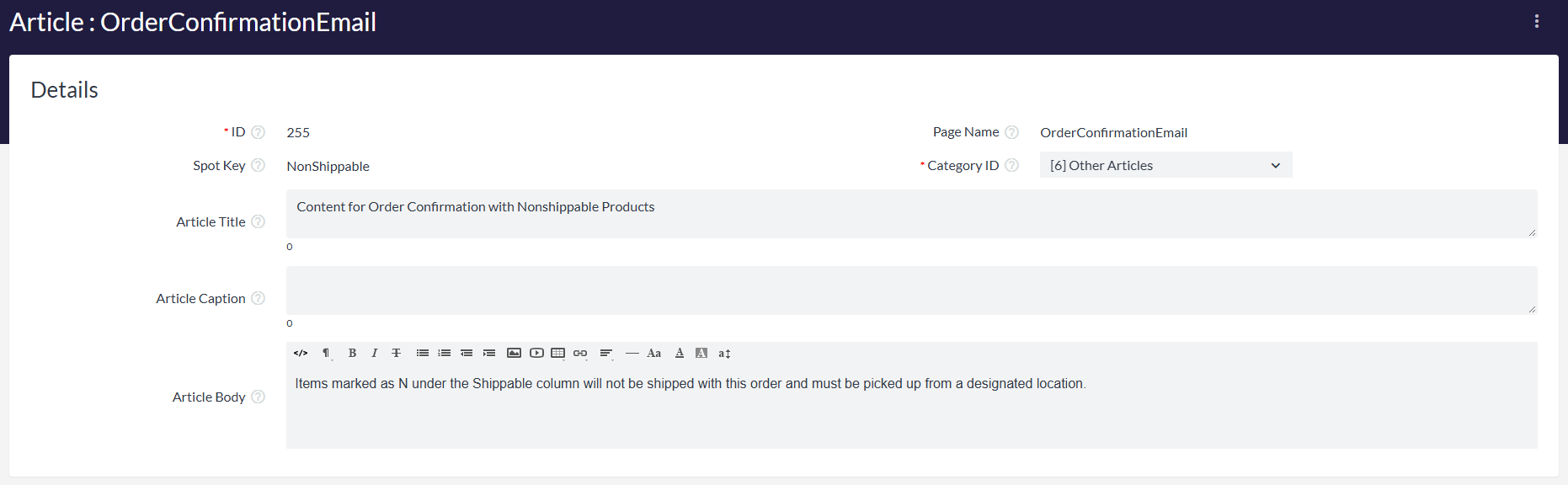
To edit the text that appears at the bottom, go to **Design** \> **Site Content** and perform a searchfor "non" in the **Article Title** field. Make edits to the article as needed and save.
- [Getting started](https://help.volusion.com/s/getting-started?hsLang=en-us)
- [Manage Your Store](https://help.volusion.com/s/manage-your-store?hsLang=en-us)
- [Marketing for Success](https://help.volusion.com/s/marketing-for-success?hsLang=en-us)
- [Volusion Payment Powered by Stripe](https://help.volusion.com/s/volusion-payment-powered-by-stripe?hsLang=en-us)
- [Partner Marketplace](https://help.volusion.com/s/partner-marketplace?hsLang=en-us)
- [Support](https://help.volusion.com/s/support?hsLang=en-us)
- [V1](https://help.volusion.com/s/v1?hsLang=en-us)
- [Security](https://help.volusion.com/s/security?hsLang=en-us)
[](https://volusion.com/)
[mailto:email@email.com](mailto:email@email.com)
Copyright © 2026, Volusion