---
title: Members-Only Purchasing and Browsing
description: Creating an exclusive area for certain customers can boost sales and build brand loyalty.
---
[Skip to content](https://help.volusion.com/s/members-onlypurchasingandbrowsing#main-content)
English - United States
Show submenu for translations

Open main navigation
Close main navigation
- English - United States
Show submenu for translations
- [Contact Us](https://volusion.com/contact)
[Contact Us](https://volusion.com/contact)
Search the Help Center
- There are no suggestions because the search field is empty.
1. [Volusion Help Center](https://help.volusion.com/s?hsLang=en-us)
2. [V1](https://help.volusion.com/s/v1?hsLang=en-us)
# Members-Only Purchasing and Browsing
Restricting access to members-only can boost sales and build brand loyalty by requiring customers to register before viewing prices, browsing products, or placing orders.
Before you limit your store to members only, you need to decide what level of exclusivity you want to offer there are 2 types of members-only configurations available.
[Skip to the Site Designer Section](https://help.volusion.com/s/members-onlypurchasingandbrowsing#SiteDesignerSection) if your site is setup to use[Site Designer.](https://help.volusion.com/s/site-designer-themes?hsLang=en-us)
### Choose Your Exclusivity Level
To configure these settings, go to **Settings \> Config Variables** in your Admin Dashboard, search for "members" in the Name field, and update the required variables:
**Members Only Prices & Purchases**
- Behavior: Non-members can browse products, but cannot view prices or check out.
- Setup: Check Enable Members Only Prices and Purchases and click Save.
- (See "Special Discount Prices for Customers" for details on custom member pricing.)
**Members Only Browsing**
- Behavior: Non-members cannot view any products and are redirected to /register.asp to log in or create an account.
- Setup: Check both Enable Members Only Browsing AND Enable Members Only Prices and Purchases (both must be active), then click Save.
- Important: Accounts created manually in the Admin Area must include a First and Last Name for browsing restrictions to work properly.
### Manage Pending Registrations (Optional)
To require manual approval for new members, go to **Settings \> Config Variables**, search for "pending" in the Name field, and configure the options below:
**Require Admin Approval**
1. Check 'Enable Membership Pending Status' and click Save.
2. Unapproved customers will see a "registration pending" message if they try to access the store.
3. To approve a customer: Go to **Customers \> Accounts**, change their Access Key from 'Membership Pending' to 'Customer', and click Save.
**Enable Admin Email Notifications**
1. Check 'Enable Register Pending Status Email Notifications' and click Save.
2. Email alerts will be sent to the address configured under Settings \> Company (Send Order Notifications To).
3. Note: Emails trigger only when a customer registers directly through /register.asp (not if they select Register from /login.asp).
### Enabling Members Only Settings When Using Site Designer
Store's using Site designer are able to set their sites to be Members Only Prices and Purchases, and Members Only Browsing.
### **Members Only Prices and Purchases:**
This works in the same way as a store without Site designer in that all you need to do is enable the setting.
1.Go to 'Settings' and then 'Config Variables' and click 'search'.
2.Type 'members' in the 'name' field and click search.
3.Check the checkbox labeled Member's Only Prices and Purchases and click Save.
You will now see that the customers are able to browse the site and look at your products, but in order to see the Pricing information or to be able to add the product to their cart, they will need to be logged into their account.
### Members Only Browsing with Site Designer:
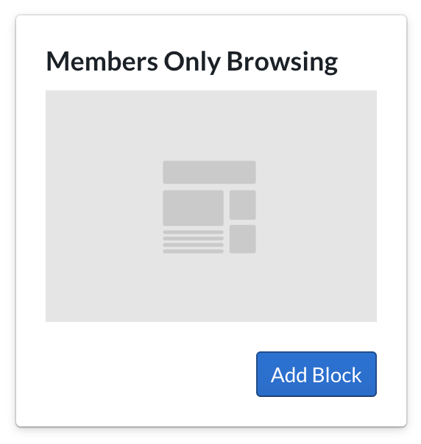
You can now add a block in Site Designer called the "Members Only Browsing' block found in the Misc blocks. To add this block so that every page on the site is not able to be viewed until the customer logs in, you can add the block to the 'Global Templates', however if you only want certain pages to require the customer be logged into their account before viewing, you can also choose to add the block to individual page, for example 'categories'.
### Adding the Members Only Block to the "Global Template".
1.Log into your Volusion Dashboard and go to Design \> Site Designer.
2.Click the 'Site Pages' Button in the upper left.
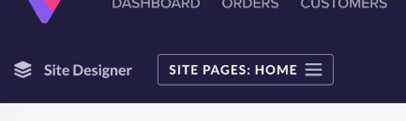
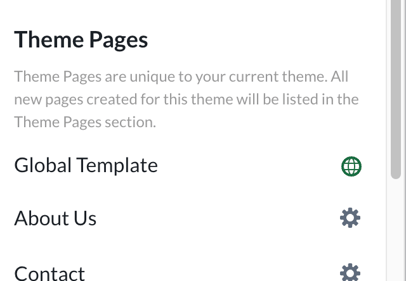
3\. On the menu that opens up on the left side, click on 'Global Template'
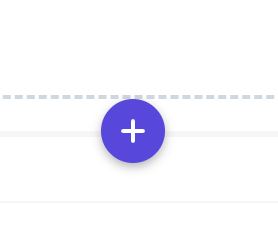
4\. Hover your mouse over the middle of the page until you see one of the purple plus buttons, and click on the plus button to add a block.
5\. On the left menu , click on 'Misc' and 'add block' on the 'Members Only Browsing' block.
6\. You can set the specific url you want them to be redirected too if they access a page with this block. Again, if you added it to the Global template, every page will require that the customer is logged into browse. You can change the redirect url to '/register.asp' to direct them to the registration/login screen. You can also customize the background color and modal background color, and change the text that appears during the redirect .
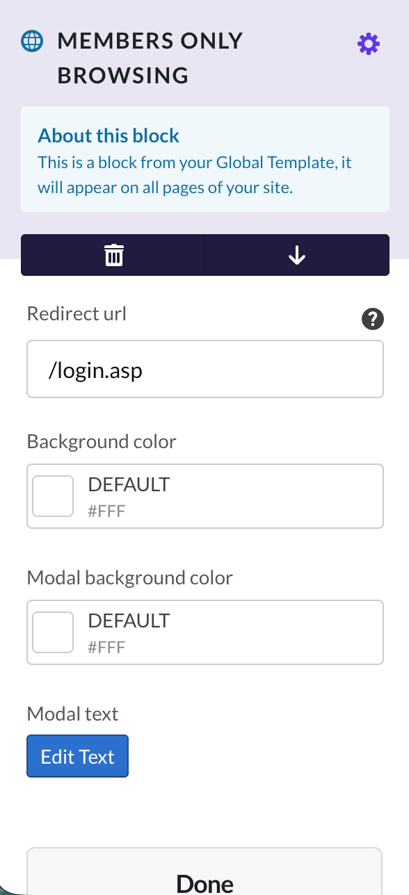
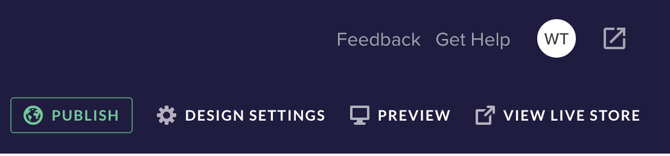
7.Once you have finished customizing the settings ,click 'done' and then click the green publish button.
### Adding the Members Only Block to Specific Pages:
You can also choose to only add the block to certain pages, for example if you want to just have them redirected to the register page when they visit the category page, you'll want to make sure you delete the block from Global templates if you added it there.
1.Go to Design \> Site Designer
2\. Click the Pages Button in the upper left.
3.Click on 'Category Page' and then hover your mouse over a blank space on the page until you get the purple plus button.
4.On theft side click on 'Misc'
5\. Add the Members only browsing block as described above.
6.Click the green publish button so the changes take affect on the live site.
Other Considerations
Note that the **Members Only Prices and Purchases** and **Members Only Browsing** settings are not compatible with [Volusion Mobile Commerce](https://help.volusion.com/s/VolusionMobileCommerce?hsLang=en-us) or [Deal of the Day](https://help.volusion.com/s/DealOfTheDay?hsLang=en-us) . If you use either of these features and attempt to enable one of the members only variables, you'll see a message indicating the conflict. You can enable members only variables once you've disabled any conflicting features.
### Shopping Carts Being wiped/cleared when customers log out.
If the config: *Enable Members Only Prices And Purchases* is enabled and reports customer's shopping cart contents are disappearing when they log out of their account, this is considered to be intended functionality of the feature.
The reason behind this is because our system store's the cart data in a cookie. The only way our system can ensure the site and its content remains visible to members only is to wipe to cookie on logout which permanently removes it's contents.
- [Getting started](https://help.volusion.com/s/getting-started?hsLang=en-us)
- [Manage Your Store](https://help.volusion.com/s/manage-your-store?hsLang=en-us)
- [Marketing for Success](https://help.volusion.com/s/marketing-for-success?hsLang=en-us)
- [Volusion Payment Powered by Stripe](https://help.volusion.com/s/volusion-payment-powered-by-stripe?hsLang=en-us)
- [Partner Marketplace](https://help.volusion.com/s/partner-marketplace?hsLang=en-us)
- [Support](https://help.volusion.com/s/support?hsLang=en-us)
- [V1](https://help.volusion.com/s/v1?hsLang=en-us)
- [Security](https://help.volusion.com/s/security?hsLang=en-us)
[](https://volusion.com/)
[mailto:email@email.com](mailto:email@email.com)
Copyright © 2026, Volusion