---
title: Managing Your Payment Settings
description: The Volusion Payment area takes the guesswork out of configuring your payment options.
---
[Skip to content](https://help.volusion.com/s/managingyourpaymentsettings#main-content)
English - United States
Show submenu for translations

Open main navigation
Close main navigation
- English - United States
Show submenu for translations
- [Contact Us](https://volusion.com/contact)
[Contact Us](https://volusion.com/contact)
Search the Help Center
- There are no suggestions because the search field is empty.
1. [Volusion Help Center](https://help.volusion.com/s?hsLang=en-us)
2. [V1](https://help.volusion.com/s/v1?hsLang=en-us)
# Managing Your Payment Settings
The Volusion Payment area takes the guesswork out of configuring your payment options.
Customers like options. With Volusion setting up Credit Cards, APyPal, Amazon Pay and many other payment methods can be quick and easy.
Getting Started
To find your payment settings, head on over to **Settings** \> **Payment** in your Admin Area.
The **Tab View** is divided into three tabs: **Payment Gateway**, **Card Setting**, and **More Payment Types**.
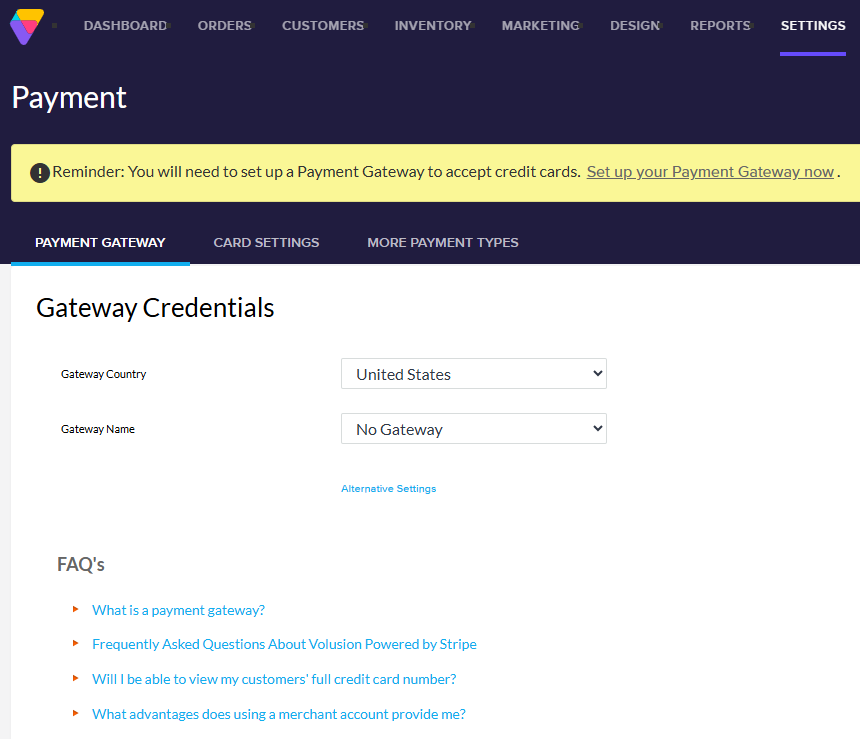
Setting Up Your Payment Gateway
As a store owner, choosing the electronic payment gateway youll use to process incoming payments is a very important decision! Ideally, you want a payment gateway that's reliable and stable, easy to integrate with Volusion and provides all the processing features you need such as authorizing, capturing, crediting, and voiding payments.
For US-based merchants, the Verified Volusion Merchant Program provides a full-featured, stable, and affordable payment platform with [Authorize.Net.](https://www.authorize.net/)
### Configuring Gateway Information
Once you've decided which payment gateway to use with your store, you'll need to sign up with that gateway provider and obtain the unique credentials required for activation. Once you have these credentials, the integration is simple.
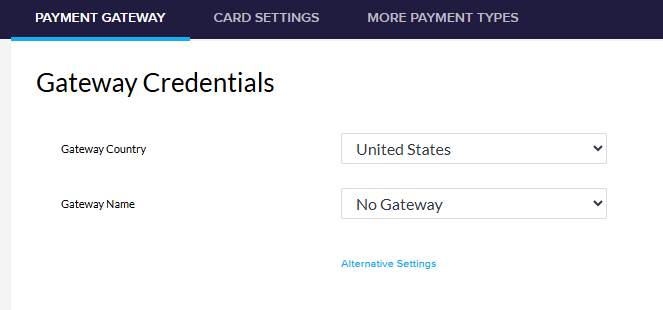
1. From your Admin Area, go to **Settings** \> **Payment**.
2. On the **Payment Gateway** tab, select the country you are based in from the **Gateway Country** menu.
3. Select your payment gateway from the **Gateway Name** drop-down.
4. Depending on the **Gateway Name** selected, several more fields will open. These will be labeled with the names of the authorization credentials required to connect to the selected gateway. They should correspond with the credentials supplied by the gateway's vendor. Enter the appropriate credentials in the corresponding fields and click **Save**.
5. Enter the name of the Gateway in the **Gateway Name** field.
6. See Payment Gateway Integration Information to determine which authorization credential should be entered into which custom fields.
7. Click **Save**.
Card Settings
This tab allows you to choose which credit/debit cards to accept on your site.
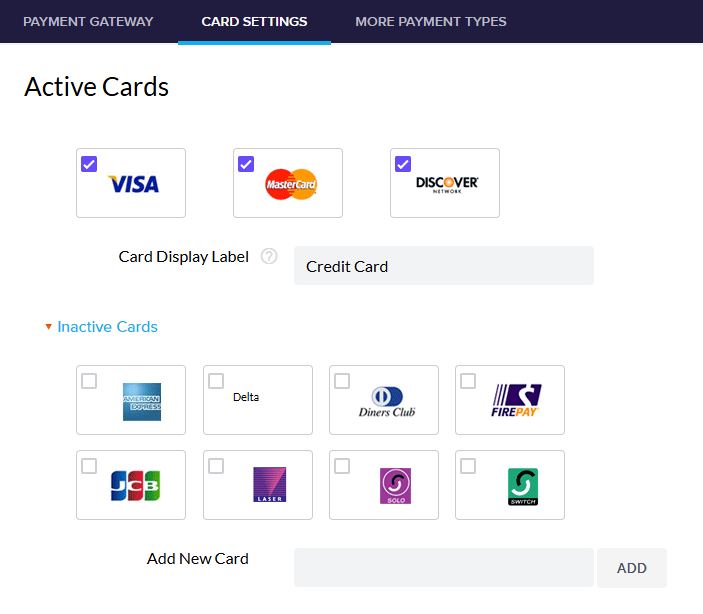
1. Select the cards you want to accept on your site. Make sure cards you do not want to accept are deselected. Deselected cards are moved to the **Inactive Cards** view and hidden unless you click **Show Inactive Cards**.
2. Click **Save.**
The cards you want to use will now be shown in the **Active Cards** section.
More Payment Types
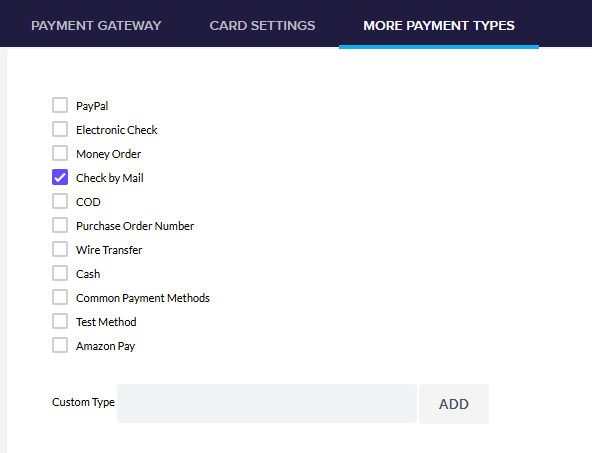
This tab is where you set up alternative payments types (i.e., not credit/debit cards)
1. Go to **Settings** \> **Payment**.
2. Select the **More Payment Types** tab.
3. Enable the payment methods you want customers to be able to use.
4. If any of the payment methods you want to use have a **Settings** link, click on it and refer to the corresponding section below.
5. When youre finished, click **Save**.
Note that several methods have **Settings** links that will open additional fields you need to fill out.
### Electronic Check
If you want to accept electronic checks (e-checks), youll have to register with a suitable vendor. Volusion provides e-check integration with several major payment gateway providers including, Authorize.net, USAEpay, and TransFirst.
Once youve registered with an e-check service provider, configuring your store to accept e-checks by:
1. Go to **Settings** \> **Payment**.
2. Select the **More Payment Types** tab.
3. Enable **Electronic Check** and select the electronic check gateway from the drop-down list.
4. Enter the authorization information supplied by the gateway vendor in these fields.
5. Click **Save**.
6. Click the **Payment Gateway** tab and select **Alternative Settings**.
7. Change the setting for authorization method to **Authorize and Capture at Sale** and click **Save.**
### PayPal
If you want to accept PayPal, you must have a PayPal Business account.
1. Go to **Settings** \> **Payment** \> **More Payment Types**.
2. Enable **PayPal** and select whether you'd like to use **PayPal Express (Recommended)** or **PayPal Standard**.
3. For **PayPal Express,** paste the PayPal **API Username, API Password** and **API Signature** that you get from your PayPal Business account. Click **Save** to finish configuring your store to offer PayPal Express!
4. If you selected **PayPal Standard**, you simply need to enter the **PayPal Email Address** for your PayPal Business account and click **Save**.
### Amazon Pay
If you want to enable Amazon Pay, you must configure the necessary settings in your Admin Area and in your Amazon seller account.
1. Go to **Settings** \> **Payment** \> **More Payment Types**.
2. Enable **Amazon**.
3. In the four new fields that display, paste your Amazon **Seller/Merchant ID**, **Client ID**, **Access Key** and **Secret Key**. See Amazon Pay for the location of these credentials and other considerations.
4. Click **Save** to finish enabling Amazon Pay for your store!
### Note on Other Payment Types
Payment methods such as **Money Order**, **Check by Mail**, **COD**, **Purchase Order**, **Wire Transfer**, and **Cash** are also available. However, Volusion software doesn't perform any automated validation of these payment methods. It's up to you to make separate payment arrangements with your customers and manually notate your orders accordingly.
Payment Gateway Transaction Settings
At the bottom of the **Payment Gateway** tab is a link labeled **Alternative Settings** that opens the **Payment Capture Settings** window.
These settings govern how your store will authorize credit payments. By default, Volusion is configured with **Automatic Authorize, Manual Capture** as the setting. However, you may need to make changes to the authorization/capture mode. Here's some information about all three settings:
- **Automatic Authorize and Capture** When selected, your customer's credit card will be both authorized and charged automatically upon checkout. This setting removes the need to manually capture payment on each individual order.
- **Automatic Authorize, Manual Capture** When selected, your customer's credit card will be authorized for the purchase amount automatically when an order is placed, assuring you that your customer has the necessary funds to complete the transaction. This gives you the opportunity to review the order and you must 'capture' the transaction manually to collect payment once ready.
- **Manual Authorize and Capture** When selected, your customer's credit card will not be authorized or captured automatically and must be done manually. This setting does not support the input of CVV2 information, and generally, it should only be selected when required by your merchant services provider.
Restricted Payment Methods
You can also restrict a payment method so that only a specific set of customers can use it. To learn more, see our [Restricted Payment Methods](https://help.volusion.com/s/restrictedpaymentmethods?hsLang=en-us) article.
Summary
A simple payment process is one of the most important aspects of your store. With Volusion's variety of options, you're sure to have customers spending with ease.
- [Getting started](https://help.volusion.com/s/getting-started?hsLang=en-us)
- [Manage Your Store](https://help.volusion.com/s/manage-your-store?hsLang=en-us)
- [Marketing for Success](https://help.volusion.com/s/marketing-for-success?hsLang=en-us)
- [Volusion Payment Powered by Stripe](https://help.volusion.com/s/volusion-payment-powered-by-stripe?hsLang=en-us)
- [Partner Marketplace](https://help.volusion.com/s/partner-marketplace?hsLang=en-us)
- [Support](https://help.volusion.com/s/support?hsLang=en-us)
- [V1](https://help.volusion.com/s/v1?hsLang=en-us)
- [Security](https://help.volusion.com/s/security?hsLang=en-us)
[](https://volusion.com/)
[mailto:email@email.com](mailto:email@email.com)
Copyright © 2026, Volusion