
The Volusion Content Builder helps you edit article pages right from your storefront. With it, you can instantly add content using a variety of pre-made layouts or you can enhance your own custom HTML content!
Quick note: the Content Builder is intended for article pages only. If you need to edit other storefront content, including product descriptions and theme design elements, check out our article "Take it Easy: Using Volusion's Easy Editor".
Accessing the Content Builder
To access the Content Builder on your storefront, visit any page that contains an article and click the arrow to expand the Storefront Editor. (If the page you're viewing doesn't contain any editable articles, you'll see a message indicating that the Content Builder wont work for that page!)
Once you've expanded the Storefront Editor, youll see a dotted blue line around the editable content region.
Content Builder Tools
The Content Builder offers a variety of on-page editing capabilities for different types of content. Certain tools will only appear when you're editing a specific element within a content block.
Block Actions
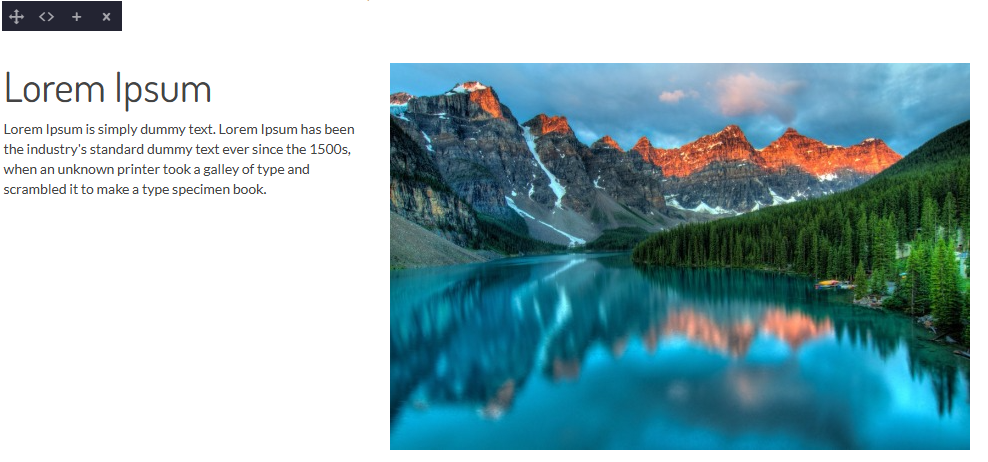
The Block Actions toolbar displays at the top of a selected content block. These tools apply to the content block as a whole, rather than specific content within the block.
 Drag: This option lets you move a content block up or down within the content area.
 HTML: Click this button to view the HTML code view of a selected content block.
 Duplicate: Click this button to duplicate an entire content block. The new content block will display below the original, but you can move it!
 Click the Delete button to delete the entire content block, then click OK to confirm the action. (This deletion won't become permanent until you click Save at the bottom of the page!)
Text

The Text toolbar displays at the top of the page, and lets you do everything from editing your text style to inserting symbols. You can hover over the individual icons in the Text toolbar to view each button's function.
Adding + Editing Content
If you just want to add a few words to an existing block of text, just place your mouse over the area you want to edit and click anywhere to get writing! You'll know you're ready to edit when you see the Block Actions toolbar above the area you're editing.
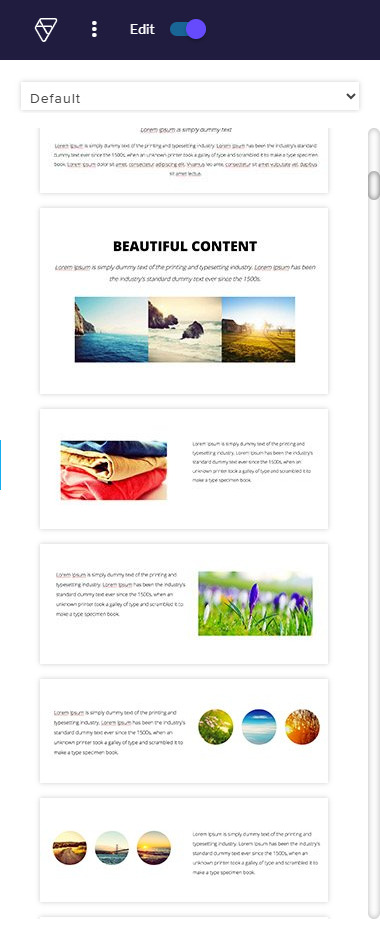
The Content Builder offers a variety of pre-made content blocks with custom formatting. Some content blocks are text only, but others let you get fancy with stylized headings, social media links, icons, buttons, formatted images, maps, videos and multi-column layouts!
To add a new content block to an article:
1. Hover over the desired content block layout until you see the drag-and-drop cursor:
2. Hold down your mouse button to drag the content block into the content area, then release it.
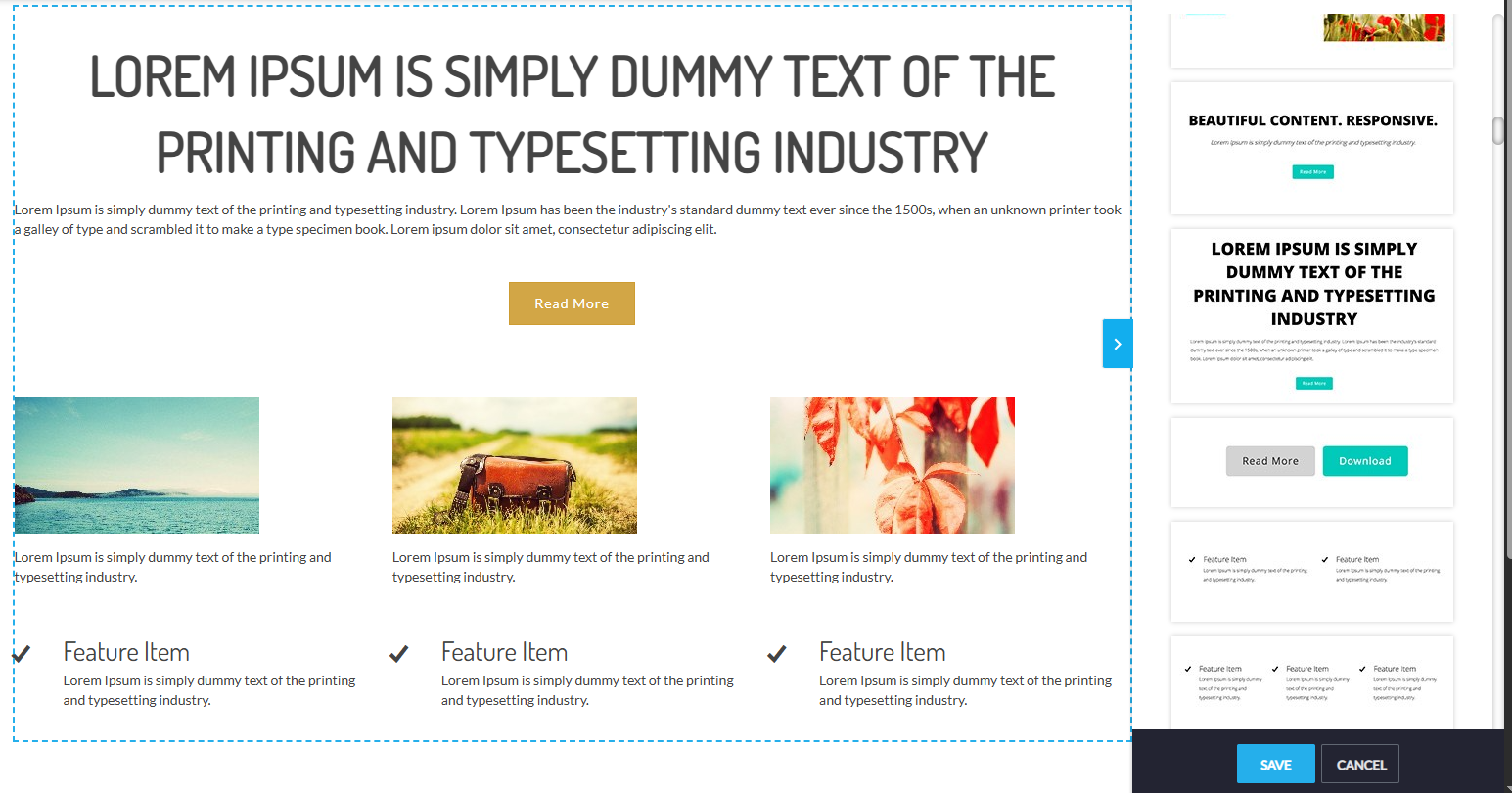
3. Once you've inserted a content block, you can use a variety of Content Builder tools to modify the content.
4. When you're happy with your changes, click Save!
Editing Existing Content
If you've already added a few content blocks to an article, you can edit each block individually. Click anywhere within an article to see the content contained by that block. A solid blue line will appear around an individual block:
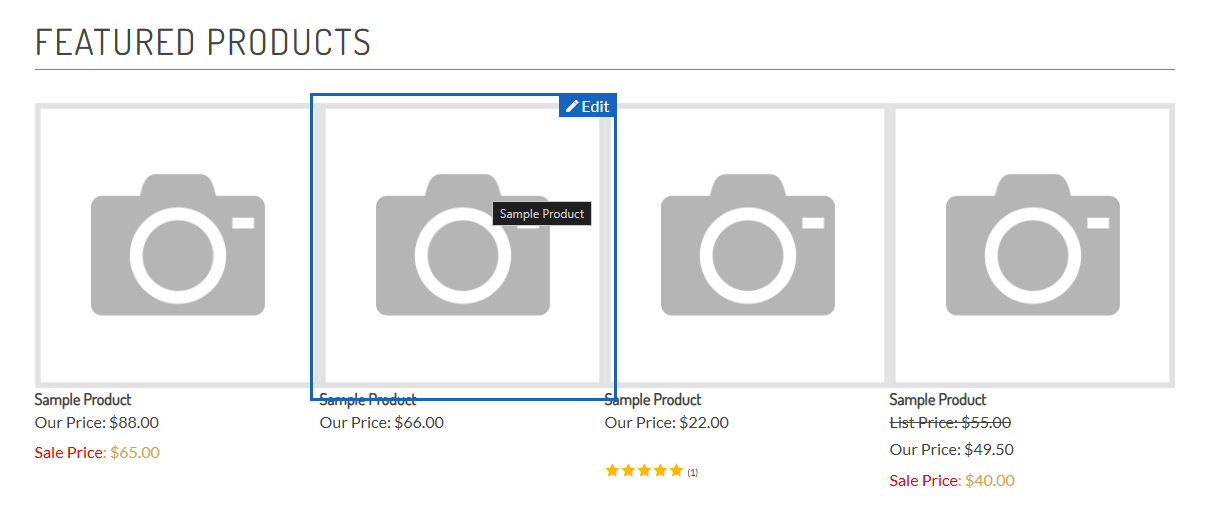
From here, you can use those nifty Content Builder tools mentioned above to edit your existing content!
Non-Editable Content
If the page you're viewing doesn't contain any editable articles, you'll see a message indicating that the Content Builder wont work for that page.
Certain articles are incompatible with Content Builder, particularly if they contain dynamic variables or custom scripts. (Basically fancy tech features that you probably won't be editing anyway.) If you try to edit one of these articles from the storefront, you'll see a message that the Content Builder was disabled in order to protect your existing content.
SummaryAt Volusion, we try to make building your store as easy (and painless!) as possible. With comprehensive editing straight from your storefront, the Content Builder enables you to customize your store quickly and easily.
Site DesignerLooking to upgrade your site's design? Site Designer, Volusion's simple-to-master store building feature, allows you to create, maintain, and adjust online storefronts with ease. Site Designer's block-based architecture allows you to customize your store by selecting from our regularly updated gallery of blocks.Click here to learn more.