---
title: How to Set Up Authorize.Net
description: Chances are you have better things to do with your valuable time than worry if payments are processing correctly, fight fraud and store data securely.
---
[Skip to content](https://help.volusion.com/s/howtosetupauthorizenet#main-content)
English - United States
Show submenu for translations

Open main navigation
Close main navigation
- English - United States
Show submenu for translations
- [Contact Us](https://volusion.com/contact)
[Contact Us](https://volusion.com/contact)
Search the Help Center
- There are no suggestions because the search field is empty.
1. [Volusion Help Center](https://help.volusion.com/s?hsLang=en-us)
2. [V1](https://help.volusion.com/s/v1?hsLang=en-us)
# How to Set Up Authorize.Net
Helping businesses since 1996, [Authorize.net](http://authorize.net/) is a time-tested payment gateway that can address all of your business needs.
To integrate your store with Authorize.Net:
1. In your Admin Area, go to **Settings** \> **Payment**.
2. Select **United States\*** as your **Gateway Country** and **Volusion Merchant Services (AUTHORIZENET)** as the **Gateway Name**.
(\*Canada is an acceptable choice as a Gateway Country)
3. Enter the **API ID** and **Transaction Key** supplied by Authorize.Net into the corresponding fields and click **Save**.
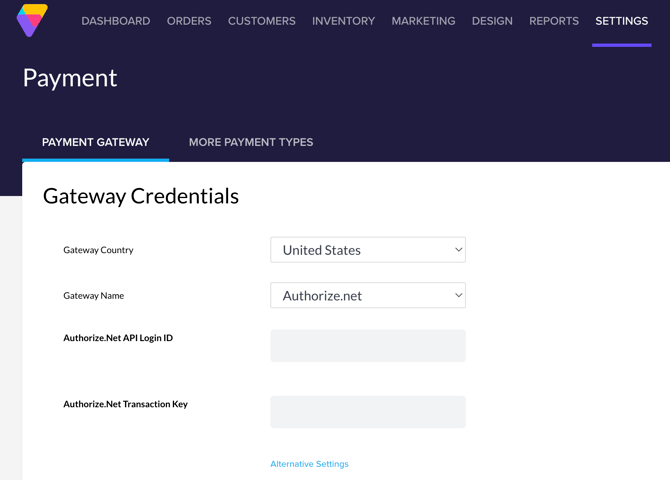
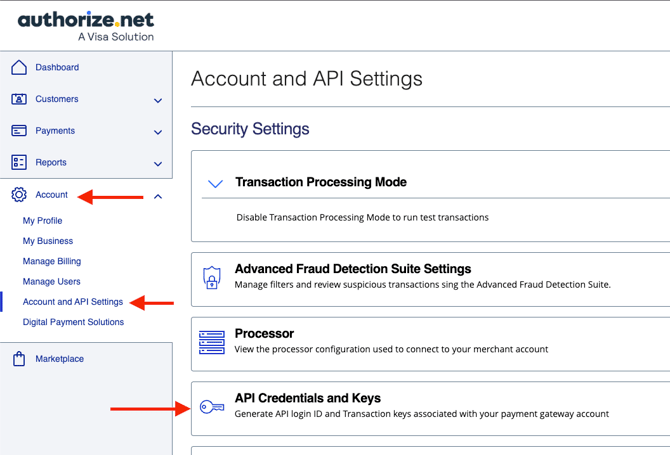
To retrieve your [Authorize.Net](http://authorize.net/) API ID and Transaction Key, you will need register and log in to your [Authorize.Net account](https://account.authorize.net/). Once logged in to your account:
1\. Click on the **Account** menu in the list on the left hand side of the screen.
2\. Select **Account and API Settings**
3\. Under Security Settings, click on **API Credentials and Keys**
On the next page, you'll see your **API Login ID** (API ID). In order to obtain a Transaction Key, click **GENERATE NEW TRANSACTION KEY** and follow the on screen prompts.
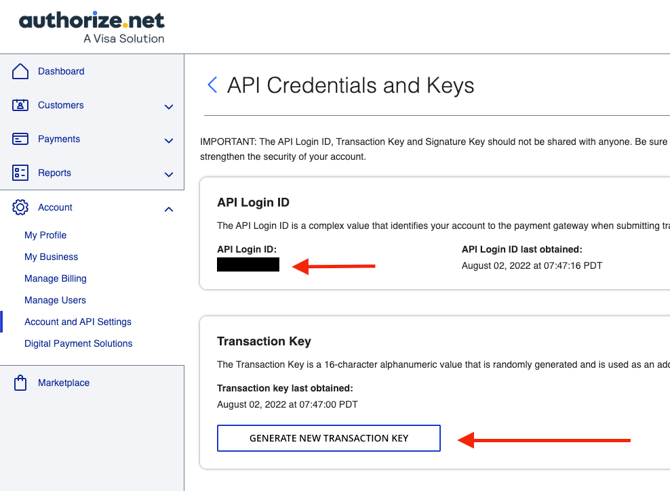
[Authorize.Net](http://authorize.net/) requires a PIN to verify your identity. It is sent to the email attached to your Authorize.net account.
Keep in mind that [Authorize.Net](http://authorize.net/) changes the **Transaction Key** each time you request it from them. Each time you generate a new Transaction Key, you'll be able to copy and paste it from a separate page.
### **Do I need the Signature Key?**
No. Volusion's integration with Authorize.net specifically supports the AIM (Advanced Integration Method). The Signature Key is required for a separate method (SIM) that is not used by Volusion.
**Address Verification Settings**
The Address Verification Service (AVS) is a tool designed by bankcard processors to assist in identifying potentially fraudulent credit card transactions. For every credit card authorization, AVS compares the billing address and ZIP code provided by the customer to the address and ZIP code on file at the card issuing bank. AVS then returns a response code indicating the results of the comparison.
To view and edit AVS settings within your Authorize.net account, open up the Payments menu on the left and select ' Fraud Settings '. Then scroll down to " If you want to validate the customer's card on the transaction " to find the ' Enhanced AVS Handling Filter ' setting. Click the Configure button on the right to open it up:
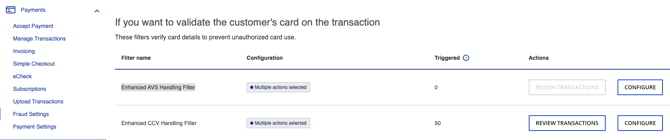
In the section below, you can choose which transactions to reject, based on the response codes, by checking the box next to each code. The payment gateway will reject transactions based on your selection. The recommended AVS response code selections are B, E, R, G, U, S, and N.
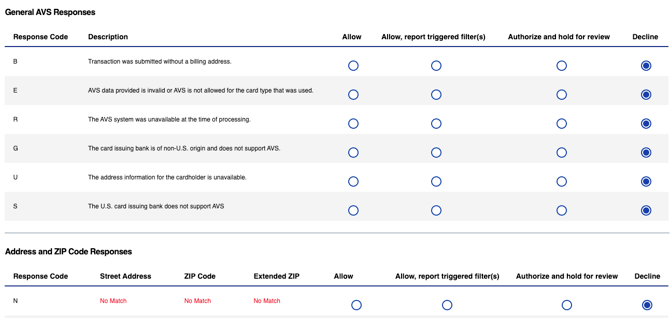
If you are having any issues with transactions declining through Authorize.Net, you may need to contact your Merchant Services Provider or Authorize.Net directly for guidance about which of the above AVS settings may be triggering a decline.
### **Notes**
Keep in mind that some of the above settings will cause international credit cards to decline since many international banks do not support AVS (ex. **G**). Those settings which directly affect a customer's ability to order with an international credit card can be turned on/off at your own discretion.
Also, please note that when AVS checks a Street Address, it only verifies the numeric portion of the address and zip code. If the numeric portion of the address matches, then AVS will return a Match for the Street Address.
### AVS Declines and Pending Charges
Sometimes, a customer will see a "Card Declined" message when attempting to place an order, but a pending (authorized) charge will show on the customer's records. This is due to sequence in which a charge is processed.
First, the gateway will check if funds are available on the credit card. If funds are available, a pending charge is placed.
Then, the bank will communicate which aspects of the AVS check did or did not match the information that the customer provided. If your Authorize.Net AVS filters indicate that you want a transaction to decline based on that AVS mis-match, then the card will decline and the customer will get a "Card Declined" message.
The pending charge will remain because there was still an authorization from when the gateway checked for available funds. The authorization will expire in 7-14 days, depending on the card-issuing bank.
**Test Mode**
You will need to turn off **Test Mode** in Authorize.Net before you can process transactions on your store. **Test Mode** is meant to test credit cards directly in the Authorize.Net gateway, and not your Volusion store. If you attempt to process an order in the shopping cart with **Test Mode** turned on, you will get an authorization, but the authorization code will be all zeros. So when you attempt to capture, it will decline because it isn't a "real" authorization.
When your account is in Test Mode, you'll see an orange bar at the top of your Authorize.net account pages indicating that status
To turn **Test Mode** off:
1. Click on the orange bar that says "Your account is in TEST MODE". You can also find a **Test Mode** link located under **Security Settings** \> **General Security Settings** within your Authorize.net **Settings** page.
2. When **Test Mode** is on, you'll see a toggle button in a red bar set to **Test**.
3. Click on the toggle button to switch to **Live** mode, which will turn the toggle bar green.
Once you've entered your [Authorize.net](http://authorize.net/) credentials in the Volusion Admin Area and disabled Test Mode, you should [place a test order](https://help.volusion.com/s/HowtoPlaceaTestOrder?hsLang=en-us) for $0.01. Be sure to void the transaction and cancel the order when you're done testing!
Payment Form Requirements
Within Authorize.net , there is a Payment Form page that allows you to select fields that are required. Volusion does not send this data to Authorize.net so you will want to ensure that these fields are not set to be required.
**Fraud Detection Suite**
Volusion is not compatible with Authorize.net's Fraud Detection Suite feature. This will need to be disabled to ensure transactions process correctly.
**IP Filtering**
If you have the IP filtering enabled within Authorize.net , you will want to ensure that you do not have these IP's blocked in their system, as it will cause transactions to not process.
`18.211.189.236`
`35.155.110.48`
`44.226.65.56`
`52.32.206.251`
`54.147.89.101`
`54.204.55.35`
**Errors**
For a list of common errors received when using Authorize.Net to process credit card payments, see ["Common Errors with Authorize.net"](https://helpcenter.volusion.com/s/article/CommonErrorsWithAuthorizenet?hsLang=en-us)
**Locating Your Gateway Batch Data & Transaction Data in Authorize.net**
With your account activated, you need to find and understand where your transaction data lives. Heres how:
1. Inside the **[Authorize.net](http://authorize.net/) console**, click **Transaction Statistics** under the **Reports heading** in the left-hand menu. Alternatively, click **Reports** in the header, then **Transaction Statistics*.***
2. **Select the date** (range) youd like to view and click **Run Report** (the time displayed next to the date is the Gateway Batch's cut time).
Note that American Express serves as its own acquirer. Therefore, American Express transactions are funded to you directly by American Express separately from Visa, MasterCard and Discover transactions. In the Net Amount row, subtract the AmEx column value from the Totals value.
This adjusted total should correspond to the amount you see deposited in your checking account.
3\. To locate the transaction within its **Gateway Batch**, click **Transaction Detail** under the **Reports** **section** on the **home** **screen**. Alternatively, click **Reports** in the **header** (the default selection is Transaction Detail).
4\. Select the desired **Gateway** **Batch** from the **Date** menu and press **Run Report.** The **Invoice Number** is equivalent to the **Volusion order ID number**.
- [Getting started](https://help.volusion.com/s/getting-started?hsLang=en-us)
- [Manage Your Store](https://help.volusion.com/s/manage-your-store?hsLang=en-us)
- [Marketing for Success](https://help.volusion.com/s/marketing-for-success?hsLang=en-us)
- [Volusion Payment Powered by Stripe](https://help.volusion.com/s/volusion-payment-powered-by-stripe?hsLang=en-us)
- [Partner Marketplace](https://help.volusion.com/s/partner-marketplace?hsLang=en-us)
- [Support](https://help.volusion.com/s/support?hsLang=en-us)
- [V1](https://help.volusion.com/s/v1?hsLang=en-us)
- [Security](https://help.volusion.com/s/security?hsLang=en-us)
[](https://volusion.com/)
[mailto:email@email.com](mailto:email@email.com)
Copyright © 2026, Volusion