---
title: How to Create Bundle Products
description: Bundling products and accessories makes shopping quick and easy for your customers and helps you sell more.
---
[Skip to content](https://help.volusion.com/s/howtocreatebundleproducts#main-content)
English - United States
Show submenu for translations

Open main navigation
Close main navigation
- English - United States
Show submenu for translations
- [Contact Us](https://volusion.com/contact)
[Contact Us](https://volusion.com/contact)
Search the Help Center
- There are no suggestions because the search field is empty.
1. [Volusion Help Center](https://help.volusion.com/s?hsLang=en-us)
2. [V1](https://help.volusion.com/s/v1?hsLang=en-us)
# How to Create Bundle Products
Bundling products and accessories makes shopping quick and easy for your customers and helps you sell more.
Written by Jared K
Your customers lead busy lives. If you can make things just a little bit easier for them, you'll win their affection. Bundling products is a great way to upsell accessories and offer customers the convenience of getting everything they need in one package. Add on a promotional price for the set, and they'll be sold.
For example, if you sell sportswear for children, you could offer soccer socks for $5, shorts for $12 and shirt for $15. Or you could create a product called Soccer Outfit for $25 and add the three products as free accessories.
If you sell electronics, you can offer a stereo system bundled with speakers, headphones, adaptors, and all the necessary wiring in one bundle for a lower price than what they would cost if sold separately. The key is to create a bundle product in your inventory. Please take a look at our video that walks you through setting up a bundle product.
### **Configuring a Bundle Product**
To configure a bundled product:
From your store's Admin Dashboard, go to **Inventory** \> **Products**.
Click the **Add** button at the top right of the page to add a new product.
Enter in a unique **Name** and **Code** for the bundle product.
In the **Price** field, enter the total price of all the bundled products together. It is typical to discount this price in order to make the bundle more attractive to customers.
In the **Weight** field, enter the total weight of all bundled products together. This will make sure that when weight is used to calculate shipping, the correct amount is charged.
At the top right of the Product Page, click the blue **Save** button.
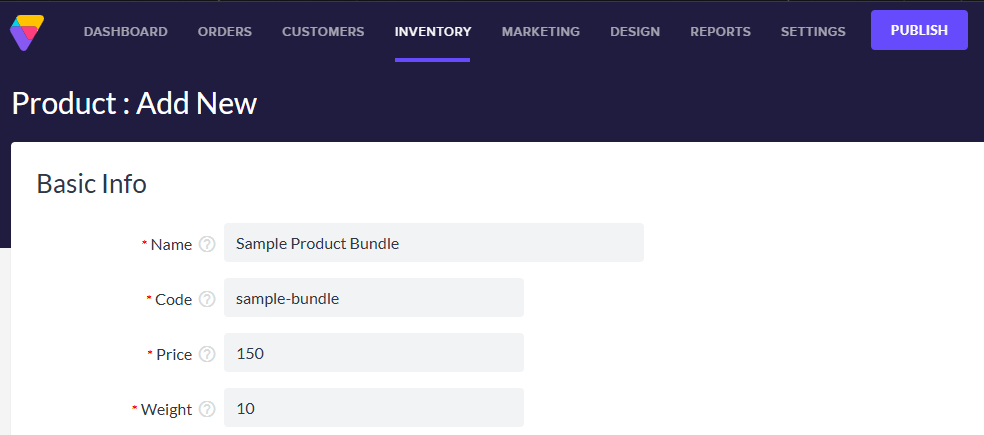
Once you've saved the basic information for your bundle product, you can add more details as desired:
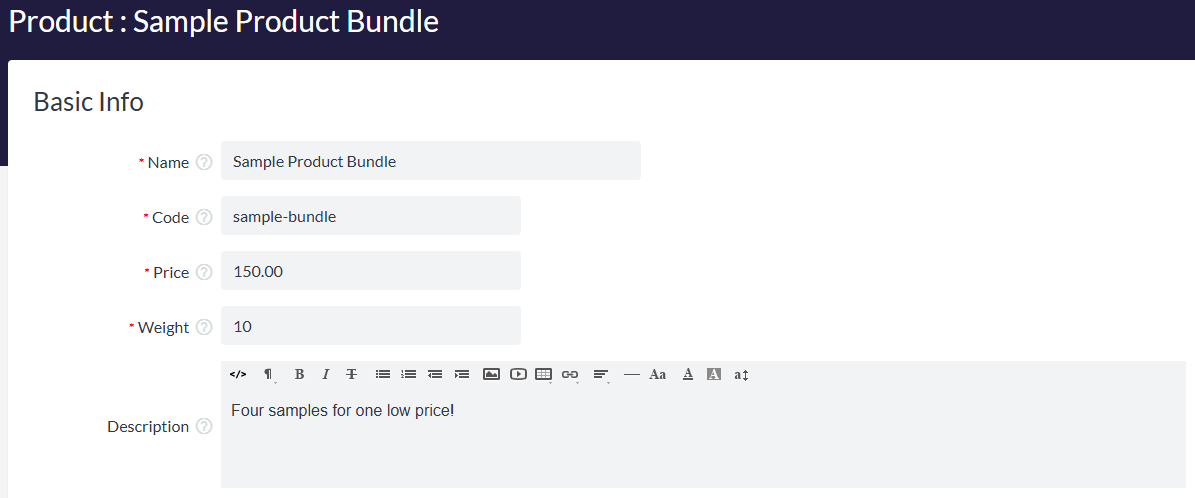
Enter the **Description** for the entire bundle of products. (For example: "Get 3 products for one low price!" or "20% discount for purchasing as a bundle.")
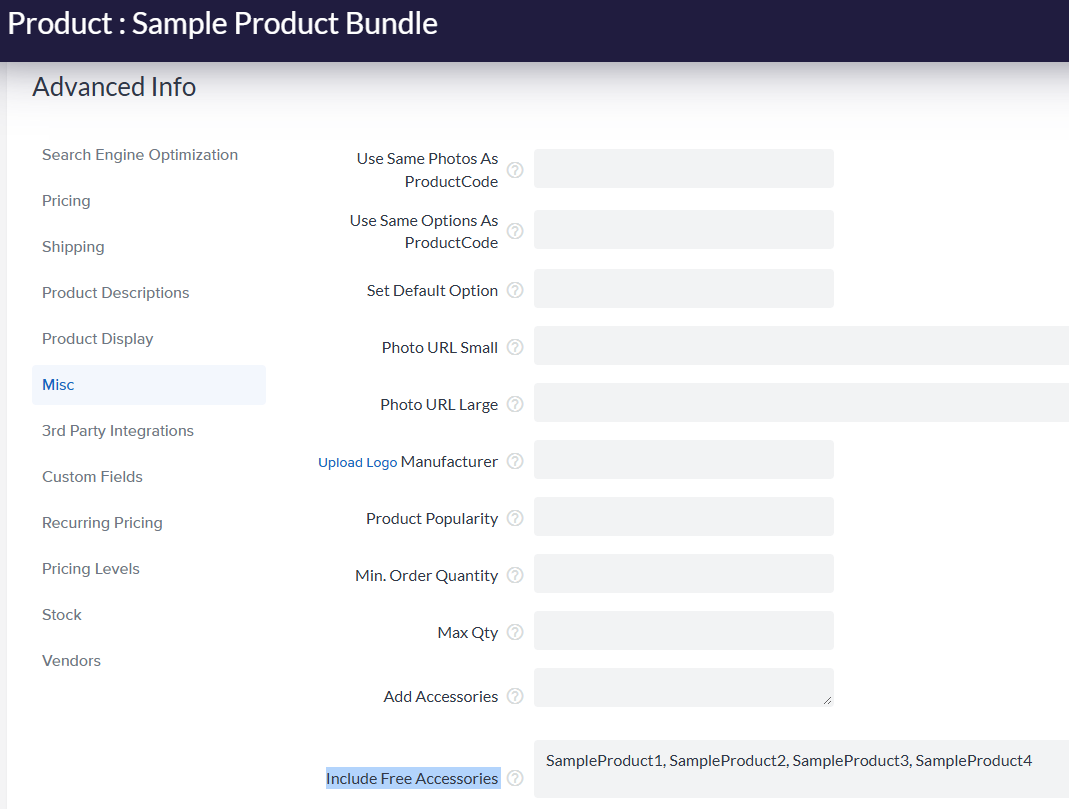
Under **Advanced Info** \> **Misc** \> **Include Free Accessory(s)**, enter the product codes of each product to be included in the bundle, separated by commas and without spaces.
Configure any other settings for the product (**Categories, SEO**, etc.) as desired, and click the blue **Save** button.
Once your bundle product is added to a customer's cart, all free accessory products will be added to the cart simultaneously.
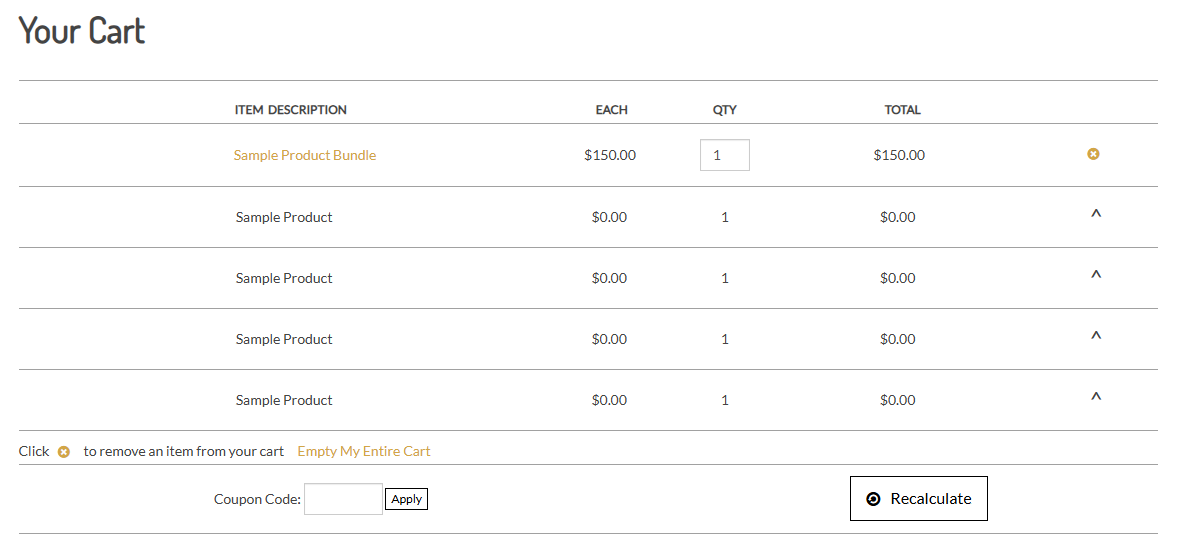
Free accessories will not be charged to the customer, regardless of the price that is configured for the individual products. The system uses the price of the bundle product instead.
Also, the weight values of the products assigned as accessories will not be used to calculate overall shipping charges. The weight of the bundle is used.
### Configuring Quantities for Free Accessories
You can assign as many free accessories to the **Include** **Free Accessory(s)** field as needed. To specify a quantity of more than 1 for a free accessory, enter the quantity, within parenthesis after the product code. For example, GI-381(2),TZZ-887,CX-46377(8),AMC-101(2).

### Hiding or Showing Free Accessories
In the **Advanced Settings** \> **Misc** area of your new bundle product, you will see a **Hide Free Accessories** check box. When selected, the free accessories of your bundle product will not display on the product page. They will, however, be displayed in the customer's shopping cart as line-items of the bundle product with a $0.00 cost.

To display free accessories on the product details page, ensure that the Config Variable **Display Free Accessories Text** is enabled.
From your store's Admin Dashboard page, go to **Inventory** \> **Products**.
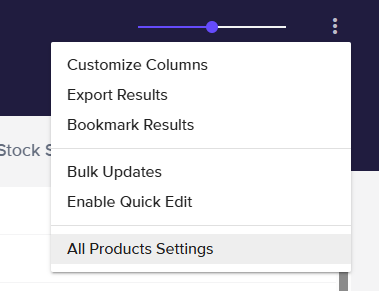
Click the three dot actions menu icon and select **All Products Settings**.
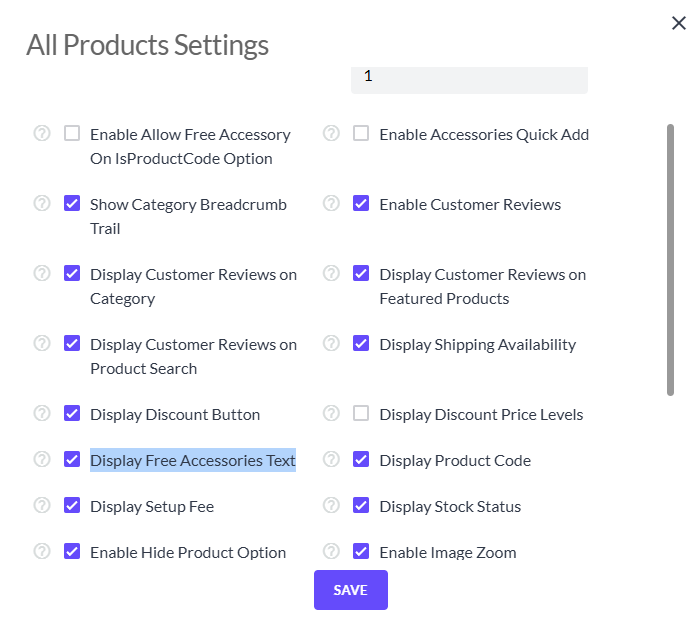
Select **Display Free Accessories Text** and click the **Save** button.
If you have the **Free Accessories** set to show on the product details page, text will display as follows:
```
The following items are included FREE with this product:
* 1 of ProductName1 ($20.00 value!)
* 2 of ProductName2 ($10.00 value!)
```
You can edit the above text at **Design** \> **PageText**. This [ARTICLE](https://help.volusion.com/s/editingtextandimages?hsLang=en-us) outlines the process. Search for the text above to find the individual PageText IDs to change them. **Please Note:** Be sure not to delete the variables contained within any PageText IDs ({0}, {1}, {2}, etc. since these are required to show the free products correctly.
**Important Notes**
Products with options cant be configured as free accessories. Additionally, free accessories cant be hidden in the shopping cart each free accessory must display as a line item in the shopping cart when using the **Include** **Free Accessory(s)** field.
If the "Free Accessory" Product stock is at 0 and the product has Do Not Allow Backorders set, the Bundle will not be orderable.
Customers will get an error stating "Sorry, the following kit item is currently out of stock: XXX" with XXX being the item that has zero stock. It does not allow them to add the "Primary" bundle product to cart.
**Summary**
Bundle products are a big hit with customers, due to the convenience and cost savings they offer. Whats more, is theyre pretty simple to set up in your store. With everything your shoppers need bundled into one discounted package, its a deal theyll find hard to resist.
- [Getting started](https://help.volusion.com/s/getting-started?hsLang=en-us)
- [Manage Your Store](https://help.volusion.com/s/manage-your-store?hsLang=en-us)
- [Marketing for Success](https://help.volusion.com/s/marketing-for-success?hsLang=en-us)
- [Volusion Payment Powered by Stripe](https://help.volusion.com/s/volusion-payment-powered-by-stripe?hsLang=en-us)
- [Partner Marketplace](https://help.volusion.com/s/partner-marketplace?hsLang=en-us)
- [Support](https://help.volusion.com/s/support?hsLang=en-us)
- [V1](https://help.volusion.com/s/v1?hsLang=en-us)
- [Security](https://help.volusion.com/s/security?hsLang=en-us)
[](https://volusion.com/)
[mailto:email@email.com](mailto:email@email.com)
Copyright © 2026, Volusion