---
title: How to Create a Terms and Conditions Check Box on Your Checkout Page
description: Learn how to create a Terms & Conditions check box on your checkout page. , you have to cover your assets.
---
[Skip to content](https://help.volusion.com/s/howtocreateatermsandconditionscheckboxonyourcheckoutpage#main-content)
English - United States
Show submenu for translations

Open main navigation
Close main navigation
- English - United States
Show submenu for translations
- [Contact Us](https://volusion.com/contact)
[Contact Us](https://volusion.com/contact)
Search the Help Center
- There are no suggestions because the search field is empty.
1. [Volusion Help Center](https://help.volusion.com/s?hsLang=en-us)
2. [V1](https://help.volusion.com/s/v1?hsLang=en-us)
# How to Create a Terms and Conditions Check Box on Your Checkout Page
Learn how to create a Terms & Conditions check box on your checkout page.
Written by Jared K
When it comes to your business, you have to cover your assets. That's why some ecommerce companies require customers to agree to their Terms & Conditions before they check out.
**Creating a Terms & Conditions Custom Field**
Here's how to add a T&C checkbox to your checkout page:
From your store's Admin Dashboard, go to **Settings** \> **Custom Fields.**
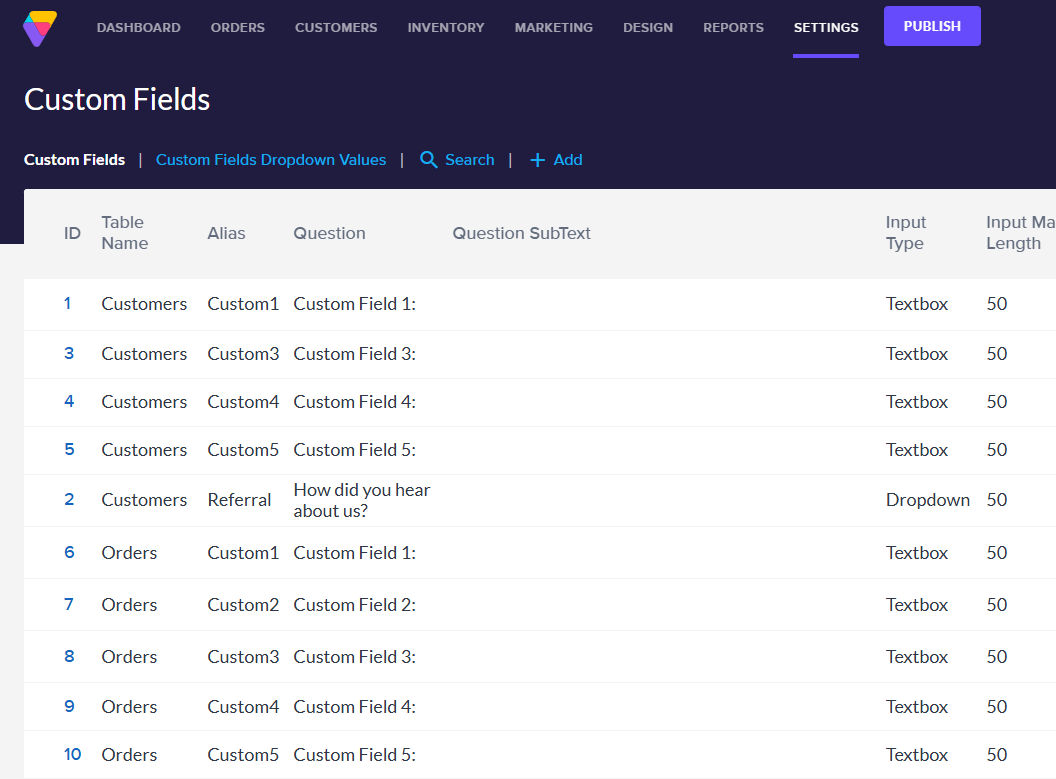
Click the blue **Add** button at the top right of the page.
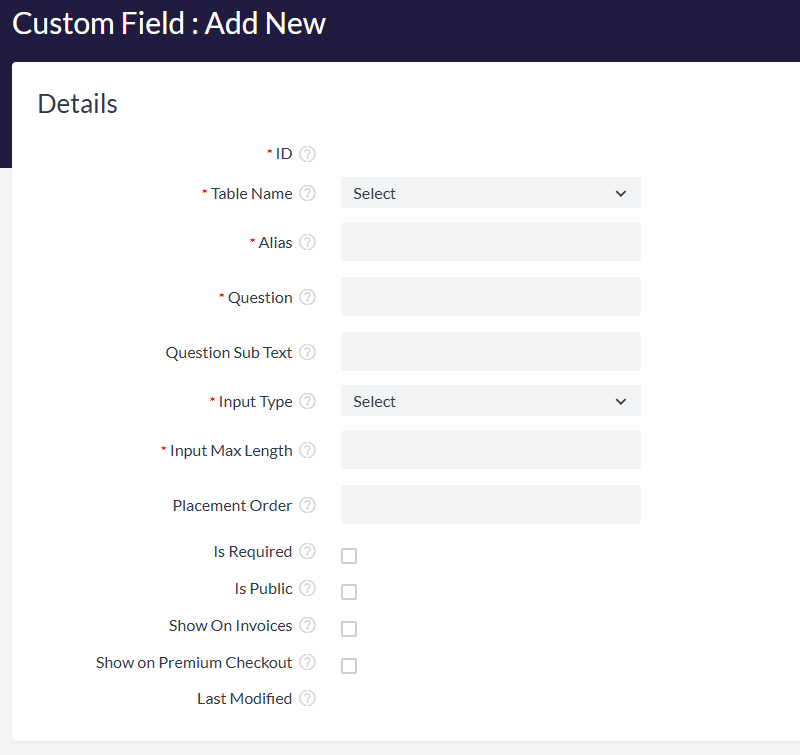
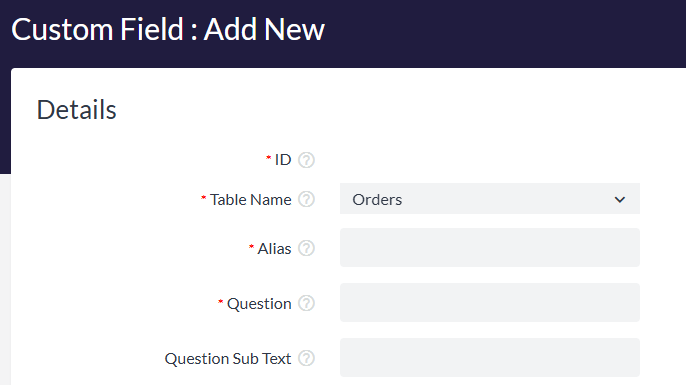
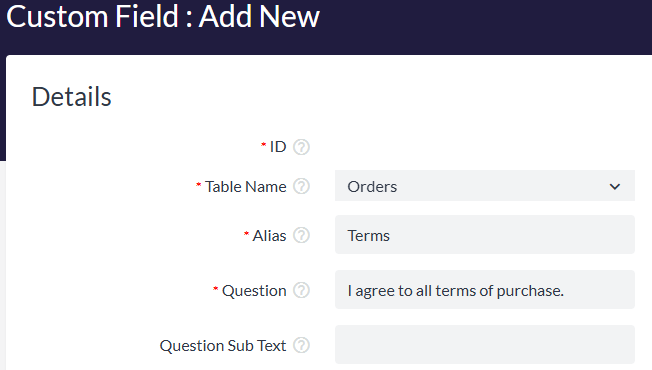
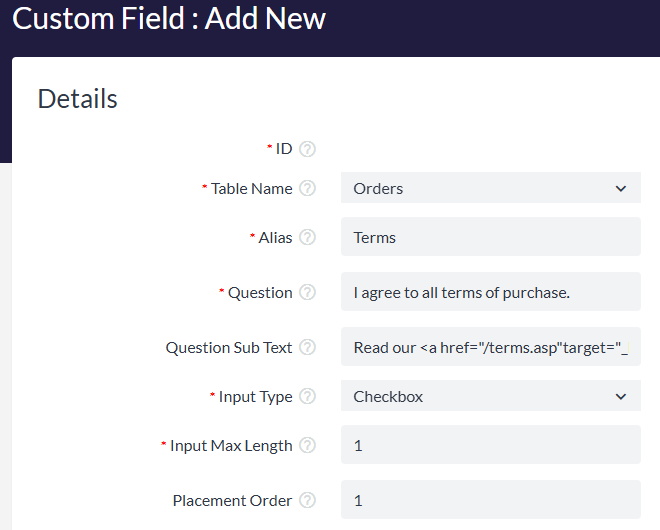
Select **Orders** from the **Table Name** dropdown menu. This allows the custom field to show at checkout for every order.
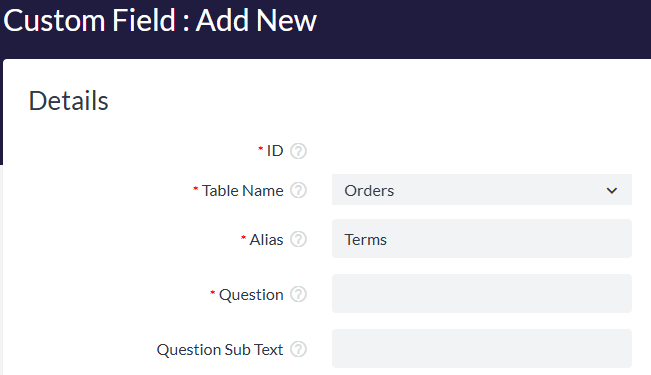
Enter Terms or something similar in the **Alias** field (The alias wont be visible on your storefront).
In the **Question** field, write the text as you want it to appear on the checkout page (e.g. I agree to all terms of purchase.) **?? Good to Know: This field does NOT support HTML, so please do not use characters such as " \> \< ; ' as they may cause errors at checkout.**
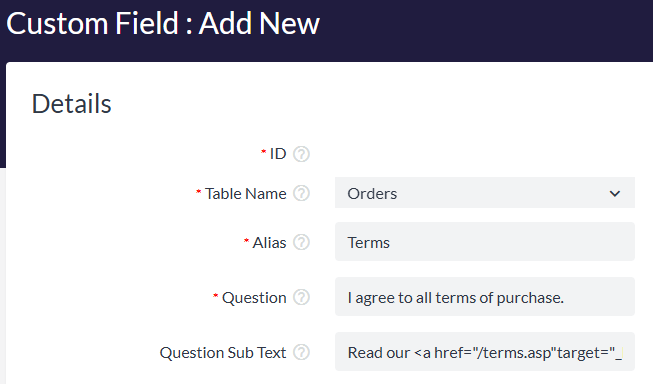
To link to your **Terms & Conditions** page on your website, enter the following into the **Question Subtext** field:
```
Read our terms and conditions
```
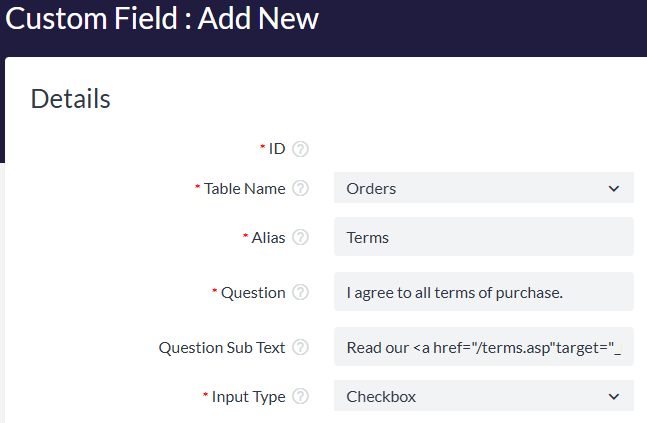
Choose **Checkbox** from the **Input Type** dropdownmenu.
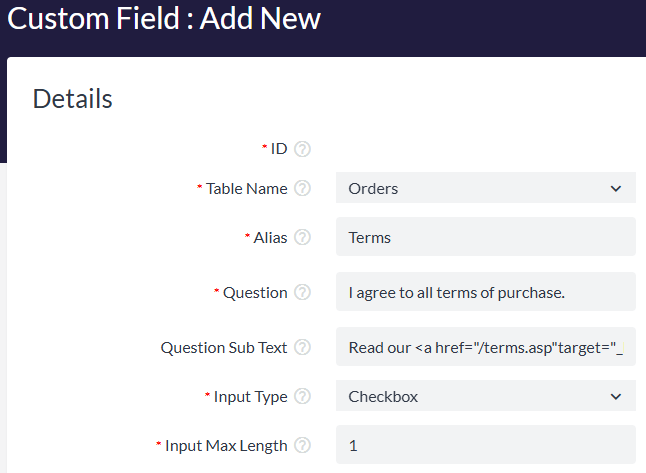
Enter any numeric value into the **Input Max Length** field, e.g.1 (This is a required field that has zero impact on the **Checkbox Input Type**).
If you intend on having multiple Custom Fields on checkout, add a number to the Placement Order field to indicate what order this field should show. If you will have only 1 field on checkout, you can leave this field blank.
If you want checking the T&C box to be a required field for customers to complete before they can check out, enable the **Is Required** option.
Enable the **Is Public** option so the field will be visible to customers on your storefront.
Enabling the **Show On Invoices** option will allow customers to view what that they acknowledged the terms within their invoice.
Enabling the **Show on Premium Checkout** option will make sure that the custom field can display when using Premium Checkout. This is required for it to show when using that feature, but is not required when using the legacy One Page Checkout feature.
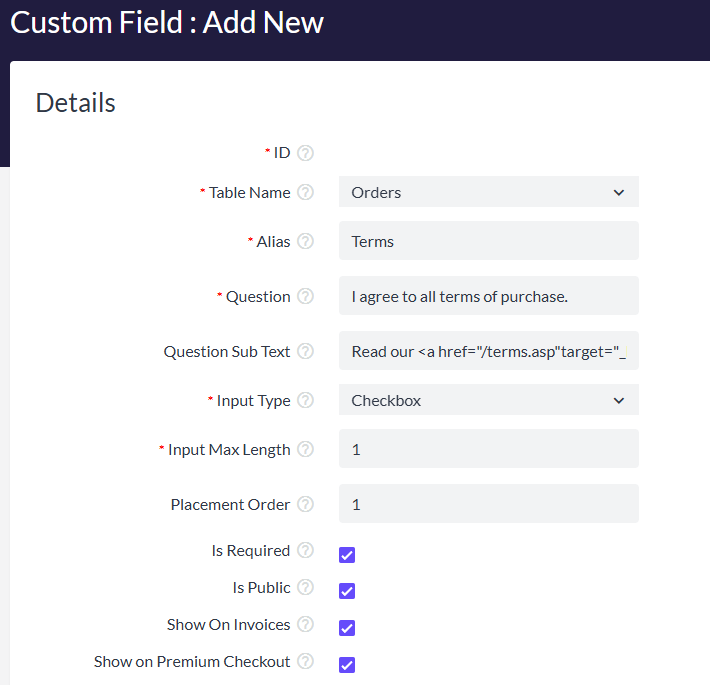
Click the **Save button** at top right to save your Custom Field.
Now your custom T&C checkbox should be all set up, complete with a link to your Terms and Conditions page.
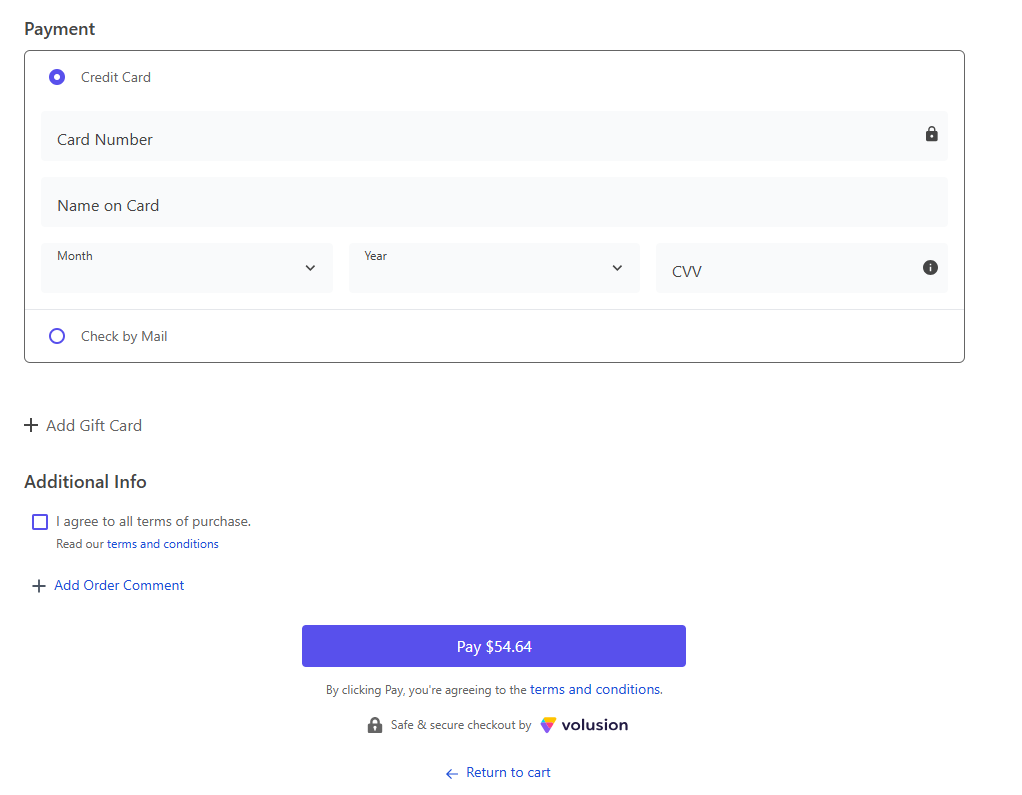
To edit the default text on your Terms and Conditions page, see [How to Update Your Store's Informational Pages](https://help.volusion.com/s/updatingyourstoresinformationalpages?hsLang=en-us).
For more information, see our guides on Custom Fields and "[How to Add Custom Fields to the Checkout Page](https://help.volusion.com/s/howtoaddcustomfieldstothecheckoutpage?hsLang=en-us)".
- [Getting started](https://help.volusion.com/s/getting-started?hsLang=en-us)
- [Manage Your Store](https://help.volusion.com/s/manage-your-store?hsLang=en-us)
- [Marketing for Success](https://help.volusion.com/s/marketing-for-success?hsLang=en-us)
- [Volusion Payment Powered by Stripe](https://help.volusion.com/s/volusion-payment-powered-by-stripe?hsLang=en-us)
- [Partner Marketplace](https://help.volusion.com/s/partner-marketplace?hsLang=en-us)
- [Support](https://help.volusion.com/s/support?hsLang=en-us)
- [V1](https://help.volusion.com/s/v1?hsLang=en-us)
- [Security](https://help.volusion.com/s/security?hsLang=en-us)
[](https://volusion.com/)
[mailto:email@email.com](mailto:email@email.com)
Copyright © 2026, Volusion