---
title: How to Change GST or VAT Display
description: The text for your VAT and GSD tax information can be edited to change your storefront display.
---
[Skip to content](https://help.volusion.com/s/howtochangegstorvatdisplay#main-content)
English - United States
Show submenu for translations

Open main navigation
Close main navigation
- English - United States
Show submenu for translations
- [Contact Us](https://volusion.com/contact)
[Contact Us](https://volusion.com/contact)
Search the Help Center
- There are no suggestions because the search field is empty.
1. [Volusion Help Center](https://help.volusion.com/s?hsLang=en-us)
2. [V1](https://help.volusion.com/s/v1?hsLang=en-us)
# How to Change GST or VAT Display
# How to Change GST or VAT Display
The text for your VAT and GSD tax information can be edited to change your storefront display.
Written byJared K
If you run your store from the UK or Australia where VAT or GST is in operation, you need to set up how these taxes display on your storefront. You can configure these settings in your Admin Area by going to **Settings** \> **Tax** and clicking **Settings** at the top of the page.
These taxes, and whether they are included or excluded in the displayed prices, then show on your storefront.
If you want to tailor the exact wording of how the tax displays, Volusion allows you to edit the text. To do so:
Go to **Design** \> **Site Content.**
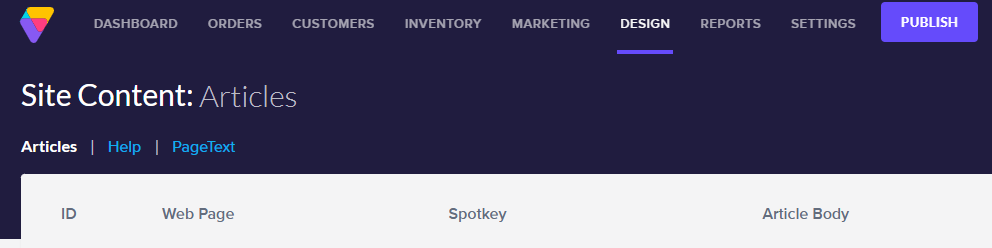
Select **Page Text** from the **Article Type** menu.
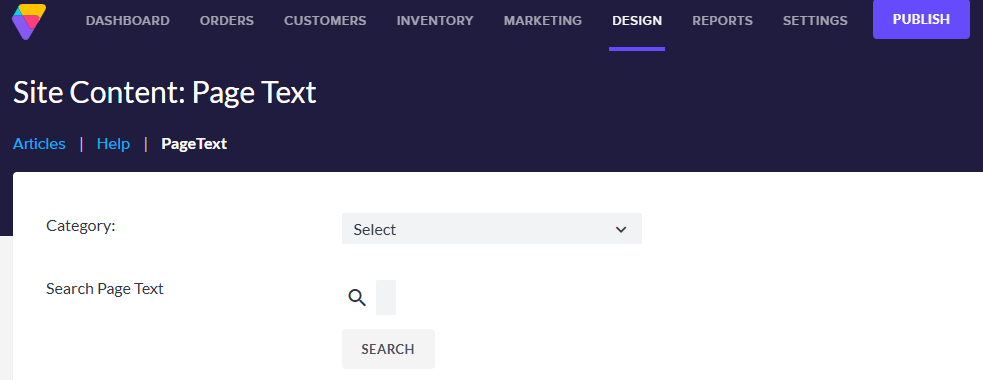
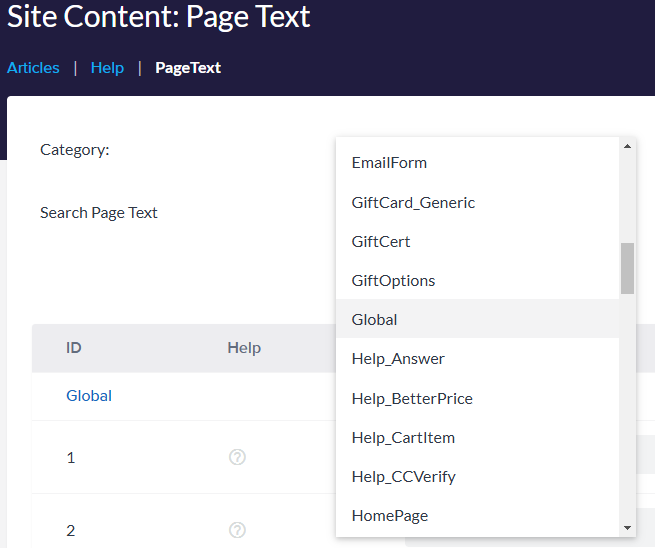
When the table refreshes, select **Global** from the **Category** menu.
Scroll down to the bottom of the table. Here you will find Articles 797 - 804, which contain the text that displays for prices related to VAT and GST.
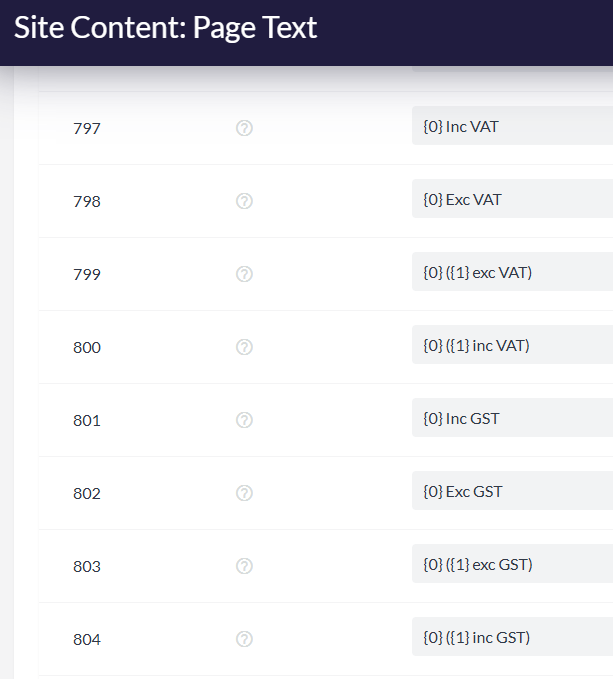
Edit these values as appropriate. Be careful not to delete or alter the "{0}" and "{1}" field variables; they are needed to show the before & after-tax prices. Click **Save** to finish your changes.
### Important Note
Note that you cannot make these edits from the storefront using the **Edit** link.
### Shopping Cart and Checkout Text
Merchants in other regions (for example, Canadian merchants charging HST) may find this functionality particularly helpful. To change the text on the shopping cart and checkout pages, follow these steps:
Go to **Settings** \> **Tax.**
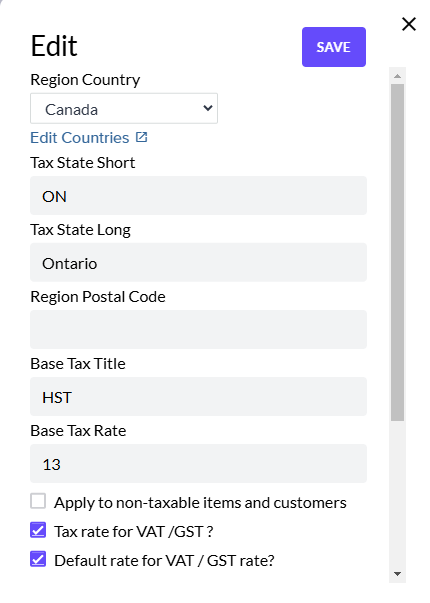
Click **Edit** next to the appropriate rate.
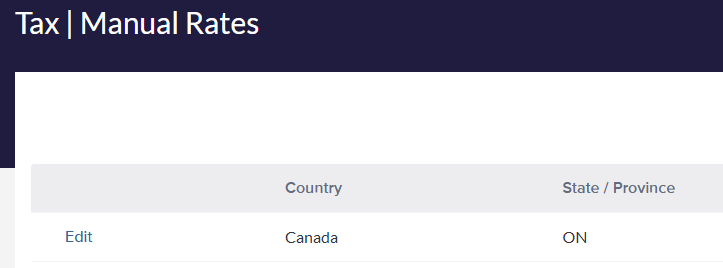
Edit the text in the **Base Tax Title** field as you like. Click **Save** to finish your edits.
- [Getting started](https://help.volusion.com/s/getting-started?hsLang=en-us)
- [Manage Your Store](https://help.volusion.com/s/manage-your-store?hsLang=en-us)
- [Marketing for Success](https://help.volusion.com/s/marketing-for-success?hsLang=en-us)
- [Volusion Payment Powered by Stripe](https://help.volusion.com/s/volusion-payment-powered-by-stripe?hsLang=en-us)
- [Partner Marketplace](https://help.volusion.com/s/partner-marketplace?hsLang=en-us)
- [Support](https://help.volusion.com/s/support?hsLang=en-us)
- [V1](https://help.volusion.com/s/v1?hsLang=en-us)
- [Security](https://help.volusion.com/s/security?hsLang=en-us)
[](https://volusion.com/)
[mailto:email@email.com](mailto:email@email.com)
Copyright © 2026, Volusion