
Gift Cards are a great addition to your store and they will work with our new Premium Checkout feature.
Premium Checkout will work with Volusion store-generated gift cards (gift certificates).
From your store's Admin Dashboard, navigate to Settings > Config Variables. Using the Search button, search the name field for "Gift". This should bring up the Enable Gift Certificates variable. Make sure the checkbox is checked and click the blue Save button at the top of the page.
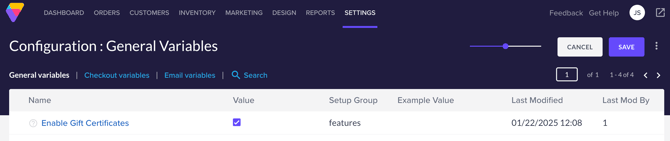
Gift Cards are now active on your store. On checkout, when your customer is presented with payment options, they will now see an Add Gift Card option.
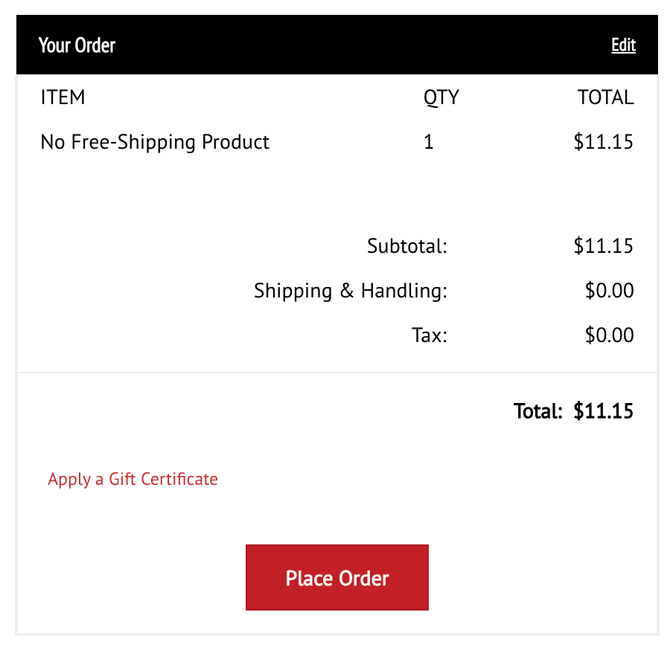
Clicking this link will open a Gift Card Number entry field.
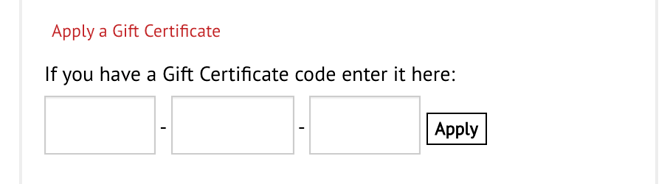
Enter the Card Number and click the green Apply button to add the Gift Card to the order. Your customer will see a message indicating that the Gift Card has been added. In the event that there is still a balance due on the order, they will have the opportunity to add an additional payment method for the balance. Additionally, a Remove link is available to remove the Gift Card.
The Gift Card is listed in the Order Summary as well. to indicate to the customer that it was added.
To note on types of Customers:
Returning customers who have an account, must login to their account and follow these steps to redeem the Gift Certificate prior to proceeding to checkout: go to myaccount.asp > payment settings > redeem a gift certificate
Guests can go to checkout and redeem the gift certificate using the steps from this article.