---
title: Exporting Table Information From Your Database
description: One of the great advantages of technology is the ability to manage data. Can you imagine what running a store was like before computers?
---
[Skip to content](https://help.volusion.com/s/exportingtableinformationfromyourdatabase#main-content)
English - United States
Show submenu for translations

Open main navigation
Close main navigation
- English - United States
Show submenu for translations
- [Contact Us](https://volusion.com/contact)
[Contact Us](https://volusion.com/contact)
Search the Help Center
- There are no suggestions because the search field is empty.
1. [Volusion Help Center](https://help.volusion.com/s?hsLang=en-us)
2. [V1](https://help.volusion.com/s/v1?hsLang=en-us)
# Exporting Table Information From Your Database
One of the great advantages of technology is the ability to manage data. Can you imagine what running a store was like before computers? Handwritten orders, stacks of papers and files to keep track of inventory and sales, and no easy way to store customer info. No, thank you! Now, you have everything in a handy spreadsheet and computer system.
When you need to run a report or review any type of data, you can export information stored in tables in your store's database.
From your store's Admin Dashboard, choose Inventory \> Import/Export from the dropdown menu.
Click the Standard Export tab.
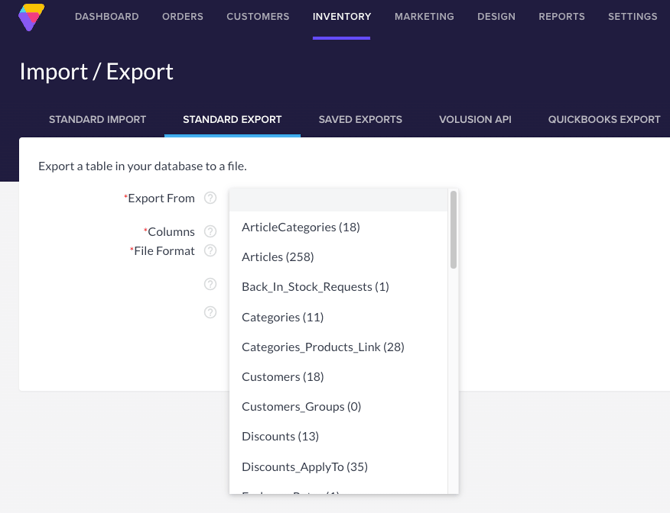
In the Export From drop-down, choose a table to export from. (The number shown next to the table indicates how many records are currently in your table.)
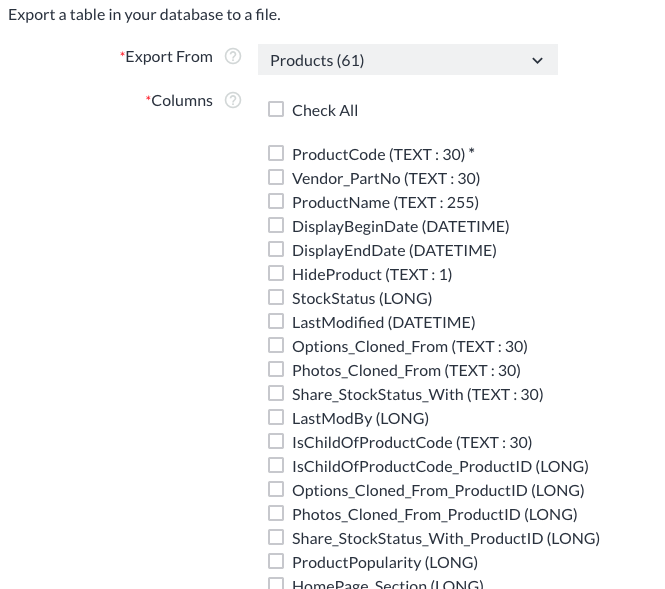
Select the columns you want to export by clicking the appropriate check boxes. Next to each field name, there is an indication of the datatype for that field. For example "(TEXT : 30)" means the value of that field will be text, and up to a maximum character length of 30.
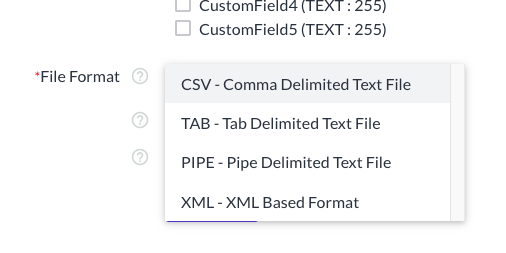
Choose the File Format you wish to export to.
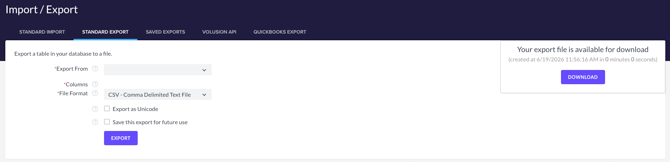
Click the Export button. The system will generate the file, then the page will refresh and give you a link to download the file.
For more information, see "[All About Import/Export](https://help.volusion.com/s/AllAboutImportExport?hsLang=en-us) ".
- [Getting started](https://help.volusion.com/s/getting-started?hsLang=en-us)
- [Manage Your Store](https://help.volusion.com/s/manage-your-store?hsLang=en-us)
- [Marketing for Success](https://help.volusion.com/s/marketing-for-success?hsLang=en-us)
- [Volusion Payment Powered by Stripe](https://help.volusion.com/s/volusion-payment-powered-by-stripe?hsLang=en-us)
- [Partner Marketplace](https://help.volusion.com/s/partner-marketplace?hsLang=en-us)
- [Support](https://help.volusion.com/s/support?hsLang=en-us)
- [V1](https://help.volusion.com/s/v1?hsLang=en-us)
- [Security](https://help.volusion.com/s/security?hsLang=en-us)
[](https://volusion.com/)
[mailto:email@email.com](mailto:email@email.com)
Copyright © 2026, Volusion