---
title: "Element: Save for Later Feature"
description: The Save for Later feature allows you to effortlessly manage your shopping experience by setting aside items you aren't ready to purchase today.
---
[Skip to content](https://help.volusion.com/s/element-save-for-later-feature#main-content)
English - United States
Show submenu for translations

Open main navigation
Close main navigation
- English - United States
Show submenu for translations
- [Contact Us](https://volusion.com/contact)
[Contact Us](https://volusion.com/contact)
Search the Help Center
- There are no suggestions because the search field is empty.
1. [Volusion Help Center](https://help.volusion.com/s?hsLang=en-us)
2. [V1](https://help.volusion.com/s/v1?hsLang=en-us)
# Element: Save for Later Feature
The **Save for Later** feature allows you to effortlessly manage your shopping experience by setting aside items you aren't ready to purchase today. Much like the V1 wish list feature, it keeps your favorite products organized and easily accessible in a personal queue for future checkouts. Here's how to activate it.
### **Enabling Save For Later On Your Products.**
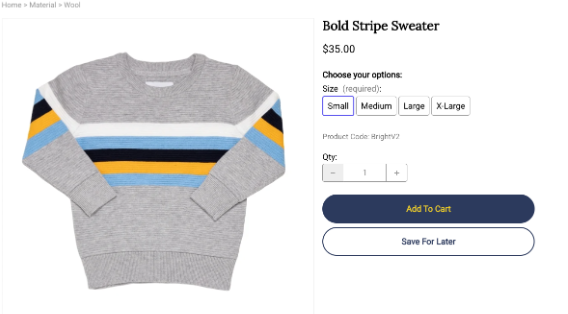
1. Head to Design \> **Site Designer** within your admin dashboard menus.
2. In the "**Site Pages**" list of pages select "**Product Page**".
3. Hover over the Product Details block and click "**Edit**" located in the upper left corner.
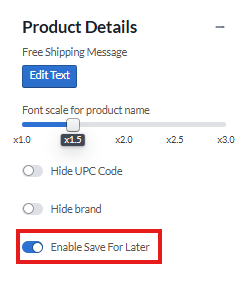
4. Click "**Product Details**".
5. Click the toggle "**Enable Save For Later**".
6. Click "**Done**".
### **Enabling Save For Later On Your Shopping Cart.**
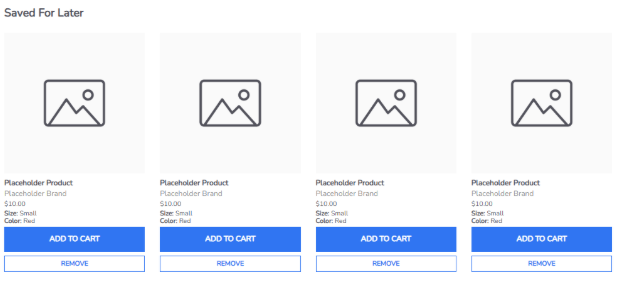
1. Head to Design \> **Site Designer** within your admin dashboard menus.
2. In the "**Site Pages**" list of pages select "**Shopping Cart**".
3. Hover over the Cart Page block and click "**Edit**" located in the upper left corner.
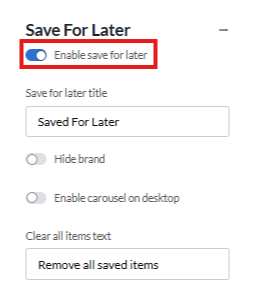
4. Click "**Save For Later**"
5. Click the toggle "**Enable Save For Later**".
6. Click "Done"
### **Enabling Quick Shop/Save For Later On Your Categories.**
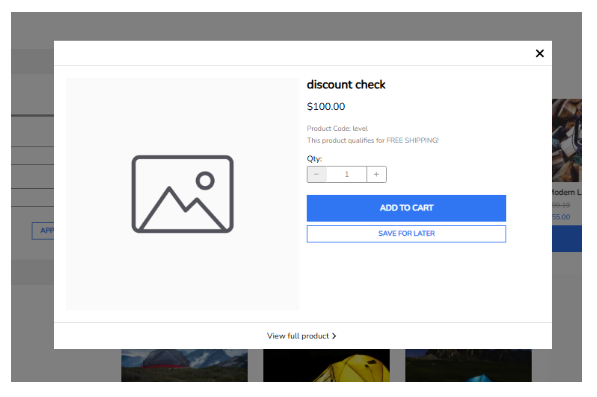
1. Head to Design \> **Site Designer** within your admin dashboard menus.
2. In the "**Site Pages**" list of pages select "**Category Page**".
3. Hover over the Push Cart block and click "**Edit**" located in the upper left corner.
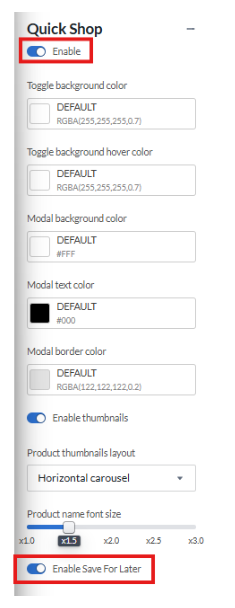
4. Click "**Quick Shop**".
5. Click the toggle "**Enable**". (To enable the Quick Shop Feature)
6. Click the toggle "**Enable Save For Later**". (To enable the Save For Later feature)
7. Click "**Done**".
### **Enabling Save For Later For Your Search Results.**
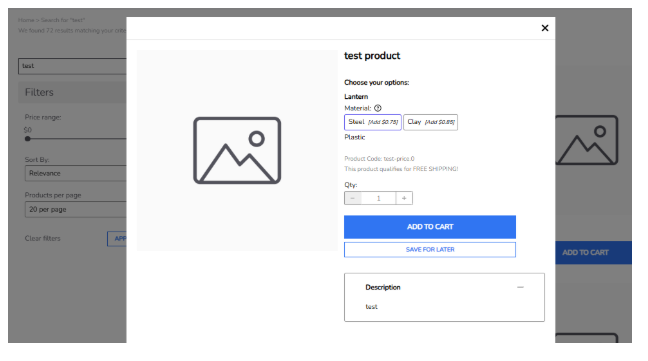
1. Head to Design \> **Site Designer** within your admin dashboard menus.
2. In the "**Site Pages**" list of pages select "**Search Results**".
3. Hover over the Search Results block and click "**Edit**" located in the upper left corner.
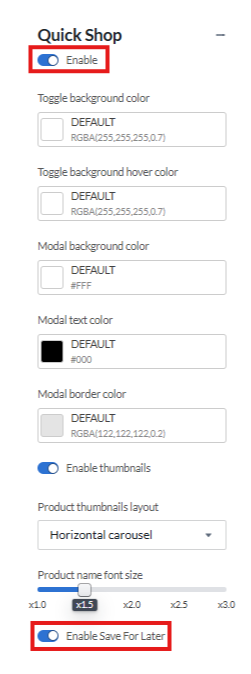
4. Click "**Quick Shop**".
5. Click the toggle "**Enable**". (To enable the Quick Shop Feature)
6. Click the toggle "**Enable Save For Later**". (To enable the Save For Later feature)
7. Click "**Done**".
### **Enabling Save For Later On Your Side Pop-out Cart Menu.**
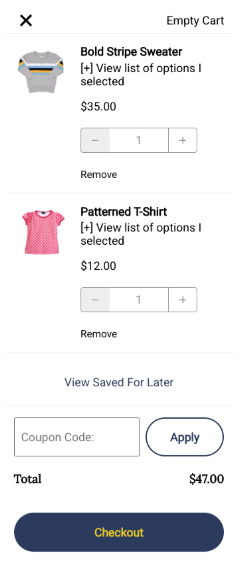
1. Head to Design \> **Site Designer** within your admin dashboard menus.
2. In the "**Site Pages**" list of pages select "**Global Template**".
3. At the very bottom of this page hover over the Push Cart block and click "**Edit**".
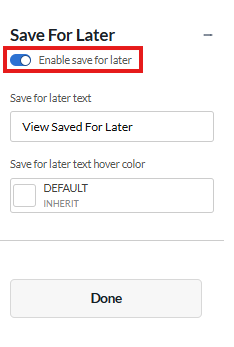
4. Click "**Save For Later**"
5. Click the toggle "**Enable Save For Later**".
6. Click "Done"
- [Getting started](https://help.volusion.com/s/getting-started?hsLang=en-us)
- [Manage Your Store](https://help.volusion.com/s/manage-your-store?hsLang=en-us)
- [Marketing for Success](https://help.volusion.com/s/marketing-for-success?hsLang=en-us)
- [Volusion Payment Powered by Stripe](https://help.volusion.com/s/volusion-payment-powered-by-stripe?hsLang=en-us)
- [Partner Marketplace](https://help.volusion.com/s/partner-marketplace?hsLang=en-us)
- [Support](https://help.volusion.com/s/support?hsLang=en-us)
- [V1](https://help.volusion.com/s/v1?hsLang=en-us)
- [Security](https://help.volusion.com/s/security?hsLang=en-us)
[](https://volusion.com/)
[mailto:email@email.com](mailto:email@email.com)
Copyright © 2026, Volusion