---
title: Editing Email Templates
description: Your Volusion store's automated email feature allows you to get the correct information out to your customers.
---
[Skip to content](https://help.volusion.com/s/editing-email-templates#main-content)
English - United States
Show submenu for translations

Open main navigation
Close main navigation
- English - United States
Show submenu for translations
- [Contact Us](https://volusion.com/contact)
[Contact Us](https://volusion.com/contact)
Search the Help Center
- There are no suggestions because the search field is empty.
1. [Volusion Help Center](https://help.volusion.com/s?hsLang=en-us)
2. [V1](https://help.volusion.com/s/v1?hsLang=en-us)
# Editing Email Templates
Your Volusion store's automated email feature allows you to get the correct information out to your customers. With our new user interface for editing Email Templates, we just make things a little easier. Rather than editing your templates via the [FTP process](https://help.volusion.com/s/UsingYourVolusionFTPSFTPAccount?hsLang=en-us) , you can now edit your templates from your Admin Dashboard.
To access this feature, navigate to your Admin Dashboard and go to **Design \> Email Templates**.
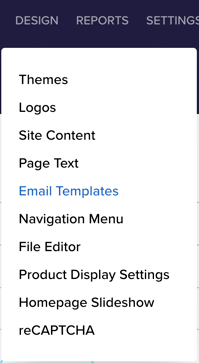
This will open the **Email Templates** page.
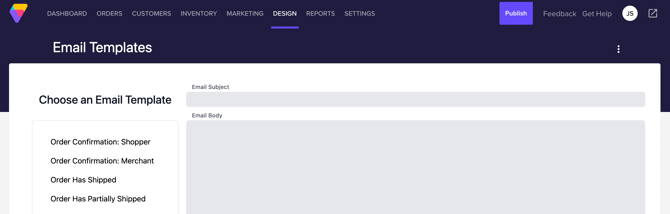
The list provided on the right gives you access to all of your store emails. Selecting one of them will populate the Email Subject and Email Body fields to the right.
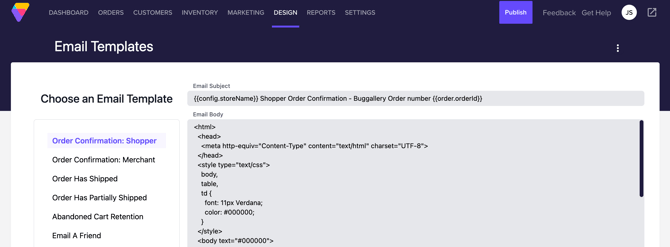
You can click into the Email Subject or Email Body fields to modify the content.
If you are not familiar with modifying HTML, we suggest visiting [W3 Schools website](https://www.w3schools.com/html/) to learn more. You are also more than welcome to [contact us](https://help.volusion.com/s/ContactUs?hsLang=en-us) and we would be happy to provide other alternatives.
When your edits are complete, click the **Save** button at the top right of the page. The button will only be visible after you have made changes to the template.
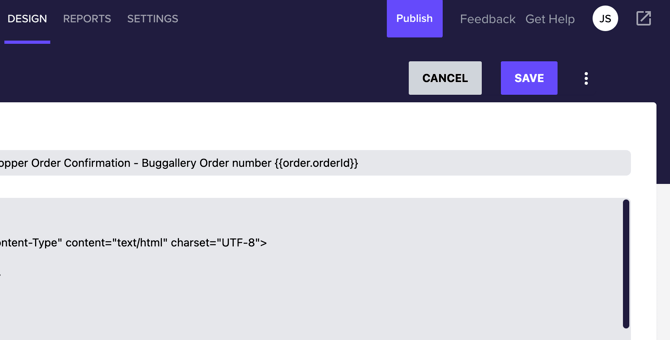
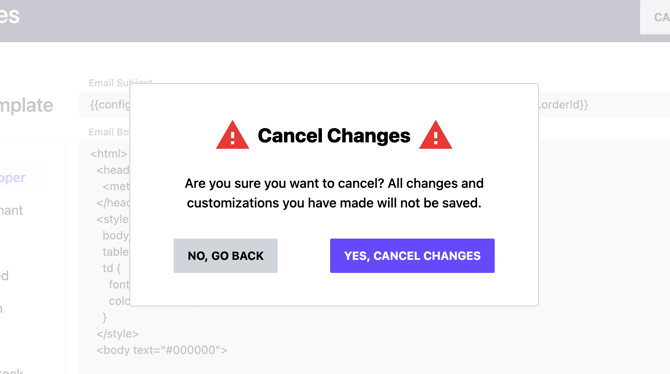
Should you decide not to save your changes, you can click the **Cancel** button to remove them.
When clicking the Cancel button you will see a popup that allows you to either go back to editing the template, or cancel your changes.
Additional Features To view additional features click the 3-dot action button at the top right of the page.
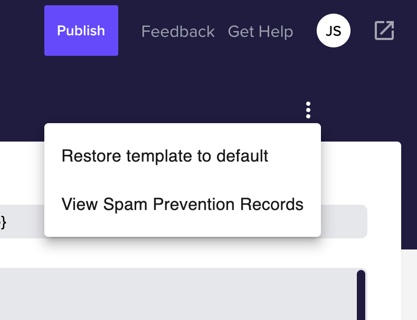
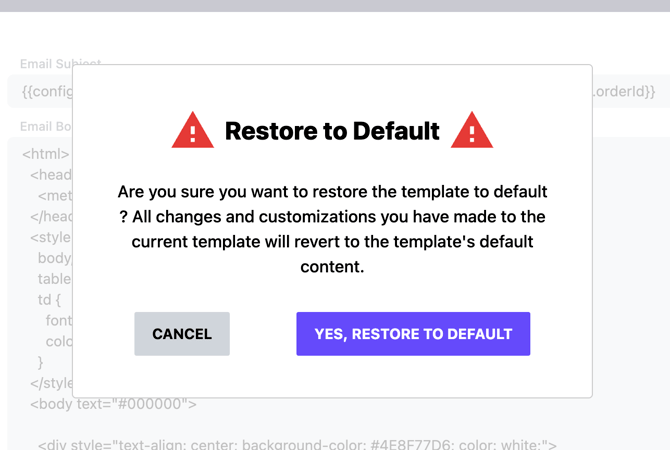
**Restore template to default** allows you to restore any listed template to its original default settings, regardless to the changes that have been made to it.
To use this option, choose a template from the left hand **Choose an Email Template** menu, click the action button and choose the **Restore template to default** option. You will see a popup that gives you the option to cancel your action or restore the template to its default settings.
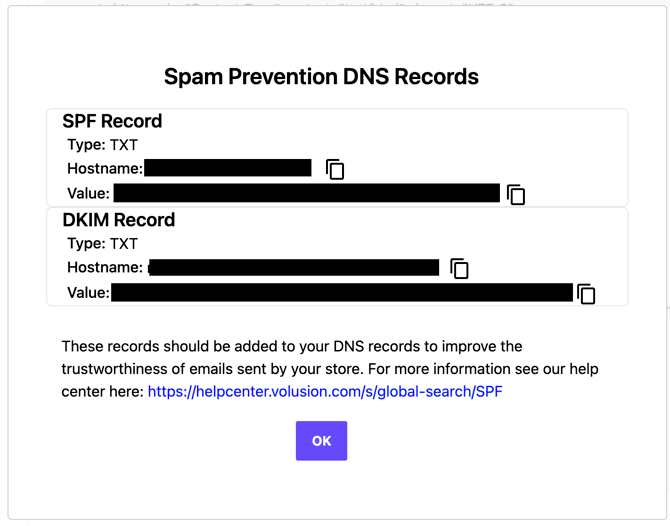
**View Spam Prevention Records** allows you to see the[Spam Prevention records](https://help.volusion.com/s/SPFDKIMandDMARCRecords?hsLang=en-us) for your store.
A popup will show the SPF and DKIM records that can be added to your DNS settings to show that email originating from your store are trustworthy.
Dynamic Variables are used within the HTML of a template to pull in specific information from your stores records. These values appear within email templates and are indicated by double brackets. For example pulls in the customer's first name from a specific order's billing information. would pull the date of the order.
These variables can be used to personalize an email template. For instance, on the Order Has Shipped template the Email Subject line reads "Your order has shipped..." By adding the variable, your email subject would now include the customer's first name. Changing the Email Subject line to read "Your order has shipped,!" allows you to personalize the email for a specific customer. Keep in mind that Dynamic Variables will reference the information from the order being referenced in the template and must be input EXACTLY as they are shown within the template in order to work correctly.
Email Template Variables:
Our [Volusion Email Vairables](https://help.volusion.com/s/volusion-email-variables?hsLang=en-us) article includes the list of variables that you can add or remove within each email template.
- [Getting started](https://help.volusion.com/s/getting-started?hsLang=en-us)
- [Manage Your Store](https://help.volusion.com/s/manage-your-store?hsLang=en-us)
- [Marketing for Success](https://help.volusion.com/s/marketing-for-success?hsLang=en-us)
- [Volusion Payment Powered by Stripe](https://help.volusion.com/s/volusion-payment-powered-by-stripe?hsLang=en-us)
- [Partner Marketplace](https://help.volusion.com/s/partner-marketplace?hsLang=en-us)
- [Support](https://help.volusion.com/s/support?hsLang=en-us)
- [V1](https://help.volusion.com/s/v1?hsLang=en-us)
- [Security](https://help.volusion.com/s/security?hsLang=en-us)
[](https://volusion.com/)
[mailto:email@email.com](mailto:email@email.com)
Copyright © 2026, Volusion