
Setting up a "Buy One, Get One Free" deal is easy and it's a great way to move inventory you get at deep wholesale prices or items you want to move out of stock. Plus, it brings customers in your digital door who go for the deal and then buy additional items.
To set up a BOGO discount:From your store's Admin Dashboard, go to Marketing > Coupons/Discounts.
Click the Add button at the top right of the page to create a new discount.
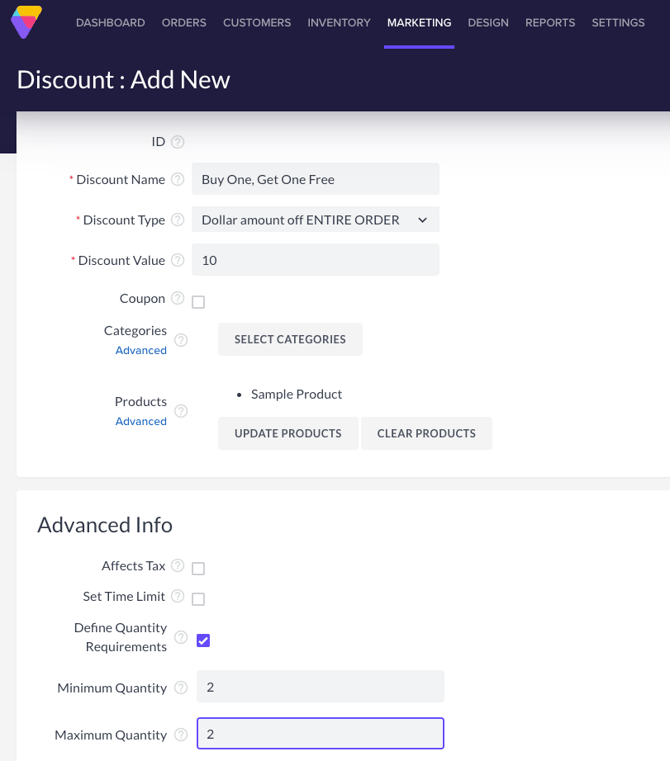
Enter a Discount Name (for example, "Buy One, Get One Free") in the Discount Name field.
Select Dollar Amount Off Entire Order from the Discount Type dropdown menu.
Enter the price of the product being offered in the Discount Value field.
Click Select Products and choose the applicable product, then click Apply.
Under Advanced Info, click the Define Quantity Requirements check box and enter "2" in the Minimum Quantity field and "2" in the Maximum Quantity field.
Click the Save button at the top right of the Discounts page.
Now, when a customer places two of the specified item in their cart, they'll receive one of them for free. Keep in mind, this discount ONLY works when offering the same product. Your "Buy One" product must be the same product as your "Get One Free" product for this type of Discount to work.
More more great info, check out our article on Coupons and Discounts.