---
title: Customizing Order Invoices, Packing Slips, and POS Receipts
description: Connect with your customers on a more personal level by customizing the paperwork you send them.
---
[Skip to content](https://help.volusion.com/s/customizingorderinvoicespackingslipsandposreceipts#main-content)
English - United States
Show submenu for translations

Open main navigation
Close main navigation
- English - United States
Show submenu for translations
- [Contact Us](https://volusion.com/contact)
[Contact Us](https://volusion.com/contact)
Search the Help Center
- There are no suggestions because the search field is empty.
1. [Volusion Help Center](https://help.volusion.com/s?hsLang=en-us)
2. [V1](https://help.volusion.com/s/v1?hsLang=en-us)
# Customizing Order Invoices, Packing Slips, and POS Receipts
Connect with your customers on a more personal level by customizing the paperwork you send them.
Volusion gives you the ability to personalize your printable invoices, packing slips or POS receipts by adding custom content to the header and/or footer of each. That way, you can connect with them in your own unique voice, rather than saying the same generic things those other brands do.
First you'll need to find them:
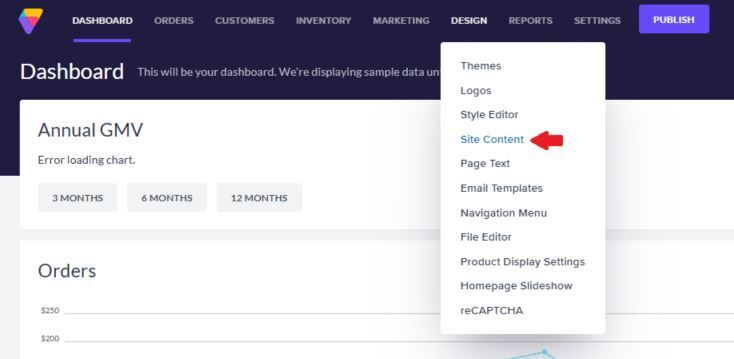
On your site's Admin Dashboard, go to **Design** \> **Site Content.**
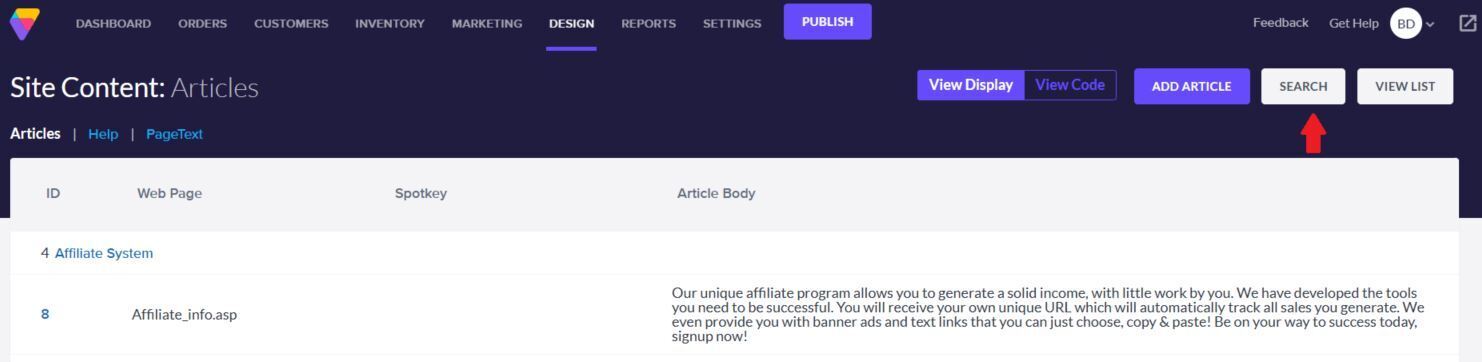
Click the gray **Search** button at the top right of the page.
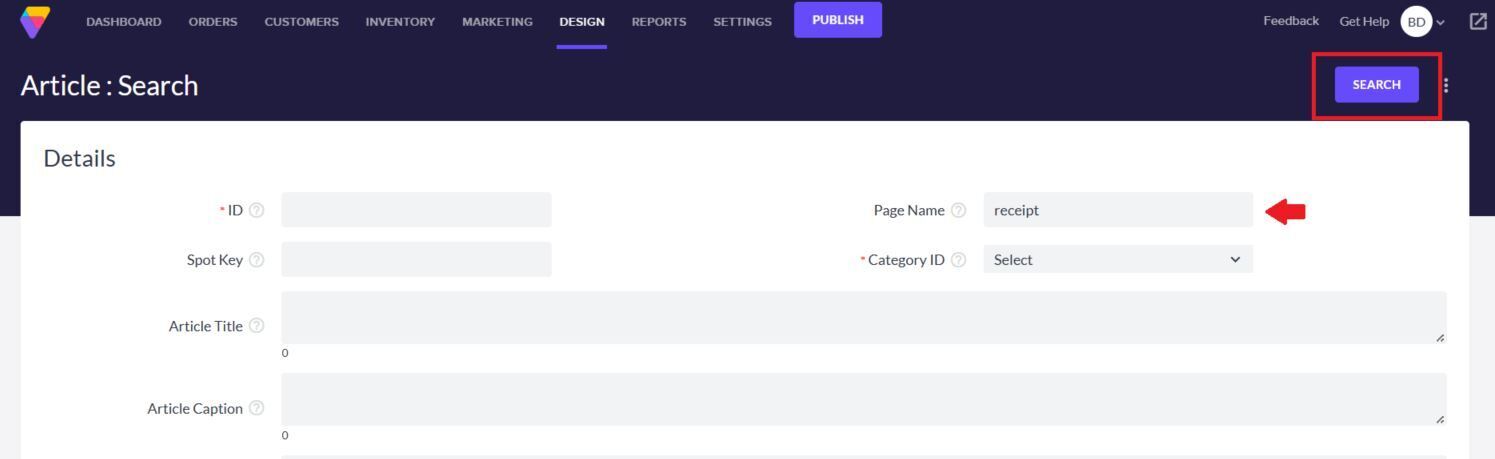
Type "receipt" in the **Page Name** field and click the **Search** button.
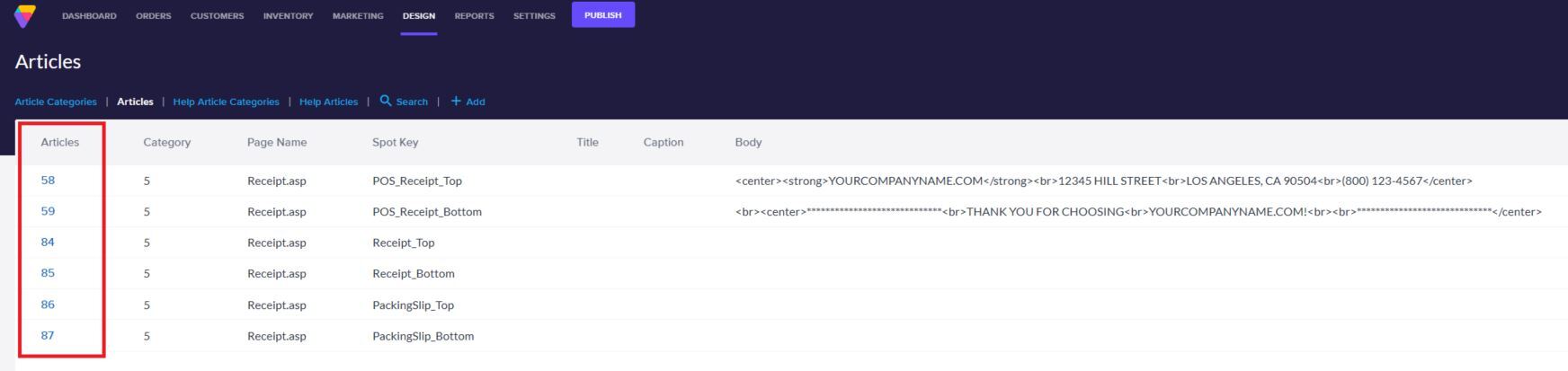
The search will locate several articles (see below for template types and location of customizable content). To edit any of them:
On the Articles Page, click the **article ID number** to edit its content.
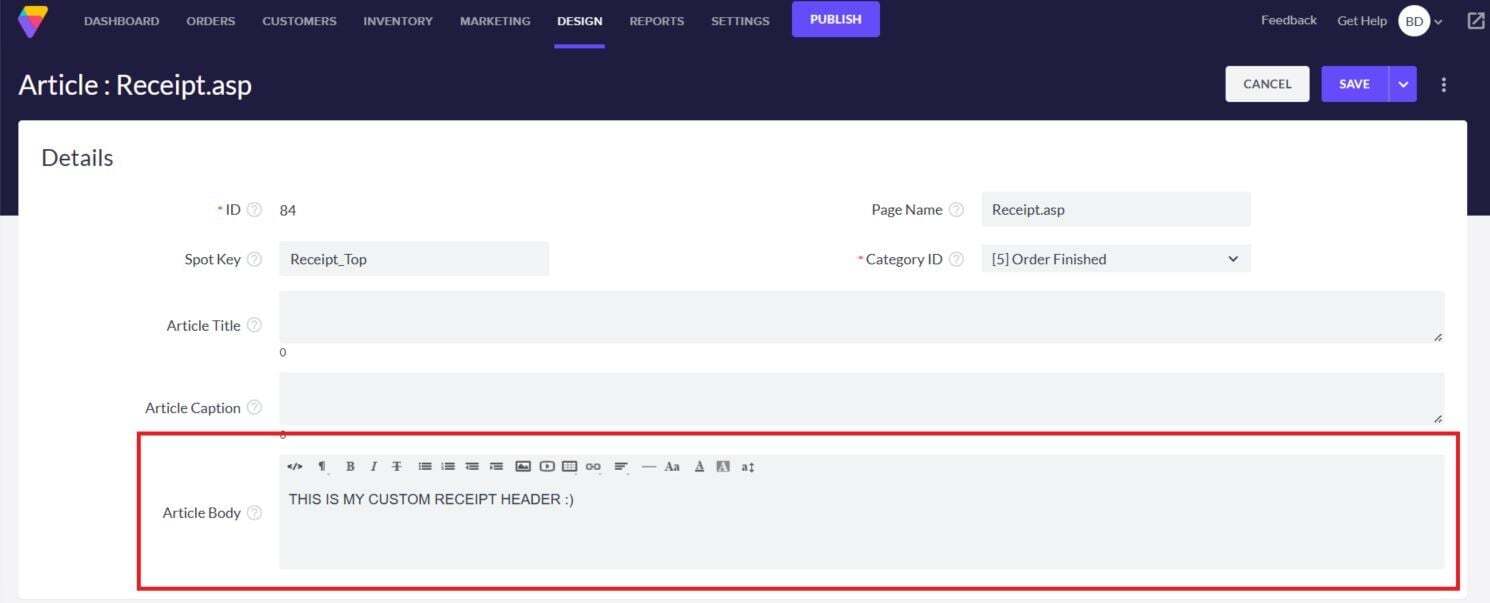
Make your content changes in the **Article Body** field.
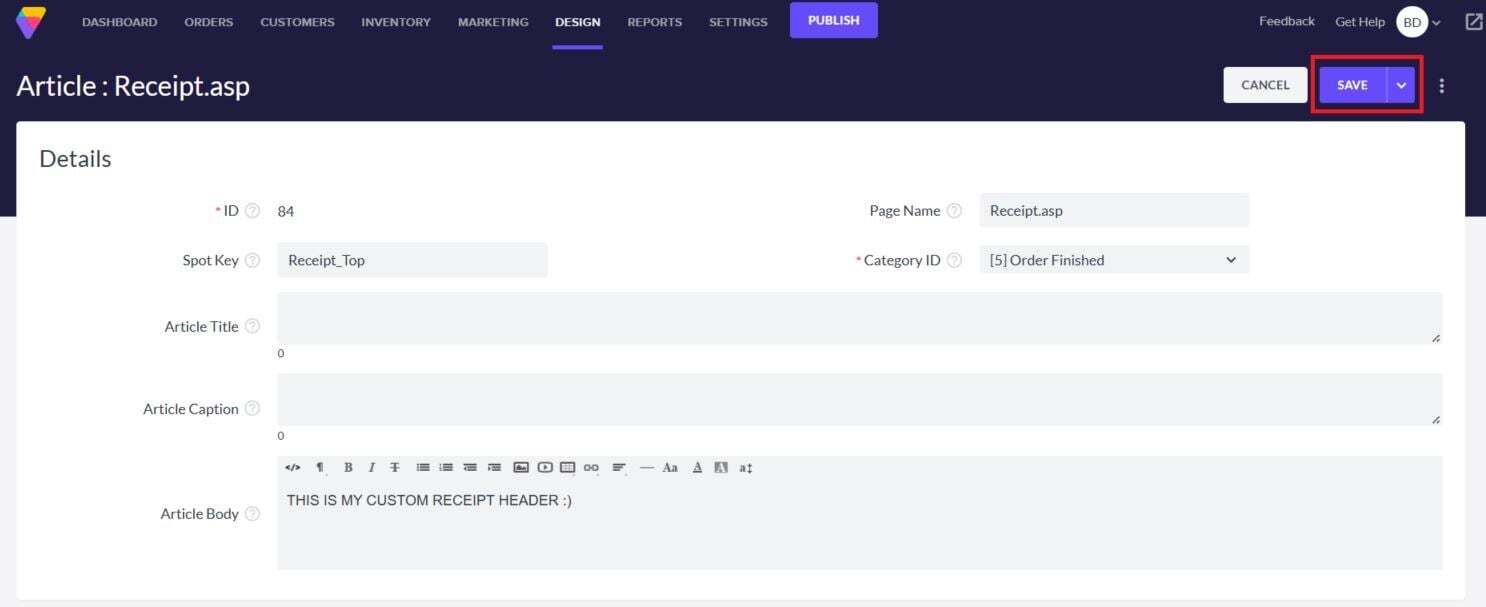
To finalize your changes, click the **Save** button at the top right of the page.
### Article Types & Locations of Custom Content:
**ID#: 58**
**Spot Key:** POS\_Receipt\_Top
**Custom Content Location:** Header of POS receipt
**ID#: 59**
**Spot Key:** POS\_Receipt\_Bottom
**Custom Content Location:** Footer of POS receipt
**ID#: 84**
**Spot Key:** Receipt\_Top
**Custom Content Location:** Header of invoice
**ID#: 85**
**Spot Key:** Receipt\_Bottom
**Custom Content Location:** Footer of invoice
**ID#: 86**
**Spot Key:** PackingSlip\_Top
**Custom Content Location:** Header of packing slip
**ID#: 87**
**Spot Key:** PackingSlip\_Bottom
**Custom Content Location:** Footer of packing slip
Good to know: At present, you can't change which data values appear by default in the body of these documents or edit where the content displays.
Display Product Photos on Invoices
If you want your product photos to display on invoices:
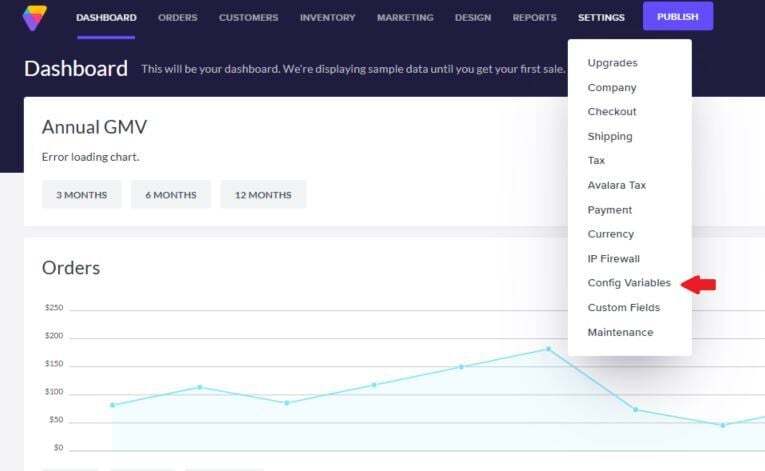
From your site's Admin Dashboard, go to **Settings** \> **Config Variables**.
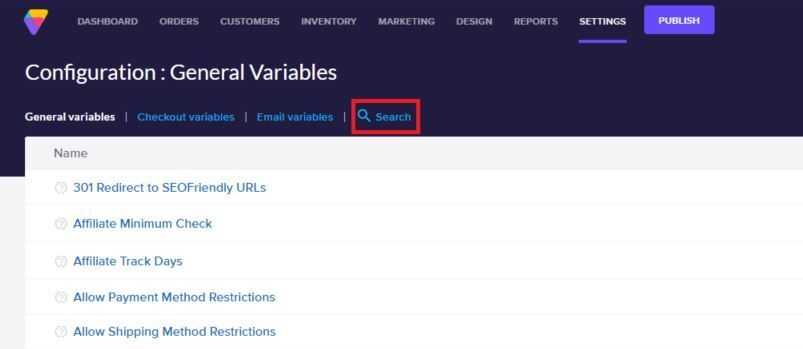
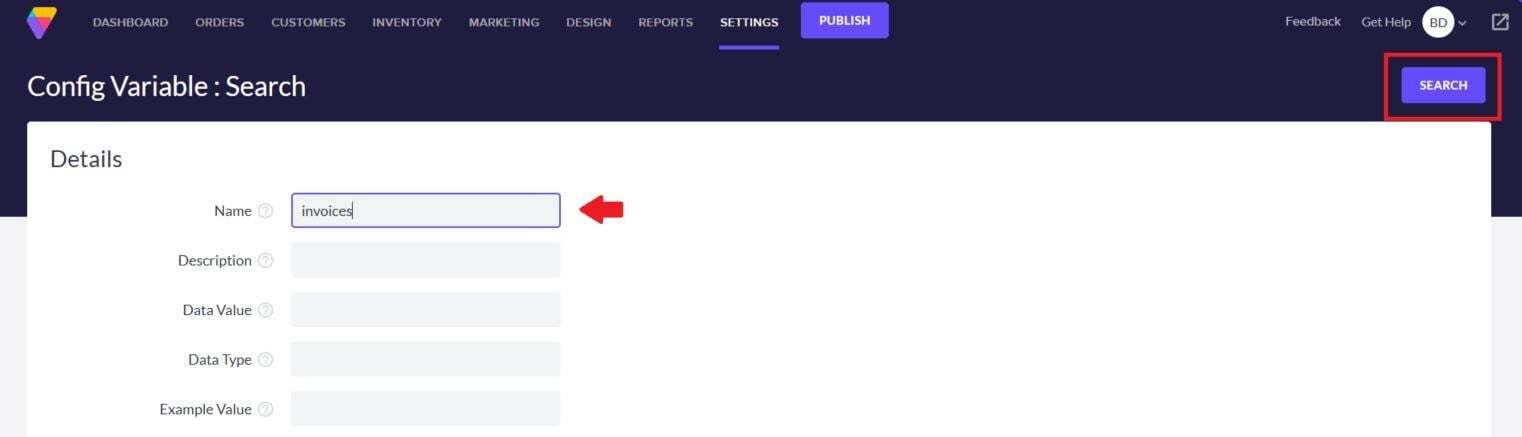
Click the **Search** button at the top left of the Config Variables page.
In the **Name** field, type "invoices", and then click the blue **Search** button in the top right of the page.
On the results page, in the **Enable Product Photos on Invoices** row, click the checkbox in the **Value** column.

Click the blue **Save** button at the top right of the page.

Photos now display on invoices for applicable products.
**Summary**
Customers like to know who they're doing business with. If you think that an invoice is just a throwaway formality, you're missing an opportunity to connect with your audience.
- [Getting started](https://help.volusion.com/s/getting-started?hsLang=en-us)
- [Manage Your Store](https://help.volusion.com/s/manage-your-store?hsLang=en-us)
- [Marketing for Success](https://help.volusion.com/s/marketing-for-success?hsLang=en-us)
- [Volusion Payment Powered by Stripe](https://help.volusion.com/s/volusion-payment-powered-by-stripe?hsLang=en-us)
- [Partner Marketplace](https://help.volusion.com/s/partner-marketplace?hsLang=en-us)
- [Support](https://help.volusion.com/s/support?hsLang=en-us)
- [V1](https://help.volusion.com/s/v1?hsLang=en-us)
- [Security](https://help.volusion.com/s/security?hsLang=en-us)
[](https://volusion.com/)
[mailto:email@email.com](mailto:email@email.com)
Copyright © 2026, Volusion