---
title: Customer Reviews of Your Products
description: Let customers write reviews of your products so you can keep sales going strong. 're researching new products and services.
---
[Skip to content](https://help.volusion.com/s/customerreviewsofyourproducts#main-content)
English - United States
Show submenu for translations

Open main navigation
Close main navigation
- English - United States
Show submenu for translations
- [Contact Us](https://volusion.com/contact)
[Contact Us](https://volusion.com/contact)
Search the Help Center
- There are no suggestions because the search field is empty.
1. [Volusion Help Center](https://help.volusion.com/s?hsLang=en-us)
2. [V1](https://help.volusion.com/s/v1?hsLang=en-us)
# Customer Reviews of Your Products
Let customers write reviews of your products so you can keep sales going strong.
Written by Jared K
Product reviews are one of the resources shoppers trust most when they're researching new products and services. If your customers have helpful things to say about your products, even if it's constructive criticism or advice, we recommend turning on your stores Product Reviews feature.
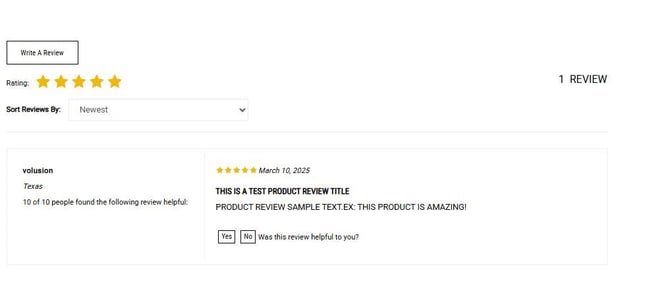
Once you start receiving reviews, the star ratings will show in Google search results for products that rank highly. Consequently, your products and reviews will have better visibility throughout the web.
**Getting Started**
Note: Customer Reviews are only available to merchants with a **Volusion Professional Level** or higher level plan.
Once you turn on product reviews, customers can post reviews for any product on your store directly from your storefront. You can view and manage these reviews in your Admin Area at **Customers** \> **Customer Reviews**.
**Turning Product Reviews On**
There are two types of product reviews: customer reviews and order reviews. Before your can receive either type of product review, you must turn them on individually. If you turn on order reviews, customers who didn't review the product(s) they purchased will receive an email inviting them to do so by clicking a link that leads to the appropriate page. There is no difference between reviews submitted proactively and reviews submitted in response to automated request emails.
To turn on customer reviews:
1. Go to **Inventory** \> **Products.**
2. Click the three-dot actions menu icon and select **All Products Settings**.
3. Select the **Enable Customer Reviews** check box.
4. Click **Save.**
To turn on order reviews:
1. Go to **Inventory** \> **Products.**
2. Click the three-dot actions menu icon and select **All Products Settings.**
3. Select the **Auto Survey Email Enabled** check box.
4. In the **Auto Survey Email After Number of Days** field, enter the number of days you want to elapse after an order is shipped before your store sends the customer a review request email.
5. Click **Save**.
**How Customers Submit Reviews**
Customers can submit product reviews for any active product on your store by going to its details page and clicking **Write a Review** below the description. If no reviews have been submitted, the link will instead say **Be the First to Write a Review**.
When submitting a review, a customer can provide their name, geographic location, a title, comments on the product or service, and a star rating.
When published, each review displays the rating, title, and comments near the bottom of the product's details page. The rating (between one and five stars) is an average based on all reviews the product has received. It displays just below the description.
Additionally, other visitors to the page can rate whether or not a review was helpful by clicking **Yes** or **No**. The total number of shoppers who rated a review as helpful displays above each review.
By default, reviews publish on the product's details page automatically unless they contain specific content configured in your filter. To remove a particular review, you must either delete it or deactivate it at **Customers** \> **Customer Reviews.** To delete it, click its ID number and then click the **Delete** button.
To deactivate it, clear the **Active** check box.
### Evaluating and Approving Reviews
You can evaluate all customer reviews, including those that the content filter has deactivated (see Review Content Filter below for more information), by going to **Customers** \> **Customer Reviews.**
Each review contains the following data:
- **ID** (a unique, automatically-generated ID number).
- **Product Code** (the product code of the product reviewed).
- **Review Title** (the title of the review, specified by the customer).
- **Rating** (the rating the customer chose, from one to five, with five being the highest).
- **Customer ID** (the account ID number of the customer posting the review).
- **Yes Helpful** (the number of shoppers who have rated the review as "helpful." The default value is zero).
- **No Helpful** (the number of shoppers who have rated the review as "not helpful." The default value is zero).
- **Active** (If a review is active, it displays on the product's details page. Clearing this check box removes the review from your storefront, but not from your Admin Area. The check box is automatically selected whenever a customer submits a review, unless it contains content specified by your filter.)
- **Name** (the name the customer entered. Note that this field doesn't have to match the name on the customer's account).
- **Location** (if a reviewer chooses to specify a geographic location, it's listed here).
- **Review Description** (the content of the review).
Review Content Filter
Most customers can be trusted to express their opinions in a civil and appropriate manner, but for the occasional offensive or derogatory review, your stores filter can hide any content youve defined as inappropriate.
### Managing Word Filters
If the filter identifies a review as offensive, youll receive an email notification. In these cases, the review wont be published to your storefront unless you manually approve it. To view the filters used to flag offensive reviews, go to **Customers** \> **Customer Reviews**, click the three-dot actions menu icon, and select **Word Filters**.
Here, you can edit, add to, or remove items from the default list of offensive terms. Keep in mind that this list contains offensive language. If you add to the list of of offensive terms, be sure to only use alphanumeric characters (letters and numbers). If you add special characters as offensive terms for example, quotation marks or apostrophes you'll receive an error when you attempt to select the **Offensive Reviews** filter at **Customers** \> **Customer Reviews**.
If you want to evaluate *all* reviews before they're published, you can add a few filter terms that would exist in any written review.\* For example, you can add each vowel: A, E, I, O , and U. In effect, the filter will consider all reviews as offensive and hide them until you review and approve them, or delete them.
**\***Note that, although highly unlikely, it is possible that a customer may submit a review that doesn't contain any vowels. In this case, the review would not be filtered and would publish automatically. The only way to guarantee that all reviews are filtered is to create a filter term for every possible number, special character, and letter (not just vowels).
### Approving Reviews
To evaluate filtered reviews, go to **Customers** \> **Customer Reviews.** From the **Filter** menu, select **Offensive Reviews**. To approve a review so that it displays on the product's details page, click the ID number of the review you want to approve, make any appropriate changes, select the **Active** check box, and save.
### Notes on Filtered Reviews
The content filter is not case sensitive. If any content within a review matches any entry in the filter word list, the review will remain hidden until you take further action. If the offending word appears as part of an otherwise acceptable word, the review will be hidden (for example, any review containing the word "scrapbook" would be filtered due to ID number 12 in the offensive word list). Its important to regularly examine all filtered reviews in case your filters have inadvertently hidden a positive or inoffensive review.
In some cases, a customer might use offensive language in a positive review. You can decide whether to edit the offensive language and activate the review, it or leave it inactive or delete it. The decision to purge offensive reviews or edit and approve them is entirely up to you.
- [Getting started](https://help.volusion.com/s/getting-started?hsLang=en-us)
- [Manage Your Store](https://help.volusion.com/s/manage-your-store?hsLang=en-us)
- [Marketing for Success](https://help.volusion.com/s/marketing-for-success?hsLang=en-us)
- [Volusion Payment Powered by Stripe](https://help.volusion.com/s/volusion-payment-powered-by-stripe?hsLang=en-us)
- [Partner Marketplace](https://help.volusion.com/s/partner-marketplace?hsLang=en-us)
- [Support](https://help.volusion.com/s/support?hsLang=en-us)
- [V1](https://help.volusion.com/s/v1?hsLang=en-us)
- [Security](https://help.volusion.com/s/security?hsLang=en-us)
[](https://volusion.com/)
[mailto:email@email.com](mailto:email@email.com)
Copyright © 2026, Volusion