---
title: Configuring a Free Gift With Purchase
description: Learn how to give your customers the option of selecting a free gift with purchase of a product.
---
[Skip to content](https://help.volusion.com/s/configuringafreegiftwithpurchase#main-content)
English - United States
Show submenu for translations

Open main navigation
Close main navigation
- English - United States
Show submenu for translations
- [Contact Us](https://volusion.com/contact)
[Contact Us](https://volusion.com/contact)
Search the Help Center
- There are no suggestions because the search field is empty.
1. [Volusion Help Center](https://help.volusion.com/s?hsLang=en-us)
2. [V1](https://help.volusion.com/s/v1?hsLang=en-us)
# Configuring a Free Gift With Purchase
Configuring a Free Gift With Purchase
Learn how to give your customers the option of selecting a free gift with purchase of a product.
This article covers how to add a free gift option to select products in your store.
Enable Free Accessories
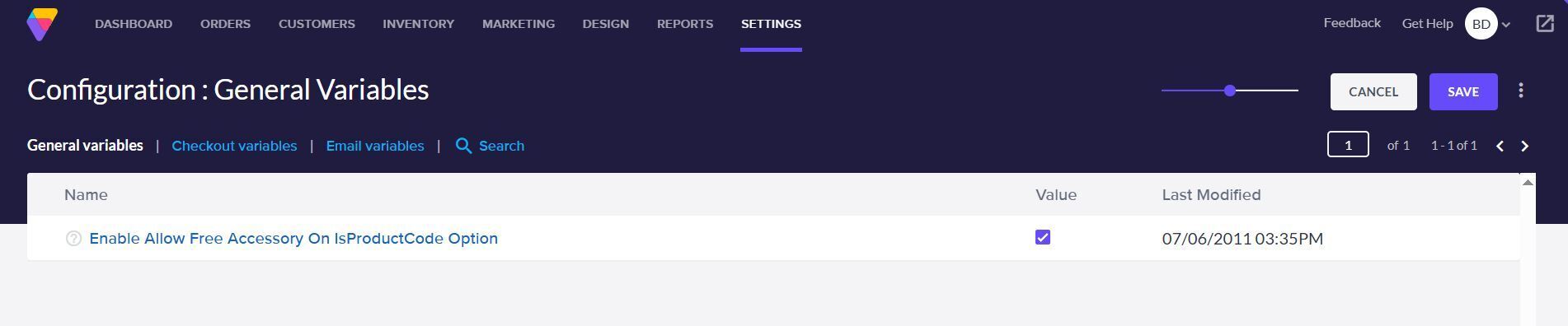
Navigate to Settings \> Config Variables and search for the name 'Accessory.' Toggle on the variable *Enable Allow Free Accessory On IsProductCode Option*and click **Save.**
Create your Free Gift Product
Go to the Inventory \> Products page and click **Add** to create a new product. Products that are free gifts must have a Price of **0.00** and Hide Product must be enabled under Advanced Info \> Product Display.
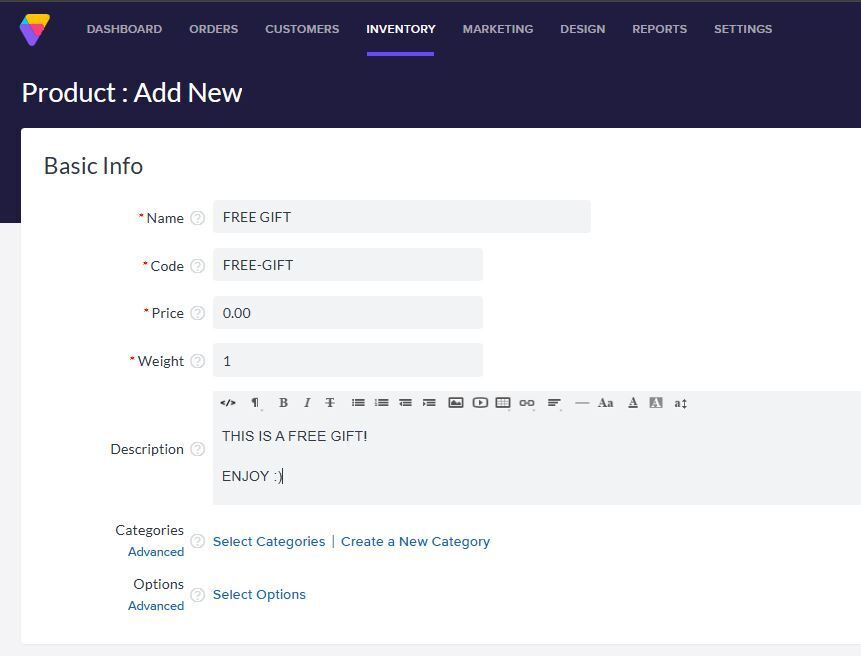
Fill in the rest of the product details and click **Save**.
Create A Free Gift Option Category
1. Go to Inventory \> Options and select **Option Categories** from the Filter menu.
2. Click **Add.**
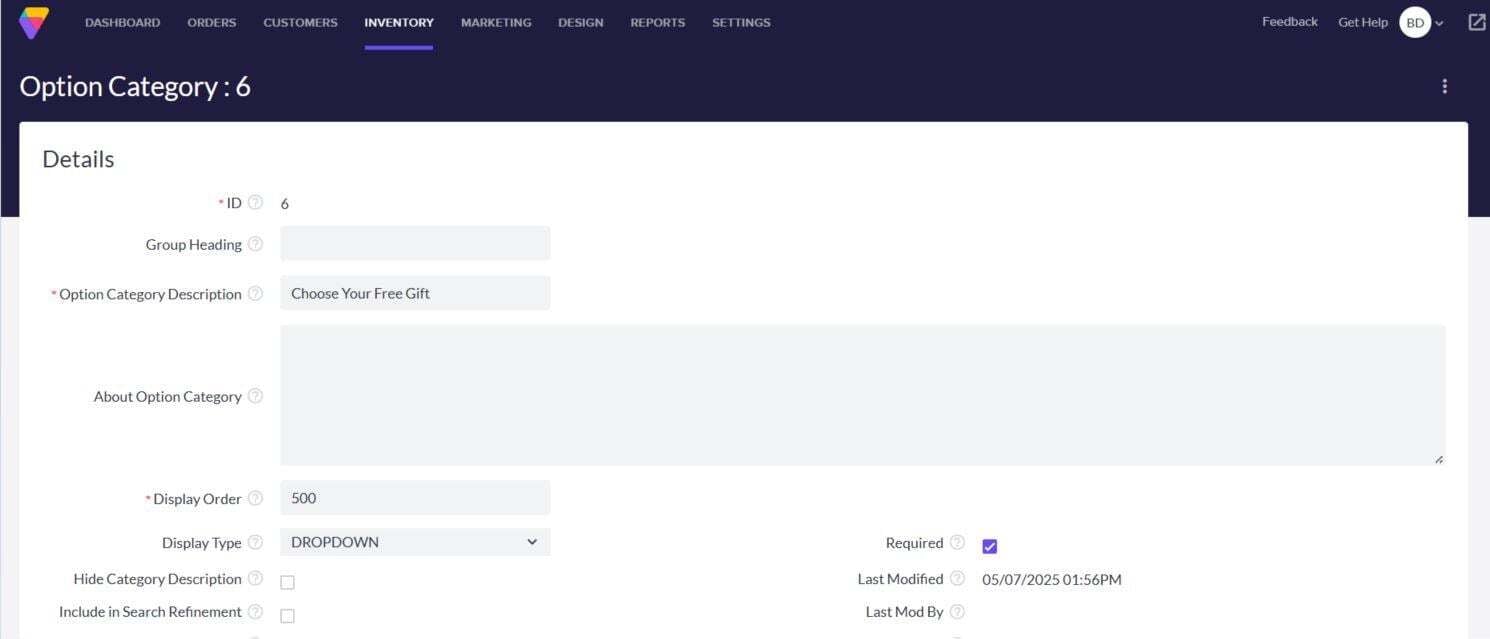
3. Enter **Choose Your Free Gift** in the Option Category Description field.
4. Enter **500** in the Display Order field. This ensures "Choose Your Free Gift" will appear as the last option category on your product page.
5. Select **DROPDOWN** from the Display Type menu.
6. Check the box next to **Required**.
7. Click **Save**.
Create The Options
1. Go to Inventory \> Options and click **Add**.
2. Enter **0** in the Price Diff field.
3. Select **Choose Your Free Gift** from the Option Category menu.
4. Enter the name of the free gift product as the Option Description.
5. Under Advanced Info, enter the Product Code of the free gift product in the IsProductCode field.
6. Click **Save**.
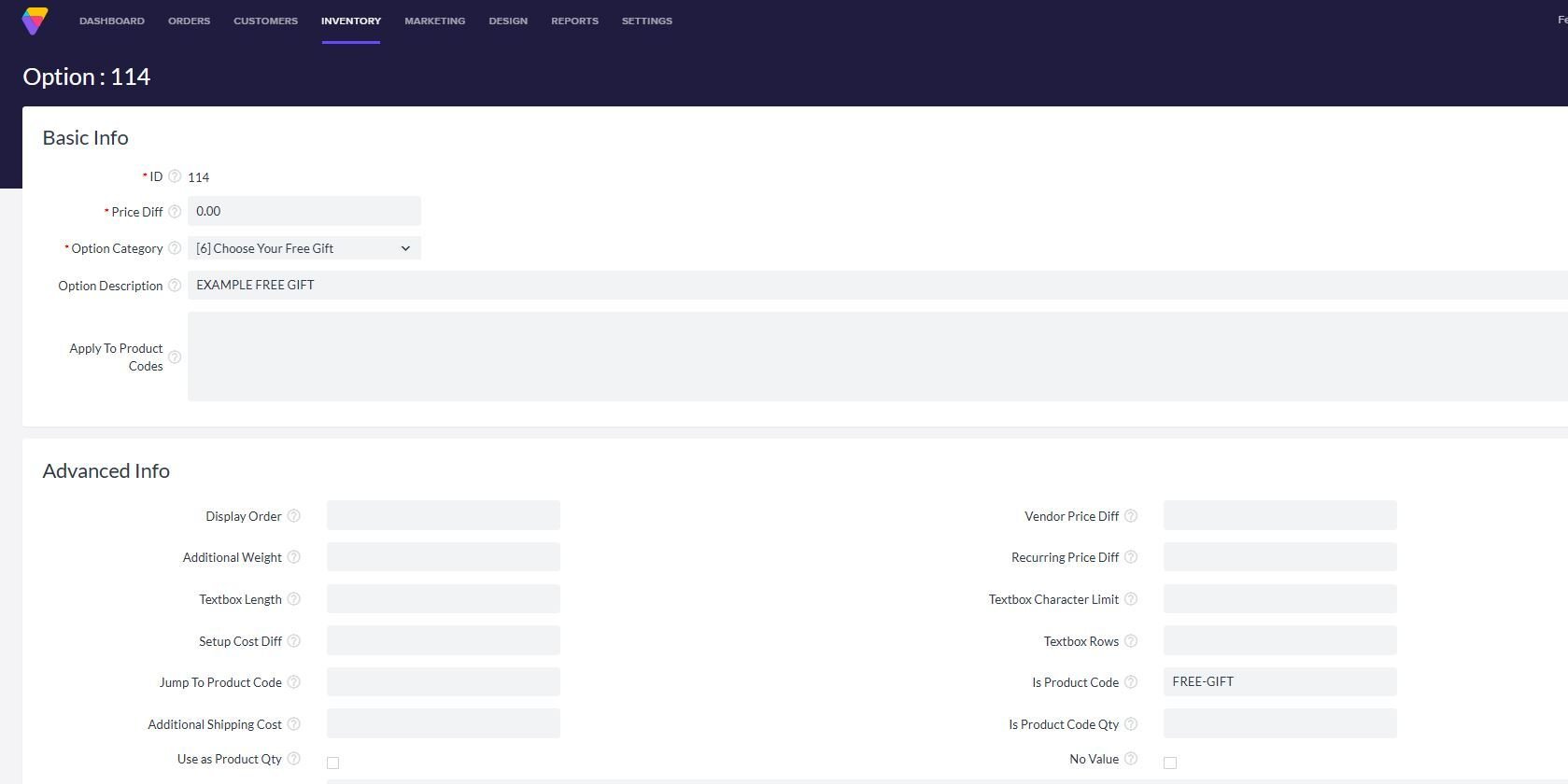
Repeat these steps for any other free gift options that you'd like to offer.
### Offer An Opt-Out
You can add a No Thanks option to your Choose Your Free Gift dropdown.
1. Go to Inventory \> Options and click **Add.**
2. Enter **0** in the Price Diff field
3. Select **Choose Your Free Gift** from the Option Category menu.
4. Enter **No Thanks** into the Option Description field.
5. Click **Save**.
Apply The Options To A Product
1. Go to Inventory \> Products.
2. Click on the Product Code of the product for which you'd like to offer free gifts.
3. Click **Select Options** or **Edit Options**.
4. Click the **Choose Your Free Gift** option category and select your free gift options.
5. Click **Apply**.
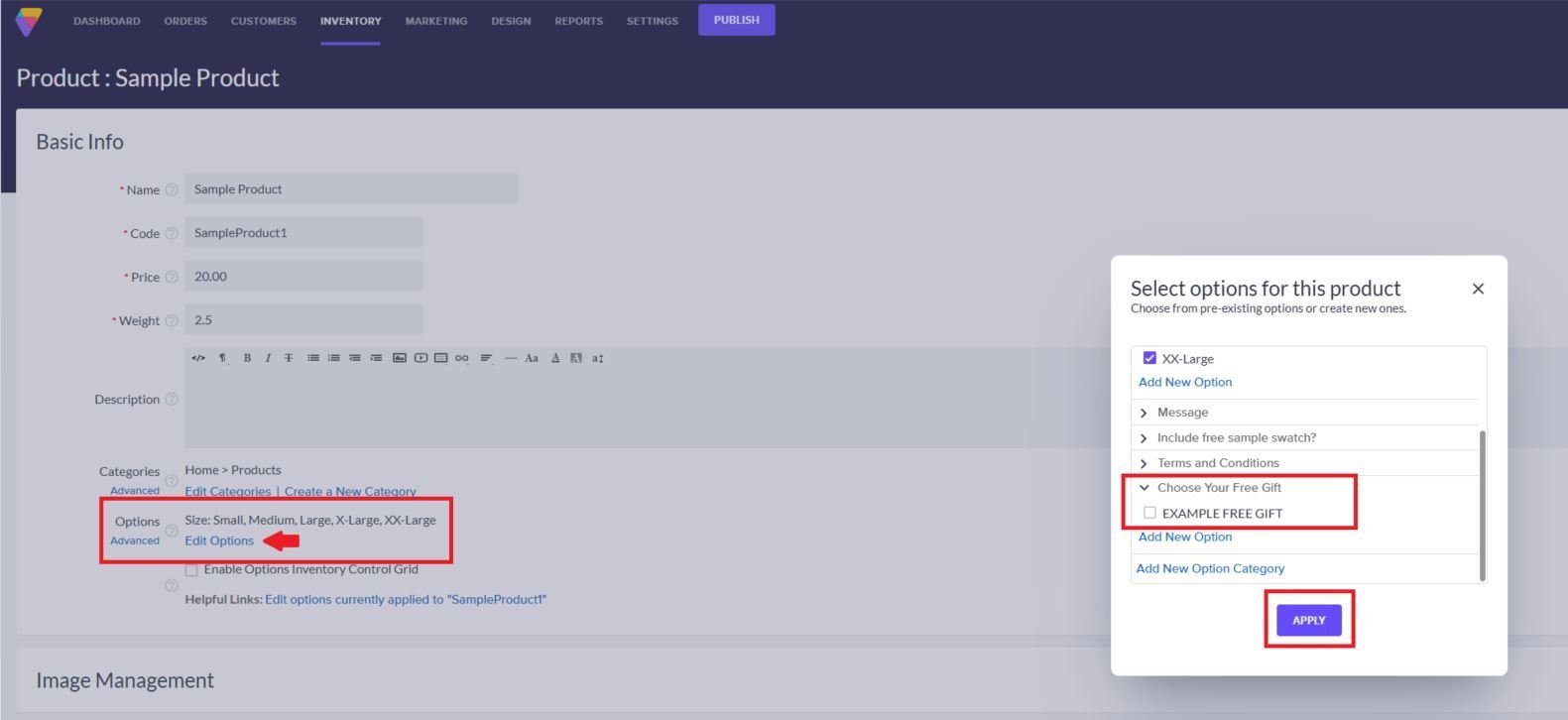
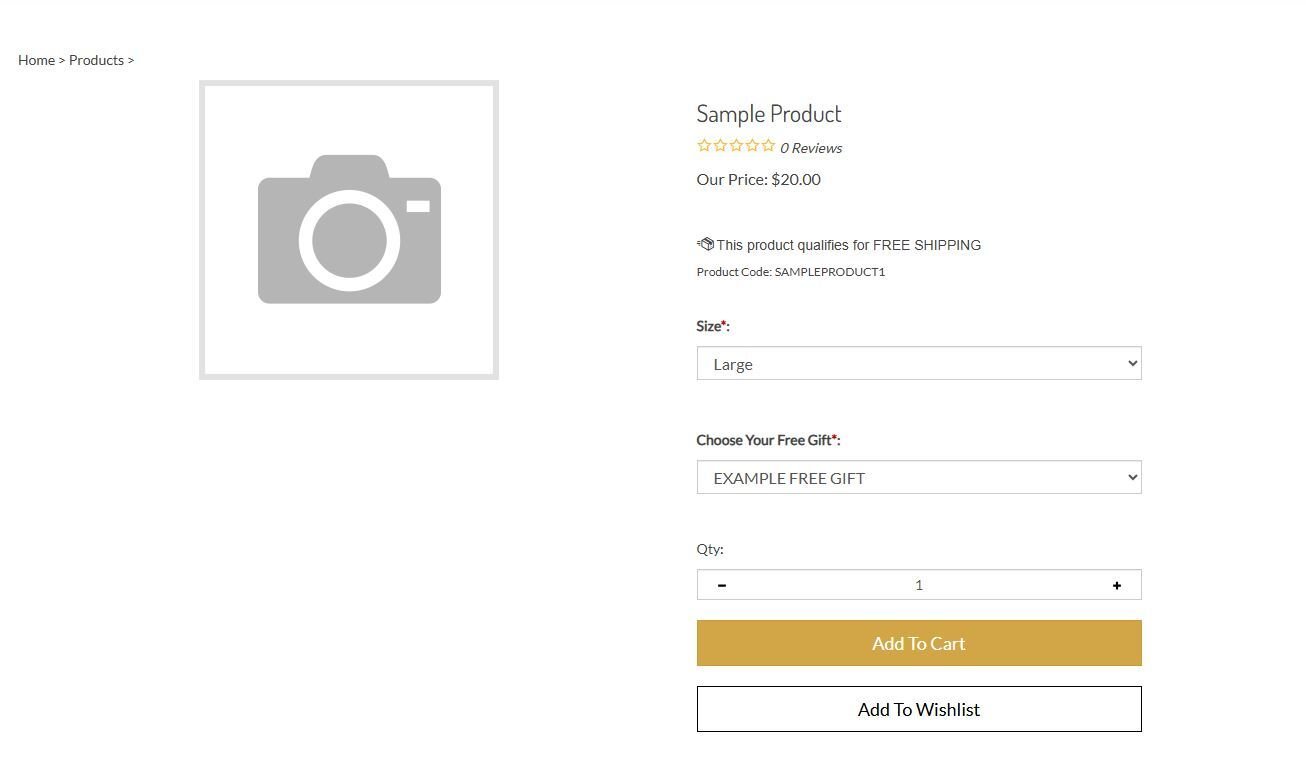
Click **Save** to save the product. Customers will now see a Choose Your Free Gift option on this product in your store. When a customer selects a free gift and clicks Add to Cart, both the main product and the free item will be added to the order.
- [Getting started](https://help.volusion.com/s/getting-started?hsLang=en-us)
- [Manage Your Store](https://help.volusion.com/s/manage-your-store?hsLang=en-us)
- [Marketing for Success](https://help.volusion.com/s/marketing-for-success?hsLang=en-us)
- [Volusion Payment Powered by Stripe](https://help.volusion.com/s/volusion-payment-powered-by-stripe?hsLang=en-us)
- [Partner Marketplace](https://help.volusion.com/s/partner-marketplace?hsLang=en-us)
- [Support](https://help.volusion.com/s/support?hsLang=en-us)
- [V1](https://help.volusion.com/s/v1?hsLang=en-us)
- [Security](https://help.volusion.com/s/security?hsLang=en-us)
[](https://volusion.com/)
[mailto:email@email.com](mailto:email@email.com)
Copyright © 2026, Volusion