---
title: Categories
description: Learn more about Categories in this guide.
---
[Skip to content](https://help.volusion.com/s/categories#main-content)
English - United States
Show submenu for translations

Open main navigation
Close main navigation
- English - United States
Show submenu for translations
- [Contact Us](https://volusion.com/contact)
[Contact Us](https://volusion.com/contact)
Search the Help Center
- There are no suggestions because the search field is empty.
1. [Volusion Help Center](https://help.volusion.com/s?hsLang=en-us)
2. [V1](https://help.volusion.com/s/v1?hsLang=en-us)
# Categories
Once your categories are configured, you'll have a much easier time keeping track of your inventory and customers will have an easier time finding the products they want.
**Accessing the Categories Page**
Categories are the organizational glue that holds your store together. To access yours, head on over to **Inventory \> Categories** in your Admin Area.
**Creating a New Category**
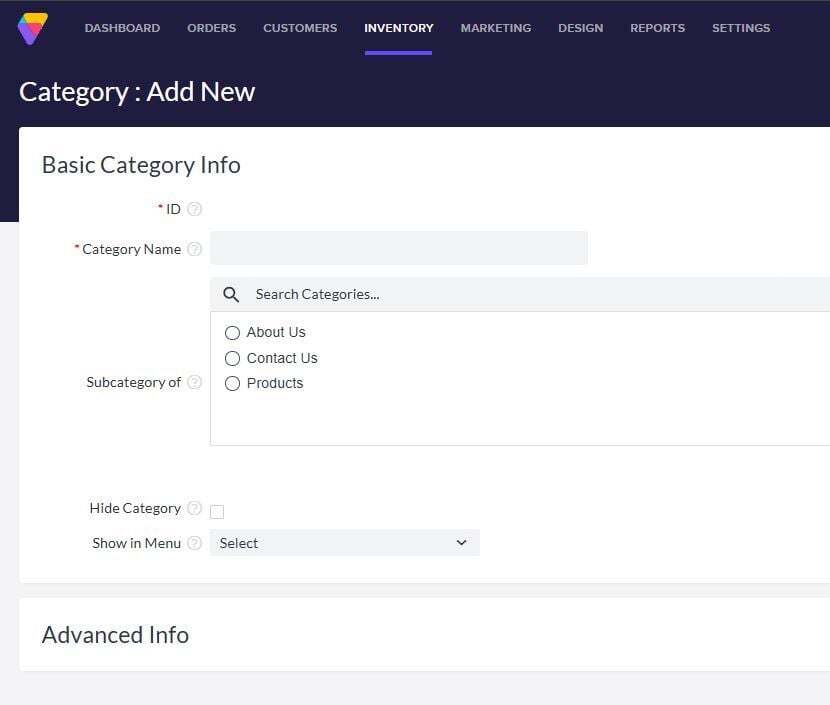
From the **Categories** page, click the **Add Menu Item** button to open the Categories Management page. Here's where you can create your new category.
Once you've created a number of categories, it's time to get them organized.
### Displaying the Category
By default, your category won't display on your homepage unless you specify a menu that's set to display in your theme. To make this assignment, use the **Show in Menu** drop-down menu. You can switch menu assignments freely, but be aware that some options don't exist in every theme.
### Adding a Subcategory
To add a subcategory to an existing category, hover your mouse on the category you want to add it to, and click the Plus Sign Button:
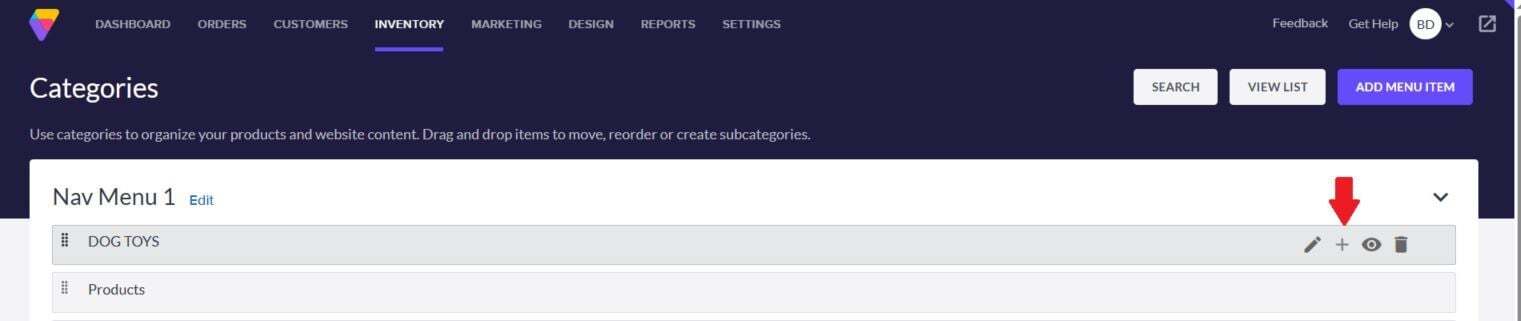
From there, just give the subcategory a name and save it. Subcategories are a great way to improve the flow of your site navigation.
### Moving a Category
You can organize categories and subcategories by dragging and dropping them on the **Categories** page.
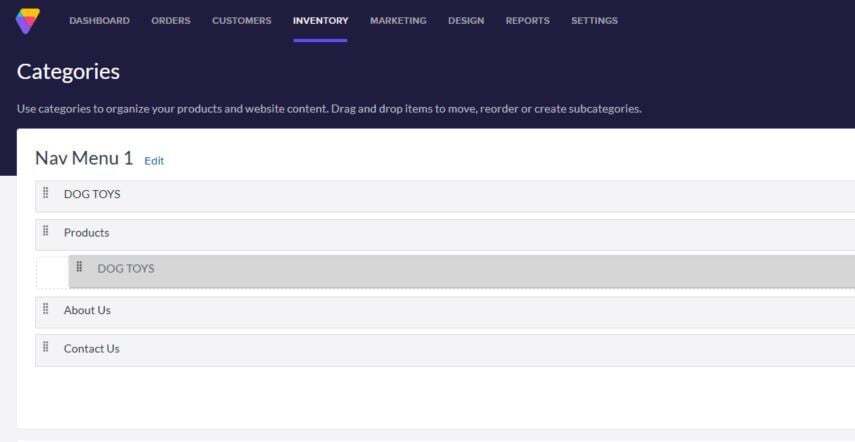
You can drag one category into another to create a subcategory, or move a subcategory up to make it a primary one.
### Changing Your Default View
If you don't want to go to the drag & drag sorter every time you visit **Inventory** \> **Categories**, you can land on the list view by default instead. To take advantage of this option:
1. Go to **Inventory** \> **Categories**.
2. Click **View List**.
3. Click the three-dot more actions menu icon.
4. Select **Category View Settings**.
5. In the dialog box, select **Category List**.
6. Click **Save**.
Now, every time you visit **Inventory** \> **Categories**, you'll land on the list view by default, bypassing the drag & drop sorter.
**Managing Category Images**
The **Category Images** tab is, of course, where you set up images for your category. Here are some basics you'll need to know about this section:
- **Banner Image** (the image that displays on the category page).
- **Subcategory Image** (the image that displays on on a parent category page).
- **Advanced Settings** (more advanced features to control the look of your page).
**Summary**
Setting up categories is important for you and your customers. Volusion provides a comprehensive set of controls for you to better organize, control and present your products. So go ahead, get organized.
- [Getting started](https://help.volusion.com/s/getting-started?hsLang=en-us)
- [Manage Your Store](https://help.volusion.com/s/manage-your-store?hsLang=en-us)
- [Marketing for Success](https://help.volusion.com/s/marketing-for-success?hsLang=en-us)
- [Volusion Payment Powered by Stripe](https://help.volusion.com/s/volusion-payment-powered-by-stripe?hsLang=en-us)
- [Partner Marketplace](https://help.volusion.com/s/partner-marketplace?hsLang=en-us)
- [Support](https://help.volusion.com/s/support?hsLang=en-us)
- [V1](https://help.volusion.com/s/v1?hsLang=en-us)
- [Security](https://help.volusion.com/s/security?hsLang=en-us)
[](https://volusion.com/)
[mailto:email@email.com](mailto:email@email.com)
Copyright © 2026, Volusion