---
title: Blocking Unapproved IPs From Your Admin
description: Security is very important to Volusion. Follow these simple steps to control who can access the backend of your store and keep it safe!
---
[Skip to content](https://help.volusion.com/s/blockingunapprovedipsfromyouradmin#main-content)
English - United States
Show submenu for translations

Open main navigation
Close main navigation
- English - United States
Show submenu for translations
- [Contact Us](https://volusion.com/contact)
[Contact Us](https://volusion.com/contact)
Search the Help Center
- There are no suggestions because the search field is empty.
1. [Volusion Help Center](https://help.volusion.com/s?hsLang=en-us)
2. [V1](https://help.volusion.com/s/v1?hsLang=en-us)
# Blocking Unapproved IPs From Your Admin
Security is very important to Volusion. Follow these simple steps to control who can access the backend of your store and keep it safe!
If you want to harden the security on your Volusion store's Admin by preventing non-approved IP addresses from accessing the back end of your store you can do so with the following steps:
**\*NOTE:** Once completing the steps outlined in this article you will be unable to access the back end of your Volusion store unless accessing it from one of the allowed IP addresses you explicitly state during Step 3. If you access your store from multiple computers/devices be sure you include those devices IP addresses in Step 3 to avoid not being able to access the Admin of your Volusion store from those devices.
Step 1:
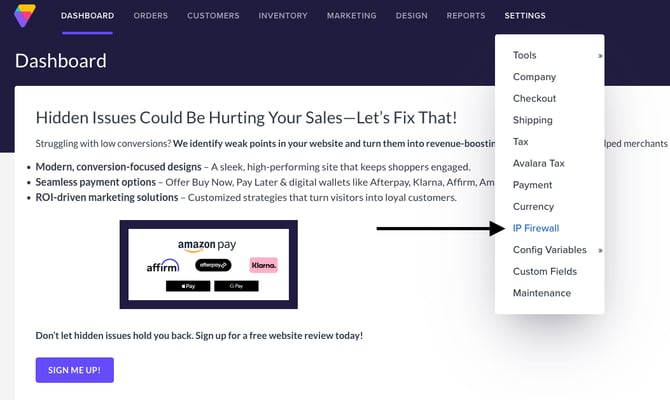
Navigate to Settings \> IP Firewall from the Dashboard of your Volusion store's Admin.
Step 2:
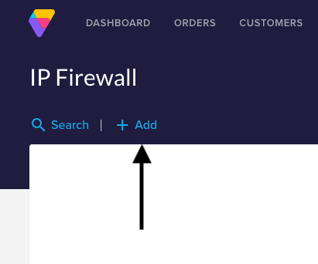
Once at the IP Firewall page click the Add button in the top right of the screen.
Step 3:
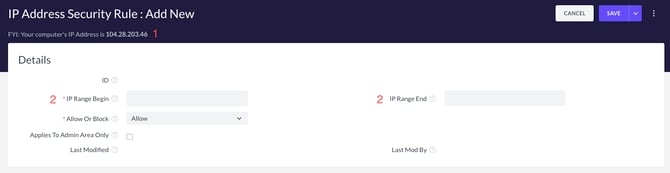
You will be greeted with a page for adding a new IP Firewall Rule. To insure that you do not unintentionally block the IP address of the computer or device you are setting these IP Firewall Rules on, include the device's IP address as your first IP Firewall Rule.
You can find your current device's IP address in the grey area above the Details section of the page as seen in the screenshot below indicated by the number 1.
Copy the IP address indicated and place it in the IP Range Begin and IP Range End fields as indicated by the number 2 in the screenshot below.
Insure that Allow is selected from the Allow Or Block drop down menu and check the box for Applies To Admin Area Only.
Then click Save in the top right section of the screen.
**\*NOTE:** You will repeat these steps for each of the IP addresses for the devices you would like to have access to your Volusion store's Admin.
Step 4:
Once you have added all of the IP addresses for the devices you would like to allow to access your Volusion store's Admin, click the three dot menu in the top right of the screen and then select IP Firewall Settings.
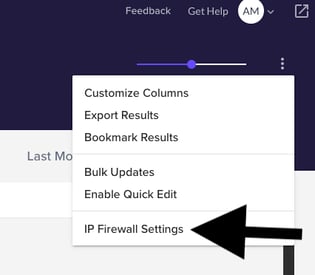
You should be greeted with the following pop up:
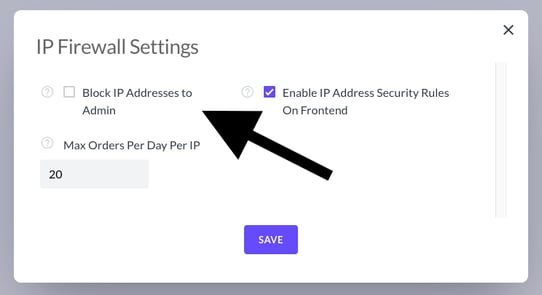
By default Block IP Addresses to Admin will be unchecked. Check Block IP Addresses to Admin and then click Save.
**Once you have completed these steps only approved IP addresses configured in the above outlined steps will be able to access your Volusion stores Admin!**
*But what if I need to call in to Volusion Support and they need to access the backend of my Volusion store?*
Not to worry! Volusion's internal IP addresses will still be able to access the Admin of your store even with these settings configured while all other IP addresses not set to Allowed by you will not.
- [Getting started](https://help.volusion.com/s/getting-started?hsLang=en-us)
- [Manage Your Store](https://help.volusion.com/s/manage-your-store?hsLang=en-us)
- [Marketing for Success](https://help.volusion.com/s/marketing-for-success?hsLang=en-us)
- [Volusion Payment Powered by Stripe](https://help.volusion.com/s/volusion-payment-powered-by-stripe?hsLang=en-us)
- [Partner Marketplace](https://help.volusion.com/s/partner-marketplace?hsLang=en-us)
- [Support](https://help.volusion.com/s/support?hsLang=en-us)
- [V1](https://help.volusion.com/s/v1?hsLang=en-us)
- [Security](https://help.volusion.com/s/security?hsLang=en-us)
[](https://volusion.com/)
[mailto:email@email.com](mailto:email@email.com)
Copyright © 2026, Volusion