
It is important to note that an admin account is different from a customer account on your store. An admin will log into the admin dashboard by going to /admin, and customers will log in on your store's normal login page, which is your domain.com/login.asp page.
You can manage your admin dashboard by going to your domain.com/admin, or if you are not live yet, you can go to your stores temporary url address, xxxx.xxxx.volusion.store/admin.
1. As mentioned above , you can visit your domain.com/admin, or if your store is not live on it's domain yet, you can go to the temporary url address which will have this format xxxx.xxxx.volusion.store/admin.
2.This will take you to the Admin Login Page .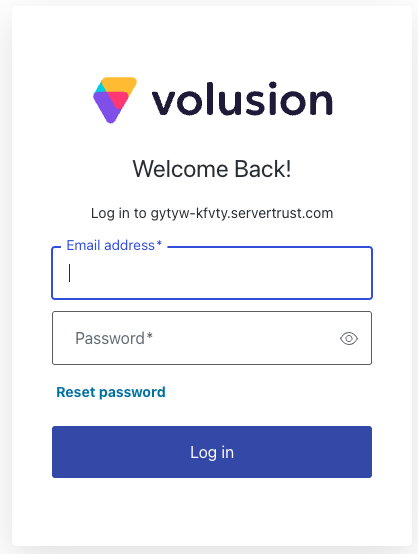
3. You can enter your login credentials here, or select forgot password if you need to reset it, and it will send you an email so you can reset your admin password.
You will need to go to your domain.com/admin and click 'forgot password'. You will receive an email that will allow you to change your admin password, and then you can return to your domain.com/admin page and log into your dashboard with your new password.
If you are not receiving the reset password email, or you are unable to access your admin email address, you will need to contact our Support team.
Creating An Admin Account for your employees:Need to make an admin account for one of your colleagues/employees?
Every store is created in the beginning with one Super Admin. That Super Admin account has the ability to create and manage the access level of other admins.
To create an admin account , follow these steps:
1. Log into your Super Admin account, or an admin account with the access level to manage other admin accounts, by going to your domain.com/admin.
2. Once you have logged into the Volusion Admin Dashboard, you can go to 'Customers' and then 'Administrators' .
3. Click 'add' at the top left of the page.
4. On the Add new page fill in the following information
-First Name
-Last Name
-Email Address (Has to be a Valid Email Address. The system will check the mailbox, and present a warning if it could not verify the email is working) .
-Password (Make sure the password matches the requirements which will display below the password field.
5. Click save.
6. After you have saved the account, under the email address field, there will be a link labeled ' Edit Customer Access'
You can use the Access Rules to manage the access and abilities of each admin. For more on Access Rules and which ones you can set or not, please see this article: Admin Access Rules
Important Information:
In the past, admin accounts could log in at the /login.asp page like customer accounts do, however admin accounts will not be able to manage their account credentials in the storefront at the /login.asp page. Instead, these credentials can be updated from /admin, clicking forgot password, and following the password reset prompts to update your admin password successfully.
If you wish to test the customer experience, the best idea is to create a different customer account with a different email address then your admin account, and log in and test as that customer account at /login.asp page.