---
title: accessiBe
description: accessiBe is a fully-automated web accessibility solution to make your site ADA and WCAG compliant.
---
[Skip to content](https://help.volusion.com/s/accessibe#main-content)
English - United States
Show submenu for translations

Open main navigation
Close main navigation
- English - United States
Show submenu for translations
- [Contact Us](https://volusion.com/contact)
[Contact Us](https://volusion.com/contact)
Search the Help Center
- There are no suggestions because the search field is empty.
1. [Volusion Help Center](https://help.volusion.com/s?hsLang=en-us)
2. [V1](https://help.volusion.com/s/v1?hsLang=en-us)
# accessiBe
accessiBe is a fully-automated web accessibility solution to make your site ADA and WCAG compliant. Their Widget provides the ability for visitors to adapt the display of your site for their needs.
To integrate accessiBe with your Volusion store, you'll first want to confirm whether your store is configured to use our [Site Designer feature](https://helpcenter.volusion.com/s/article/Site-Designer-Themes?hsLang=en-us) or is using our [Legacy Design features.](https://help.volusion.com/s/accessibe#LegacyDesigner)
You can learn more about Site Designer feature and how to gain access to it in our["Upgrading to Site Designer"](https://helpcenter.volusion.com/s/article/Site-Designer-Themes?hsLang=en-us) article.
**Store's with Site Designer:**
In order to setup accessiBee, you'll first need to connect your store to Google Tag Manager. You can learn how by following our setup guide: [Google Tag Manager on Site Designer.](https://help.volusion.com/s/google-tag-manager?hsLang=en-us)
Once you have connected your store to Google Tag Manager, you are ready to begin setting up Accessebi for your site.
1\. Visit [accessiBe's site](https://accessibe.com/) and click the 'Start Free Trial' button at the top right, then fill out your information to set up an account.
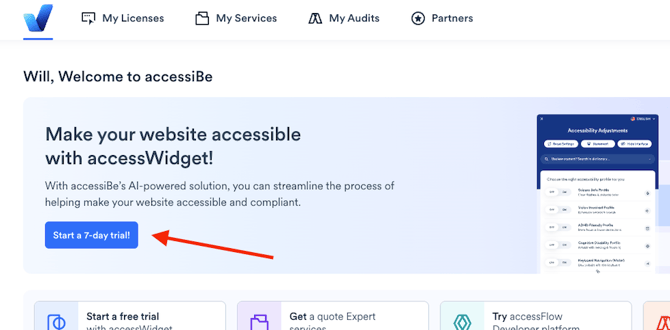
2\. After you setup your accessiBe account click the 'Start a 7-Day trial' button and confirm your domain name.
3\. On the next page you will see your Quick Installation Script.
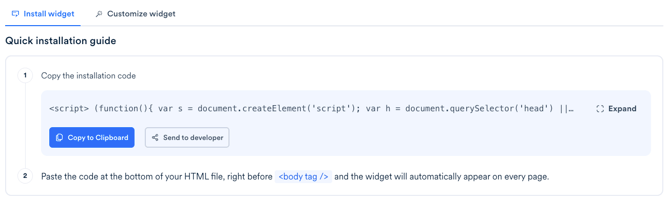
4\. Now that you have that code, you can follow the information in [accessiBe's guide here](https://support.accessibe.com/hc/en-us/articles/16537297764498-How-to-install-accessWidget-using-Google-Tag-Manager) on how to add that script to your Google Tag Manager account.
After following these steps, you'll see the accessiBe Widget button appear in the lower right corner of your site.
**Stores without Site Designer:**
1\. Visit [accessiBe site](https://accessibe.com/) and click the 'Start Free Trial' button at the top right, then fill out your information to set up an account.
2\. After you setup your accessiBe account click the 'Start a 7-Day trial' button and confirm your domain name.

3\. On the next page you will see your Quick Installation Script.

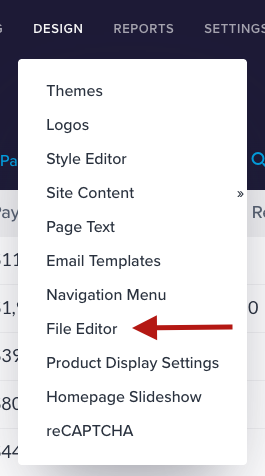
2\. Once you have created your account access your Volution site's admin dashboard and navigate to ' Design \> File Editor '.
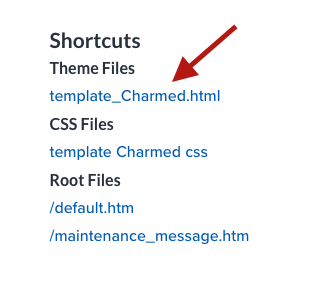
3\. On the right hand side of the page, click the .html file under the ' Themes Files ' section.
4\. accessiBe will work wherever you place the code in your template, however, we suggest putting it right before the closing of the body tag, which is alwaysthe second line from the end of the file.
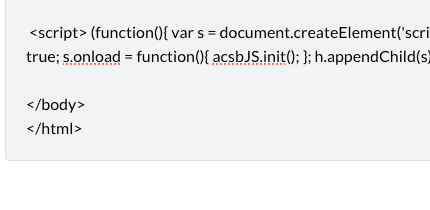
To finalize your changes and save your code, click the blue ' Save ' button at the top right of the HTML file window.
Then the accessiBe AI kicks in and starts analyzing your website to optimize it for blind people's screen-readers and keyboard navigation for the motor-impaired. All-in-all, you can sit back and relax, Accessibe is now doing all the heavy lifting of the accessibility requirements.
- [Getting started](https://help.volusion.com/s/getting-started?hsLang=en-us)
- [Manage Your Store](https://help.volusion.com/s/manage-your-store?hsLang=en-us)
- [Marketing for Success](https://help.volusion.com/s/marketing-for-success?hsLang=en-us)
- [Volusion Payment Powered by Stripe](https://help.volusion.com/s/volusion-payment-powered-by-stripe?hsLang=en-us)
- [Partner Marketplace](https://help.volusion.com/s/partner-marketplace?hsLang=en-us)
- [Support](https://help.volusion.com/s/support?hsLang=en-us)
- [V1](https://help.volusion.com/s/v1?hsLang=en-us)
- [Security](https://help.volusion.com/s/security?hsLang=en-us)
[](https://volusion.com/)
[mailto:email@email.com](mailto:email@email.com)
Copyright © 2026, Volusion