
Activating the updated version of PayPal is quick and easy. If you are already an existing PayPal user, continue reading for directions. If not, visit PayPal's site to sign up for a new business account. Then login to your Volusion store's Admin Dashboard.
Directions for New PayPal Merchants:
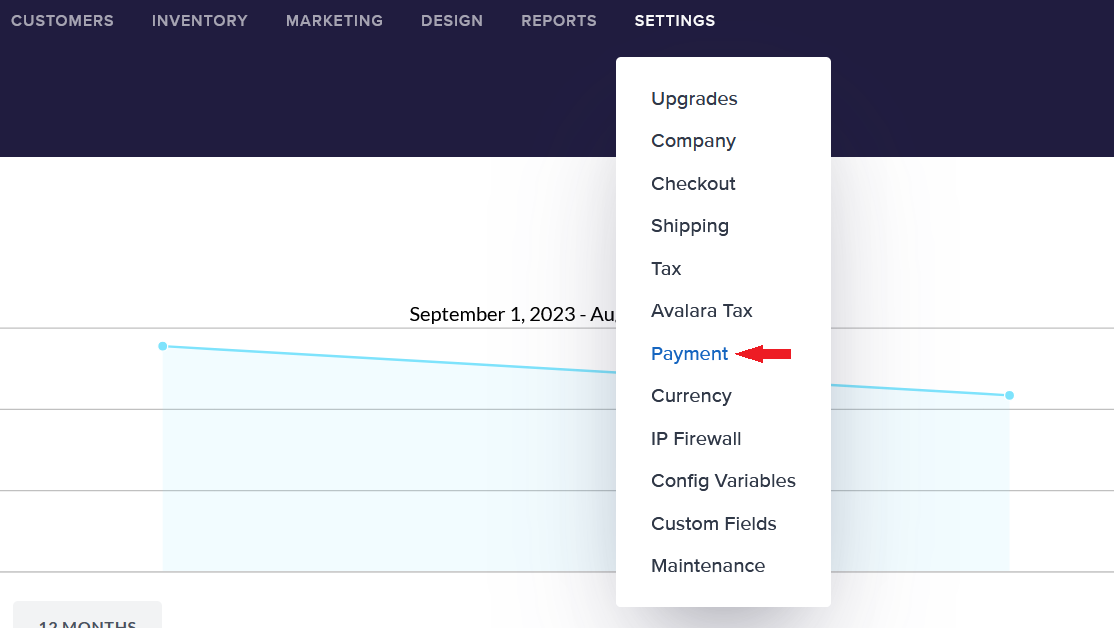
From your store's Admin Dashboard, choose Settings > Payment from the top drop-down menu.
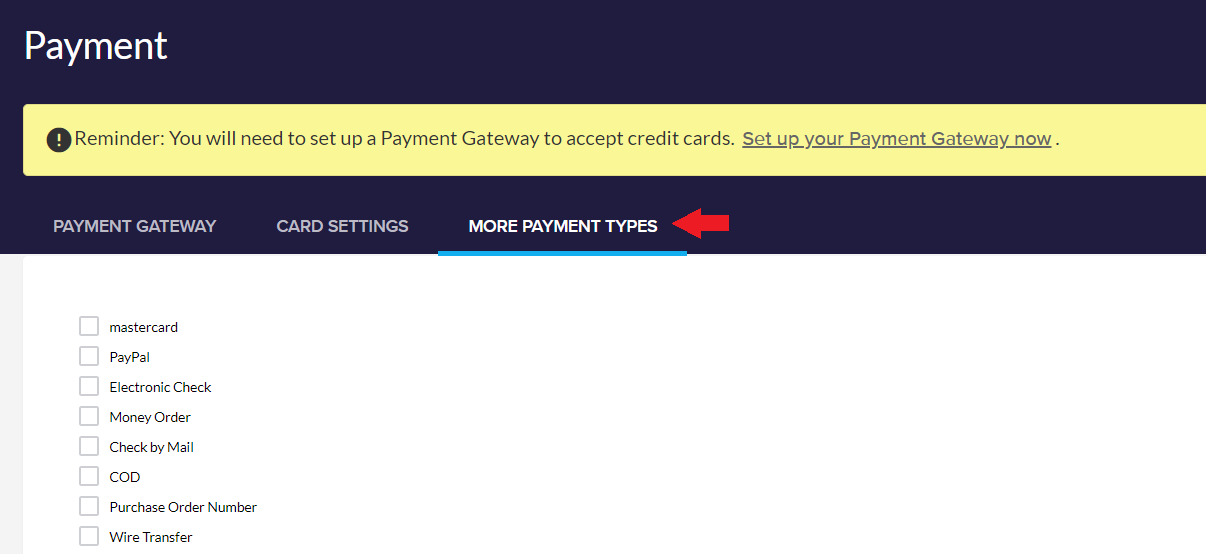
On the Payment Page, choose the More Payment Types tab.
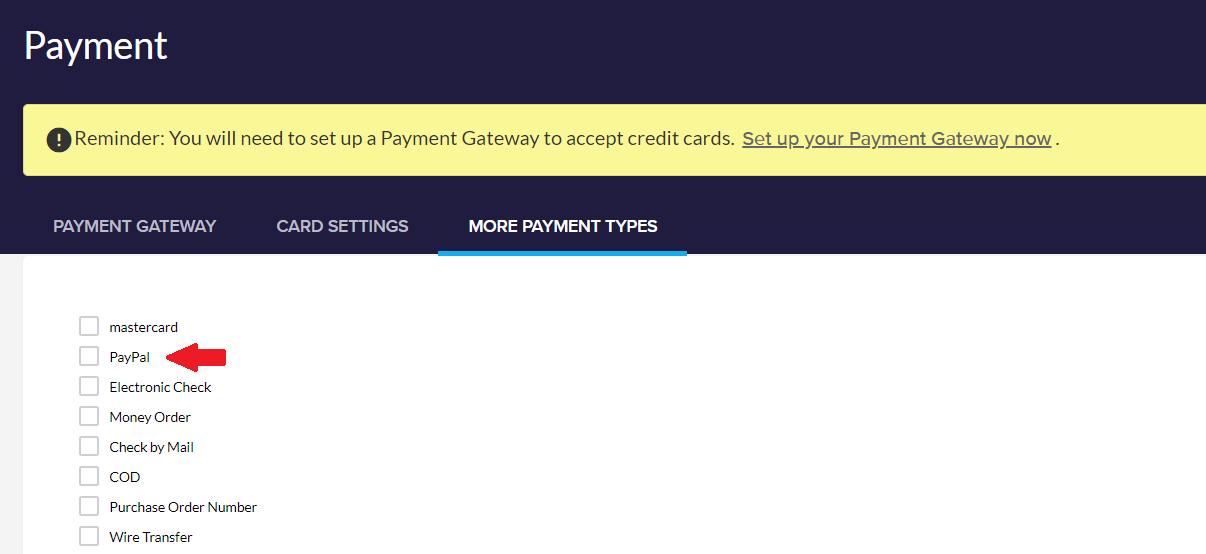
To access the PayPal Express Checkout Setup section, click the PayPal checkbox.
Use the Connect Account to set up your PayPal Checkout. For additional information on PayPal, please visit their SITE .
Once connected, your PayPal section will now show a Disconnect button, a Confirmed Status for Email Verification and your PayPal Connected Merchant ID (greyed out in our example).
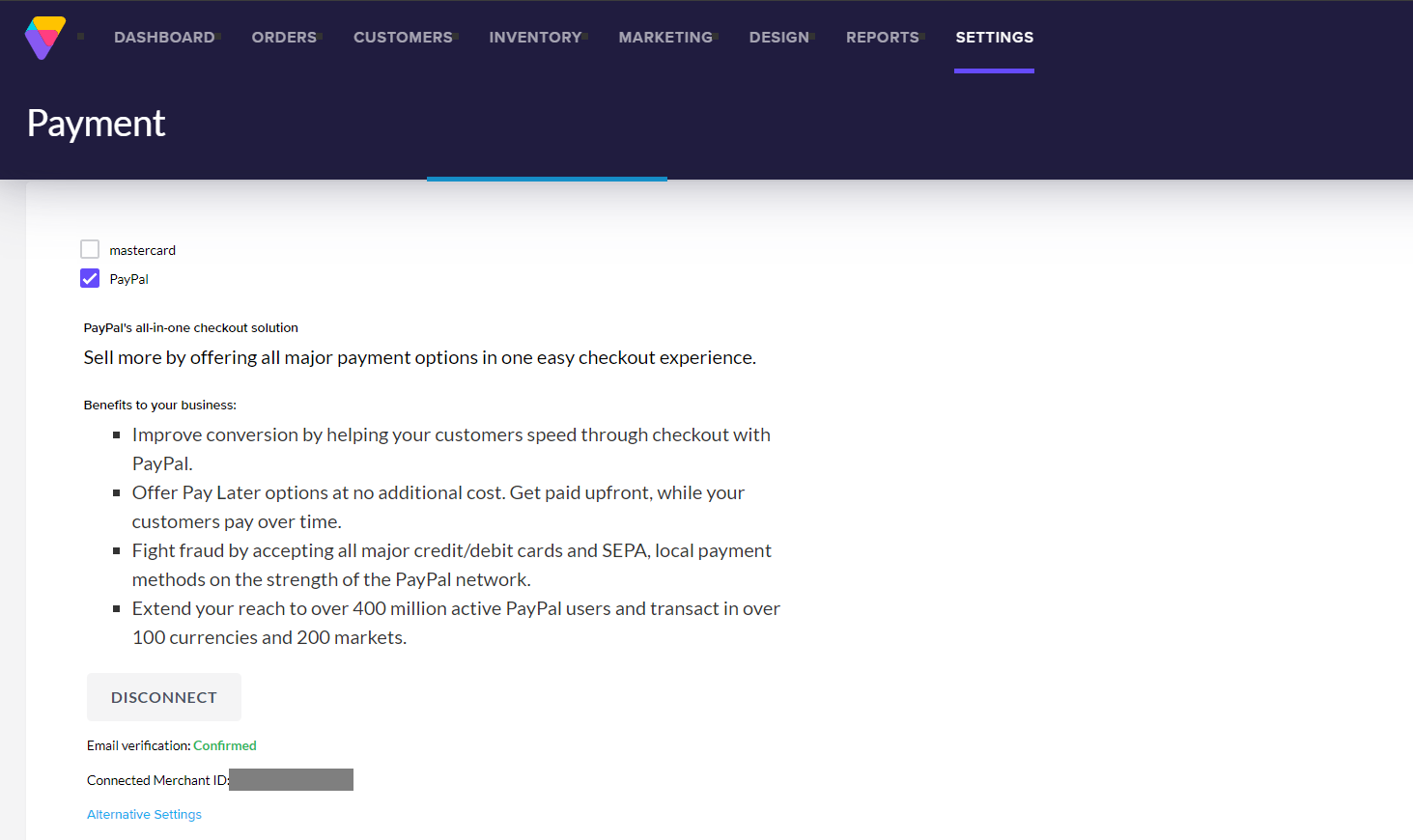
Your store is now set up to accept payments with PayPal. Please follow the steps below to Upgrade your PayPal account to use PayPal Checkout.
Follow all the steps on the PayPal Modal to complete your upgrade, including accepting PayPal's Terms and Conditions.
Once complete, click the Alternative Settings link on your PayPal Payment Page to turn on the individual PayPal features.
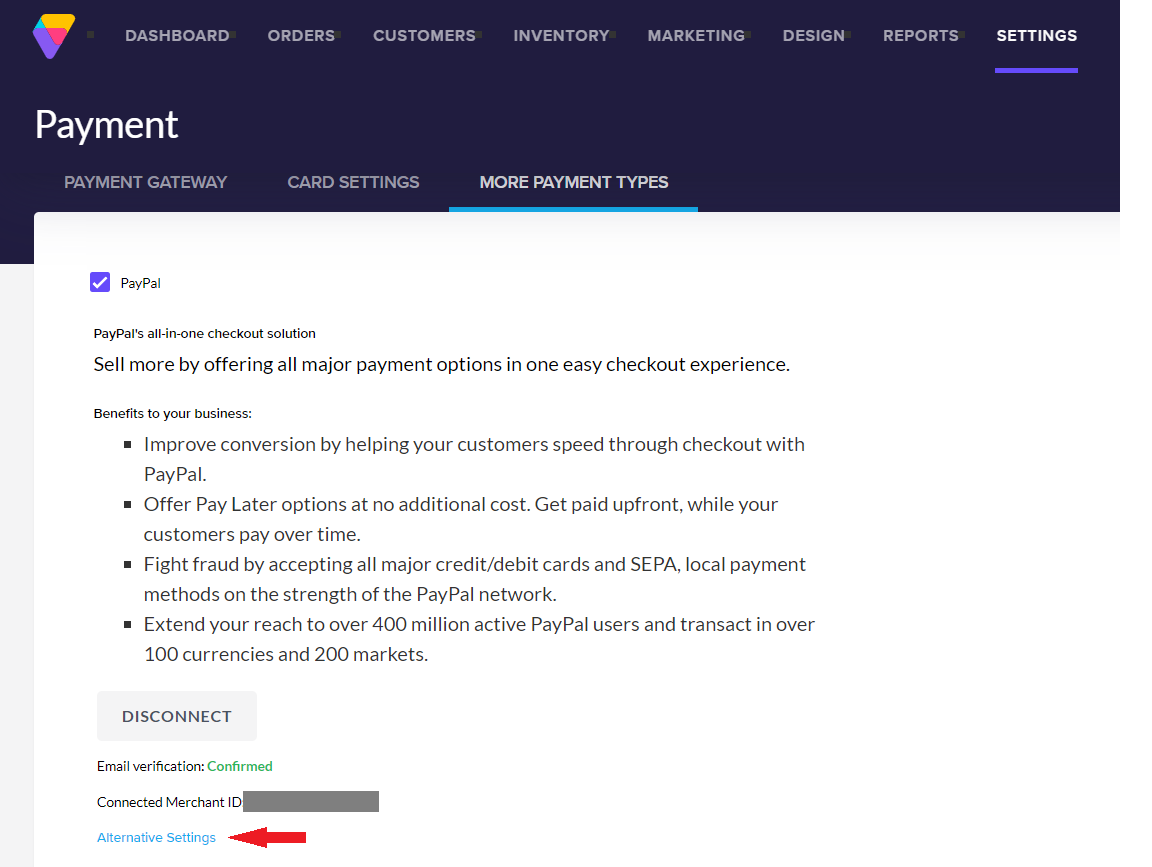
This link will open the PayPal Options pop-up. Choose your options by clicking the checkbox next to the feature you wish to activate. Click the Save button at the bottom of the pop-up once you have completed your selections.
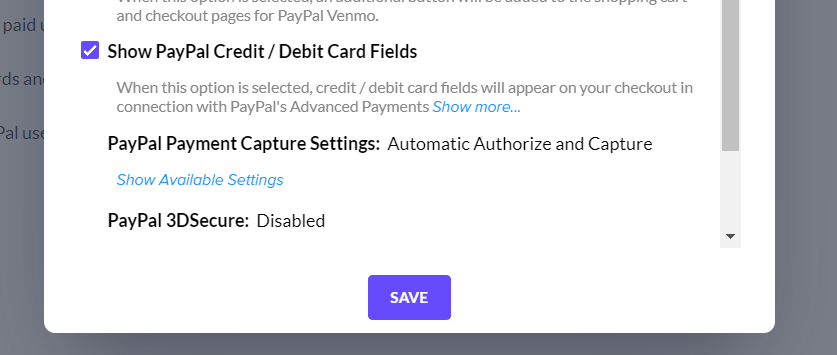 PayPal Options
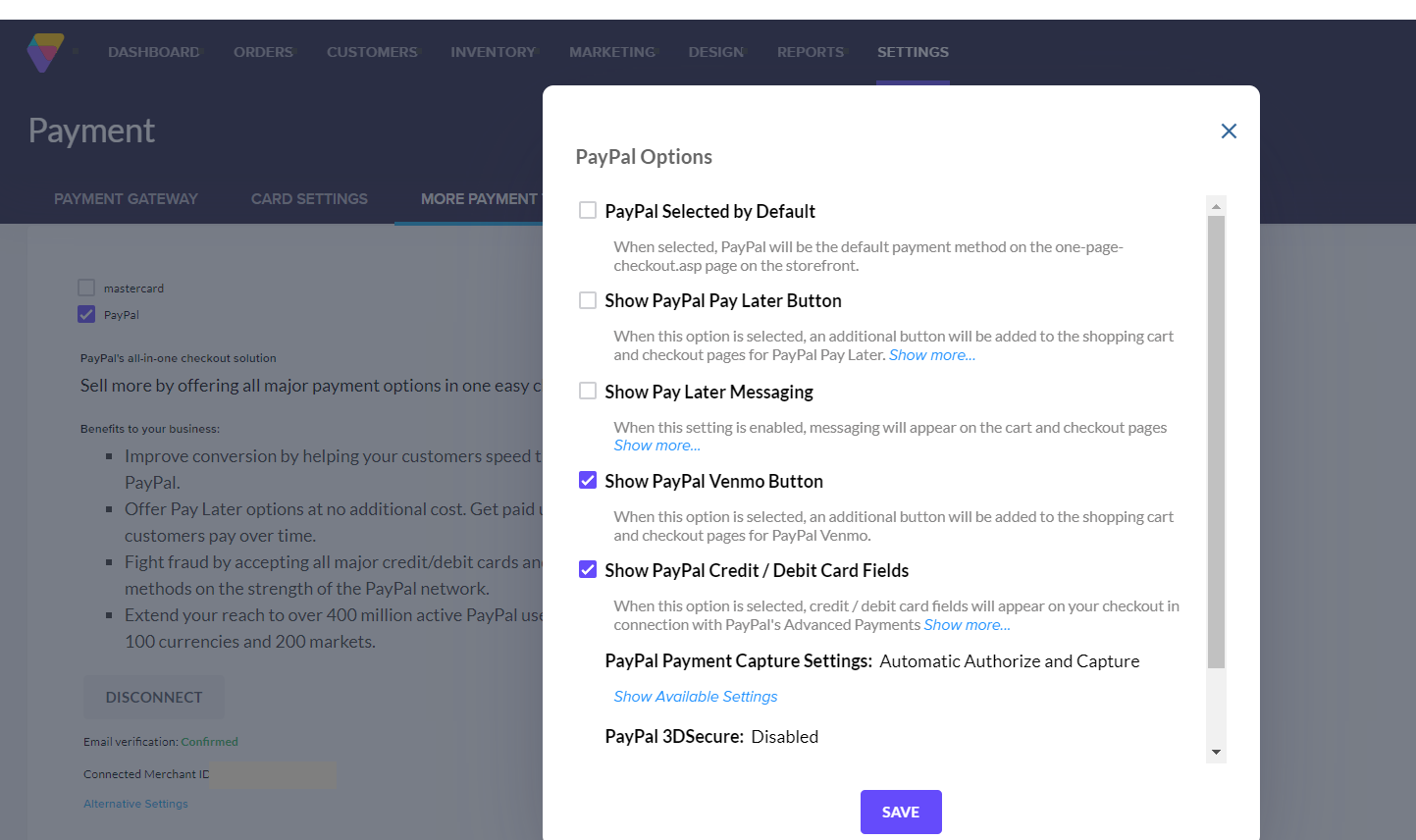
PayPal Selected By Default- This option makes PayPal the default selection for checkout. Customers may change their payment method on the Checkout page, but by default, PayPal is selected.

Show PayPal Pay Later Button- Displays the PayPal "Pay Later" button on checkout, allowing customers to utilize PayPal Credit, and pay for their orders by making payments over time via a line of credit offered through PayPal.
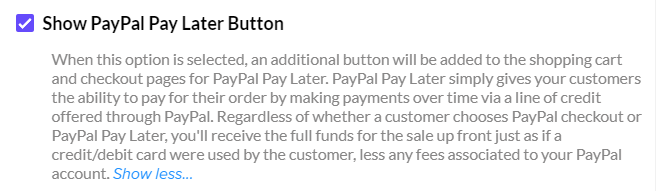
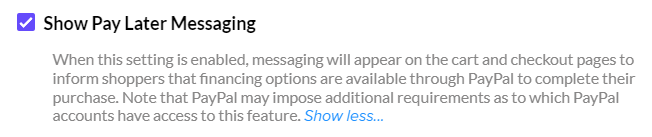
Show Pay Later Messaging- Shows the PayPal Pay Later messaging on your store, allowing customers to further explore this option.
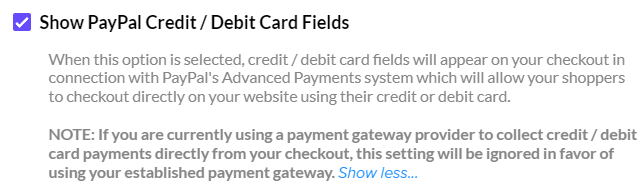
Show PayPal Credit/Debit Card Fields- This option allows your customers to checkout via credit/debit card as they normally would with a credit card gateway, however, the transaction if processed via PayPal. This transaction is processed without your customer being taken to a PayPal page, just as a normal credit card transaction would. Please be aware that this is currently supported only on Premium Checkout .
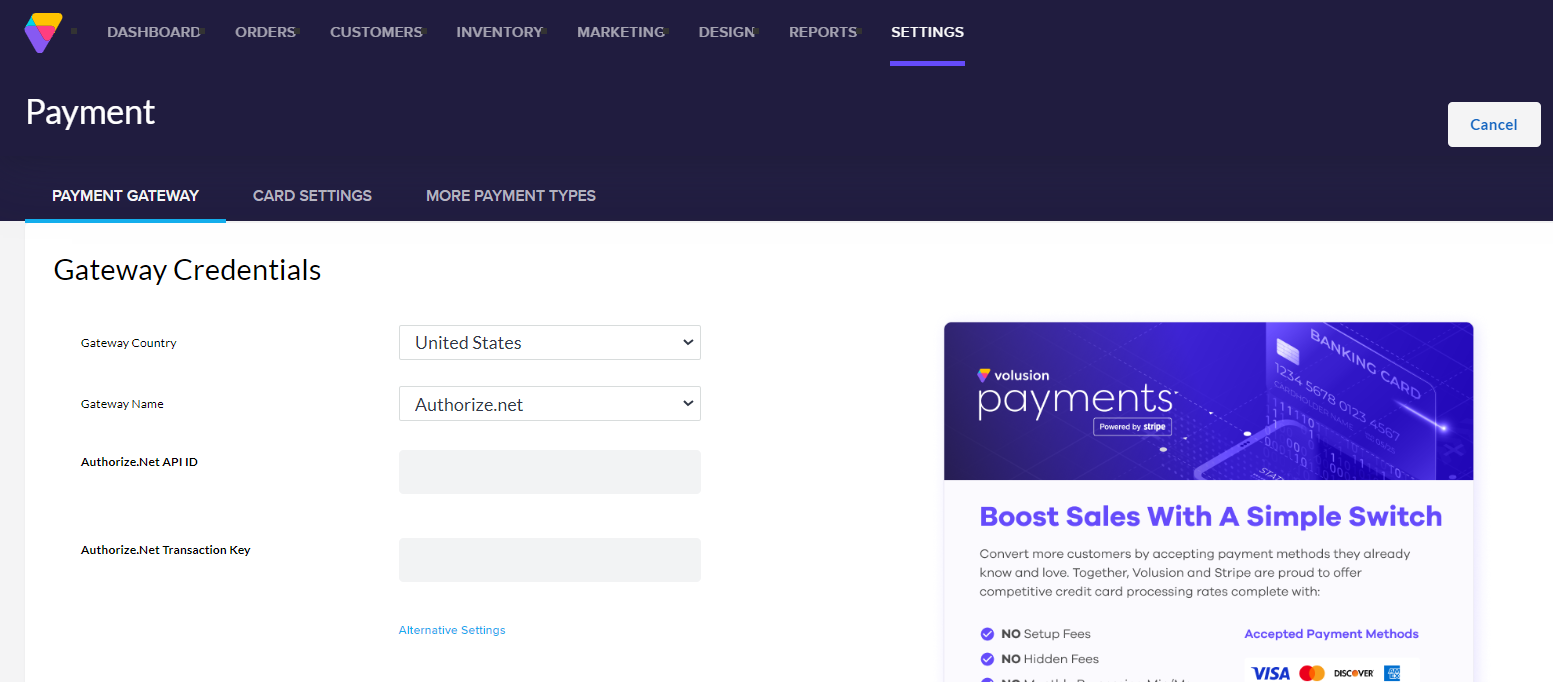
In order for this option to work, a merchant must disable any current credit card gateways active on their Volusion store. Check the Payment Gateway tab on the Settings > Payment Page to see if you are using another credit card gateway. If so, you will see credential information for the gateway listed (see below example with Authorize.net credentials). This gateway must be deactivated in order for PayPal credit/debit card processing to work.
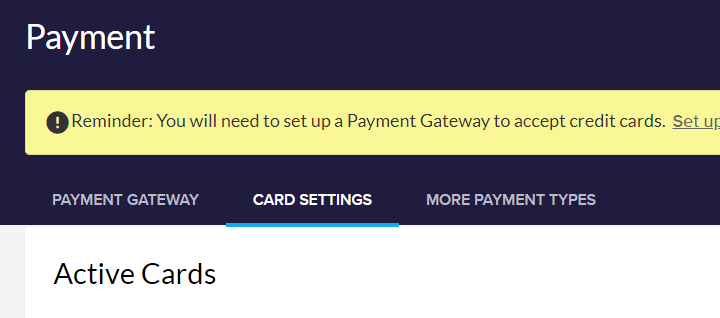
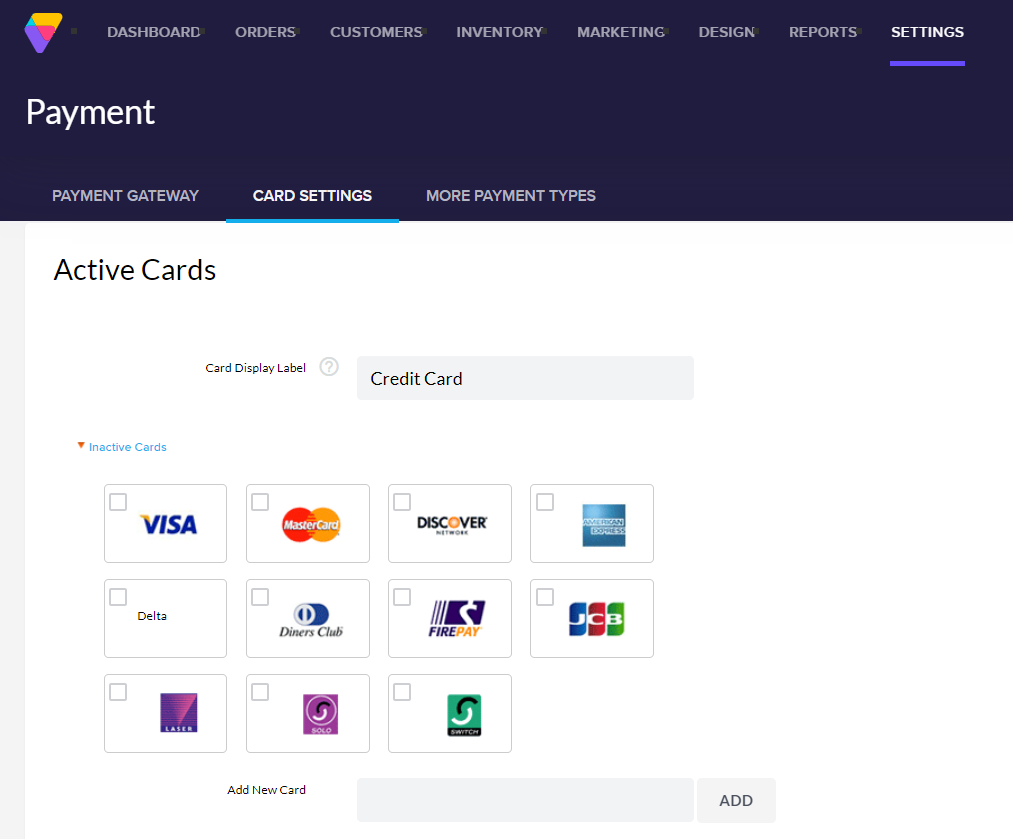
Additionally, all active cards listed under the Card Settings section must be UNCHECKED.
PayPal Delayed Capture- This feature enables you to authorize fund availability but delay fund capture. This can be useful for merchants who have a delayed order fulfillment process. Authorize & Capture also enables merchants to change the original authorization amount in case the order changes due to shipping, taxes, or gratuity. For more information, see PayPal's Developer Article for the feature.
3D Secure
Please be aware that 3D Secure for PayPal only work if you are using Volusion's Premium Checkout .
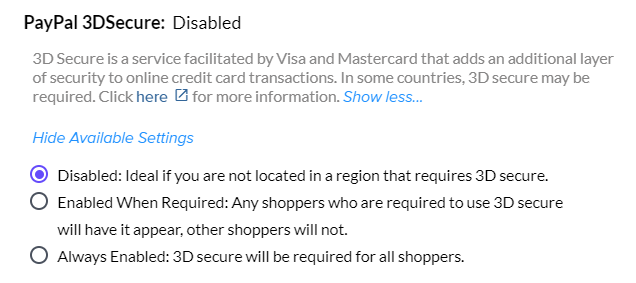
PayPal 3D Secure- 3D Secure provides an additional layer of security through additional card holder authentication. 3D Secure can be Disabled, Enabled When Required, or Always Enabled by choosing the appropriate radio button. Please see our 3D Secure Article for more information.
Make sure to click the Save button at the bottom of the pop-up once you have completed your option choices.
Additional Information
For orders placed through PayPal, the address information will not be editable on the Volusion side.