---
title: Using Your Volusion FTP (SFTP) Account
description: Volusion's secure File Transfer Protocol (FTP) lets you transfer content between your computer and the server where your website's files are stored.
---
[Skip to content](https://help.volusion.com/s/usingyourvolusionftpsftpaccount#main-content)
English - United States
Show submenu for translations

Open main navigation
Close main navigation
- English - United States
Show submenu for translations
- [Contact Us](https://volusion.com/contact)
[Contact Us](https://volusion.com/contact)
Search the Help Center
- There are no suggestions because the search field is empty.
1. [Volusion Help Center](https://help.volusion.com/s?hsLang=en-us)
2. [V1](https://help.volusion.com/s/v1?hsLang=en-us)
# Using Your Volusion FTP (SFTP) Account
Volusion's secure File Transfer Protocol (FTP) lets you transfer content between your computer and the server where your website's files are stored. In order to use the FTP, youll need an FTP account and an FTP client.
An FTP client is a program that accesses the remote server where your website's files are stored, using the account information you provide. To keep your images, videos and other files super safe, we use a Secure File Transfer Protocol (SFTP). If you haven't created an FTP account yet, see **[How to Setup Your Volusion FTP (SFTP) Account](https://help.volusion.com/s/HowtoSetUpYourVolusionFTPSFTPAccount?hsLang=en-us)**
**Uploading Images with FTP**
When you use FTP to upload images, it can take up to 24 hours for images to be refreshed on Volusion's [Content Delivery Network (CDN)](https://help.volusion.com/s/cdncontentdistributionnetworkinvolusion?hsLang=en-us) servers, so please plan accordingly.
To see your images immediately, you should manually refresh your site's image cache. See [Refreshing your CDN Image Cache](https://help.volusion.com/s/usingyourvolusionftpsftpaccount#refresh) below for instructions.
### **FileZilla**
FileZilla is a popular FTP client program available as a free download online. The benefit of FileZilla is that it works for Windows, Mac and Linux users. You find the most up to date version for the system you are using [HERE](https://filezilla-project.org/download.php?type=client).
To log in to your FTP account using FileZilla:
1\. Launch FileZilla.
2\. Click **File**, then **Site Manager**.
3\. In the Site Manager window, click **New Site** and enter a name that will help you remember this stored connection (such as your website name).
4\. In the **Host** field under the **General** tab, enter ONE of the following:
- Your store's SFTP subdomain (for example, "[sftp.myvolusionstore.com](http://sftp.myvolusionstore.com/)")
- your store's SFTP IP address (for example, "64.123.45.67")
- If you use QuickConnect, be sure to include sftp:// in front of the IP (for example "sftp://64.123.45.67").
- **Please note:** This IP Address will change if we consolidate our servers. To ensure that you are updating your site correctly, please check the IP Address each time before logging in.
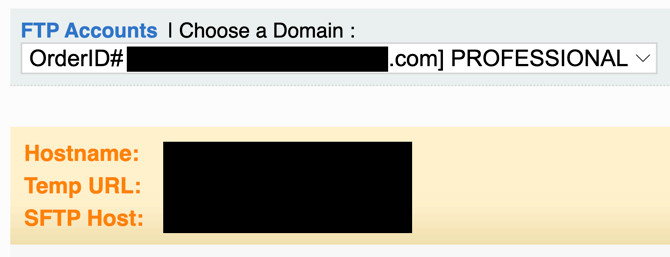
**To locate this information:**
- Log in to [MyVolusion](https://my.volusion.com/) with the account that owns your store hosting plan.
- In the left menu, under the **my Stores** heading, click **Manage FTP.**
- In the **Choose a Domain** menu, be sure your store is selected. The information you need is listed near the top of the page.
5\. Enter "2222" in the **Port** field and select **SFTP - SSH File Transfer Protocol** from the **Protocol** menu.
6\. Select **Normal** from the **Logon Type** menu.
7\. In the **User** and **Password** fields, enter the account credentials you created when setting up your FTP account.
8\. Click **Connect**.
If you're logging into your FTP for the first time with these credentials, you may see a pop-up asking you to trust the unknown host key. Select **Always trust this host, add this key to the cache** to prevent this message from appearing again. Then click **OK**.
Now that you've configured your account settings, you'll be able to connect to the FTP more quickly in the future. To do so, click the Site Manager icon and select the saved site name you configured. FileZilla will automatically attempt to connect to the server using your saved credentials.
Once logged into your FTP account with FileZilla, your local computer workstation files and directories should be listed in the left-hand column. The local files and directories in your Volusion store will be listed in the right-hand column.
**Viewing a Large Number of FTP Files**
When you're viewing the contents of an individual directory (folder) in your FTP, you can see a maximum of 200,000 files at one time. Thats a lot of files!
Most FTP clients have a connection timeout threshold. If the folder you're viewing contains a large number of files, you may need to reset this threshold in order to prevent the server connection from timing out while your files load.
To change the timeout setting in FileZilla, click **Edit \> Settings** and locate the **Timeout in seconds** field.
To change the timeout setting in FireFTP, click **Tools \> Options**, then select the **Connections** tab and locate the **Network timeout** field.
**Resetting Your Photo Cache**
Your store's product image cache is refreshed every night, ensuring that your store shows only the most current images. However, if you're using FTP to upload product images to your store, you should refresh the cache immediately afterward to push the changes live:
1. Go to **Settings \> Maintenance** in your Admin Area
2. Click **Reset** next to the **Photo Cache**.
**Refreshing Your CDN Image Cache**
If you're using the [Content Delivery Network (CDN)](https://help.volusion.com/s/CDNContentDistributionNetworkinVolusion?hsLang=en-us), youll need to refresh your CDN Image Cache each time you use the FTP to upload image files to your store. This ensures that the servers on the Akamai CDN have the latest versions of your images. Once you've completed all your FTP image uploads, you can refresh the CDN Image Cache as follows:
1. Go to **Settings \> Maintenance** in your Admin Area
2. Click **Refresh** beside the **CDN Image Cache** field.
3. When the Refresh CDN Image Cache window displays, click the appropriate tab (**Products** or **Categories**) and select any images you've uploaded via FTP that need to be refreshed (You also have the option to refresh all product images).
4. Click **Refresh**
5. Once you receive a confirmation message that your selected images have been refreshed, click **OK**.
**Linking To An Image Or File**
Once you've uploaded an image or file via FTP, you can link to it from within your store using an HTML link reference.
When you link to a file, remember you need to add "/v/" before typing the series of folders in which the file is stored. However, you dont need to include your full domain name in the filepath if linking from within the site where that file exists.
For example, if you uploaded an image called "image1.jpg" to a top-level folder called "filedir, you would write the link reference as follows:
/v/filedir/image1.jpg
If you're linking to an image from a different website, you do need to include the domain name in the full reference url:
http://www.domainname.com/path/leading/to/image1.jpg
**Dont forget:** Your file names cant contain spaces. If they do, your site visitors will see an error message.
FileZilla is just one of many FTP clients you can use to access your store's website files. Most FTP clients can be configured and logged into in much the same way as those shown above. Regardless of the client, be sure to accept or "trust" the addition of a new server host key when logging into Volusion's secure FTP for the first time.
If you encounter problems while using your FTP account, see [How to Troubleshoot your FTP connection](https://help.volusion.com/s/howtotroubleshootyourftpconnection?hsLang=en-us) for additional information.
- [Getting started](https://help.volusion.com/s/getting-started?hsLang=en-us)
- [Manage Your Store](https://help.volusion.com/s/manage-your-store?hsLang=en-us)
- [Marketing for Success](https://help.volusion.com/s/marketing-for-success?hsLang=en-us)
- [Volusion Payment Powered by Stripe](https://help.volusion.com/s/volusion-payment-powered-by-stripe?hsLang=en-us)
- [Partner Marketplace](https://help.volusion.com/s/partner-marketplace?hsLang=en-us)
- [Support](https://help.volusion.com/s/support?hsLang=en-us)
- [V1](https://help.volusion.com/s/v1?hsLang=en-us)
- [Security](https://help.volusion.com/s/security?hsLang=en-us)
[](https://volusion.com/)
[mailto:email@email.com](mailto:email@email.com)
Copyright © 2026, Volusion