---
title: Setting Up Google Analytics (GA4)
description: Learn more about Setting Up Google Analytics (GA4) in this guide.
---
[Skip to content](https://help.volusion.com/s/settingupgoogleanalytics#main-content)
English - United States
Show submenu for translations

Open main navigation
Close main navigation
- English - United States
Show submenu for translations
- [Contact Us](https://volusion.com/contact)
[Contact Us](https://volusion.com/contact)
Search the Help Center
- There are no suggestions because the search field is empty.
1. [Volusion Help Center](https://help.volusion.com/s?hsLang=en-us)
2. [V1](https://help.volusion.com/s/v1?hsLang=en-us)
# Setting Up Google Analytics (GA4)
**Setting Up Google Analytics**
Google Analytics standard tracking implementation allows you to view basic data about your store and customers such as page views, bounce rate and referring sources.
If you want more in-depth integration, you can set up **[eCommerce Tracking](https://developers.google.com/analytics/devguides/collection/ga4/ecommerce?client_type=gtag)**within your Google Analytics account and on your Volusion store. Want us to handle it for you? Our marketing and design partner, **[Marketing 360](https://www.volusion.com/marketing360/)**, offers Google Analytics setup to help you get the data you need.
Integrating your store with Google Analytics is a simple process that will give you tons of tracking and statistics regarding your store, like incoming web traffic, visitor statistics and more!
Best of all, Google Analytics is totally free! You just need a Google account and, of course, a Volusion store.
**Getting Started**
The first thing you have to do is create a Google Analytics account. Visit **[Google's Marketing Platform](https://marketingplatform.google.com/about/analytics/)** page and click the Start For Free button to begin your account setup.
Follow the Google provided instructions to set up your account. You will be required to have an active Google account (such as a Gmail account) to begin the process.
Upon accepting the **Google Analytics Terms of Service** you can copy your Google Analytics ID from the Google Dashboard. Here is an example of a Site Tag Code. Keep in mind, yours may vary in composition or layout.
**This script will go above the header closing tag.**
***\*Make sure to replace the G-Id within the Script in both places.***
```
```
**This script will go above the body closing tag.**
***\*Make sure to replace the G-Id within the Script.***
```
```
If you have any issues generating or locating this code, please contact Google support for assistance.
**Installing the Google Analytics Codein Your Volusion Store**
From your store's Admin Dashboard, go to **Design** \> **File Editor**.
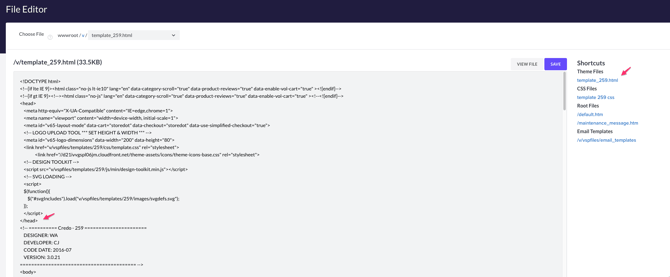
In the **Shortcuts** table on the **Live Edit** page, click **Template\_xx.html** (where "xx" is the number or name of your Volusion store template).
*\*Mistakes happen: We strongly recommend copying all of the code in the file , and pasting that code in a notepad document and saving that document as a backup, this will make it easier to restore if something is done incorrectly.*
In the **Live Edit** window, look through the first section of your template's code to find the closing head tag marked "". You can also use CTRL+F to search for the term "" on the page.
Paste the Google Analytics code into the editor window just above this tag and
click the **Save** button located at the top right of the template HTML file. Your code is now ready to go.
If you have any issues with Google Analytics, please contact Google Support for assistance.
- [Getting started](https://help.volusion.com/s/getting-started?hsLang=en-us)
- [Manage Your Store](https://help.volusion.com/s/manage-your-store?hsLang=en-us)
- [Marketing for Success](https://help.volusion.com/s/marketing-for-success?hsLang=en-us)
- [Volusion Payment Powered by Stripe](https://help.volusion.com/s/volusion-payment-powered-by-stripe?hsLang=en-us)
- [Partner Marketplace](https://help.volusion.com/s/partner-marketplace?hsLang=en-us)
- [Support](https://help.volusion.com/s/support?hsLang=en-us)
- [V1](https://help.volusion.com/s/v1?hsLang=en-us)
- [Security](https://help.volusion.com/s/security?hsLang=en-us)
[](https://volusion.com/)
[mailto:email@email.com](mailto:email@email.com)
Copyright © 2026, Volusion