---
title: Managing Your In-Stock Requests
description: Let customers will know when an item is back in stock so you can make a sale.
---
[Skip to content](https://help.volusion.com/s/managingyourin-stockrequests#main-content)
English - United States
Show submenu for translations

Open main navigation
Close main navigation
- English - United States
Show submenu for translations
- [Contact Us](https://volusion.com/contact)
[Contact Us](https://volusion.com/contact)
Search the Help Center
- There are no suggestions because the search field is empty.
1. [Volusion Help Center](https://help.volusion.com/s?hsLang=en-us)
2. [V1](https://help.volusion.com/s/v1?hsLang=en-us)
# Managing Your In-Stock Requests
**Managing Your In-Stock Requests**
Let customers will know when an item is back in stock so you can make a sale.
Your store can be configured to email customers when an out-of-stock item is back in stock. This feature is managed on the **In-Stock Requests** page of your Admin Area**.** Once you set it up, in-stock requests are processed automatically by your store! Please be aware that In-Stock Requests will not work for Options or Child Products.
**Activating In-Stock Requests**
First, you need to enable in-stock requests in your Admin Area:
1. Go to **Marketing** \> **In-stock Requests**.
2. Click the three-dot actions menu icon and select **"Notify me when back in stock"**.
3. Select the **Enable Back In Stock Requests** check box and click **Save**.
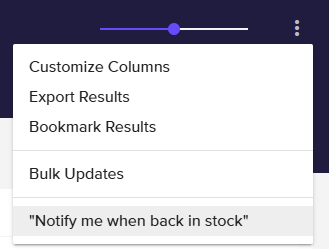
Now you can add additional settings!
**Product Settings**
Now you need to set up the products you want to activate "back-in-stock email notifications for.
1. Go to **Inventory** \> **Products**.
2. Click on the **Product Code** of a product.
3. Under **Advanced Info** \> **Stock**, enter a value into the **Stock Status** field.
4. Enable **Do Not Allow Back Orders**.
5. Under the **Product Display** tab, make sure **Hide Product When Out Of Stock** is not selected.
6. Click **Save**.
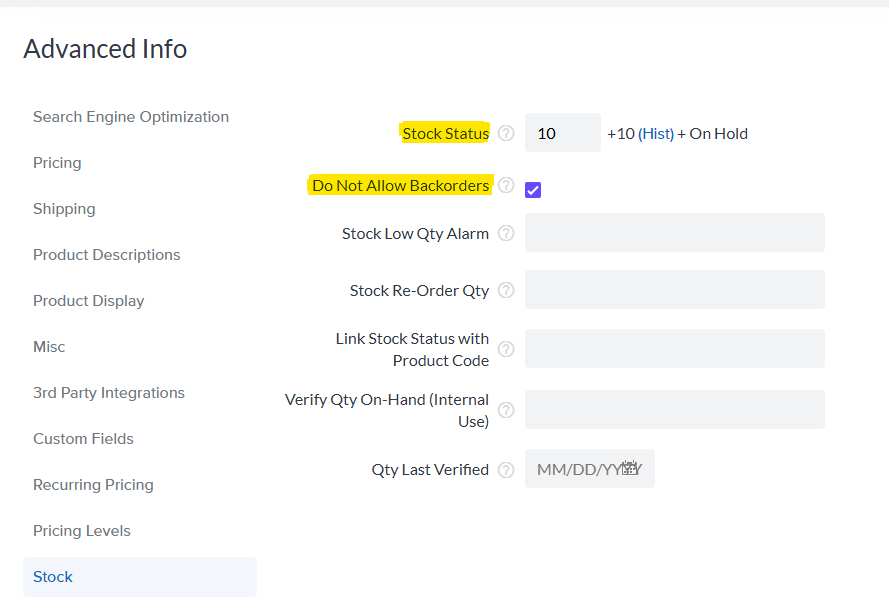
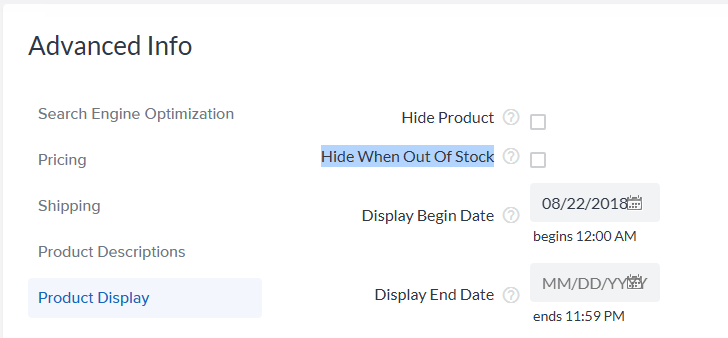
Now the **In-Stock Requests** notification system will be active, and customers can elect to be emailed when items are back in stock!
### **Important Information**
The In-Stock Request function will not work for **[Child Products](https://help.volusion.com/s/howtousetheinventorycontrolgrid?hsLang=en-us)**. A good alternative is to use **[Smart Match](https://help.volusion.com/s/smartmatch?hsLang=en-us)** for your Child Products in order to make sure that if an item is out of stock, your customers will no longer see it as a purchasable option.
- [Getting started](https://help.volusion.com/s/getting-started?hsLang=en-us)
- [Manage Your Store](https://help.volusion.com/s/manage-your-store?hsLang=en-us)
- [Marketing for Success](https://help.volusion.com/s/marketing-for-success?hsLang=en-us)
- [Volusion Payment Powered by Stripe](https://help.volusion.com/s/volusion-payment-powered-by-stripe?hsLang=en-us)
- [Partner Marketplace](https://help.volusion.com/s/partner-marketplace?hsLang=en-us)
- [Support](https://help.volusion.com/s/support?hsLang=en-us)
- [V1](https://help.volusion.com/s/v1?hsLang=en-us)
- [Security](https://help.volusion.com/s/security?hsLang=en-us)
[](https://volusion.com/)
[mailto:email@email.com](mailto:email@email.com)
Copyright © 2026, Volusion