
After you finish building your store, learn how to open your virtual doors to the world.
Once you have chosen and registered your domain name, there are a few steps left to take in order to point your Volusion store to your domain name.
Watch the video below to learn how, or scroll down to read step-by-step instructions.
Step 1: Set Up DNS Hosting
When you register a domain name, your registrar gives you an account that lets you manage what you want to do with the name. The most important decision you can make is where to host the records that map your domain name to your website's actual location on a server (in this case, Volusion's). These records are called DNS (Domain Name System) records, and they serve as the final word whenever anyone needs to find your website by using your domain name.
To establish your DNS host, your registrar gives you a place to enter the host's name server settings. In most cases, registrars also serve as DNS hosts, and the default name server settings will be your registrar's. You can either leave them as they are, or edit them to Volusion's or another third party's. The option you choose should depend on your website setup.
Decisions, decisions...
If your online store is a self-contained website (like most online stores), we recommend hosting your DNS with Volusion. We only recommend hosting DNS with a third party if you already have an established non-ecommerce site and your online store is only a part of your overall web presence. Merchants who don't want to try to recreate the informational-only aspects of their web presence on the Volusion software sometimes find it easier to simply host their store with us on a subdomain and link to that address from their main website.
As an example, you could host your main informational website with a general host at www.domain.com, and run your online store with us on a subdomain such as store.domain.com.
Host DNS With Volusion
To host your DNS records with Volusion, log in to MyVolusion and go to the Manage DNS section. There, make sure your domain name is selected in the Choose a Domain menu at the top. Then, look for the record named after your domain name with the record type of NS. Note the Hostname values:
Place these values in the name server fields provided in your registrar's management panel. In most cases, the values you should use are:
ns1.volusion.com
ns2.volusion.com
ns3.volusion.com
ns4.volusion.com
You may also see these values:
ns5.volusion.com
ns6.volusion.com
ns7.volusion.com
ns8.volusion.com
If your registrar only provides two name servers fields, use the ns3.volusion.com & ns4.volusion.com in the first scenario, and ns7.volusion.com & ns8.volusion.com in the second scenario. For assistance locating and editing your domain's name server input fields, contact your registrar.
Please be aware that it can take up to 72 hours for your DNS hosting assignment to take effect.
Host DNS With a Third Party
If you're hosting your Volusion ecommerce site on a subdomain, or if you prefer to use a different DNS host for other reasons, you'll have to contact that party to obtain their name server settings. Following the example in the subsection above, enter those settings in your account with your registrar (if you want to use your registrar as your DNS host, this step may already be taken care of by default).
Please be aware of the following benefits of hosting DNS with Volusion:
-
We offer state-of-the-art DNS record management with Google Cloud Platform. It meets or exceeds the needs of the vast majority of small-to-medium-sized ecommerce businesses.
-
When you assign us as your DNS host, your DNS records are set up by default (you get to skip Step 2 below).
-
In some cases our IT team may change the location of your website on our servers, resulting in a new IP address. When this happens, we automatically update DNS records for websites that we provide DNS hosting for. If you host DNS with a third party, you'll have to update your DNS records with that party to reflect the changes we make.
If you host your DNS records with Volusion, this step is already taken care of for you. Skip to Step 3 below.
If you host with a third party, you'll need to access the DNS record management panel they provide and create the records outlined below.
The functionality of the management panel for every DNS host is a bit different, but the general principles remain the same. Records are composed of a name, a type, and a hostname or record data. The records you should create depend on whether you're hosting a "www." address or a different subdomain, such as "store."
Setup for "www." Addresses
To host DNS for a "www." address with a third party, create both of the following records:
Record One
name: www
type: CNAME
hostname / record data: (your temporary hostname)
Record Two
name: (your domain name without the subdomain included, such as "domain.com")
type: A
hostname / record data: (your IP address)
You can find your temporary hostname by logging in to your Admin Area, going to Settings > Company, and looking in the Domain Name menu for the Temporary Hostname value.
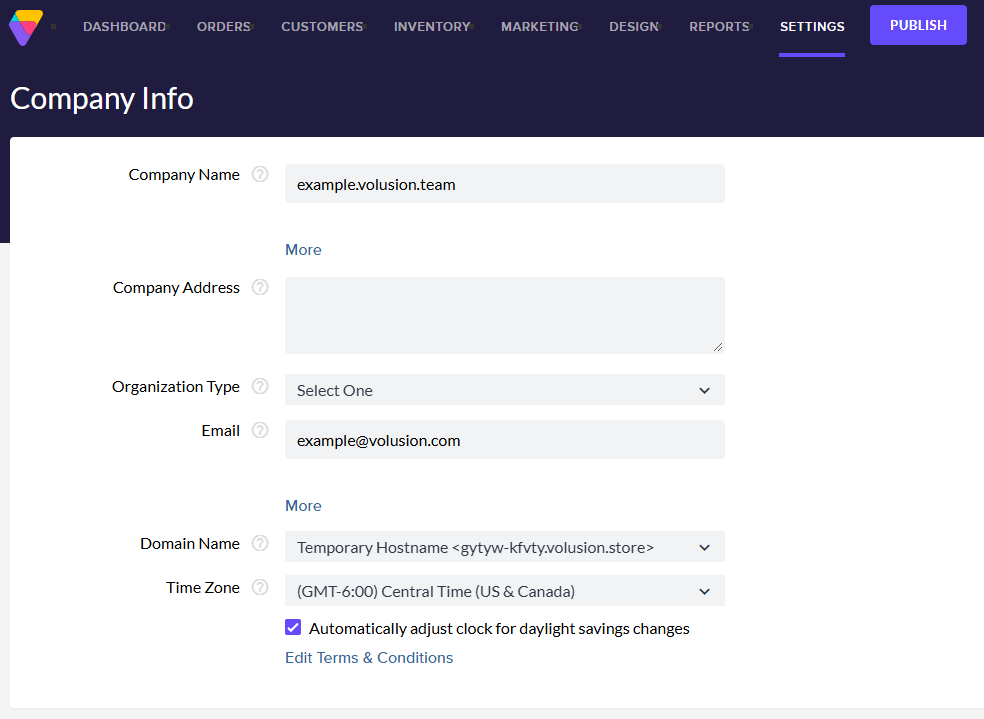
If you haven't yet taken Step 3 below, this address will also display in your browser's address bar. Enter it in your DNS host's management panel in the following format:
xxxxx-xxxxx.volusion.store
Note that some DNS hosts require a trailing period character (".") at the end of the some or all record values. Contact your DNS host for further information or assistance.
Your IP address is a string of digits and dots that represents your website's actual location on a server. To obtain your IP address, contact our Support team.
Please understand that this value may change without warning or notification. In these cases, contact us to obtain the new value. Your website accessibility may be impacted until you update your A record with your new IP address in your DNS host's management panel.
Be advised that it can take as long as a day for new DNS records to function properly.
Setup for Other Subdomains
Create the following record:
name: (your subdomain, such as "store")
type: CNAME
hostname / record data: (your temporary address)
You can find your temporary address by logging in to your Admin Area, going to Settings > Company, and looking in the Domain Name menu for the Temporary Hostname value.
If you haven't yet taken Step 3 below, this address will also display in your browser's address bar. Enter it in your DNS host's management panel in the following format:
xxxxx-xxxxx.volusion.storeNote that some DNS hosts require a trailing period character (".") at the end of the some or all record values. Contact your DNS host for further information or assistance.
Be advised that it can take as long as a day for new DNS records to function properly.
If you've taken the first two steps above and allowed enough time to pass (usually 24-48 hours), you're almost there.
If this is your first time publishing your store on its domain, before going further on in this process you will need to contact our Support team and request that you are ready to bring your site live on its domain.
Our team will make necessary changes on our side, and we will follow up with you directly letting you know you are ready to publish your site on it's domain.
Once you have received confirmation that your store is ready to be published on the domain name, you can follow these last steps:
-
Log in to your Admin Area.
-
Go to Settings > Company.
-
In the Domain Name menu, switch your selection from Temporary Hostname to Domain Name.
-
Click Save.
Your store is now live.
You can test by visiting your web address yourself. Once you've verified that it's working, let the world know and get ready to process orders.