---
title: Gift Certificates
description: Learn more about Gift Certificates in this guide.
---
[Skip to content](https://help.volusion.com/s/giftcertificates#main-content)
English - United States
Show submenu for translations

Open main navigation
Close main navigation
- English - United States
Show submenu for translations
- [Contact Us](https://volusion.com/contact)
[Contact Us](https://volusion.com/contact)
Search the Help Center
- There are no suggestions because the search field is empty.
1. [Volusion Help Center](https://help.volusion.com/s?hsLang=en-us)
2. [V1](https://help.volusion.com/s/v1?hsLang=en-us)
# Gift Certificates
#### Gift Certificates - First Time Setup
**Config Variables**
Before creating a gift certificate for the first time, you'll have to set up a few things:
1. Go to Settings \> Config Variables.
2. Perform a search for the term "gift".
3. Make sure **Enable Gift Certificates** is selected. If it isn't, check the box and **Save**.
4. Perform a search for the term "price".
5. Make sure **Enable Price Edit** is selected. If it isn't, check the box and **Save**.
Create the Gift Certificate product
1. Go to Inventory \> Products.
2. Click **Add** to create a new product.
3. Enter **Gift Certificate** in the Name field.
4. Enter the product code **GFT**. This product code is case-sensitive.
5. In the Pricefield, enter **0.00.**
6. In the Weight field, enter **0**.
7. Under Advanced Info \> Pricing, select **N** from the Taxable Product dropdown menu.
8. Under Advanced Info \> Misc, select **Allow Price Edit**.
9. Click **Save**.
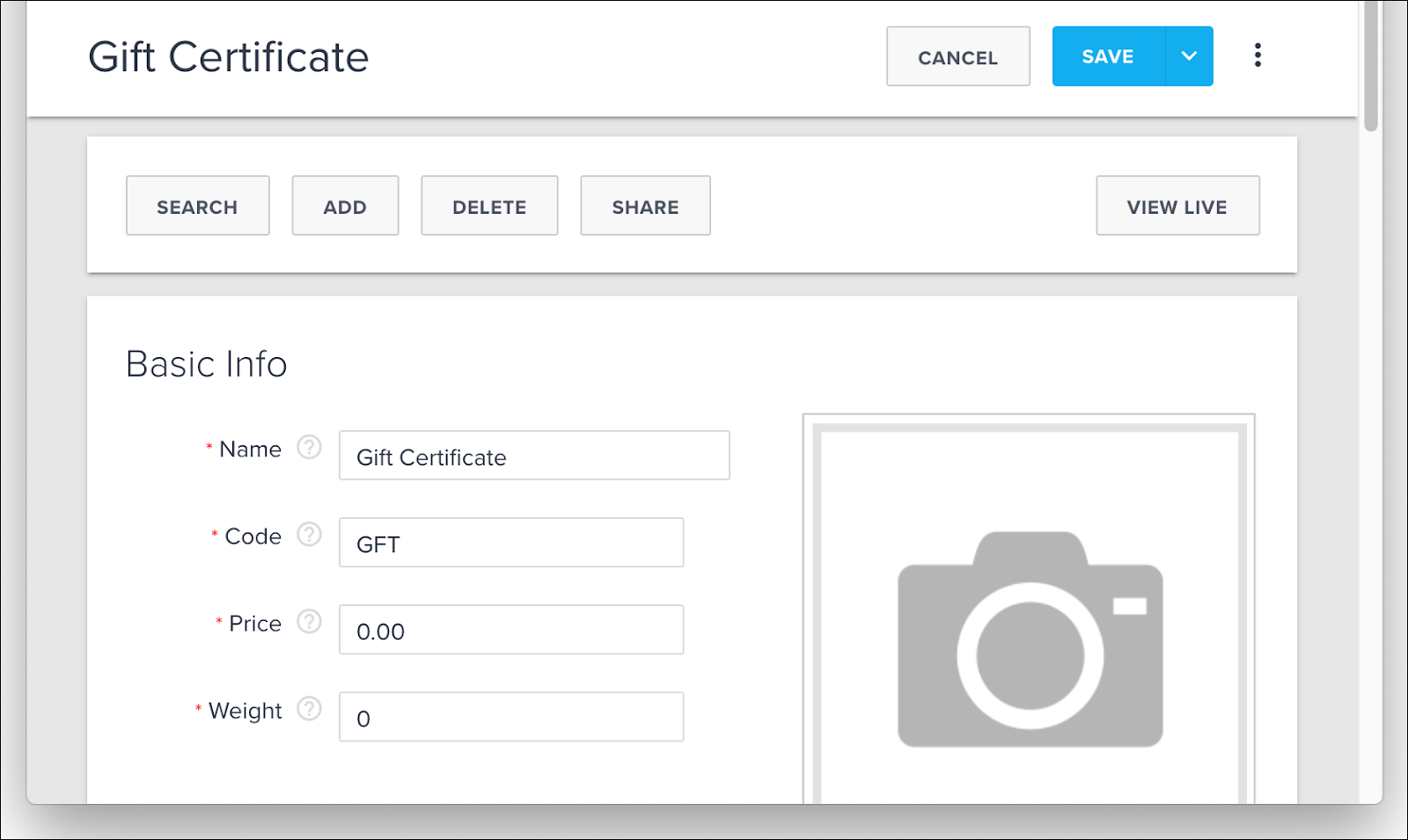
The gift certificate will now appear on your storefront like any other product.
**Optional: Add Product Details**
After you save your gift certificate, add other product details such as a description, categories, and product image.
#### How to Use Gift Certificates
**When a Customer Orders a Gift Certificate...**
The customer will click **Add to Cart** on the gift certificate product page. On the next page, they will choose whether they want an electronic gift certificate delivered via email or a printed one delivered by mail.
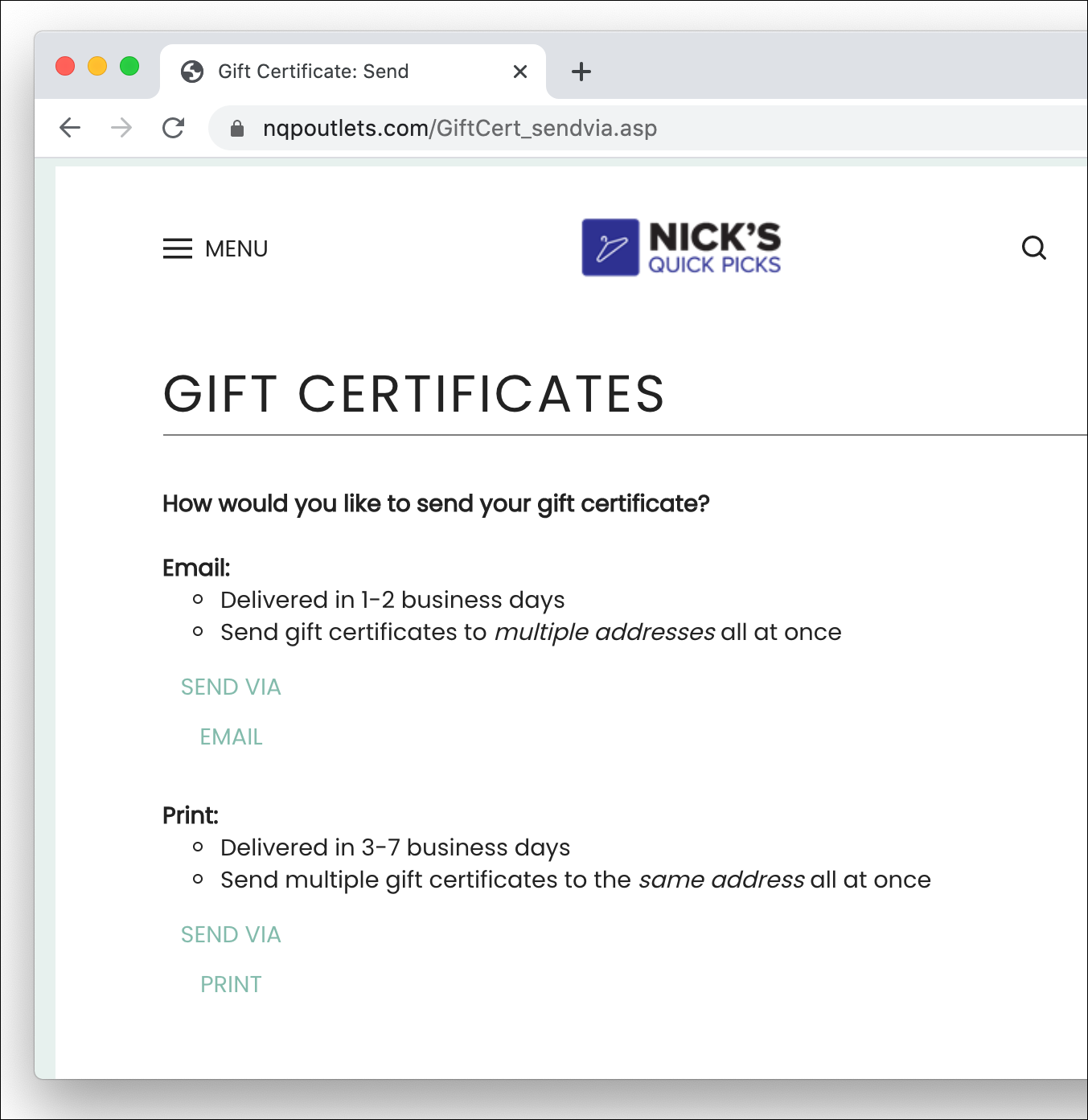
After choosing **SEND VIA EMAIL** or **SEND VIA PRINT**, the customer enters their gift certificate details:
- The certificate value
- The number of certificates they want to order
- Gift certificate recipients name
- Gift certificate senders name
- A brief message
- Delivery email addresses (appears for email gift certificates only)
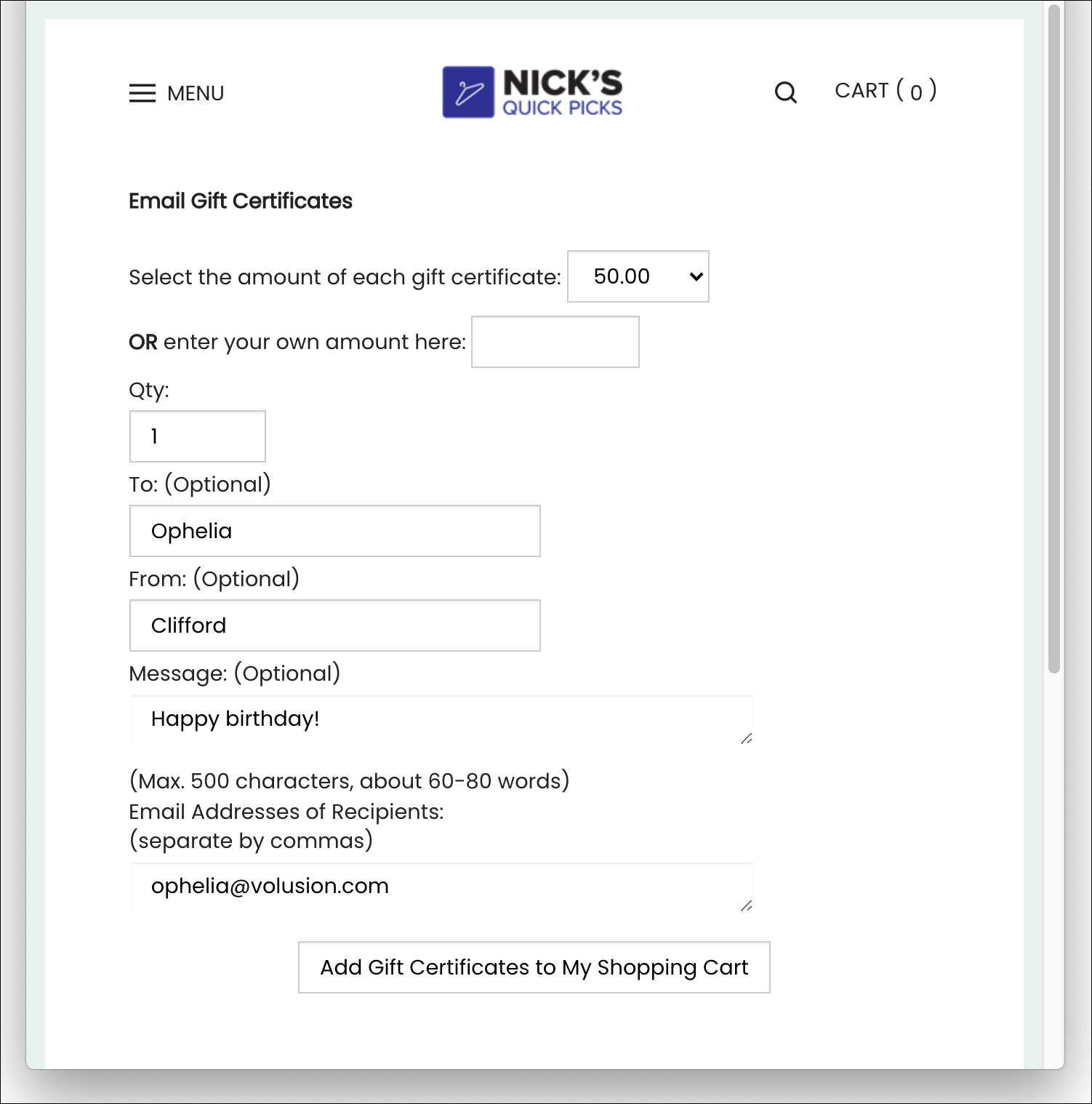
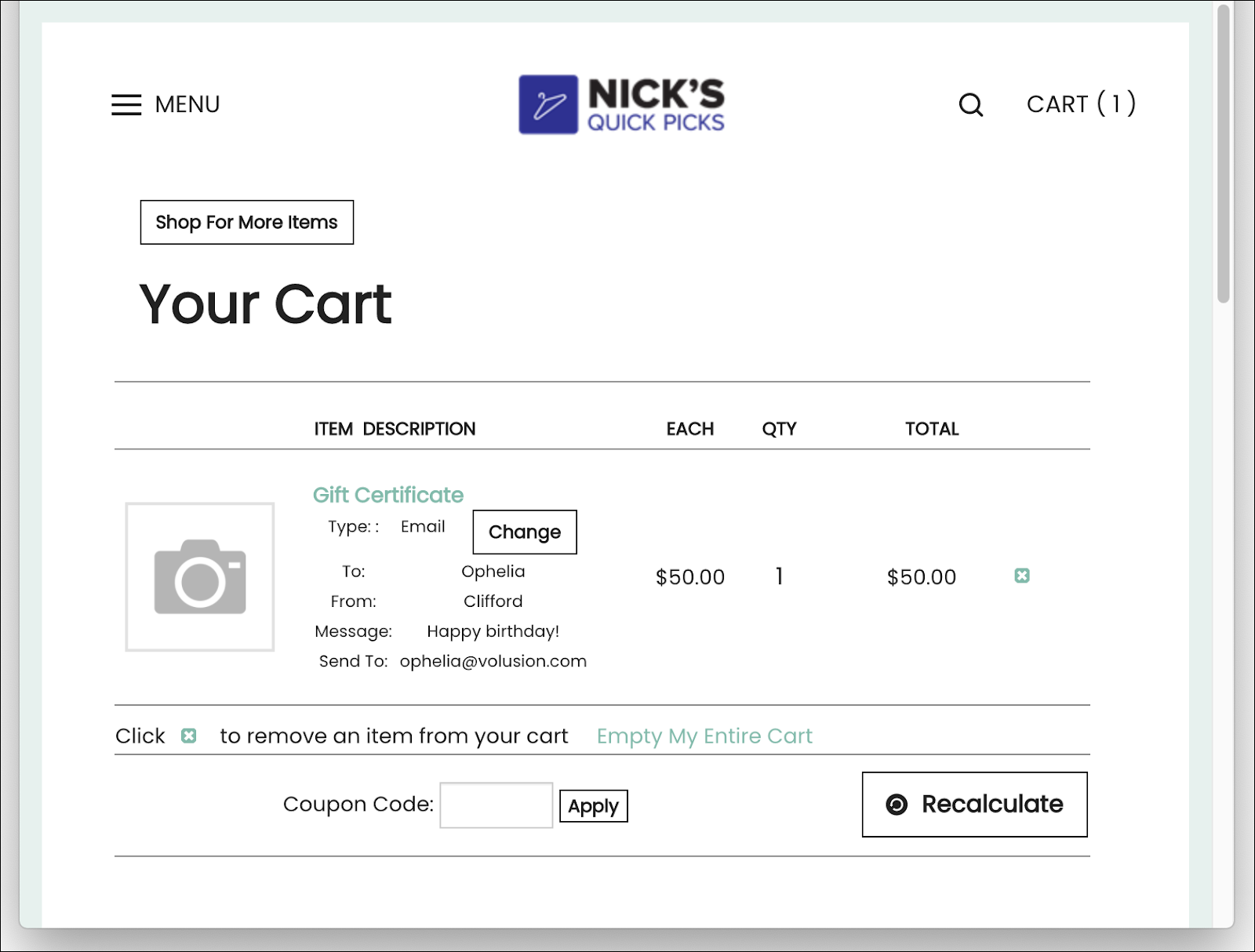
The customer will click **Add Gift Certificates to My Shopping Cart**. They will then be returned to the shopping cart containing their gift certificate.
**How to Process a Gift Certificate Order**
As the merchant, youll process gift certificate orders within the Orders \> Process Orders menu in your Admin Area.
Electronic gift certificates will be emailed to their recipients once you click the **Complete Order** button at the top of the Order Details page. Printed gift certificates can printed by clicking the link **PRINT COPY OF GIFT CERTIFICATES** in the Details section.
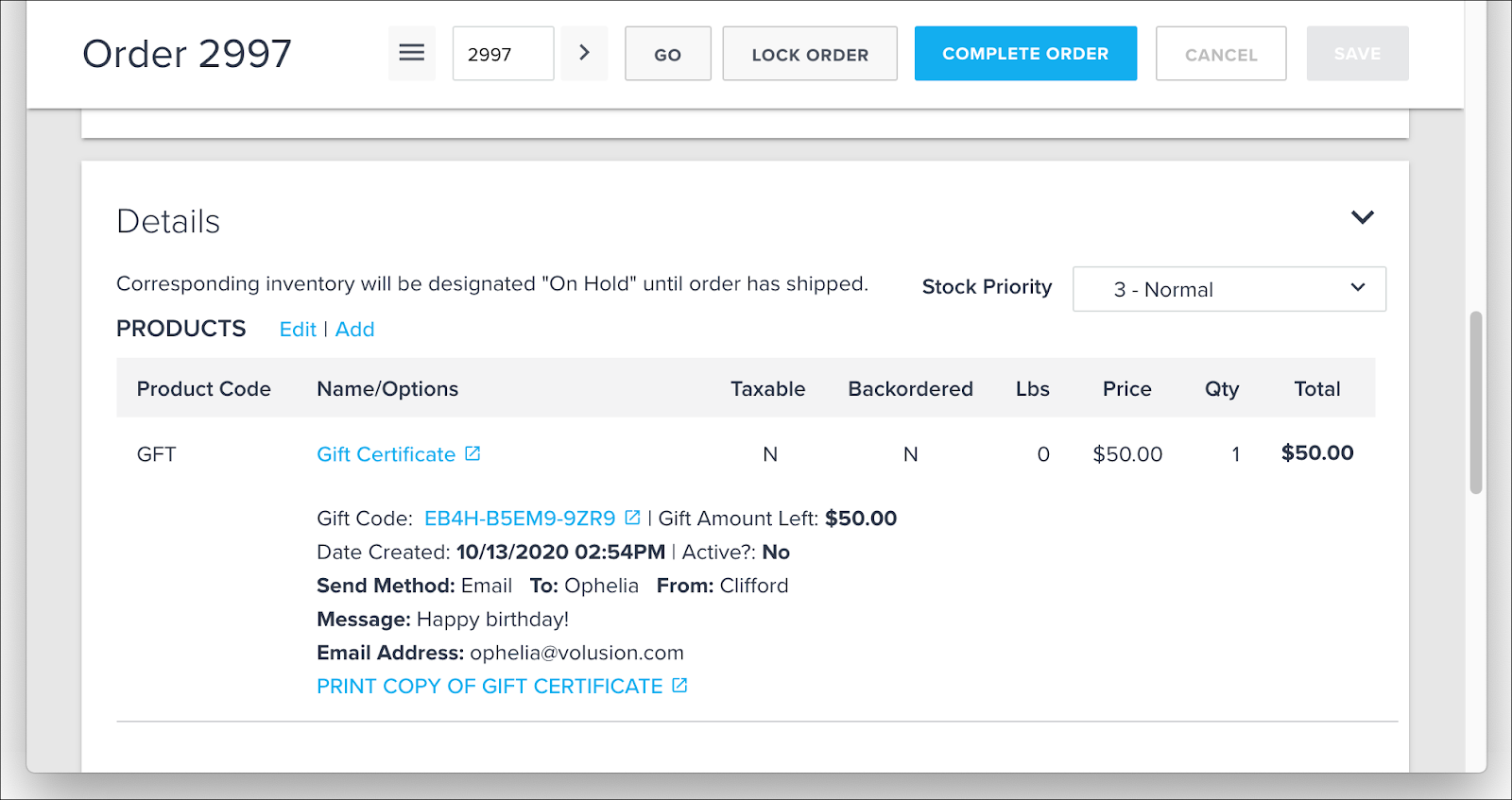
Email and Printed gift certificates cannot be used by a customer until you click **Complete Order** to mark the gift certificate as Active. View the status of your store gift certificates by navigating to Marketing \> Gift Certificates.
**How to Resend the Gift Certificate Email**
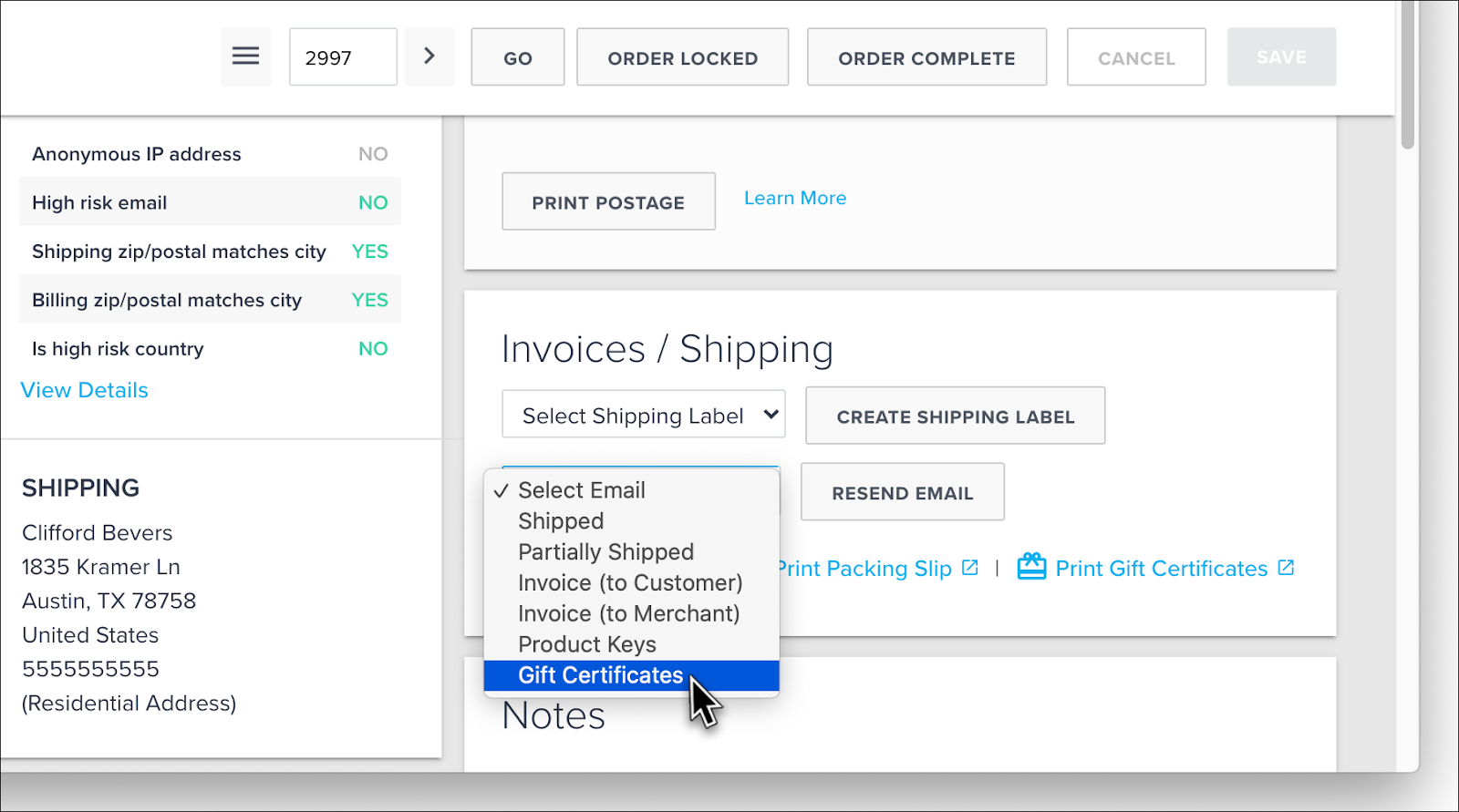
If the recipient needs their Gift Certificate email resent, locate the Invoices / Shipping section at the top of the order details page. Select **Gift Certificates** from the Select Email drop-down and click **Resend Email**.
**How a Recipient Redeems a Gift Certificate**
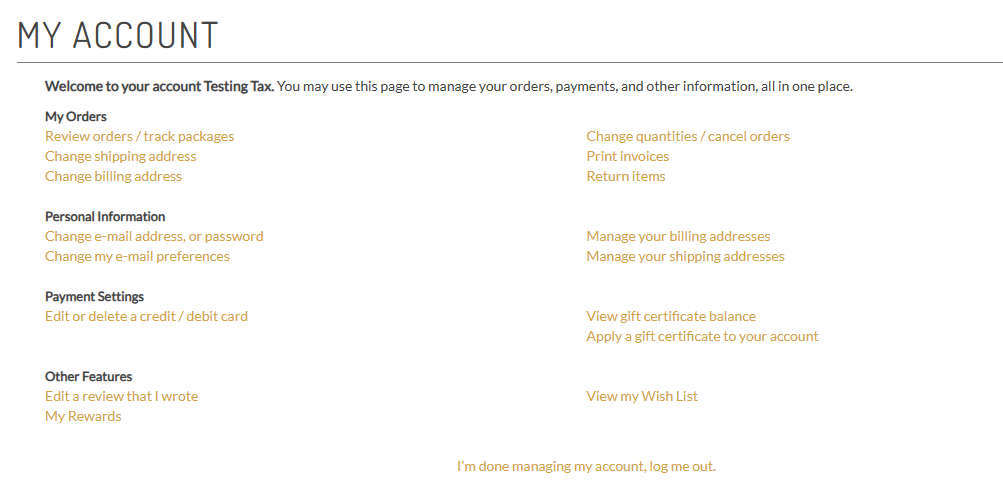
To redeem a gift certificate, the recipient must have an account on your store. Login to the account and click the link **Apply a gift certificate to your account** under the section Payment Settings.
On the next page, the recipient will enter the 13 digit gift certificate code and click **Apply**. The gift certificate will be applied to the recipient's account.
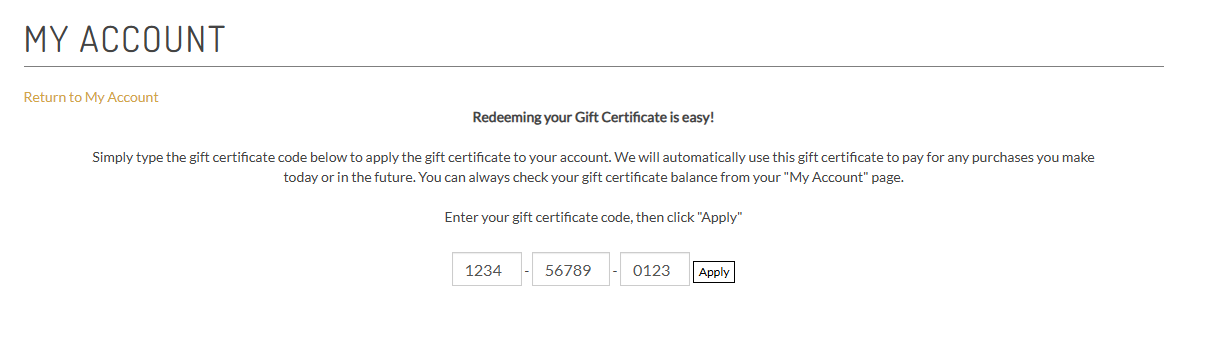
Your customers can also reach the redemption page from your storefront by typing **/redeem** at the end of the domain name in the address bar.
**How a Customer Uses a Gift Certificate for a Purchase**
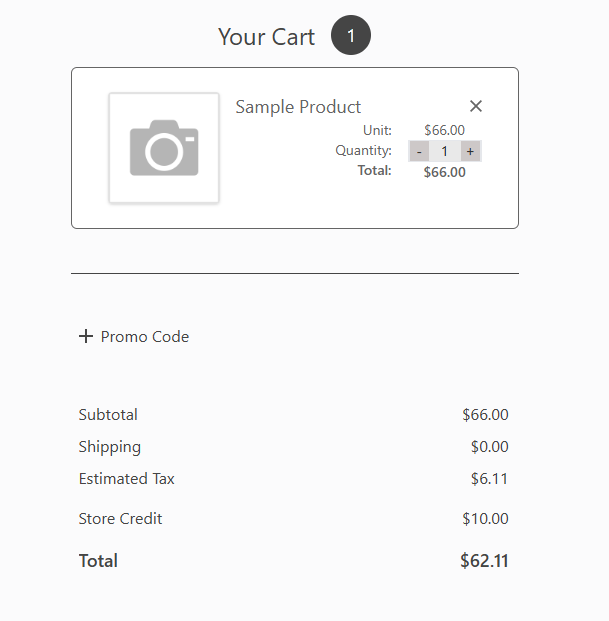
After a gift certificate is applied to an account, that credit is applied automatically to the account's next purchases until the credit runs out. The gift certificate credit will be listed on the checkout page when it is applied to the order.
**Remove the Print Option**
If you'd like to remove the gift certificate print option from your store, follow these steps:
1. In your Admin Area, go to Design \> Page Text.
2. From the Categorymenu, select **GiftCert**.
3. In article IDs **190**, **192**, and **194**, add to the end. This will hide the printed gift certificate option on your storefront. (examples below)
4. Press **Save**.
The page text articles mentioned above should appear in the manner below.
ID # 190
```
```
ID # 192
```
```
ID # 194
```
```
Importing Gift Certificates
To learn about importing gift certificates into your store, see the article [How to Import Gift Certificates](https://help.volusion.com/s/howtoimportgiftcertificates?hsLang=en-us).
- [Getting started](https://help.volusion.com/s/getting-started?hsLang=en-us)
- [Manage Your Store](https://help.volusion.com/s/manage-your-store?hsLang=en-us)
- [Marketing for Success](https://help.volusion.com/s/marketing-for-success?hsLang=en-us)
- [Volusion Payment Powered by Stripe](https://help.volusion.com/s/volusion-payment-powered-by-stripe?hsLang=en-us)
- [Partner Marketplace](https://help.volusion.com/s/partner-marketplace?hsLang=en-us)
- [Support](https://help.volusion.com/s/support?hsLang=en-us)
- [V1](https://help.volusion.com/s/v1?hsLang=en-us)
- [Security](https://help.volusion.com/s/security?hsLang=en-us)
[](https://volusion.com/)
[mailto:email@email.com](mailto:email@email.com)
Copyright © 2026, Volusion