
If you've been entering information on an admin page and clicking Save or Update, you may encounter a message that looks like this:
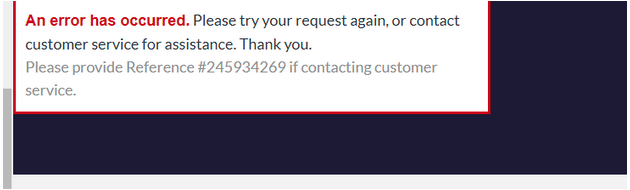
Don't worry - you didn't lose your data. Most likely, you've entered a character in a field that doesn't accept it, and with a couple of steps, you can get back to work:
-
Hit the Back button on your browser or right-click on the page and select Back from the pop-up menu
-
Look closely at the entries you made to the page, keeping an eye peeled for potential problems such as:
-
Extraneous periods in price or dimension fields (for example, 9..99)
-
"kg", "lb" or "oz" in weight fields (these must be numeric only)
-
Currency symbols in price fields (for example, $5.99)
-
Non-existent dates (for example, 33/11/2009)
-
Alphabetic characters in numeric fields (numeric fields are pale blue or green)
3. When you've corrected the error, click Save or Update again
If you get the same error message, double-check the fields again. You may be surprised at how easily mistakes can happen when you've been entering data all day.
The Bigger, The BetterIf you're struggling with errors, you might consider making your text bigger using our Zoom feature (View > Zoom > Zoom In in Firefox, View > Text Size > Largest in Internet Explorer). Or if you have a spreadsheet program such as Excel, consider importing your data using a spreadsheet. (See "Import / Export" for more information.)
SummaryThe best thing to remember when you encounter a 500 Internal Server Error is that it's totally common and easily fixable. Double-check your data entry and see if a simple mistake may be the culprit. If you still find yourself struggling, our customer support team is only a call or click away.