---
title: 2. Design Your Storefront
description: The better your store looks, the more your customers will enjoy their shopping experience. Learn about design basics here.
---
[Skip to content](https://help.volusion.com/s/2designyourstorefront#main-content)
English - United States
Show submenu for translations

Open main navigation
Close main navigation
- English - United States
Show submenu for translations
- [Contact Us](https://volusion.com/contact)
[Contact Us](https://volusion.com/contact)
Search the Help Center
- There are no suggestions because the search field is empty.
1. [Volusion Help Center](https://help.volusion.com/s?hsLang=en-us)
2. [V1](https://help.volusion.com/s/v1?hsLang=en-us)
# 2. Design Your Storefront
**2. Design Your Storefront**
The better your store looks, the more your customers will enjoy their shopping experience. Learn about design basics here.
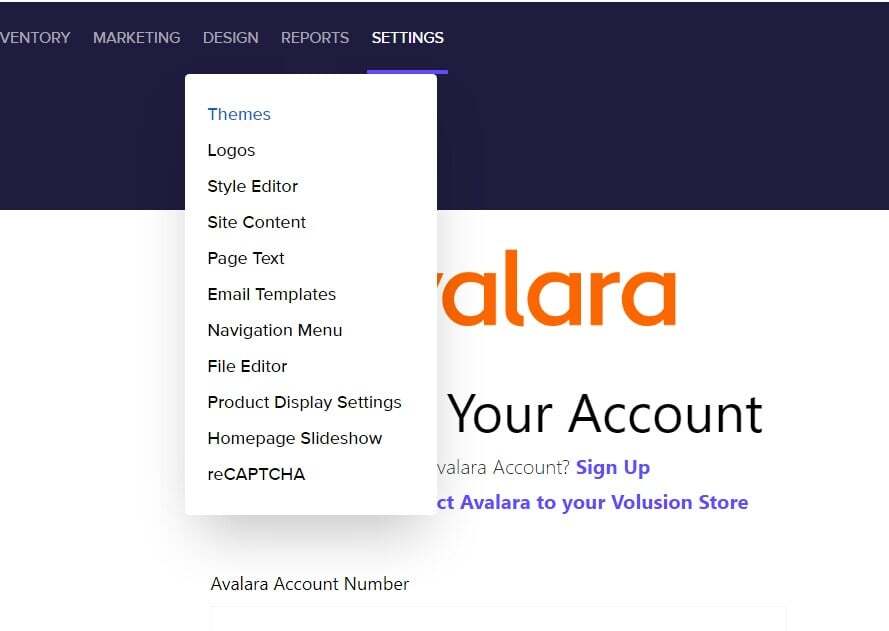
The first step in setting up your store is choosing a look and feel that fits your business. Visit your store's Theme Gallery at **Design** \> **Themes** to view free themes and premium themes available for purchase.
If you already have a special vision for a one-of-a-kind storefront, our **[expert design team](https://volusion.com/marketing360)**would be happy to build you a custom theme!
Once you're viewing the Theme Gallery, you can search for a specific theme or use the filter categories on the left to narrow your results and find the perfect design. Click on a theme to see it in greater detail.
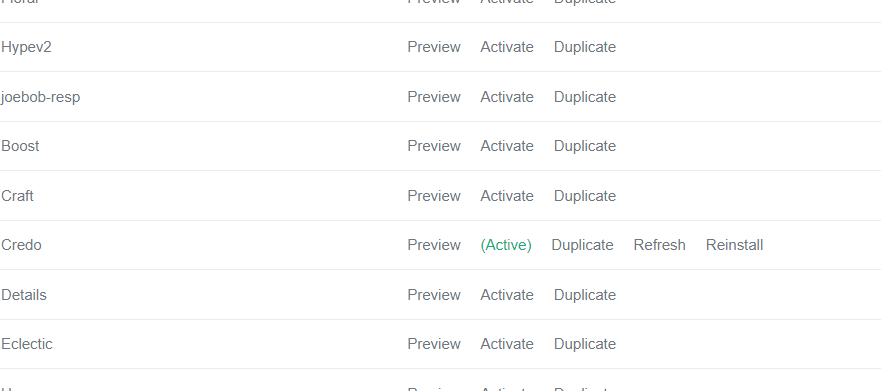
The theme that is currently in use on your storefront is called the Active Template, and displays in the **Active Template** tab at **Design** \> **Themes**.
Install a Theme
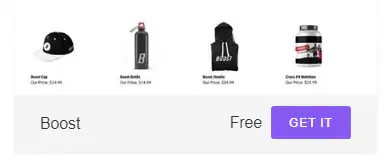
You can install and try out as many free themes as you'd like. To install a free theme, simply click **Get It** from the Theme Gallery or the theme's detail page.
Click **Activate Now** andthe new theme will be applied to your store.
To use a premium theme, click **Buy** and complete the checkout process. An Implementation Specialist will send you an email with instructions for installing your new theme.
See the **[Themes](https://volusion.com/features/themes)** article for a deeper look at downloading, backing up, and modifying your store theme.
**Your Homepage Slideshow or Main Image**
Once you've installed your theme, you can customize it by adding a slideshow or personalizing the main homepage image. Your homepage is the first thing most customers will see, so the main image(s) you choose to display will set the tone for the rest of your site.
Your slides or main image should the same width as the default image for the theme you've chosen. Because each Volusion theme is unique, the image widths can range from 936 to 2600 pixels. You can check the dimensions for your theme in the article **[Slideshow Image Dimensions for Your Theme](https://help.volusion.com/s/homepageslideshowimagedimensionsforyourtheme?hsLang=en-us)**.
Once you have your images formatted to the appropriate size, you can upload them through your Admin Area at **Design** \> **Homepage Slideshow**. See Homepage Slideshow and Main Image for additional instructions and settings.
**Your Logo**
When you're ready to add your logo to your storefront, you have two choices: you can add a graphic logo in the form of an image file, or if you don't have a graphic logo yet, you can display your store name as text in place of a graphic logo.
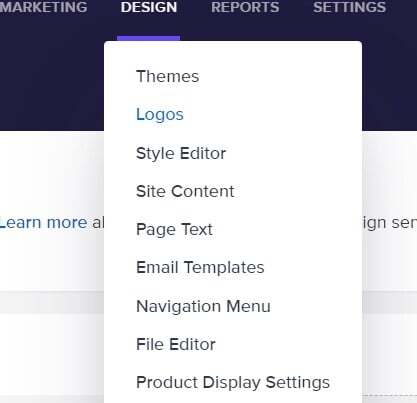
To get started, go to **Design** \> **Logos**.
**Adding a Graphic Logo**
To upload a graphic logo to your storefront:
1. Under **Website Logo**, select **Graphic** .
2. Drag an image file from your computer into the drop zone, or hover over the drop zone and click the **Upload** icon to find the image on your computer. Image files must be .PNG, .GIF, or .JPG format.
3. Once you've dragged or selected an image file, click **Yes** if you'd like the software to resize the image for your mobile and invoice logos, or click **No** if you'd rather upload different images for these logos.
**Don't Have a Graphic Logo?**
To use text in place of a graphic logo:
1. Under **Website Logo**, select **Text**.
2. Enter the exact text -- up to 255 characters --as it should appear on your storefront.
3. Click **Apply**.
If you don't have a logo yet, **[our expert designers can create one for you](https://volusion.com/marketing360/)**. For a more detailed look at all the logo options, including how to add your logo to invoices, emails, mobile storefront, and more, see our **[Logos](https://help.volusion.com/s/logos?hsLang=en-us)** article in the Knowledge Base.
- [Getting started](https://help.volusion.com/s/getting-started?hsLang=en-us)
- [Manage Your Store](https://help.volusion.com/s/manage-your-store?hsLang=en-us)
- [Marketing for Success](https://help.volusion.com/s/marketing-for-success?hsLang=en-us)
- [Volusion Payment Powered by Stripe](https://help.volusion.com/s/volusion-payment-powered-by-stripe?hsLang=en-us)
- [Partner Marketplace](https://help.volusion.com/s/partner-marketplace?hsLang=en-us)
- [Support](https://help.volusion.com/s/support?hsLang=en-us)
- [V1](https://help.volusion.com/s/v1?hsLang=en-us)
- [Security](https://help.volusion.com/s/security?hsLang=en-us)
[](https://volusion.com/)
[mailto:email@email.com](mailto:email@email.com)
Copyright © 2026, Volusion